Introduction
This manual provides detailed instructions for the proper use and maintenance of your ORDRO AC3 4K Ultra HD Vlog Camera. Please read this manual thoroughly before operating the device to ensure optimal performance and longevity.
Package Contents
Verify that all items listed below are included in your package:
- ORDRO AC3 4K Camcorder
- Microphone
- Lens Hood
- Wide Angle Lens
- Lens Cover
- Handheld Stabilizer
- Card Reader (Color may vary)
- Battery Charger
- USB Cable
- 1 to 2 USB/MIC Adapter Cable
- HDMI Cable
- SD Card (32GB)
- Remote Control
- NP-120 Lithium Battery (2 included)
- User Manual
- Camcorder Bag and Strap

Image: All components included in the ORDRO AC3 4K Camcorder package.
Setup
1. Battery Installation and Charging
- Open the battery compartment cover located on the bottom of the camcorder.
- Insert the NP-120 Lithium Battery, ensuring the contacts align correctly. Close the cover.
- Connect the camcorder to the battery charger using the USB cable, then plug the charger into a power outlet. The charging indicator will illuminate.
- Allow the battery to fully charge before first use. The camcorder supports charging while in use.
2. SD Card Installation and Formatting
- Locate the SD card slot, typically on the side or bottom of the camcorder.
- Insert the 32GB SD card until it clicks into place.
- Important: For first-time use, format the SD card within the camcorder's settings menu. This ensures compatibility and optimal performance.
3. Attaching Accessories
- Microphone: Attach the external microphone to the hot shoe mount on top of the camcorder and connect the audio cable to the microphone input port.
- Wide Angle Lens: Screw the wide-angle lens onto the front of the camcorder's main lens. This expands the field of view.
- Lens Hood: Attach the lens hood to the wide-angle lens or main lens to reduce glare and protect the lens.
- Handheld Stabilizer: Mount the camcorder onto the handheld stabilizer for improved stability during recording.

Image: The ORDRO AC3 camcorder fully assembled with its external microphone and handheld stabilizer.
Operating Instructions
1. Power On/Off and Basic Recording
- Press and hold the Power button to turn the camcorder on or off.
- To start recording, press the Record button. The recording indicator will light up.
- To stop recording, press the Record button again.
2. Pause Function
The camcorder features a pause function, allowing you to temporarily stop recording and resume within the same file. This is useful for editing and uploading.
- During recording, press the PHOTO button to pause. A pause icon will appear on the screen.
- Press the PHOTO button again to resume recording. The recording will continue in the same file.

Image: Illustration of the pause function, showing how to pause and resume recording within a single video file.
3. Infrared Night Vision
Activate the infrared night vision mode for recording in low-light or dark conditions. This mode captures clear black and white video and photos.
- Refer to the camcorder's menu for the specific setting to enable IR Night Vision.
- In IR mode, images will be recorded in black and white.

Image: A visual comparison demonstrating the effectiveness of infrared night vision in dark environments, showing a cat in both normal and IR modes.
4. Wi-Fi Wireless Remote Control
Control your camcorder remotely using the "D Video" app on your smartphone or tablet via Wi-Fi.
- Download the "D Video" app from your device's app store.
- Enable the Wi-Fi function on your camcorder through its settings menu. The Wi-Fi name and password will be displayed on the camcorder screen.
- Connect your smartphone or tablet to the camcorder's Wi-Fi network.
- Open the "D Video" app to remotely view, capture, and shoot videos.
- Note: The effective Wi-Fi distance is approximately 9.8 feet (3 meters). The camcorder's Wi-Fi cannot connect to a router.

Image: A user demonstrating remote control of the camcorder via a smartphone app, highlighting Wi-Fi monitoring and remote shooting capabilities.
5. Using as a Webcam
The camcorder can function as a webcam for video calls or live streaming on platforms like YouTube or Skype.
- Connect the camcorder to your computer using the provided USB cable.
- On the camcorder's screen, select the "PCAM" mode.
- Your computer should now recognize the camcorder as a webcam.
6. Connecting to TV or PC
View your recorded videos and photos on a larger screen by connecting the camcorder to a TV or computer.
- HDMI Connection (for TV): Use the HDMI cable to connect the camcorder to an HDMI input on your TV. Select the corresponding HDMI input on your TV to view content in Full HD. For 4K effect, it is recommended to play videos directly from the SD card on a 4K TV using a card reader.
- USB Connection (for PC): Use the USB cable to connect the camcorder to your computer. The camcorder will appear as a removable drive, allowing you to transfer files.

Image: A diagram illustrating how to connect the ORDRO AC3 camcorder to a television using an HDMI cable and to a personal computer using a USB cable.
7. Using the Wide Angle and Macro Lenses
The included 0.39X wide-angle lens expands your shooting perspective, and it includes a macro lens for close-up shots.
- Wide Angle Lens: Screw the wide-angle lens onto the camcorder's main lens. This is suitable for capturing broader scenes. Ensure the shooting distance is 1.5 meters or more for optimal focus.
- Macro Lens: The macro lens is integrated into the wide-angle lens. To use it, unscrew the top part of the wide-angle lens. The macro lens is ideal for close-up shots (4-5 cm shooting range).
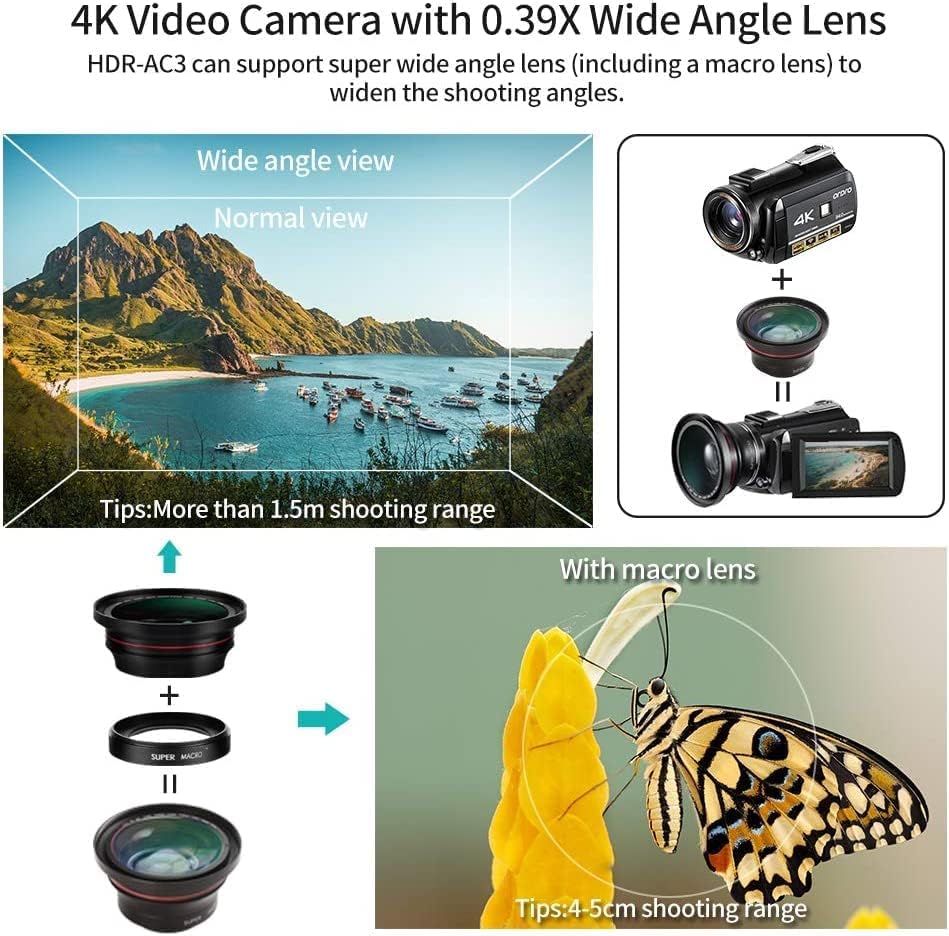
Image: An illustration demonstrating the application of the wide-angle lens for broader views and the macro lens for detailed close-up photography, such as a butterfly.
Maintenance
- Keep the camcorder and its accessories clean. Use a soft, dry cloth for cleaning the body.
- For the lens, use a specialized lens cleaning cloth and solution. Avoid touching the lens surface with bare hands.
- Store the camcorder in a cool, dry place away from direct sunlight and extreme temperatures.
- Remove the battery if the camcorder will not be used for an extended period.
- Ensure the lens cover is on when not in use to protect the lens from dust and scratches.
Troubleshooting
| Problem | Possible Solution |
|---|---|
| Camcorder does not power on. | Ensure the battery is correctly inserted and fully charged. Try charging the battery. |
| Poor image/video quality. | Check lens cleanliness. Ensure adequate lighting. Verify focus settings. For 4K playback, use a 4K TV and play directly from the SD card. |
| SD card error. | Format the SD card in the camcorder's settings. Ensure the SD card is inserted correctly. Try a different compatible SD card. |
| Wi-Fi connection issues. | Ensure you are within 9.8 feet (3 meters) of the camcorder. Confirm the "D Video" app is installed and Wi-Fi is enabled on the camcorder. |
| Remote control not working. | Ensure the remote control's battery is functional. The remote signal is received from the front of the lens; remove the wide-angle lens if it obstructs the signal. |
If you encounter issues not covered here, please contact ORDRO customer support for assistance.
Specifications
Below are the technical specifications for the ORDRO AC3 4K Camcorder:

Image: Detailed technical specifications for the ORDRO AC3 4K Camcorder, including sensor type, resolution, battery life, and connectivity.
| Feature | Detail |
|---|---|
| Brand | ORDRO |
| Model | AC3-SET4 |
| Color | Black |
| Product Type | Handheld Camcorder |
| Screen | 3.1 inches LCD |
| Image Stabilization | Handheld Stabilizer (external accessory) |
| Connectivity Technology | USB, Wi-Fi |
| Battery Type | Lithium-ion (NP-120) |
| Video Resolution | UHD(4K): 3840x2160(30fps), QHD(2K): 2560x1440(30fps), FHD(1080P): 1920x1080(30fps), HD(720P): 1280x720(30fps/120fps) |
| Photo Sensor Technology | CMOS (13MP SONY High Sensitivity) |
| Max Focal Length | 100 Millimeters |
| Max Aperture | 22 f |
| Flash Memory Type | SDXC (Max. 256GB) |
| Video Capture Format | MP4 |
| Supported Audio Format | AAC |
| Night Vision Distance | 3.5 Meters |
| Dimensions (L x W x H) | 12.8 x 6.8 x 7 cm |
| Weight | 1.64 Kilograms (approx. 370g for camera body) |
Warranty and Support
For any product-related issues or inquiries, please contact ORDRO customer service. The manufacturer is committed to providing satisfactory after-sales support.
You can visit the official ORDRO store for more information or to contact support:


