
DTEN DBA0027EA
DTEN ME Zoom for Home Personal Video Collaboration Device User Manual
Model: DBA0027EA
1. Introduction
The DTEN ME is an all-in-one 27-inch personal video collaboration device designed for home and office environments. It integrates a high-definition camera, a microphone array, and speakers, providing a comprehensive solution for video meetings, phone calls, interactive whiteboarding, and annotation. This device is optimized for the Zoom for Home experience, offering a streamlined and clutter-free workspace.

Image: The DTEN ME device showcasing its primary Zoom for Home interface, including scheduled meetings and quick access buttons for various collaboration functions.
Video: An overview of the DTEN ME device, highlighting its features and capabilities as a personal collaboration tool for Zoom for Home. This video demonstrates its use for video meetings, phone calls, interactive whiteboarding, and its ability to replace multiple desktop peripherals.
2. Setup
Setting up your DTEN ME device is designed to be straightforward. Follow these steps to get started:
- Unpack the Device: Carefully remove the DTEN ME from its packaging.
- Position the Device: Place the device on a stable, flat surface such as a desk or table. Ensure adequate ventilation around the unit.
- Connect Power: Plug the power adapter into the DTEN ME and then into a wall outlet. The device will power on automatically.
- Network Connection: Connect an Ethernet cable to the network port on the DTEN ME for a stable internet connection. Alternatively, you can configure Wi-Fi during the initial setup process on the device screen.
- Initial Configuration: Follow the on-screen prompts to complete the initial setup, including connecting to your Zoom account.
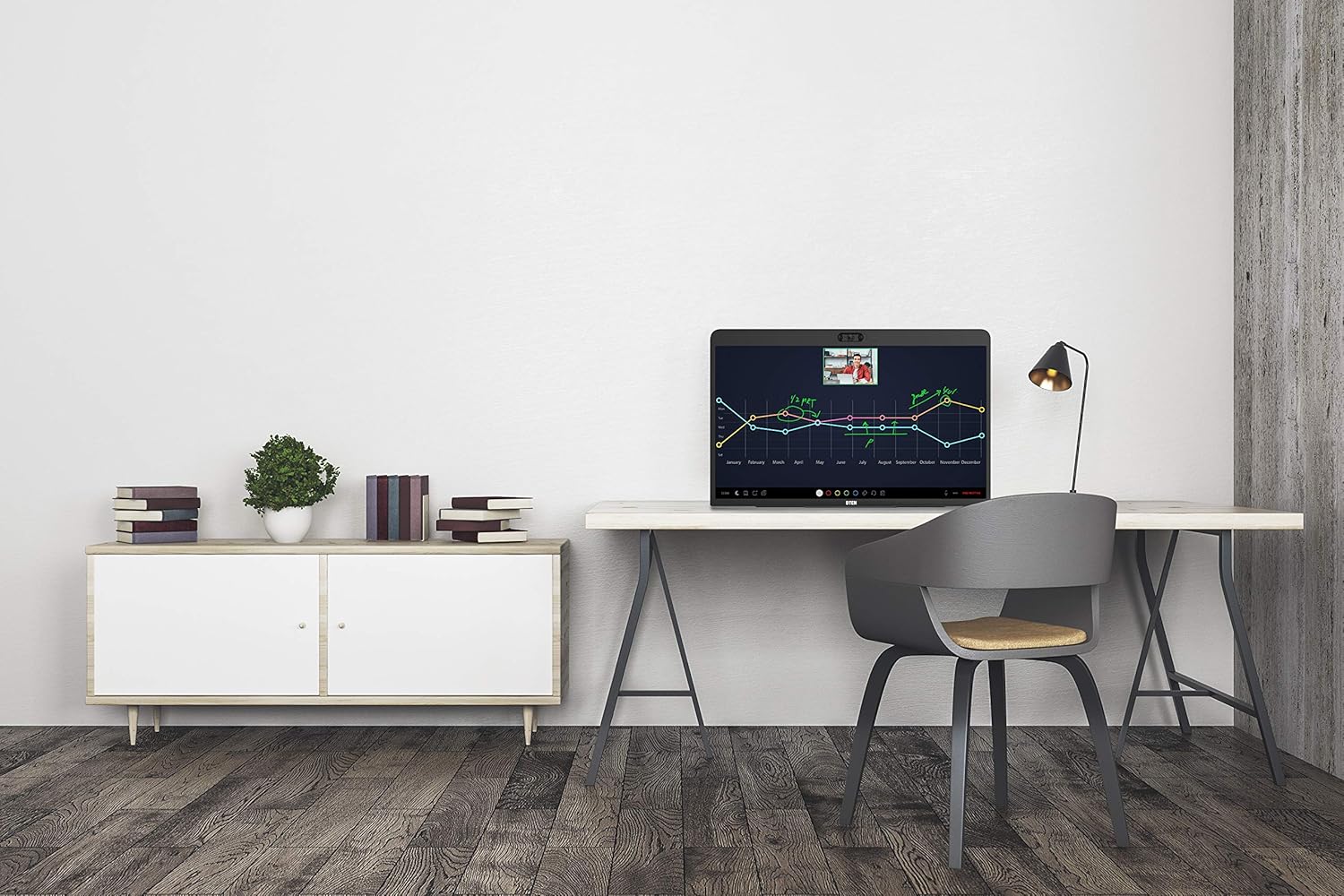
Image: The DTEN ME device positioned on a desk, illustrating a typical setup in a workspace. This highlights its compact design and integration into a professional environment.
3. Operating Instructions
The DTEN ME offers intuitive touch controls for various collaboration functions:
- Starting a Zoom Meeting: From the home screen, tap the 'Meet' or 'Join' button to quickly start or enter a Zoom meeting.
- Making Phone Calls: Use the 'Phone' option to place calls directly from the device.
- Interactive Whiteboarding: Select the 'Whiteboard' icon to access a digital canvas for drawing, writing, and brainstorming.
- Sharing Content: Utilize the 'Share Content' feature to display documents, presentations, or other media from a connected device.
- Annotation: During meetings or whiteboarding sessions, use the touch screen to annotate directly on shared content or the whiteboard in real-time.
- Using as a Second Monitor: Connect your computer to the DTEN ME via the appropriate video input port (e.g., HDMI, USB-C) to extend your desktop and use it as an additional display.

Image: A user engaging with the DTEN ME's interactive display, demonstrating its use for reviewing and discussing visual data during a collaboration session.
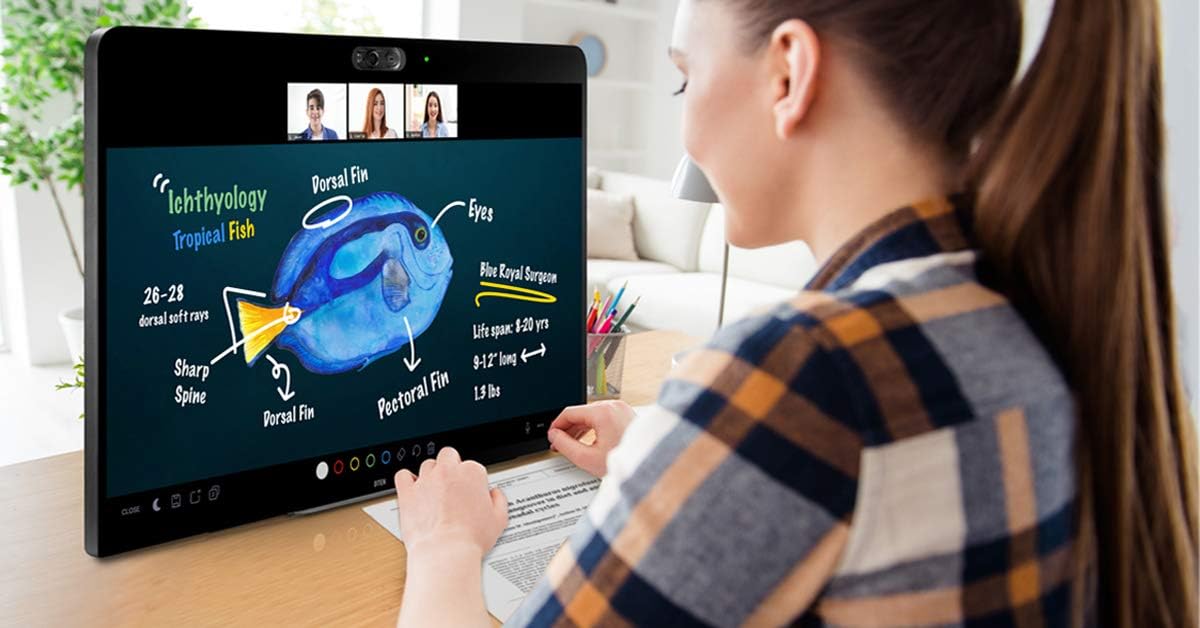
Image: A user actively utilizing the DTEN ME's digital whiteboarding feature, drawing and writing on the screen to explain ideas, enhancing interactive communication.
4. Maintenance
To ensure the longevity and optimal performance of your DTEN ME device, follow these maintenance guidelines:
- Cleaning the Screen: Use a soft, lint-free cloth specifically designed for electronic screens. Dampen the cloth slightly with water or a screen-safe cleaning solution. Avoid harsh chemicals or abrasive materials.
- Cleaning the Casing: Wipe the exterior casing with a soft, dry cloth.
- Software Updates: Regularly check for and install software updates to ensure you have the latest features, security patches, and performance improvements. These updates are typically managed through the device's settings or Zoom for Home interface.
- Ventilation: Ensure that the ventilation openings on the device are not blocked to prevent overheating.
5. Troubleshooting
If you encounter issues with your DTEN ME, refer to the following common troubleshooting steps:
- No Power: Ensure the power cable is securely connected to both the device and a working power outlet. Try a different outlet if necessary.
- No Internet Connection: Verify your Ethernet cable connection or check your Wi-Fi settings. Restart your router if other devices are also experiencing network issues.
- Camera/Microphone Issues: Check privacy settings within the Zoom for Home application to ensure the camera and microphone are enabled. Restart the device.
- Screen Display Problems: If the screen is blank or distorted, try restarting the device. If using it as a second monitor, ensure the video input cable is properly connected and the correct input source is selected.
- Unresponsive Touchscreen: Restart the device. If the issue persists, ensure the screen is clean and free of obstructions.
For persistent issues not resolved by these steps, please contact DTEN customer support.
6. Specifications
| Feature | Detail |
|---|---|
| Product Dimensions | 8.27 x 14.96 x 19.29 inches |
| Item Weight | 20.1 pounds |
| Manufacturer | DTEN |
| Item Model Number | DBA0027EA |
| Standing Screen Display Size | 27 Inches |
| Aspect Ratio | 16:9 |
| Resolution | 1920 x 1080 (HD) |
| Total USB Ports | 1 |
| Screen Surface Description | Glossy |
7. Warranty and Support
For detailed warranty information regarding your DTEN ME device, please refer to the documentation provided with your purchase or visit the official DTEN website. Warranty terms and conditions, including coverage period and service procedures, are subject to the manufacturer's policies.
If you require technical assistance, troubleshooting beyond this manual, or have questions about your device, please contact DTEN customer support directly. Contact information can typically be found on the DTEN website or in your product packaging.
Related documentsDBA0027EA


Ask a question about this manual
Ask about setup, troubleshooting, compatibility, parts, safety, or missing instructions. Manuals+ will review the question and use this page’s manual context to help answer it.