
1. Introduction
The Logitech K295OW Silent Wireless Keyboard is designed for quiet and efficient typing. Featuring Logitech's exclusive SilentTouch technology, it reduces typing noise by over 90% compared to traditional keyboards, while maintaining a familiar typing feel. This full-size keyboard includes a numeric keypad and 8 convenient shortcut keys, enhancing productivity.
Its durable, spill-resistant design provides protection against accidental liquid spills, and the robust key switches ensure long-lasting performance. The keyboard connects wirelessly via a Unifying USB receiver, offering a stable 2.4GHz connection with a range of up to 10 meters. Enjoy extended use with a battery life of up to 24 months.
This keyboard is compatible with Windows 7 or later and Chrome OS.
Video: Overview of the Logitech K295OW Silent Wireless Keyboard features, including SilentTouch technology and full-size layout.
2. Package Contents
Verify that all items are present in the package:
- Logitech K295OW Silent Wireless Keyboard
- Logitech Unifying USB Receiver
- 2 AAA Batteries (pre-installed or included separately)
- User Documentation
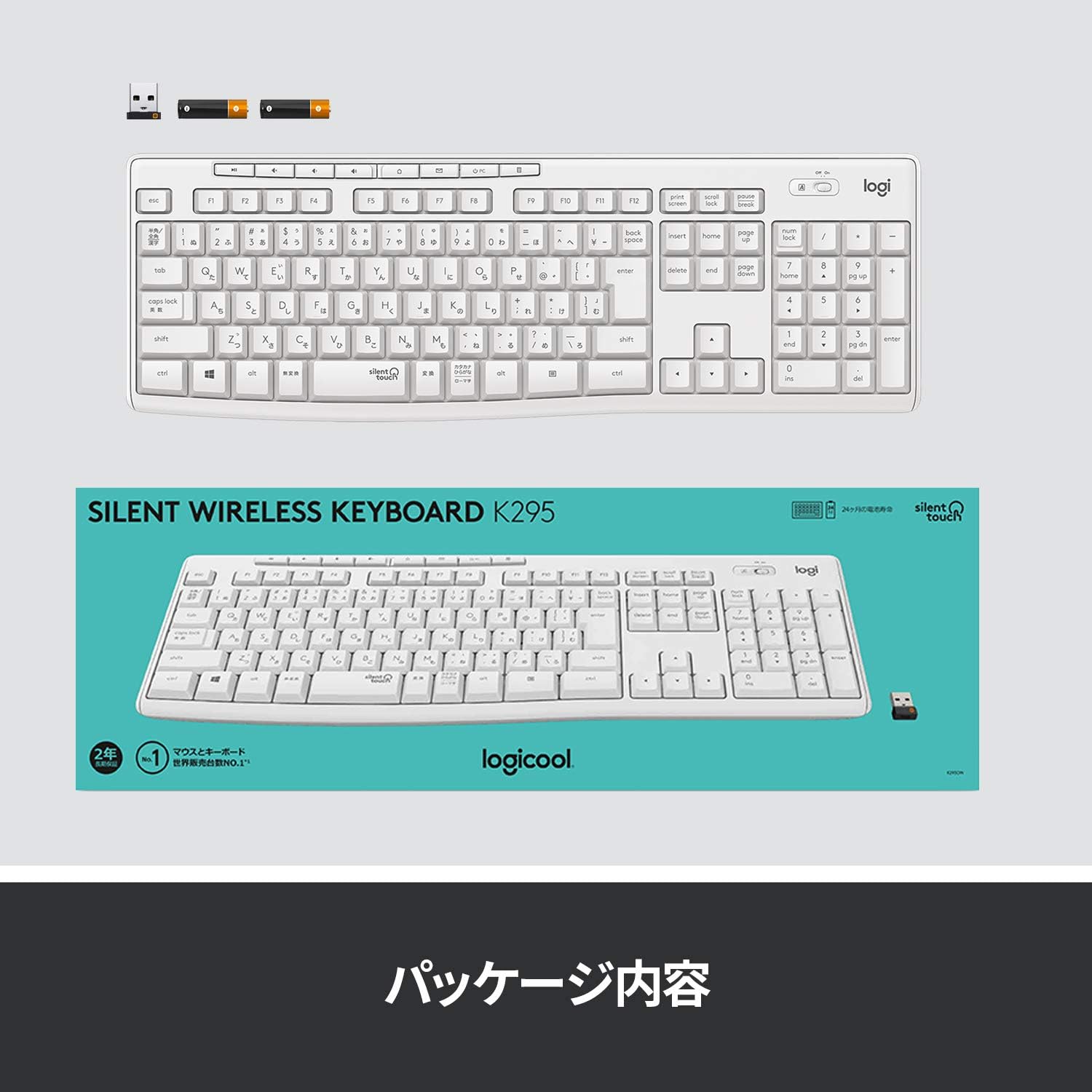
Image: The Logitech K295OW keyboard and its Unifying USB receiver, illustrating the typical package contents.
3. Setup
3.1. Installing Batteries
- Locate the battery compartment on the underside of the keyboard.
- Open the battery compartment cover.
- Insert the two AAA batteries, ensuring correct polarity (+/-).
- Close the battery compartment cover.
3.2. Connecting the Unifying USB Receiver
- Plug the Logitech Unifying USB receiver into an available USB port on your computer.
- Turn on the keyboard using the On/Off switch located above the numeric keypad.
- Your computer should automatically detect and install the necessary drivers. This may take a few moments.
- Once installed, the keyboard is ready for use.

Image: Close-up of the Logitech K295OW keyboard showing the Unifying receiver and the power switch, indicating wireless connectivity.
4. Operating Instructions
4.1. Basic Typing
The K295OW keyboard features a standard full-size Japanese layout. Simply begin typing as you would with any conventional keyboard.
4.2. Shortcut Keys
The keyboard includes 8 dedicated shortcut keys for quick access to common functions. These keys are located above the function keys (F1-F12) and provide functions such as media control, volume adjustment, and application shortcuts.
- Media Controls: Play/Pause, Stop, Previous Track, Next Track.
- Volume Controls: Mute, Volume Down, Volume Up.
- Application Shortcut: Home (browser).

Image: The full-size layout of the Logitech K295OW keyboard, highlighting the numeric keypad and the row of 8 shortcut keys.
4.3. Adjustable Tilt Legs
For improved typing comfort, the keyboard is equipped with adjustable tilt legs on the underside. These legs allow you to set the keyboard at an 8-degree angle.
- Flip the keyboard over to access the underside.
- Gently pull out the two tilt legs until they click into place.
- To return to a flat position, push the legs back in.
5. Maintenance
5.1. Cleaning
The K295OW keyboard features a spill-resistant design. In case of accidental spills, gently wipe the surface with a damp cloth. Avoid submerging the keyboard in water or using harsh chemical cleaners.
5.2. Battery Replacement
The keyboard has a battery life of up to 24 months. When the battery indicator light (if present) signals low power, or if the keyboard becomes unresponsive, replace the AAA batteries.
- Turn off the keyboard using the On/Off switch.
- Open the battery compartment on the underside.
- Remove the old batteries and insert new AAA batteries, observing polarity.
- Close the compartment and turn the keyboard back on.
6. Troubleshooting
6.1. Keyboard Not Responding
- Check Power: Ensure the keyboard is turned on and the batteries are correctly installed and charged. Replace batteries if necessary.
- Check Receiver: Make sure the Unifying USB receiver is securely plugged into a working USB port on your computer. Try a different USB port.
- Distance: Ensure the keyboard is within the 10-meter operating range of the receiver and there are no large metallic objects obstructing the signal.
- Re-pair: If issues persist, you may need to re-pair the keyboard with the Unifying receiver using the Logitech Unifying Software (available for download from the Logitech website).
6.2. Lag or Intermittent Connection
- Interference: Move the keyboard and receiver away from other wireless devices (e.g., Wi-Fi routers, cordless phones) that might cause interference.
- USB Port: Try plugging the Unifying receiver into a different USB port, preferably one directly on the computer rather than a USB hub.
7. Specifications
| Feature | Description |
|---|---|
| Brand | Logitech |
| Model Number | K295OW |
| Connectivity | 2.4GHz Wireless (Unifying USB Receiver) |
| Wireless Range | Up to 10 meters (33 feet) |
| Keyboard Type | Membrane, Full-size with Numeric Keypad |
| Key Switches | Durable Membrane |
| Noise Reduction | SilentTouch Technology (90% noise reduction) |
| Special Features | Spill-resistant design, 8 Shortcut Keys, Adjustable Tilt Legs (8-degree) |
| Compatible OS | Windows 7 or later, Chrome OS |
| Power Source | 2 x AAA Batteries |
| Battery Life | Up to 24 months |
| Dimensions (L x W x H) | 44.1 cm x 14.9 cm x 1.8 cm (17.36 in x 5.87 in x 0.71 in) |
| Weight | 498 grams (1.1 lbs) |
| Color | Off-White |
| Keyboard Layout | Japanese QWERTY (116 keys) |
8. Warranty and Support
8.1. Warranty Information
This Logitech K295OW Silent Wireless Keyboard comes with a 2-year manufacturer's warranty. Please retain your proof of purchase for warranty claims. The warranty covers defects in materials and workmanship under normal use.

Image: A user typing on the Logitech K295OW keyboard, emphasizing comfort and the included 2-year warranty.
8.2. Customer Support
For technical assistance, troubleshooting, or warranty inquiries, please visit the official Logitech support website or contact their customer service. You can find contact information and support resources on the Logitech website.
Logitech Support Website: www.logitech.com/support


