
iMICE E1300
iMICE 2.4G Wireless Mouse E-1300 User Manual
Brand: iMICE | Model: E1300
Introduction
Thank you for choosing the iMICE 2.4G Wireless Mouse E-1300. This portable optical mouse features a silent click design, adjustable DPI settings, and a rechargeable battery, making it ideal for various computing needs. This manual provides detailed instructions on how to set up, operate, maintain, and troubleshoot your new wireless mouse to ensure optimal performance.
 Image: The iMICE E-1300 wireless mouse, showcasing its sleek design and colorful LED backlighting, positioned on a laptop keyboard with its USB receiver nearby.
Product Overview and Key Features
The iMICE E-1300 wireless mouse is designed for comfort and efficiency, offering a range of features to enhance your computing experience:
- Mute Design: Both left and right click buttons are designed for silence, ensuring a quiet working environment without disturbing others.
- Plug and Play: No driver installation required. Simply plug the USB receiver into your device, and the mouse is ready to use.
- Rechargeable Optical Mouse: Equipped with a built-in durable rechargeable battery, eliminating the need for disposable AAA batteries.
- Portable Design: Slim, lightweight, and ergonomic, making it easy to carry for travel or on-the-go use. Features RGB three-color LED backlight display.
- Wide Compatibility: Compatible with a broad range of operating systems and devices, including Mac OS, Windows (XP/7/Vista/ME/8/10), desktops, notebooks, and smart TVs with USB interfaces.
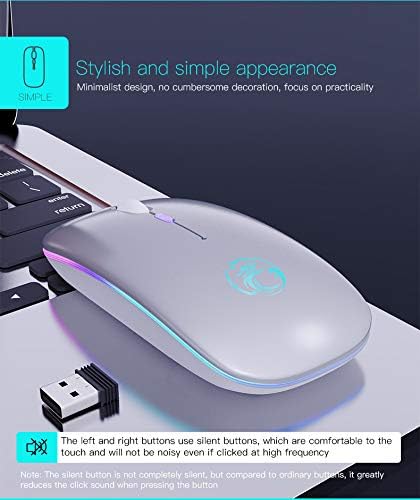 Image: A close-up view of the iMICE E-1300 mouse in a white finish, emphasizing its stylish and simple appearance with minimalist design.
Package Contents
Please check the package for the following items:
- 1 x iMICE Rechargeable Wireless Mouse
- 1 x USB Receiver (located at the bottom of the mouse)
- 1 x USB Charging Cable
Setup Guide
- Locate the USB Receiver: The USB receiver is conveniently stored at the bottom of the mouse. Gently slide open the cover to access it.
- Connect the Receiver: Plug the USB receiver into an available USB port on your computer, laptop, or compatible device.
- Power On the Mouse: Locate the power switch on the bottom of the mouse and slide it to the "ON" position.
- Automatic Connection: The mouse will automatically connect to the receiver within a few seconds. No additional drivers are required.
 Image: A detailed diagram illustrating the components of the iMICE wireless mouse, including the location of the USB receiver storage slot, power switch, charging port, and buttons.
Important Note: Before first use, please ensure to tear off the blue protective film on the mouse's optical sensor (if present) for optimal tracking performance.
Operating Instructions
Adjusting DPI Sensitivity
The iMICE E-1300 mouse features 3 adjustable DPI (Dots Per Inch) levels, allowing you to customize cursor sensitivity to your preference. To change the DPI setting, press the DPI button located on the top of the mouse, behind the scroll wheel. Each press will cycle through the available DPI levels:
- 800 DPI: Suitable for precise tasks like graphic design or detailed work.
- 1200 DPI: Standard setting for everyday use and general browsing.
- 1600 DPI: Ideal for faster cursor movement, often preferred for gaming or large displays.
 Image: An illustration highlighting the DPI button on the iMICE mouse and explaining the three adjustable DPI speeds (800, 1200, 1600) and their typical uses.
Silent Clicking
The left and right mouse buttons are engineered for silent operation, providing a quiet user experience. This feature is particularly beneficial in quiet environments such as libraries, offices, or during late-night use.
Power Saving Mode
To conserve battery life, the mouse will automatically enter a sleep mode after 8 minutes of inactivity. To wake the mouse, simply press any button.
Charging the Mouse
The iMICE E-1300 mouse is equipped with a built-in rechargeable lithium battery. To charge the mouse:
- Connect the included Micro USB charging cable to the charging port on the front of the mouse.
- Plug the other end of the USB cable into a USB port on your computer or a standard USB wall adapter.
Charging Indicators:
- Blinking Blue Light: Indicates low battery.
- Steady Blue Light: Indicates the mouse is currently charging.
- Blue Light Off: Indicates the battery is fully charged.
A full charge typically takes about 2 hours and can provide approximately 8-15 days of use, depending on usage patterns.
 Image: An illustration demonstrating how to charge the iMICE mouse using the USB cable, along with visual cues for low battery, charging, and full battery status.
Compatibility
The iMICE 2.4G Wireless Mouse E-1300 offers broad compatibility with various operating systems and devices:
- Operating Systems: Mac OS, Windows XP, Windows 7, Windows Vista, Windows ME, Windows 8, Windows 10.
- Devices: Desktop computers, notebook computers, smart TVs with USB interface, tablets, and mobile phones (with appropriate adapters if needed).
It connects via a 2.4GHz wireless connection, providing a stable and reliable link up to 10 meters (33 feet) away from the receiver.
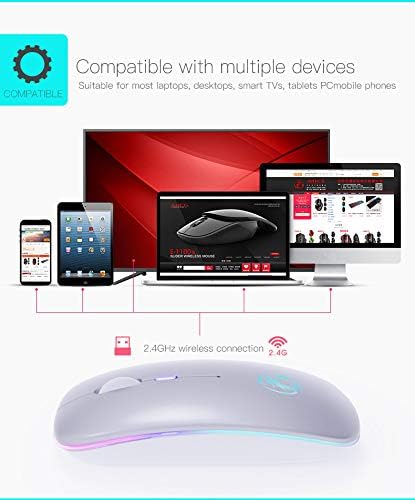 Image: A visual representation of the iMICE wireless mouse's compatibility, showing it connected to a laptop, desktop computer, tablet, and smartphone, all via 2.4GHz wireless technology.
Maintenance
To ensure the longevity and optimal performance of your iMICE wireless mouse, follow these simple maintenance guidelines:
- Cleaning: Use a soft, dry cloth to wipe the surface of the mouse. For stubborn dirt, a slightly damp cloth can be used, but ensure no moisture enters the device. Avoid using harsh chemicals or abrasive cleaners.
- Storage: When not in use for extended periods, turn off the mouse to conserve battery. Store it in a cool, dry place away from direct sunlight and extreme temperatures.
- Handling: Avoid dropping the mouse or subjecting it to strong impacts, as this can damage internal components.
Troubleshooting
| Problem | Possible Cause / Solution |
|---|---|
| Mouse not responding or cursor movement is erratic. |
|
| Mouse charges slowly or not at all. |
|
| DPI button does not change sensitivity. |
|
Specifications
| Feature | Detail |
|---|---|
| Model | E1300 |
| Connectivity | 2.4G Wireless (USB Receiver) |
| DPI Levels | 800 / 1200 / 1600 DPI (Adjustable) |
| Buttons | 4 buttons (Left, Right, Scroll Wheel, DPI) |
| Switch Life | 10 Million Times |
| Wireless Range | Up to 10 meters (33 feet) |
| Battery Type | Rechargeable Lithium Battery (Built-in) |
| Charging Time | Approx. 2 hours |
| Usage Time | Approx. 8-15 days (per charge) |
| Dimensions | 112 x 57 x 25 mm (4.41 x 2.24 x 0.98 inches) |
| Movement Detection | Optical |
| Hand Orientation | Ambidextrous |
| Material | Plastic |
| Special Features | Silent Click, LED Backlit, Power Saving Mode |
Warranty and Customer Support
The iMICE wireless mouse comes with a 12-month warranty from the date of purchase, covering manufacturing defects. If you encounter any issues with your product or have questions, please do not hesitate to contact our customer service team.
We are committed to providing sincere service and will respond to your inquiries and assist in resolving any issues within 24 hours.
For warranty claims or technical support, please refer to the contact information provided with your purchase or visit the official iMICE website.
Related documentsE1300


Ask a question about this manual
Ask about setup, troubleshooting, compatibility, parts, safety, or missing instructions. Manuals+ will review the question and use this page’s manual context to help answer it.