
1. Product Overview
The Avolusion HDDGear Pro X 1TB External Gaming Hard Drive is designed to expand the storage capacity of your Xbox One X, S, or Original console. This device features a USB 3.0 interface for fast data transfer and comes pre-formatted for immediate use with compatible Xbox consoles. Its fan-less design ensures quiet operation.
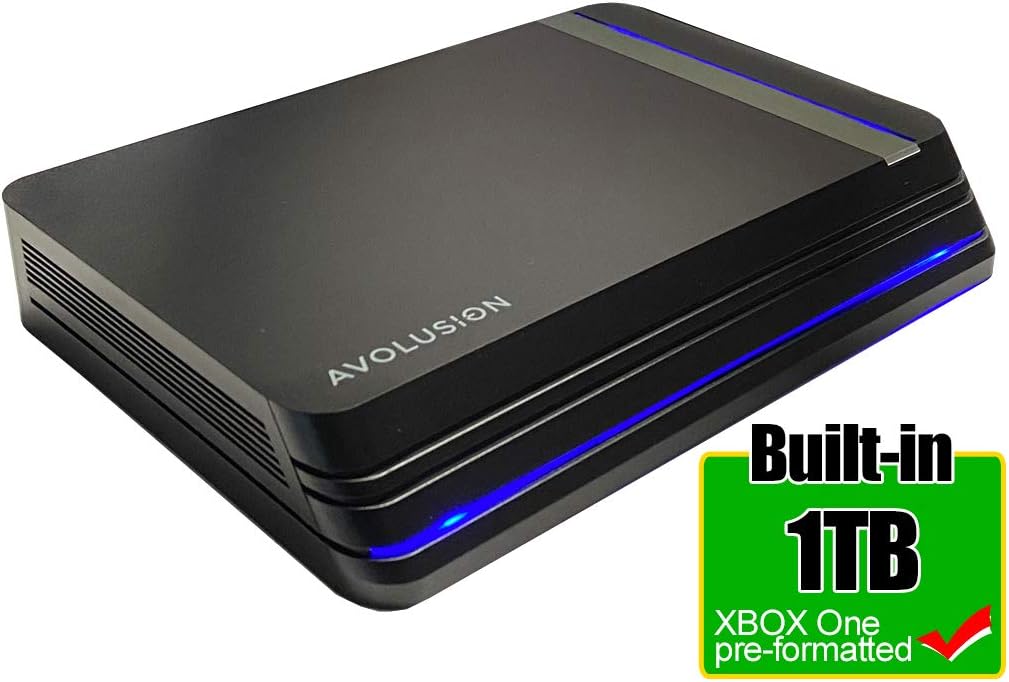
Image: Front view of the Avolusion HDDGear Pro X external hard drive, highlighting its 1TB capacity and Xbox One pre-formatting.
2. What's in the Box
Verify that all components are present in the package:
- Avolusion HDDGear HDDGU3 Pro X 1TB External Gaming Storage
- USB 3.0 Cable
- Power Adapter
- User Manual (this document)

Image: All items included in the product package, including the retail box, user manual, AC power adapter, and USB cable.
3. Setup Instructions
Follow these steps to connect your Avolusion HDDGear Pro X to your Xbox One console:
- Connect the Power Adapter: Plug the AC power adapter into the power input port on the rear of the HDDGear Pro X, then connect the adapter to a wall outlet.
- Connect the USB Cable: Connect one end of the USB 3.0 cable to the USB port (Type C) on the rear of the HDDGear Pro X. Connect the other end to an available USB port on your Xbox One console.
- Power On: Flip the power switch on the rear of the HDDGear Pro X to the 'ON' position.
- Xbox Recognition: Your Xbox console should automatically detect the external hard drive. Since it is pre-formatted for Xbox, it should be ready for use. You may be prompted to name the device or set it as the default installation location for new games.

Image: Rear panel of the hard drive, indicating the USB port, power input, and power switch.
Placement: The drive can be placed horizontally or vertically to suit your setup.

Image: The external hard drive displayed in both horizontal and vertical positions.
For detailed instructions on formatting an external hard drive for your Xbox console, refer to the video below:
Video: "How to format External USB Hard Drive for XBOX Console". This video demonstrates the process of formatting an external USB hard drive for use with an Xbox console, which may be useful if the drive is not automatically recognized or if you wish to re-format it.
4. Operating Instructions
Once connected and recognized by your Xbox console, the Avolusion HDDGear Pro X will function as an extended storage device. You can install new games directly to it or move existing games from your console's internal storage.
- Installing Games: When downloading new games or updates, your Xbox will typically ask where you want to install them. Select the Avolusion HDDGear Pro X to save space on your console's internal drive.
- Moving Games: To move games between your console's internal storage and the external drive, navigate to your Xbox settings, then to 'System' > 'Storage'. Select the game you wish to move and choose the option to transfer it to the external drive.
- Performance: The USB 3.0 interface provides a data transfer rate of up to 5.0 Gbit/s, ensuring efficient game loading and saving.
For a visual guide on moving Xbox games from a USB hard drive to the Xbox console, please watch the video below:
Video: "Avolusion HDD (How to move XBOX Game from USB HDD to XBOX)". This video illustrates the steps involved in transferring games from an external USB hard drive to the Xbox console's internal storage.
5. Maintenance
To ensure the longevity and optimal performance of your Avolusion HDDGear Pro X, follow these general maintenance guidelines:
- Cleaning: Use a soft, dry cloth to clean the exterior of the drive. Avoid liquid cleaners or abrasive materials.
- Environment: Keep the drive in a cool, dry place, away from direct sunlight, extreme temperatures, and high humidity.
- Handling: Handle the drive with care. Avoid dropping it or subjecting it to strong impacts, as this can damage the internal components.
- Power Off: Always power off the drive using the power switch when not in use for extended periods or before disconnecting it from the power source.
6. Troubleshooting
If you encounter issues with your Avolusion HDDGear Pro X, try the following troubleshooting steps:
- Drive Not Recognized:
- Ensure the power adapter is securely connected to both the drive and a working power outlet.
- Verify the power switch on the drive is in the 'ON' position.
- Check that the USB 3.0 cable is firmly connected to both the drive and an available USB port on your Xbox console. Try a different USB port if available.
- Restart your Xbox console with the drive connected.
- If the drive was previously used with another device or operating system, it might require re-formatting for Xbox. Refer to the "How to format External USB Hard Drive for XBOX Console" video in the Setup section.
- Slow Data Transfer:
- Ensure you are using the provided USB 3.0 cable and connecting to a USB 3.0 compatible port on your Xbox.
- Avoid running multiple demanding applications or downloads on your Xbox simultaneously.
- Games Not Launching from External Drive:
- Confirm the drive is powered on and connected before launching games.
- Check Xbox storage settings to ensure the games are correctly installed on the external drive.
If problems persist, consult the Xbox support website or contact Avolusion customer support.
7. Specifications
| Feature | Detail |
|---|---|
| Digital Storage Capacity | 1000 GB (1TB) |
| Hard Disk Interface | USB 3.0 |
| Connectivity Technology | USB 3.0 |
| Brand | Avolusion |
| Special Feature | Portable |
| Hard Disk Form Factor | 3.5 inches |
| Hard Disk Description | Mechanical Hard Disk |
| Compatible Devices | Gaming Console (Xbox One X, S, Original) |
| Installation Type | External Hard Drive |
| Color | Black |
| Hard Disk Rotational Speed | 7200 rpm |
| Specific Uses For Product | Gaming |
| Data Transfer Rate | 5 gigabits per second |
| Hardware Platform | XBOX |
| Enclosure Material | Plastic/PVC |
| Model Number | HDDGU3-PROX-1TB-XBOX |
| Dimensions (L x W x H) | 7.25" x 4.75" x 1.25" |
| Power Input | 100V ~ 240V (50-60Hz 0.8A) |
| Power Output | 12V 2.0A |

Image: The external hard drive shown with its physical dimensions and in comparison to an Xbox console (console not included).
8. Warranty and Support
Warranty: This product comes with a 2-year warranty from the reseller. Please retain your proof of purchase for warranty claims.
Support: For technical assistance or further inquiries, please visit the Avolusion website or contact your reseller's customer support. Refer to the contact information provided with your purchase.