
ROCCAT ROC-11-748
ROCCAT Burst Pro PC Gaming Mouse Instruction Manual
Model: ROC-11-748
Brand: ROCCAT
Introduction
The ROCCAT Burst Pro is a high-performance PC gaming mouse designed for precision and speed. It features a symmetrical ergonomic shape, a lightweight bionic shell, and advanced optical switches for responsive gameplay. This manual provides essential information for setting up, operating, maintaining, and troubleshooting your Burst Pro gaming mouse.

Image: The ROCCAT Burst Pro PC Gaming Mouse, showcasing its ergonomic design and translucent shell with internal RGB lighting.
Package Contents
Ensure all items are present in the package:
- ROCCAT Burst Pro PC Gaming Mouse
- PhantomFlex Cable (integrated)
- Additional set of heat-treated pure PTFE glides
- Quick Start Guide (not included in this digital manual)
Setup & Installation
- Connect the Mouse: Plug the USB connector of the PhantomFlex cable into an available USB port on your PC. The mouse is plug-and-play compatible with Windows 7, 8, and 10.
- Driver Installation (Optional but Recommended): For full customization and access to all features, download and install the latest ROCCAT Swarm software from the official ROCCAT website. This software allows for DPI adjustments, button remapping, and RGB lighting customization.
- Placement: Place the mouse on a clean, flat surface or a mouse pad for optimal tracking performance.

Image: The PhantomFlex cable, designed for minimal drag and a near-wireless feel.
Operating the Mouse
The ROCCAT Burst Pro is equipped with several advanced features to enhance your gaming and computing experience.
Key Features:
- Titan Switch Optical: Utilizes optical actuation for faster response times and a durable 100 million click lifecycle. This technology eliminates traditional mechanical switch debounce, providing a crisp and immediate click.

Image: Internal view of the Titan Switch Optical, highlighting its design for speed and durability.
- ROCCAT Owl-Eye Optical Sensor: Provides precise and smooth tracking with up to 19,000 DPI. DPI settings can be adjusted via the dedicated DPI button on the mouse or through the ROCCAT Swarm software.
- ROCCAT Bionic Shell: The translucent honeycomb shell design contributes to the mouse's ultra-lightweight 68g construction while maintaining structural integrity. This design also allows for vibrant RGB lighting effects.

Image: The ROCCAT Burst Pro's lightweight 68g design, featuring its translucent honeycomb shell.
- Heat-Treated Pure PTFE Glides: Pre-tuned for exceptional glide and smooth mouse movements across various surfaces. These glides are designed for durability and low friction.
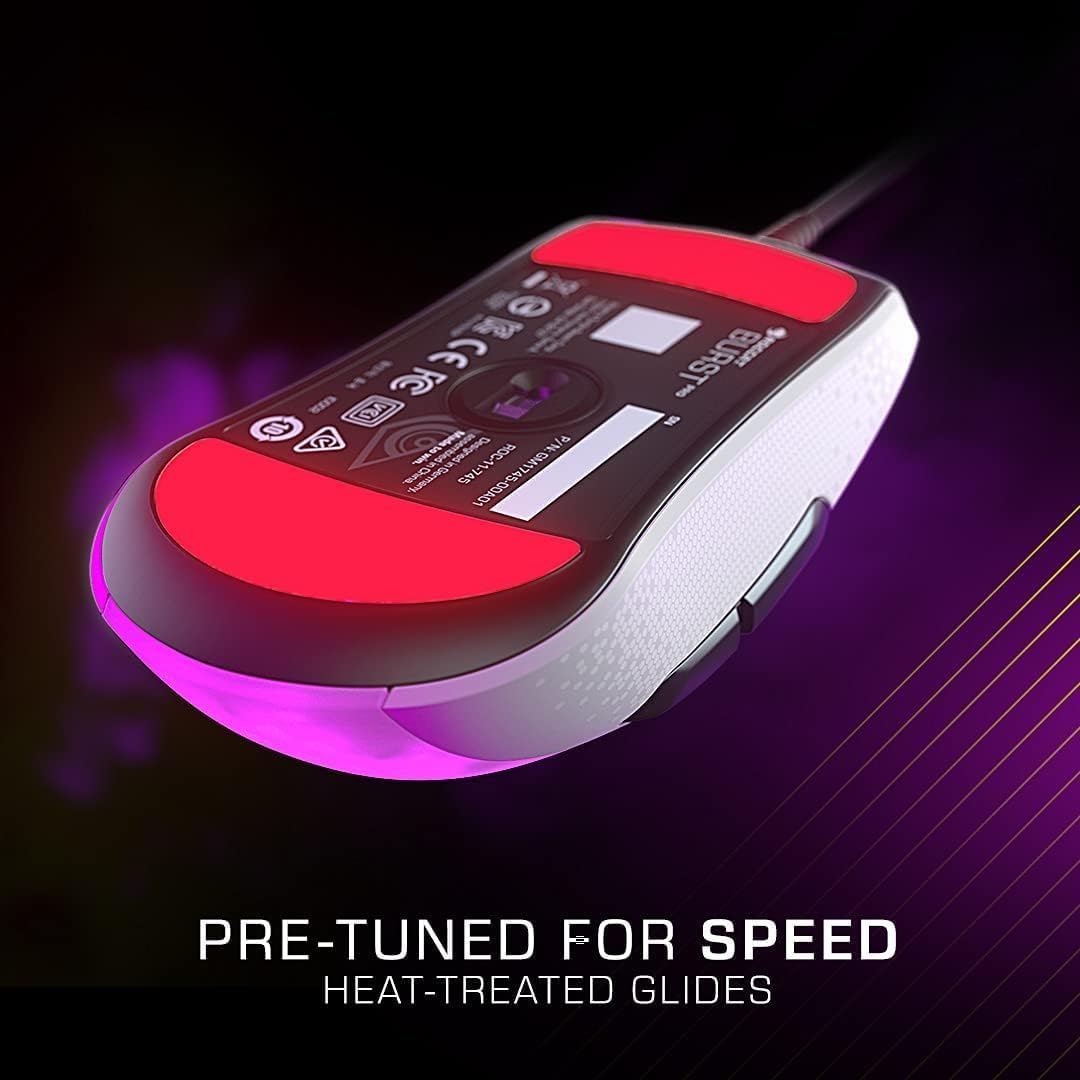
Image: The underside of the mouse, showing the heat-treated pure PTFE glides for smooth movement.
- AIMO Illumination: ROCCAT's intelligent lighting system provides vibrant RGB lighting with 16.8 million colors. AIMO can synchronize lighting effects with other compatible ROCCAT devices. Customize lighting patterns and colors using the Swarm software.
Button Functions:
- Left Click (M1): Primary action button.
- Right Click (M2): Secondary action button.
- Scroll Wheel: Scrolls content up/down. Can also be clicked (M3) for a third action.
- DPI Button: Cycles through pre-set DPI sensitivity levels. These levels can be customized in the Swarm software.
- Side Buttons (M4, M5): Typically used for forward/back navigation in web browsers or customizable in games via Swarm.
Maintenance
Proper maintenance ensures the longevity and optimal performance of your ROCCAT Burst Pro mouse.
- Cleaning:
- Use a soft, dry, lint-free cloth to wipe the surface of the mouse.
- For stubborn dirt, slightly dampen the cloth with water or a mild, non-abrasive cleaning solution. Avoid excessive moisture.
- Use compressed air to clear dust and debris from crevices, especially around the scroll wheel and button gaps.
- Do not use harsh chemicals, abrasive cleaners, or immerse the mouse in liquid.
- Cable Care: Avoid sharp bends or kinks in the PhantomFlex cable to prevent internal damage. Store the cable loosely coiled when not in use.
- Glide Replacement: If the mouse glides show significant wear, replace them with the spare set provided or purchase new ones from an authorized ROCCAT retailer. Carefully peel off the old glides and apply the new ones, ensuring the surface is clean.
Troubleshooting
If you encounter issues with your ROCCAT Burst Pro mouse, try the following solutions:
- Mouse Not Responding:
- Ensure the USB cable is securely plugged into a working USB port on your PC.
- Try a different USB port.
- Restart your computer.
- Check Device Manager (Windows) to see if the mouse is recognized. Reinstall drivers if necessary.
- Inaccurate Tracking or Cursor Lag:
- Clean the optical sensor on the underside of the mouse with a soft, dry cloth.
- Ensure your mouse pad or surface is clean and free of debris.
- Adjust DPI settings using the DPI button or ROCCAT Swarm software.
- Update ROCCAT Swarm software and mouse firmware.
- RGB Lighting Issues:
- Ensure ROCCAT Swarm software is running and updated.
- Check lighting settings within the Swarm software.
- Try resetting the mouse settings to default via Swarm.
- Buttons Not Responding or Double-Clicking:
- While the Titan Switch Optical is designed to prevent double-clicking, ensure the Swarm software is updated.
- Test the buttons in different applications or games.
- If the issue persists, it may indicate a hardware fault. Refer to the Warranty & Support section.
Technical Specifications

Image: Dimensions of the ROCCAT Burst Pro PC Gaming Mouse.
| Feature | Detail |
|---|---|
| Model Number | ROC-11-748 |
| Connectivity | Wired USB (PhantomFlex Cable) |
| Sensor | ROCCAT Owl-Eye Optical Sensor |
| Max DPI | 19,000 DPI |
| Switches | Titan Switch Optical (100 million click lifecycle) |
| Weight | 68g (approx. 2.4 ounces) |
| Dimensions (LxWxH) | 4.72 x 2.64 x 1.52 inches (120 x 67 x 38.6 mm) |
| Glides | Heat-treated pure PTFE glides |
| Lighting | AIMO Illumination (RGB, 16.8 million colors) |
| Operating System Compatibility | Windows 7, Windows 8, Windows 10 |
Warranty & Support
The ROCCAT Burst Pro PC Gaming Mouse comes with a 2-year limited manufacturer warranty. This warranty covers defects in materials and workmanship under normal use.
For warranty claims, technical support, or further assistance, please visit the official ROCCAT support website or contact their customer service. Keep your proof of purchase for warranty validation.
Online Support: www.roccat.com/support
ROCCAT Store: ROCCAT Official Amazon Store
Related documentsROC-11-748


Ask a question about this manual
Ask about setup, troubleshooting, compatibility, parts, safety, or missing instructions. Manuals+ will review the question and use this page’s manual context to help answer it.