1. Introduction
The Metrel MI 2883 Energy Master is a portable 3-phase power quality analyzer designed for comprehensive power quality measurements, energy logging, and analysis. This device assists in identifying energy waste, optimizing energy consumption, and ensuring the reliability of electrical systems. It is suitable for various industrial and commercial applications.

Figure 1: Metrel MI 2883 Energy Master device displaying power quality analysis data.
The MI 2883 features a user-friendly interface with a color display, enabling quick checks and detailed data analysis. It supports various measurement functions including voltage, current, power, energy, harmonics, and more, compliant with international standards.
2. Setup
2.1 Unpacking and Initial Inspection
Carefully unpack all components from the carrying case. Verify that all items listed in the packing list are present and undamaged. If any items are missing or damaged, contact your supplier immediately.

Figure 2: Complete Metrel MI 2883 Industrial Set contents.
- Metrel MI 2883 Power Quality Analyzer
- Carrying bag
- Test leads (voltage, current)
- Current clamps (flexible or iron, depending on set)
- Power adapter and batteries
- USB communication cable
- Micro SD card
- Instruction manual and calibration certificate
2.2 Battery Installation and Charging
The MI 2883 is powered by rechargeable batteries. Before first use, ensure the batteries are fully charged. Open the battery compartment cover on the rear of the device and insert the provided rechargeable batteries, observing correct polarity. Close the cover securely. Connect the power adapter to the device and a suitable power outlet to begin charging. The charging indicator on the device will show the charging status.
2.3 Initial Power On and Language Selection
Press and hold the power button (ON/OFF) until the device powers on. The initial setup wizard may guide you through language selection, date, and time settings. Follow the on-screen prompts to configure these basic settings.
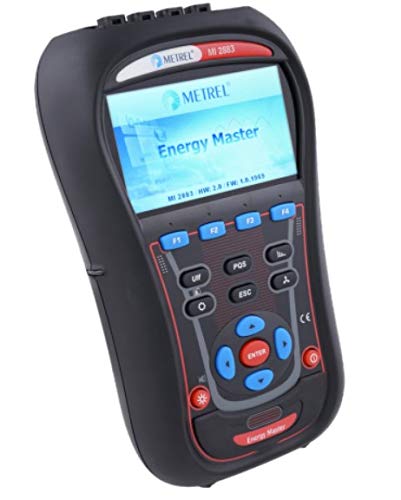
Figure 3: Front panel of the MI 2883 showing display and navigation buttons.
3. Operation
3.1 Connecting Test Leads and Current Clamps
Before connecting to any electrical system, ensure the system is de-energized or appropriate safety precautions are taken. Connect the voltage test leads to the corresponding input terminals on the MI 2883. Connect the current clamps to the current input terminals. Ensure all connections are secure and correct for the measurement type (e.g., 3-phase, single-phase).
- Voltage Inputs: Connect the voltage leads (L1, L2, L3, N, PE) to the appropriate terminals.
- Current Inputs: Attach the current clamps around the conductors for which current measurements are required. Ensure the clamp direction is correct for power flow.
3.2 Navigating the User Interface
The MI 2883 features a color display and a keypad for navigation. Use the arrow keys (UP, DOWN, LEFT, RIGHT) to move through menus and options. Press ENTER to confirm selections. The function keys (F1-F4) provide quick access to context-sensitive functions displayed on the screen. The ESC button is used to go back to the previous screen or exit a menu.
3.3 Performing Measurements
- Select Measurement Mode: From the main menu, select the desired measurement mode (e.g., Power Quality, Energy Logging, Harmonics).
- Configure Settings: Adjust parameters such as measurement duration, logging interval, and trigger conditions as needed for your application.
- Start Measurement: Press the appropriate function key or ENTER to start the measurement. The device will begin recording data.
- View Results: During or after a measurement, you can view real-time data, waveforms, trends, and summary reports on the display.
- Save Data: Ensure data is saved to the internal memory or SD card before powering off the device.
3.4 Data Transfer and Analysis
Recorded data can be transferred to a computer using the provided USB cable and Metrel's PowerView3 software. This software allows for detailed analysis, report generation, and further processing of the collected power quality data.
4. Maintenance
4.1 Cleaning
Regularly clean the device and accessories with a soft, dry cloth. For stubborn dirt, a slightly damp cloth with mild detergent can be used. Do not use abrasive cleaners, solvents, or harsh chemicals, as these can damage the casing and display. Ensure no moisture enters the device.
4.2 Battery Care
To prolong battery life, fully charge the batteries before storage and recharge them periodically if the device is not used for extended periods (e.g., every 3-6 months). Avoid exposing the device to extreme temperatures, which can degrade battery performance.
4.3 Firmware Updates
Check the Metrel website periodically for firmware updates. Keeping the device firmware up-to-date ensures optimal performance, new features, and bug fixes. Follow the instructions provided with the firmware update package carefully.
4.4 Calibration
For accurate measurements, it is recommended to have the MI 2883 calibrated by an authorized service center at regular intervals, typically annually. Refer to the calibration certificate for the recommended calibration cycle.
6. Specifications
The Metrel MI 2883 Energy Master is designed to meet rigorous standards for power quality analysis. Below are key technical specifications. For a complete list, refer to the detailed technical documentation.

Figure 4: Technical specifications and optional accessories for the MI 2883.
General Specifications:
- Brand: Metrel
- Model: MI 2883 Industrial Set
- Power Source: Battery Powered (Rechargeable)
- Display: 4.3 inch color TFT (480 x 272 pixels)
- Memory: 8GB MicroSD, up to 32GB supported
- Dimensions: 230 x 340 x 80 mm
- Weight: 1.96 kg
- Measurement Category: CAT IV / 600V, CAT III / 1000V
- Date First Available: Sept. 23 2020
Key Measurement Capabilities:
- Voltage: TRMS, peak, crest factor (3-channels)
- Current: TRMS, peak, crest factor (4-channels)
- Power measurements (active, apparent, reactive)
- Energy measurements (active, reactive, generated)
- Harmonics and interharmonics analysis up to 50th harmonic
- Flicker, Unbalance, Interrupts (dips, swells)
- Power quality analysis according to EN 50160
- Recording up to 7 adjustable alarms
Optional Accessories:
The MI 2883 supports a range of optional accessories to enhance its functionality, including various types of current clamps (flexible AC, iron, DC), voltage probes, and communication accessories.
- AC Flex Current Clamps (e.g., A 1501, A 1502, A 1503, A 1227, A 1445, A 1446)
- AC Iron Current Clamps (e.g., A 1588, A 1069, A 1281, A 1033)
- AC/DC Current Clamps (e.g., A 1391 PQA, A 1717, A 1636)
- I/U Transducer (e.g., A 1037)
- Other accessories: Wide range power supply, EV monitoring cable, waterproof cases, safety fuse adapter, magnetic contact probe, temperature probe, extension cables, Micro SD card, SD card reader.
7. Warranty & Support
7.1 Warranty Information
Metrel products are manufactured to high standards and are covered by a limited warranty against defects in materials and workmanship. The specific warranty period and terms may vary by region and product. Please refer to the warranty card included with your product or visit the official Metrel website for detailed warranty information.
7.2 Technical Support
For technical assistance, troubleshooting, or service requests, please contact your authorized Metrel distributor or visit the Metrel official website for support resources, FAQs, and contact information. When contacting support, please have your product model number (MI 2883) and serial number ready.
Metrel Official Website: www.metrel.si


