
1. Product Overview
The GIGABYTE M27Q is a 27-inch QHD (2560x1440) SS IPS gaming monitor designed for an immersive visual experience. It features a high refresh rate and rapid response time, making it suitable for fast-paced gaming. The integrated KVM functionality allows users to control multiple devices with a single set of keyboard, video, and mouse.

Figure 1.1: Front view of the GIGABYTE M27Q Gaming Monitor.
Key Features:
- 27-inch QHD (2560x1440) SS IPS Display for vibrant colors and wide viewing angles.
- 165Hz Refresh Rate (overclockable to 170Hz) and 0.5ms (MPRT) Response Time for smooth, blur-free visuals.
- AMD FreeSync Premium support for tear-free gaming.
- Studio Grade VESA Display HDR400 and 92% DCI-P3 (140% sRGB) Color Gamut for accurate and rich color reproduction.
- Integrated KVM (Keyboard, Video, Mouse) switch for controlling multiple devices from one peripheral set.
- Ergonomic stand with height and tilt adjustments.

Figure 1.2: Key features highlighted including TUV Rheinland certification, Flicker Free, Low Blue Light, Low Motion Blur, KVM, HDR400, 92% DCI-P3, FRC 8-bit, HDMI 2.0, and DisplayPort 1.4.
2. What's in the Box
Verify that all components are present in the packaging before proceeding with the setup.
- GIGABYTE M27Q Monitor
- Power cable
- HDMI cable
- DisplayPort (DP) cable
- USB cable (for KVM functionality)
- Quick Start Guide (QSG)
- Warranty card
3. Setup
3.1 Physical Setup
Carefully remove the monitor and its components from the packaging. Assemble the stand according to the Quick Start Guide. The monitor supports VESA 100x100mm mounting for alternative setups.
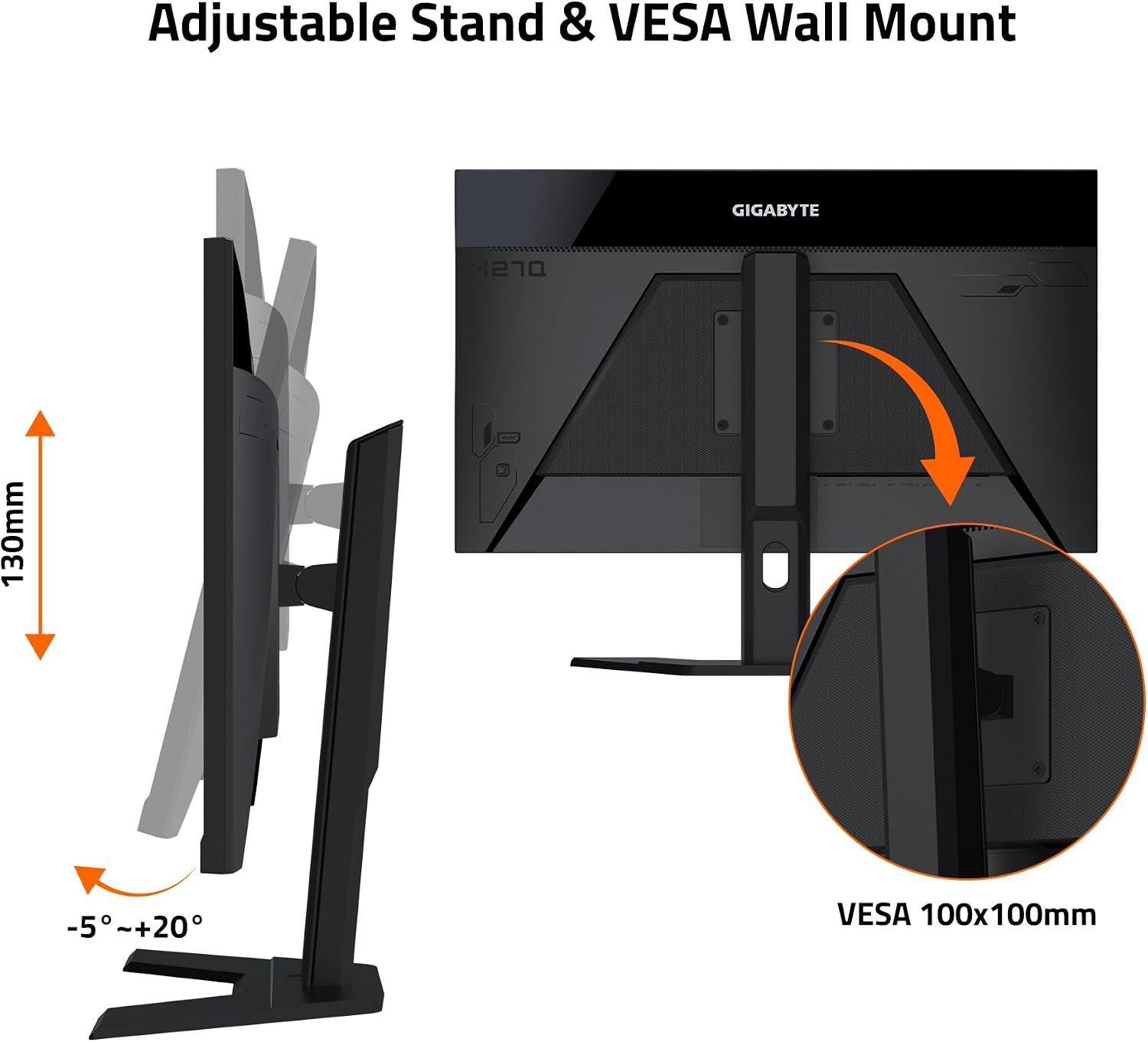
Figure 3.1: The monitor stand allows for height adjustment (130mm) and tilt (-5° to +20°). It also supports VESA 100x100mm mounting.
3.2 Connecting the Monitor
Connect the monitor to your computer or other devices using the appropriate cables. Ensure the power cable is securely connected to the monitor and a power outlet.

Figure 3.2: Diagram of the monitor's I/O ports, including DisplayPort 1.2, HDMI 2.0, DC Power, USB 3.0 Downstream Ports, USB 3.0 Upstream Port, USB Type-C, and Earphone Jack.
- DisplayPort (DP) 1.2: Connect to your graphics card's DisplayPort output for optimal refresh rates and resolutions.
- HDMI 2.0: Connect to devices supporting HDMI output.
- USB Type-C: Provides video input, data transfer (for KVM), and power delivery.
- USB 3.0 Upstream Port: Connect this to your computer's USB port to enable the monitor's USB 3.0 Downstream ports and KVM functionality.
- USB 3.0 Downstream Ports: Connect your keyboard, mouse, and other USB peripherals here.
- Earphone Jack: For audio output.
- DC Power: Connect the provided power adapter.
3.3 KVM Connection
To utilize the KVM feature, connect the USB 3.0 Upstream cable from the monitor to your primary computer. For a second device (e.g., laptop, tablet), connect it via the USB Type-C port. This allows you to switch control of your keyboard and mouse between the connected devices using the monitor's KVM switch button.

Figure 3.3: Illustration of the Type-C KVM setup, showing how to connect a desktop PC via HDMI/DP and a laptop via Type-C to share a single keyboard and mouse.
4. Operating Instructions
4.1 Power On/Off
Press the power button located on the monitor to turn it on or off. The power indicator light will illuminate when the monitor is active.
4.2 OSD Menu Navigation
The On-Screen Display (OSD) menu allows you to adjust various monitor settings. Use the joystick button on the back of the monitor to navigate the OSD menu. Alternatively, you can use the GIGABYTE OSD Sidekick software for easier control via keyboard and mouse.

Figure 4.1: The GIGABYTE OSD Sidekick software provides a graphical interface for adjusting monitor settings.
4.3 KVM Functionality
With the KVM feature, you can seamlessly switch between two connected devices (e.g., desktop PC and laptop) using a single keyboard and mouse connected to the monitor's USB ports. Press the dedicated KVM button on the monitor to switch input sources and peripheral control.

Figure 4.2: The KVM feature allows control of multiple devices via one set of keyboard, video, and mouse, with a dedicated KVM button for quick switching.
4.4 Display Settings
- Refresh Rate: The monitor supports up to 165Hz natively, with an overclock option to 170Hz for incredibly smooth motion.
- Response Time: Experience ultra-fast 0.5ms (MPRT) response time, minimizing ghosting and motion blur.
- HDR Ready: Supports VESA Display HDR400 for enhanced contrast and color vibrancy.
- Color Gamut: Features 92% DCI-P3 and 140% sRGB coverage for accurate and rich colors.
- AMD FreeSync Premium: Enable this feature in the OSD and your graphics card settings to synchronize the monitor's refresh rate with your GPU's frame rate, eliminating screen tearing and stuttering.

Figure 4.3: Visual comparison demonstrating the difference between 0.5ms/170Hz and 5ms/60Hz response times.
4.5 Gaming Features
The GIGABYTE M27Q includes several tactical gaming features accessible via the OSD or OSD Sidekick software:
- Black Equalizer: Enhances visibility in dark areas of the game without overexposing bright areas, giving you an advantage in dimly lit scenes.
- Aim Stabilizer: Reduces motion blur in fast-paced games, making aiming easier.
- Custom Crosshair: Overlay a custom crosshair on the screen for improved aiming accuracy.
- Dashboard: Display real-time hardware information like CPU/GPU temperature, usage, and fan speed directly on the screen.

Figure 4.4: Demonstration of Black Equalizer, showing improved visibility in dark areas when enabled.
5. Maintenance
Proper maintenance ensures the longevity and optimal performance of your monitor.
- Cleaning the Screen: Gently wipe the screen with a soft, lint-free cloth. For stubborn marks, dampen the cloth slightly with water or a non-abrasive screen cleaner. Avoid using alcohol or ammonia-based cleaners.
- Cleaning the Casing: Use a soft, dry cloth to clean the monitor casing.
- Ventilation: Ensure the monitor's ventilation openings are not blocked to prevent overheating.
- Storage: When not in use for extended periods, store the monitor in a cool, dry place, ideally in its original packaging.
6. Troubleshooting
Refer to the table below for common issues and their solutions.
| Problem | Possible Cause | Solution |
|---|---|---|
| No image on screen | Power cable disconnected; Video cable disconnected; Incorrect input source selected. | Check power connections; Ensure video cable (HDMI/DP/USB-C) is securely connected; Select correct input source via OSD. |
| Image is blurry or distorted | Incorrect resolution; Graphics card driver issues. | Set display resolution to 2560x1440; Update graphics card drivers. |
| No sound from monitor speakers/headphone jack | Audio cable not connected; Volume too low; Incorrect audio output device selected on PC. | Ensure audio is enabled in OSD; Check PC audio settings; Increase volume. |
| KVM function not working | USB Upstream cable not connected; USB Type-C not connected to second device; KVM button not pressed. | Connect USB Upstream cable to PC; Connect USB Type-C to second device; Press KVM button to switch. |
| Screen tearing or stuttering in games | FreeSync not enabled; Graphics card not compatible or drivers outdated. | Enable FreeSync Premium in OSD and graphics card control panel; Update graphics drivers. |
7. Specifications
Detailed technical specifications for the GIGABYTE M27Q monitor.
| Feature | Detail |
|---|---|
| Screen Size | 27 Inches |
| Panel Type | SS IPS |
| Resolution | 2560 x 1440 (QHD) |
| Refresh Rate | 165Hz (OC 170Hz) |
| Response Time | 0.5ms (MPRT) |
| Aspect Ratio | 16:9 |
| Color Gamut | 92% DCI-P3 / 140% sRGB |
| HDR Support | VESA Display HDR400 |
| Adaptive Sync | AMD FreeSync Premium |
| Connectivity | 1x DisplayPort 1.2, 2x HDMI 2.0, 1x USB Type-C, 1x USB 3.0 Upstream, 2x USB 3.0 Downstream, 1x Earphone Jack |
| KVM Feature | Yes |
| Ergonomics | Height Adjustment (130mm), Tilt (-5° to +20°) |
| VESA Mount | 100x100mm |
| Dimensions (LxWxH) | 7.9 x 28.3 x 18.5 inches |
| Weight | 8.8 pounds |

Figure 7.1: Product dimensions of the GIGABYTE M27Q monitor.
8. Warranty and Support
For warranty information, please refer to the warranty card included in your product packaging. GIGABYTE provides comprehensive support for its products.
Additional resources and support can be found on the official GIGABYTE website. You can also refer to the official PDF documents for further details: