
Introduction
This manual provides instructions for the proper setup, operation, and maintenance of your Rii K09 Bluetooth RGB Backlit Keyboard. Please read this manual thoroughly before using the device to ensure optimal performance and longevity.
The Rii K09 is a versatile QWERTY multimedia keyboard featuring Bluetooth 4.0 connectivity, RGB backlighting, and a rechargeable battery. It is designed for compatibility with a wide range of devices, including personal computers, smart TVs, smartphones, and tablets.
Setup
1. Charging the Keyboard
Before initial use, fully charge the keyboard. Connect the provided microUSB cable to the charging port on the keyboard and the other end to a USB power source (e.g., computer USB port, USB wall adapter).
- Charging Port: Located on the side of the keyboard.
- Charging Time: Approximately 3 hours for a full charge.
- Indicator: A charging indicator light will typically show red during charging and turn off or change color when fully charged.

2. Powering On/Off
Locate the power switch on the side of the keyboard. Slide the switch to the "ON" position to power on the keyboard. Slide it to "OFF" when not in use to conserve battery.
3. Bluetooth Pairing
- Ensure the keyboard is charged and powered on.
- Activate Bluetooth on your device (computer, tablet, smartphone, Smart TV).
- Press and hold the Fn key and the C key simultaneously on the keyboard. The Bluetooth indicator light on the keyboard will start blinking, indicating it is in pairing mode.
- On your device, search for available Bluetooth devices.
- Select "Rii K09" or a similar name from the list of found devices.
- Follow any on-screen prompts to complete the pairing process. A successful connection will be indicated by the Bluetooth light on the keyboard stopping its blinking and remaining solid or turning off.
Note: For some Android versions, if you encounter issues accessing external keyboard settings, installing an application like "External Keyboard Helper Pro" may resolve the issue.
Operating Instructions
1. Basic Keyboard Functions
The Rii K09 features a standard QWERTY layout with an Italian configuration. All standard typing functions operate as expected.
2. Backlight Control
The keyboard features an RGB LED backlight with a rainbow effect. To control the backlight:
- Press the light bulb icon key (usually near the right Alt key) to turn the backlight on or off.
- Repeatedly pressing this key may cycle through different brightness levels or backlight modes, if available.
- The backlight automatically turns off after 1 minute of inactivity to conserve battery.


3. Multimedia and Special Function Keys
The keyboard includes dedicated multimedia controls and special function keys. These functions are typically accessed by pressing the Fn key in combination with the corresponding F-keys or other designated keys.
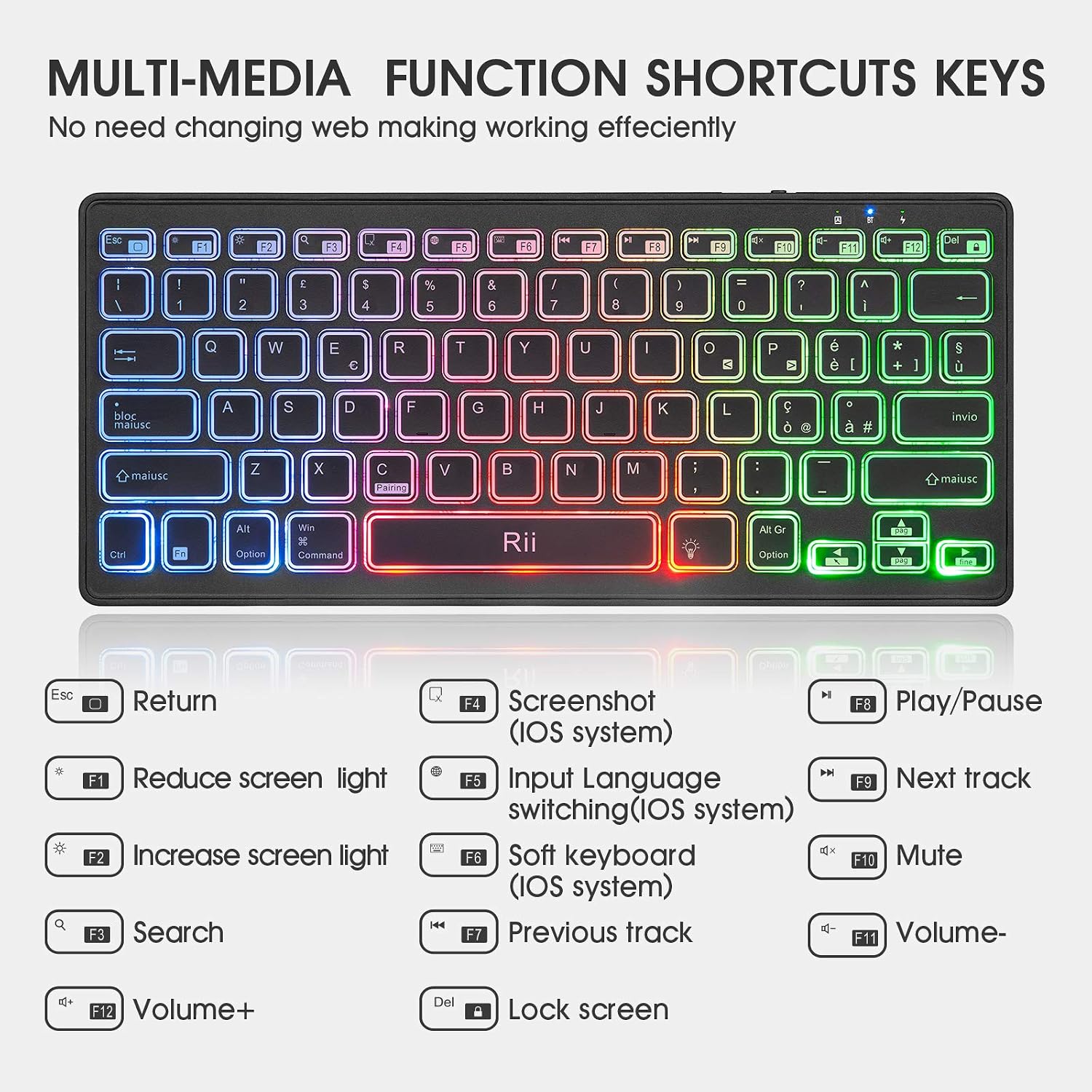
- Fn + F1: Reduce screen light
- Fn + F2: Increase screen light
- Fn + F3: Search
- Fn + F4: Screenshot (iOS system)
- Fn + F5: Input Language switching (iOS system)
- Fn + F6: Soft keyboard (iOS system)
- Fn + F7: Previous track
- Fn + F8: Play/Pause
- Fn + F9: Next track
- Fn + F10: Mute
- Fn + F11: Volume Down
- Fn + F12: Volume Up
- Fn + Del: Lock screen
4. Compatibility Notes
- Android Devices: Some Android versions may require a third-party application (e.g., "External Keyboard Helper Pro") to fully configure external keyboard settings.
- Smart TVs: Ensure your Smart TV supports Bluetooth HID profiles for keyboard input. Certain applications, such as some YouTube versions on Smart TVs, may not fully support external keyboards. In such cases, using the TV's web browser to access content may be an alternative.
Maintenance
1. Cleaning
To clean the keyboard, power it off and disconnect any cables. Use a soft, dry, lint-free cloth to wipe the surface. For stubborn dirt, slightly dampen the cloth with water or a mild, non-abrasive cleaner. Avoid excessive moisture and do not spray cleaners directly onto the keyboard.
2. Battery Care
- Avoid exposing the keyboard to extreme temperatures (hot or cold) as this can affect battery life.
- If storing the keyboard for an extended period, charge it to approximately 50% before storage and recharge it every few months to prevent deep discharge.
- Use only the provided microUSB cable or a certified equivalent for charging.
3. Storage and Transport
When not in use or during transport, power off the keyboard. The included nylon carrying case can protect the keyboard from dust and scratches.

Troubleshooting
Keyboard Not Connecting/Pairing
- Check Power: Ensure the keyboard is powered on and has sufficient battery charge.
- Re-enter Pairing Mode: Turn off the keyboard, then turn it on and re-enter pairing mode by holding Fn + C.
- Device Bluetooth: Ensure Bluetooth is enabled on your device and it is discoverable.
- Forget Device: If previously paired, try "forgetting" or "removing" the keyboard from your device's Bluetooth settings and then attempt to pair again.
- Distance: Ensure the keyboard is within the 8-meter operating range of your device.
- Interference: Move away from other wireless devices that might cause interference.
Keys Not Responding
- Battery Level: Recharge the keyboard. Low battery can cause erratic behavior.
- Reconnection: Disconnect and reconnect the Bluetooth connection.
- Cleanliness: Check for any debris under the keys.
Backlight Not Working
- Activate Backlight: Press the light bulb icon key to ensure it's turned on.
- Battery Level: Ensure the keyboard has sufficient charge, as backlighting consumes more power.
Specifications
| Model | K09 |
| Connectivity Technology | Bluetooth 4.0 |
| Operating Range | Up to 8 meters |
| Keyboard Layout | QWERTY (Italian) |
| Number of Keys | 78 |
| Backlight | RGB LED (Rainbow effect) |
| Battery Type | Rechargeable Lithium Polymer (420 mAh) |
| Charging Port | MicroUSB (5V - 300mA) |
| Charging Time | Less than 3 hours |
| Standby Time | Up to 400 hours |
| Dimensions (L x W x H) | 28.5 x 12.6 x 1.4 cm (11.22 x 4.96 x 0.55 inches) |
| Weight | 210 g (0.46 lbs) |
| Compatible Devices | PC (Windows, Mac, Linux), Smart TV, Smartphone, Tablet (Android, iOS, Windows) |
| Water Resistance | No |
Warranty and Support
For warranty information and technical support, please refer to the official RiiTek website or contact your retailer. Specific warranty terms may vary by region and retailer.
Manufacturer: Riitek
Official Website: www.riitek.com


