
1. Introduction
This manual provides essential information for setting up, operating, and maintaining your Acer Swift 3 laptop, model SF314-59-75QC. Please read this manual thoroughly to ensure proper use and to maximize the performance and longevity of your device.
The Acer Swift 3 is a thin and light laptop designed for performance and portability, featuring an Intel Core i7-1165G7 processor, Intel Iris Xe Graphics, 8GB LPDDR4X RAM, and a 256GB NVMe SSD. It comes with a 14-inch Full HD display and supports Wi-Fi 6 for fast wireless connectivity.

Figure 1: Front view of the Acer Swift 3 laptop, showcasing its sleek design and 14-inch display.
2. What's in the Box
Upon unboxing your Acer Swift 3 laptop, ensure all the following items are present:
- Acer Swift 3 Laptop (Model: SF314-59-75QC)
- AC Adapter
- Power Cord
3. Product Overview
Familiarize yourself with the various components and ports of your Acer Swift 3 laptop.
3.1. Left Side Ports
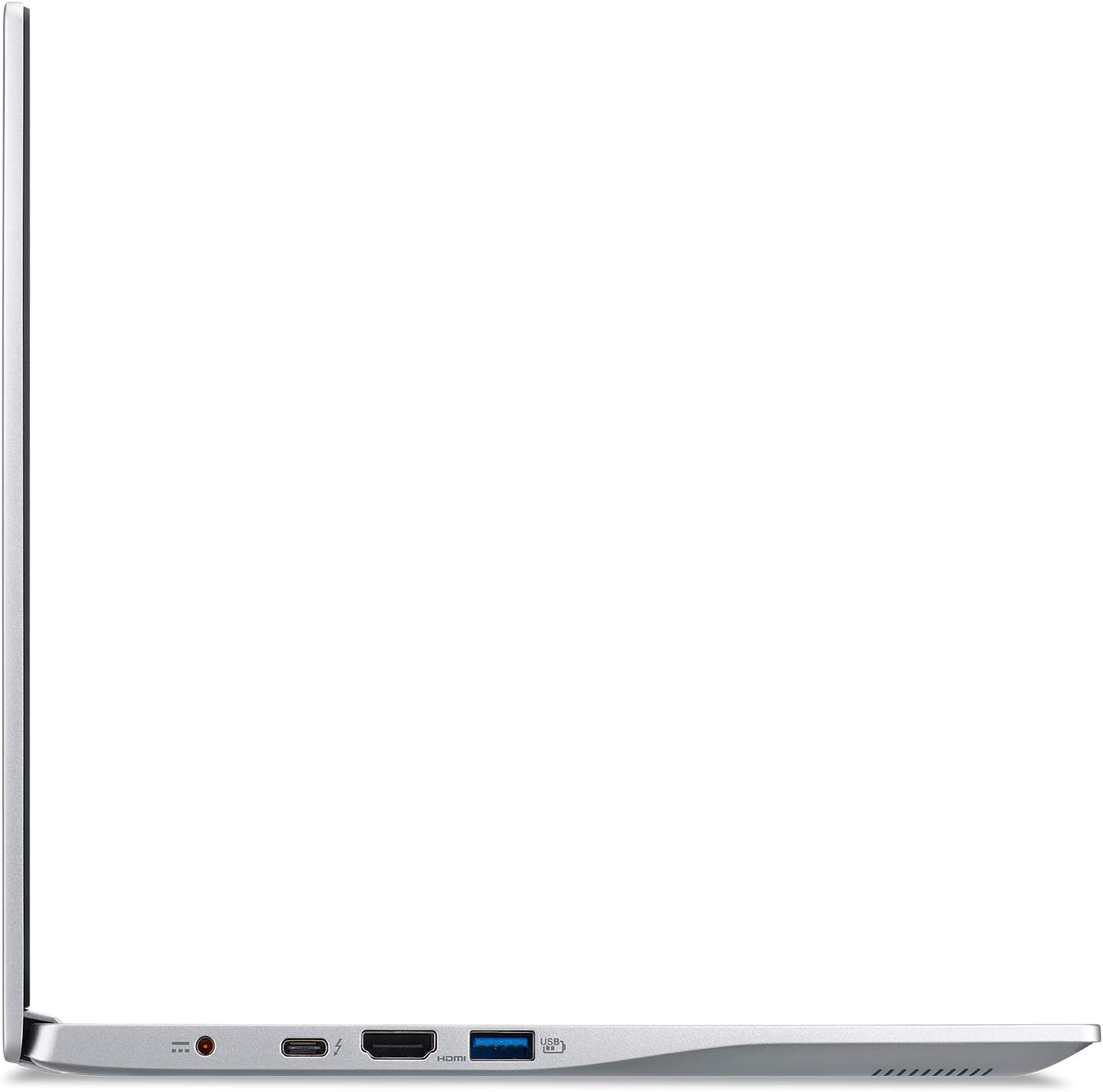
Figure 2: Left side view of the Acer Swift 3, showing the power jack, USB Type-C/Thunderbolt 4 port, HDMI port, and USB 3.2 Gen 1 port.
- Power Jack (DC-in): Connects to the AC adapter for charging and power.
- USB Type-C Port (USB 3.2 Gen 2, Thunderbolt 4, DisplayPort over USB Type-C, USB Charging): A versatile port for data transfer, video output, and charging compatible devices.
- HDMI Port: Connects to external displays or projectors.
- USB 3.2 Gen 1 Port (with power-off charging): For connecting USB devices, capable of charging devices even when the laptop is off.
3.2. Right Side Ports

Figure 3: Right side view of the Acer Swift 3, showing the headset/speaker jack, USB 2.0 port, power indicator, battery indicator, and Kensington lock slot.
- Headset/Speaker Jack: For connecting headphones or external speakers.
- USB 2.0 Port: For connecting standard USB devices.
- Power Indicator: Illuminates when the laptop is powered on.
- Battery Indicator: Shows battery status (charging, low battery).
- Kensington Lock Slot: For attaching a security cable to prevent theft.
3.3. Keyboard and Touchpad

Figure 4: Top-down view of the Acer Swift 3 keyboard and touchpad.
The laptop features a full-sized keyboard with backlighting for comfortable typing in various lighting conditions. The precision touchpad supports multi-touch gestures for intuitive navigation.

Figure 5: Icons illustrating the backlit keyboard, Cortana integration, and fingerprint reader.
A fingerprint reader is integrated for secure and convenient login via Windows Hello.
4. Setup
4.1. Initial Power On
- Connect the AC adapter to the laptop's power jack (DC-in) on the left side.
- Plug the power cord into an electrical outlet.
- Open the laptop lid.
- Press the power button, typically located on the top-right of the keyboard area.
- Follow the on-screen instructions to complete the initial Windows setup.
4.2. Charging the Battery
For optimal battery life, fully charge the laptop before its first use. The battery indicator light will change color to indicate charging status (e.g., amber for charging, blue for fully charged).
5. Operating Your Laptop
5.1. Power Management
- Power On: Press the power button.
- Sleep Mode: Close the lid or press the power button briefly.
- Shut Down: Click the Start button, then Power, and select "Shut down".
- Restart: Click the Start button, then Power, and select "Restart".
5.2. Connecting to Wi-Fi
Your Acer Swift 3 supports Wi-Fi 6 for high-speed wireless connectivity.
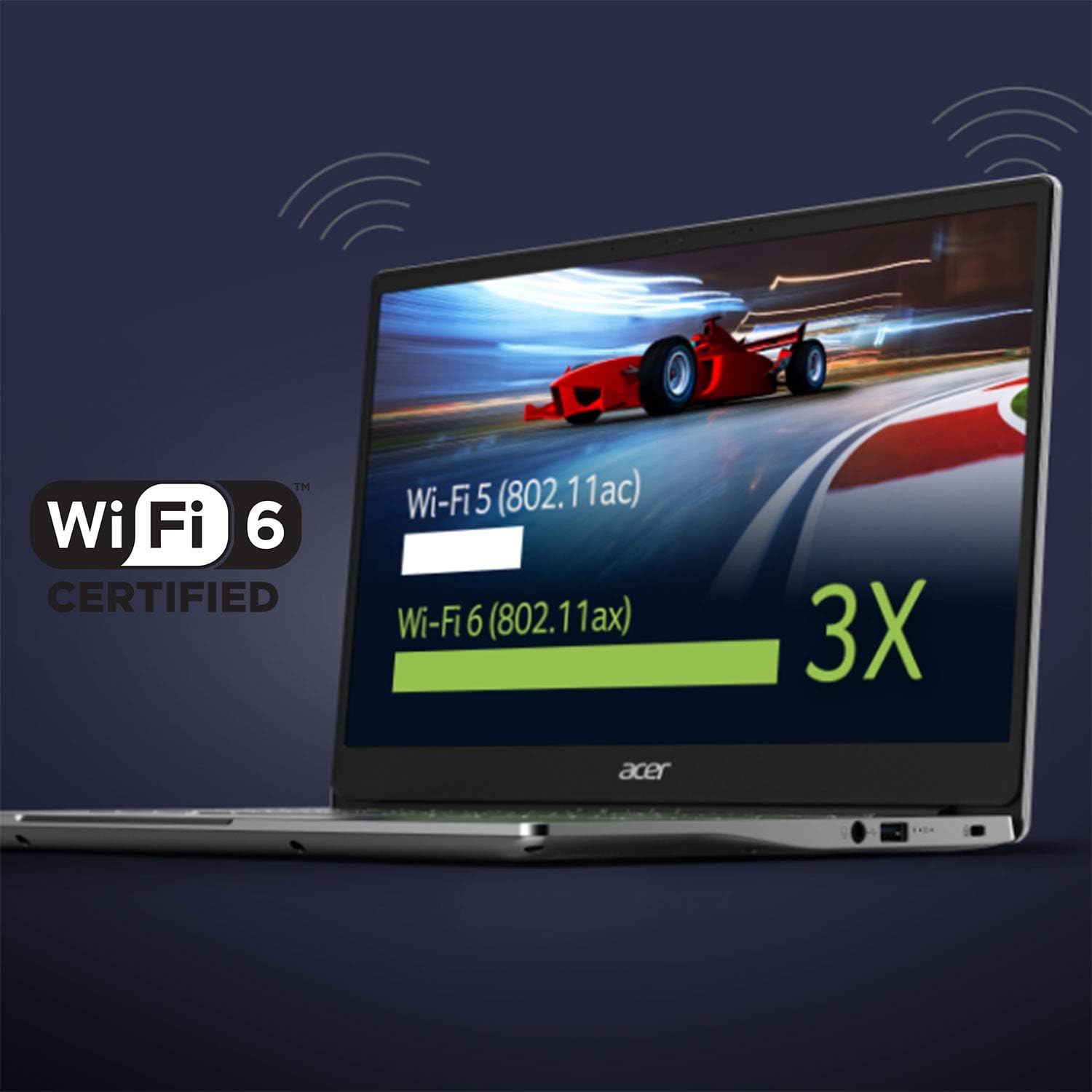
Figure 6: Illustration highlighting the Wi-Fi 6 certification and improved wireless performance.
- Click the Wi-Fi icon in the system tray (bottom-right corner of the screen).
- Select your desired Wi-Fi network from the list.
- Enter the network security key (password) if prompted.
- Click "Connect".
5.3. Using the Fingerprint Reader
The integrated fingerprint reader allows for quick and secure login.
- Go to Windows Settings > Accounts > Sign-in options.
- Under "Windows Hello Fingerprint", click "Set up".
- Follow the on-screen instructions to register your fingerprints.
5.4. Battery Life
The Acer Swift 3 is designed for extended use on a single charge, offering up to 16 hours of battery life depending on usage.

Figure 7: The laptop screen displaying a battery charging icon, with an overlay indicating "Up to 16-Hours Battery Life".
Actual battery life may vary significantly based on product configuration, software, usage, operating conditions, power management settings, and other factors.
6. Maintenance
- Cleaning: Use a soft, lint-free cloth to clean the screen and exterior. Avoid harsh chemicals.
- Ventilation: Ensure the laptop's vents are not obstructed to prevent overheating.
- Software Updates: Regularly update your operating system and drivers to ensure optimal performance and security.
- Battery Care: Avoid fully discharging the battery frequently. Store the laptop in a cool, dry place if not used for extended periods.
- Data Backup: Periodically back up your important data to an external drive or cloud storage.
7. Troubleshooting
- Laptop does not power on:
- Ensure the AC adapter is securely connected to both the laptop and a working power outlet.
- Check if the power outlet is functional by plugging in another device.
- If the battery is completely drained, it may take a few minutes of charging before the laptop can power on.
- No display on screen:
- Ensure the laptop is powered on.
- Adjust the display brightness using the function keys (Fn + F3/F4).
- If an external monitor is connected, try disconnecting it or switching display modes (Fn + F5).
- Wi-Fi connection issues:
- Ensure Wi-Fi is enabled in Windows settings.
- Restart your Wi-Fi router and the laptop.
- Check if other devices can connect to the same Wi-Fi network.
- Update your wireless network drivers.
- Laptop is slow or unresponsive:
- Close unnecessary applications.
- Check Task Manager (Ctrl+Shift+Esc) for high CPU or memory usage.
- Run a virus scan.
- Ensure sufficient free space on the SSD.
8. Specifications
Detailed technical specifications for the Acer Swift 3 (SF314-59-75QC):
| Feature | Specification |
|---|---|
| Processor | 11th Generation Intel Core i7-1165G7 (up to 4.7GHz, 4 cores, 8 threads, 12MB Smart Cache) |
| Operating System | Windows 10 Home |
| Display | 14" Full HD (1920 x 1080) IPS Widescreen LED-backlit, 100% sRGB |
| Graphics | Intel Iris Xe Graphics |
| RAM | 8GB LPDDR4X Onboard Memory |
| Storage | 256GB NVMe SSD |
| Wireless Connectivity | Intel Wireless Wi-Fi 6 AX201 (802.11ax Dual-Band 2.4GHz and 5GHz), Bluetooth 5.1 |
| Ports | 1x USB Type-C (USB 3.2 Gen 2, Thunderbolt 4, DisplayPort, USB Charging), 1x USB 3.2 Gen 1 (power-off charging), 1x USB 2.0, 1x HDMI 2.0, Headset/Speaker Jack, DC-in |
| Battery Life | Up to 16 hours (actual battery life may vary) |
| Weight | 2.65 lbs (1.2 kg) |
| Dimensions (LxWxH) | 14.31 x 0.71 x 9.86 inches |
| Other Features | Back-lit Keyboard, Acer Bio-Protection Fingerprint Solution, HD Webcam (1280 x 720) |
9. Warranty and Support
For detailed warranty information, please refer to the warranty card included with your product or visit the official Acer support website.
A comprehensive User Guide in PDF format is available for download:
For technical support, driver downloads, and frequently asked questions, please visit the official Acer support portal.