
Introduction
Welcome to your new X Rocker Lux 2.0 Bluetooth Gaming Floor Chair. This manual provides essential information for setting up, operating, and maintaining your chair to ensure optimal performance and longevity. Please read these instructions carefully before use.

Image: The X Rocker Lux 2.0 Bluetooth Gaming Floor Chair in black and gold, showcasing its ergonomic design.
Product Features
The X Rocker Lux 2.0 is designed to enhance your gaming and entertainment experience with its advanced features:
- Integrated 2.0 Bluetooth Audio System: Enjoy immersive sound with headrest-mounted speakers.
- Universal Compatibility: Easily connects to most gaming systems and devices.
- Rocking Design: Provides comfortable and dynamic seating for extended sessions.
- Durable Construction: Features a high-quality PU leather surface with stylish X pattern stitching and gold accents.
- Foldable Design: Allows for convenient storage when not in use.

Image: Front view of the X Rocker Lux 2.0 Gaming Chair, highlighting its black and gold design and headrest speakers.

Image: Side view of the X Rocker Lux 2.0 Gaming Chair, showing the X Rocker logo embossed on the side.
Product Overview Video
Video: An overview of the X Rocker gaming chair features and design.
Setup Guide
Your X Rocker Lux 2.0 chair comes largely pre-assembled. Follow these steps to connect the audio system.
Connecting to Audio
The chair features an integrated 2.0 Bluetooth Audio System. You can connect wirelessly via Bluetooth or using a wired connection.
Bluetooth Connection
- Locate the control panel on the side of the chair.
- Power on the chair. The Bluetooth indicator light will begin to flash, indicating it is in pairing mode.
- On your device (gaming console, smartphone, tablet), navigate to the Bluetooth settings.
- Select "X Rocker" from the list of available devices.
- Once successfully paired, the Bluetooth indicator light on the chair will turn solid.
Wired Connection
For devices without Bluetooth capability, use the provided 3.5mm audio cable.
- Connect one end of the 3.5mm audio cable to the "AUDIO IN" port on the chair's control panel.
- Connect the other end to the audio output (headphone jack) of your device.
- Adjust the volume using the chair's control panel or your connected device.

Image: A detailed view of the X Rocker Lux 2.0 control panel, showing the Bluetooth button, audio input, and volume controls.

Image: The X Rocker Lux 2.0 Bluetooth Gaming Floor Chair with its dimensions clearly marked: 32.68 inches (depth), 16.34 inches (width), and 27.76 inches (height).
Operating Instructions
Adjusting Volume
Use the dedicated volume control knob located on the side control panel to increase or decrease the audio output from the headrest speakers.
Rocking Function
The chair's rocking design allows for natural movement. Simply lean back or forward to adjust your seating angle for optimal comfort during gaming or relaxation.
Folding for Storage
To store the chair conveniently, gently push the backrest forward until it folds flat against the seat. This compact design makes it easy to tuck away when not in use.
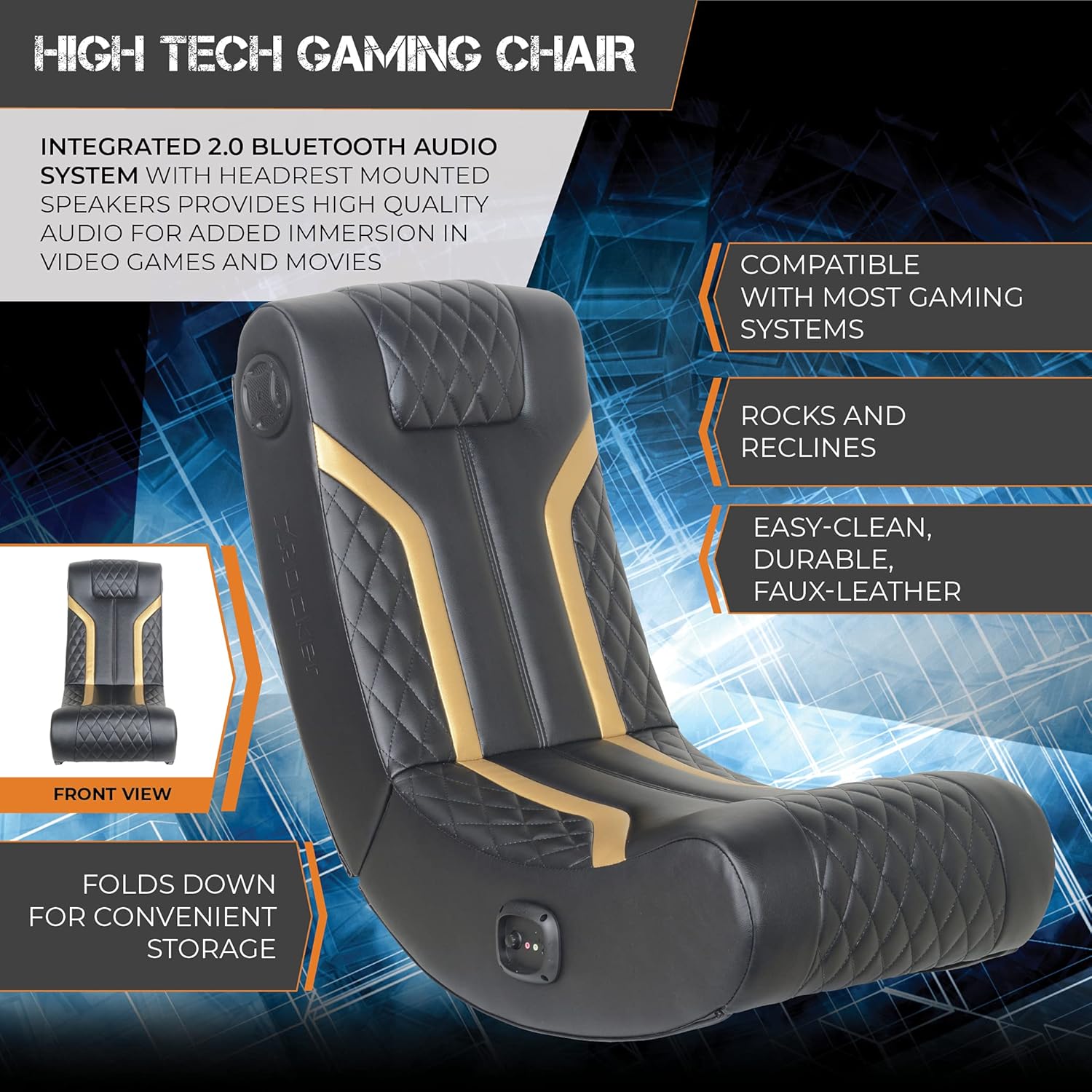
Image: The X Rocker Lux 2.0 Bluetooth Gaming Floor Chair shown in its folded position, demonstrating its space-saving design.
Maintenance
Proper care will extend the life and appearance of your X Rocker Lux 2.0 chair.
- Cleaning: Wipe the faux leather surface with a soft, damp cloth. Do not use abrasive cleaners, solvents, or harsh chemicals, as these can damage the material.
- Placement: Keep the chair away from direct sunlight and heat sources to prevent fading and material degradation.
- Connections: Periodically check all audio and power connections to ensure they are secure.
Troubleshooting
If you encounter any issues with your X Rocker Lux 2.0 chair, refer to the following common problems and solutions:
No Audio Output
- Ensure the chair is powered on and the volume is turned up on both the chair and your connected device.
- Verify that the Bluetooth connection is active (solid indicator light) or that all wired audio cables are securely plugged into the correct ports.
- Check the audio output settings on your connected device to ensure sound is being directed to the chair.
- If using a wired connection, try a different audio cable to rule out a faulty cable.
Bluetooth Pairing Issues
- Ensure the chair is in Bluetooth pairing mode (flashing indicator light).
- Make sure your device's Bluetooth is enabled and discoverable.
- Move your device closer to the chair to ensure a strong signal.
- If previously paired, "forget" the X Rocker device from your Bluetooth settings and attempt to re-pair.
Chair Not Rocking Smoothly
- Ensure the chair is placed on a flat, even surface.
- Check for any obstructions beneath the chair that might impede its rocking motion.
Product Specifications
| Feature | Detail |
|---|---|
| Model Name | Lux 2.0 Bluetooth Gaming Floor Chair |
| Model Number | 5109401 |
| Brand | X Rocker |
| Product Dimensions | 32.68"D x 16.34"W x 27.76"H |
| Material | Faux Leather |
| Color | Gold and Black |
| Special Features | Foldable, Head Support, Audio, Speakers, Bluetooth |
| Audio System | Integrated 2.0 Bluetooth Audio System with headrest mounted speakers |
| Product Care | Wipe Clean |
| Weight | 19.45 pounds |
| UPC | 094338510942 |
Warranty and Support
For detailed warranty information and customer support, please refer to the official X Rocker website or contact your retailer directly. It is recommended to keep your proof of purchase for any warranty claims.
For further assistance or to explore other X Rocker products, visit the X Rocker Store.


