1. Introduction
Welcome to your LeadsaiL Wireless Mouse LX009. This manual provides instructions for setup, operation, maintenance, and troubleshooting to ensure optimal performance and a seamless user experience. Please read this manual thoroughly before using the product.
2. Package Contents
- LeadsaiL Wireless Mouse LX009
- USB Nano Receiver
- User Manual
Note: One AA battery is required and is not included in the package.
3. Product Overview
Familiarize yourself with the components of your LeadsaiL Wireless Mouse LX009.

Figure 1: Top view of the LeadsaiL Wireless Mouse LX009 and its USB Nano Receiver.

Figure 2: Labeled components of the LeadsaiL Wireless Mouse LX009, including Left Button, Right Button, Anti-slip Scroller, DPI Switch, ON/OFF Switch, AA Battery Compartment, and Tiny USB Receiver storage.
4. Setup
Follow these steps to set up your LeadsaiL Wireless Mouse:
- Insert Battery: Open the battery compartment cover on the underside of the mouse. Insert one AA battery, ensuring correct polarity (+/-). Close the cover securely.
- Retrieve USB Receiver: The USB Nano Receiver is conveniently stored inside the battery compartment. Gently remove it.
- Connect Receiver: Plug the USB Nano Receiver into an available USB port on your computer (laptop, desktop, etc.). Your computer should automatically detect and install the necessary drivers.
- Power On: Slide the ON/OFF switch on the bottom of the mouse to the "ON" position. The mouse should now be ready for use.
Video 1: Demonstrates the setup process, including battery insertion, USB receiver retrieval, and connecting the mouse to a laptop.
5. Operating Instructions
Basic Operation
The mouse features standard left and right click buttons and a scroll wheel for navigation. Use the left button for primary clicks, the right button for secondary functions, and the scroll wheel for vertical scrolling.
Silent Click Feature
The LeadsaiL LX009 mouse is engineered for silent operation, significantly reducing click noise by over 90%. This feature allows for a quiet working environment, ideal for offices, libraries, or late-night use without disturbing others.

Figure 3: The silent click design ensures a quiet user experience.
Ergonomic Design
The mouse features a shapely, domed design that provides comfortable support for your palm and fits seamlessly in your hand. This ergonomic design helps reduce strain during extended periods of use.

Figure 4: The ergonomic design of the mouse provides a comfortable grip.
6. DPI Adjustment
The mouse offers three adjustable DPI (Dots Per Inch) levels to customize cursor sensitivity and tracking speed:
- 800 DPI: Suitable for precise tasks like graphic design or detailed work.
- 1200 DPI: Standard setting for general computing and everyday use.
- 1600 DPI: Ideal for faster cursor movement, such as gaming or navigating large displays.
To change the DPI setting, press the DPI switch button located below the scroll wheel. Each press cycles through the available DPI levels.

Figure 5: The DPI switch allows selection between 800, 1200, and 1600 DPI settings.
7. Power Saving Features
The LeadsaiL Wireless Mouse LX009 incorporates features to maximize battery life:
- On/Off Switch: A physical ON/OFF switch is located on the bottom of the mouse. Always turn off the mouse when not in use for extended periods to conserve battery power.
- Auto-Sleep Mode: The mouse automatically enters a power-saving sleep mode after a period of inactivity. To wake it up, simply click any button.
- Extended Battery Life: With efficient power management and proper use of the ON/OFF switch, the mouse can achieve up to 12 months of battery life on a single AA battery.
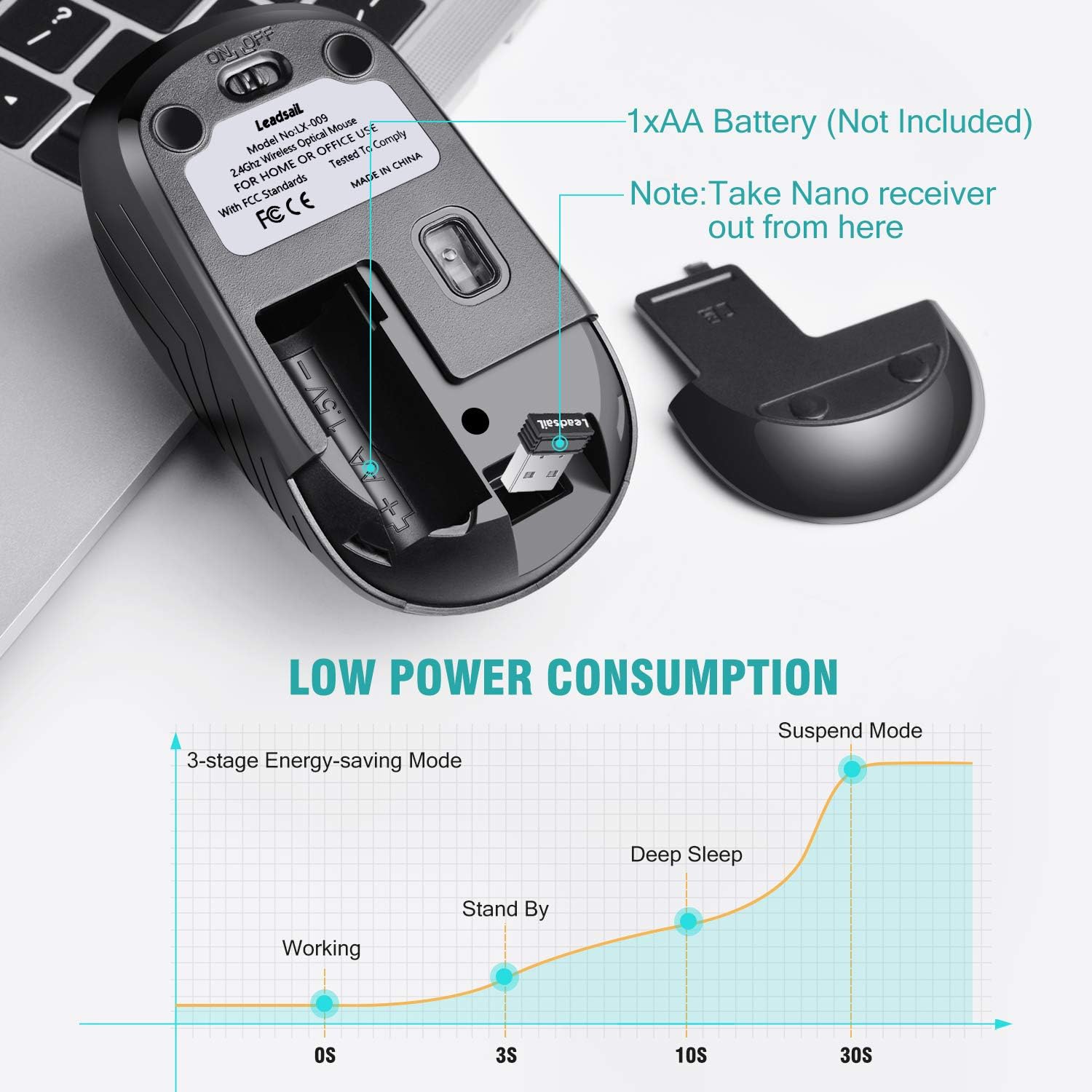
Figure 6: The mouse features a 3-stage energy-saving mode, transitioning from working to standby, deep sleep, and suspend modes to maximize battery life.
8. Maintenance
To ensure the longevity and optimal performance of your mouse:
- Cleaning: Use a soft, dry cloth to clean the mouse. For stubborn dirt, a slightly damp cloth can be used, but ensure no moisture enters the internal components. Avoid using harsh chemicals, solvents, or abrasive materials.
- Storage: When not in use for extended periods, turn off the mouse using the ON/OFF switch. The USB receiver can be stored in its designated slot within the battery compartment to prevent loss.
- Battery Replacement: Replace the AA battery when the mouse performance degrades, the cursor becomes erratic, or the mouse stops responding.
9. Troubleshooting
If you encounter any issues with your LeadsaiL Wireless Mouse, please refer to the following table:
| Problem | Solution |
|---|---|
| Mouse not responding |
|
| Cursor erratic or not moving smoothly |
|
| Connection issues |
|
| Silent click not working |
|
If issues persist after attempting these solutions, please refer to the warranty and support information provided in this manual.
10. Specifications
- Model: LX009
- Connectivity: 2.4Ghz Wireless (USB Receiver)
- DPI Levels: 800 / 1200 / 1600 (Adjustable)
- Buttons: 4 (Left, Right, Scroll Wheel/Middle, DPI Switch)
- Power Source: 1 x AA Battery (not included)
- Battery Life: Up to 12 months (approximate, varies with usage)
- Operating System Compatibility: Windows, macOS, Linux, Chrome OS
- Dimensions (LxWxH): 4.33 x 1.97 x 1.57 inches (11 x 5 x 4 cm)
- Weight: 2.39 ounces (67.7 grams)
- Special Features: Silent Click, Ergonomic Design, Portable, Auto-Sleep Power Saving
11. Warranty and Support
For detailed warranty information or technical support, please contact LeadsaiL customer service. You can typically find contact details on the official LeadsaiL website or through the retailer where you purchased the product. Please retain your purchase receipt as proof of purchase for any warranty claims.