
1. Introduction
Thank you for choosing the deerdance Smart LED Strip Lights. This manual provides essential information for the safe and efficient use of your new LED strip lights. These 32.8-foot RGB LED strip lights offer a wide range of colors and smart features, including app control, voice control with Alexa and Google Assistant, music synchronization, and timer functions. Please read this manual thoroughly before installation and operation.
Key Features:
- Voice Control: Control your LED strip lights using simple voice commands with compatible smart assistants like Alexa and Google Assistant.
- Smart App Control: Manage your LED strip lights from anywhere via the dedicated mobile application, offering full control over colors, brightness, and modes.
- Music Sync: Synchronize your lights with music or ambient sounds, creating dynamic light shows that react to the rhythm.
- Timer Setting: Schedule your LED strip lights to automatically turn on or off at specified times.
- Memory Function: The lights will automatically restore the last used color and setting when powered on again.
2. What's in the Box
Carefully unpack the contents and ensure all items are present and undamaged. If any items are missing or damaged, please contact customer support.
- 2 x 16.4ft (5M) LED Strip Lights (with adhesive backing)
- 1 x AC/DC Power Adapter
- 1 x WiFi + IR Receiver/Controller
- 1 x IR Remote Control (batteries included)
- User and Care Guide

Image: Overview of the deerdance Smart LED Strip Lights components, including two rolls of LED strips, power adapter, controller, and remote.
Video: An unboxing and overview of the deerdance Smart LED Strip Lights, showing the contents of the package and initial setup.
3. Setup and Installation
3.1 Surface Preparation:
- Ensure the installation surface is clean, dry, and smooth. Dust, oil, or moisture can affect the adhesive's effectiveness.
- For optimal adhesion, wipe the surface with a clean cloth and rubbing alcohol, then allow it to dry completely.
3.2 Strip Installation:
- Unroll the LED strip lights. Do not power on the lights while they are still rolled up, as this can cause overheating.
- Peel off the protective backing from the adhesive strip on the back of the LED lights.
- Carefully press the LED strip onto the desired surface, applying firm and even pressure along the entire length.
- For corners or turns, avoid sharp bends. Instead, gently curve the strip or use connectors (not included) if cutting is necessary.
- The LED strips can be cut at designated marks (usually indicated by a scissor icon or copper pads) to fit specific lengths. Ensure the power is disconnected before cutting.

Image: Close-up of the LED strip showing bright 5050SMD LEDs, powerful 3M adhesive, and cuttable sections with short and long connectors.
3.3 Connecting the Components:
- Connect the LED strip(s) to the WiFi + IR Receiver/Controller. Ensure the arrows on the connectors align.
- Connect the AC/DC Power Adapter to the WiFi + IR Receiver/Controller.
- Plug the power adapter into a standard electrical outlet.
3.4 App Setup (Magic Home Pro):
- Step 1: Download the “MagicHomePro” app from Google Play Store or Apple App Store.
- Step 2: Ensure your phone is connected to your home Wi-Fi network (2.4GHz Wi-Fi only). Open the app and tap the “+” button in the upper-right corner to search for devices. Connect to the “LEDnetxxxxx” signal. Then return to the app.
- Step 3: Select your home network from the Wi-Fi list within the app and enter the correct Wi-Fi password. Finally, assign a name to your device.

Image: Demonstrates the mobile application interface for controlling LED strip lights and setting timers.
4. Operating Instructions
4.1 App Control:
Once connected to the MagicHomePro app, you can:
- Select from 16 million colors.
- Adjust brightness from 1% to 100%.
- Choose from various dynamic modes.
- Set custom scenes.
- Access the timer function to schedule on/off times.
4.2 Voice Control (Alexa/Google Assistant):
After linking your MagicHomePro account to Alexa or Google Assistant (instructions available in the app), you can use voice commands such as:
- "Alexa, turn on [device name]."
- "Hey Google, set [device name] to blue."
- "Alexa, dim [device name] to 50%."
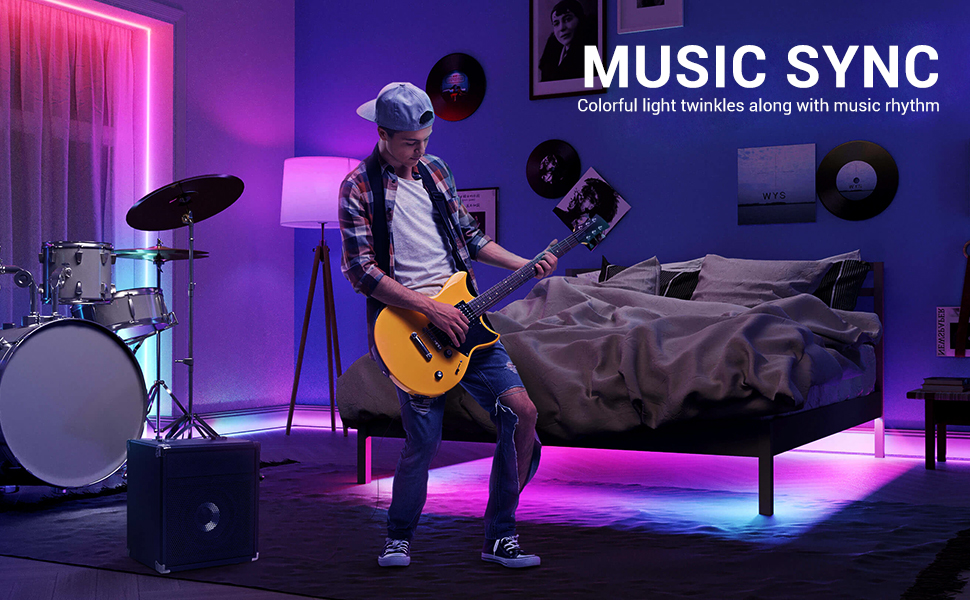
Image: Illustration of voice control functionality with an Alexa device, demonstrating how to turn on lights.
4.3 Music Sync:
Activate the music sync feature via the app. The lights will change color and intensity in response to music played through your phone's microphone or the controller's built-in microphone.

Image: Depicts the music sync feature, showing lights changing colors in rhythm with music.
4.4 IR Remote Control:
The included IR remote provides basic control over the lights, including power on/off, color selection, brightness adjustment, and mode changes. Point the remote directly at the IR receiver for best performance.
5. Maintenance
- Cleaning: Gently wipe the LED strips with a dry, soft cloth to remove dust. Do not use liquid cleaners or abrasive materials.
- Handling: Avoid pulling or bending the LED strips excessively, especially at connection points, to prevent damage.
- Storage: If storing the lights, ensure they are clean and rolled loosely to prevent kinks or damage to the LEDs.
6. Troubleshooting
- Lights not turning on: Check all connections, ensure the power adapter is securely plugged in, and verify the power outlet is functional.
- Remote control not working: Ensure the remote has working batteries and is pointed directly at the IR receiver. Remove any obstacles between the remote and receiver.
- App connectivity issues: Confirm your phone is on a 2.4GHz Wi-Fi network. Restart your router, the LED controller, and your phone. Ensure the app is updated to the latest version.
- Incorrect colors: Check the connections between the LED strip and the controller to ensure they are correctly aligned (arrow to arrow).
- Adhesive not sticking: Ensure the surface was properly cleaned and dry before installation. For rough or textured surfaces, additional mounting clips (not included) may be required.
7. Specifications
| Feature | Detail |
|---|---|
| Brand | deerdance |
| Model Number | JJ-5050ST-RGB-12-WIFI02 |
| Color | RGB (Red, Green, Blue) |
| Light Color | Multicolor |
| Light Source Type | LED |
| LED Type | 5050 SMD |
| Item Length | 32.8 Feet (2 x 16.4ft) |
| Indoor/Outdoor Usage | Indoor, Outdoor |
| Power Source | DC, Battery-powered (for remote) |
| Control Method | Voice, App Control, IR Remote Control |
| Smart Home Compatibility | Alexa, Google Assistant |
| Color Temperature | 2000-9000K |
| Item Weight | 13.7 ounces (0.39 Kilograms) |
| Material | Plastic |
| UPC | 739677630226, 739677630554 |
8. Warranty and Support
For warranty information or technical support, please refer to the contact details provided on the product packaging or visit the official deerdance website. Keep your purchase receipt as proof of purchase for any warranty claims.