
1. Introduction
The AtGames Legends Ultimate Arcade is a full-size home arcade machine designed to provide an authentic gaming experience with a vast library of classic and modern titles. This manual provides essential information for the assembly, setup, operation, and maintenance of your Legends Ultimate Arcade machine, ensuring safe and enjoyable use.
2. Safety Information
Please read all safety warnings and instructions carefully before assembling and operating your Legends Ultimate Arcade machine. Retain this manual for future reference.
- Electrical Safety: Ensure the machine is connected to a grounded power outlet. Do not expose the machine to water or excessive moisture. Disconnect power before cleaning or servicing.
- Ventilation: Do not block ventilation openings. Ensure adequate airflow around the machine to prevent overheating.
- Stability: Place the machine on a flat, stable surface to prevent tipping.
- Children: This product contains small parts and electrical components. Adult supervision is recommended for children operating the machine.
3. Package Contents
Verify that all components are present before beginning assembly:
- Legends Ultimate Arcade Cabinet (various panels)
- Control Panel Assembly (with joysticks, buttons, trackball, spinner)
- Monitor Assembly
- Power Adapter
- Assembly Hardware (screws, bolts, cam locks, etc.)
- Instruction Manual (this document)
4. Assembly
Assembly typically requires two adults and takes approximately 1-2 hours. Follow the step-by-step instructions provided in the included assembly guide for detailed diagrams and procedures. Ensure all connections are secure and all screws are tightened appropriately.
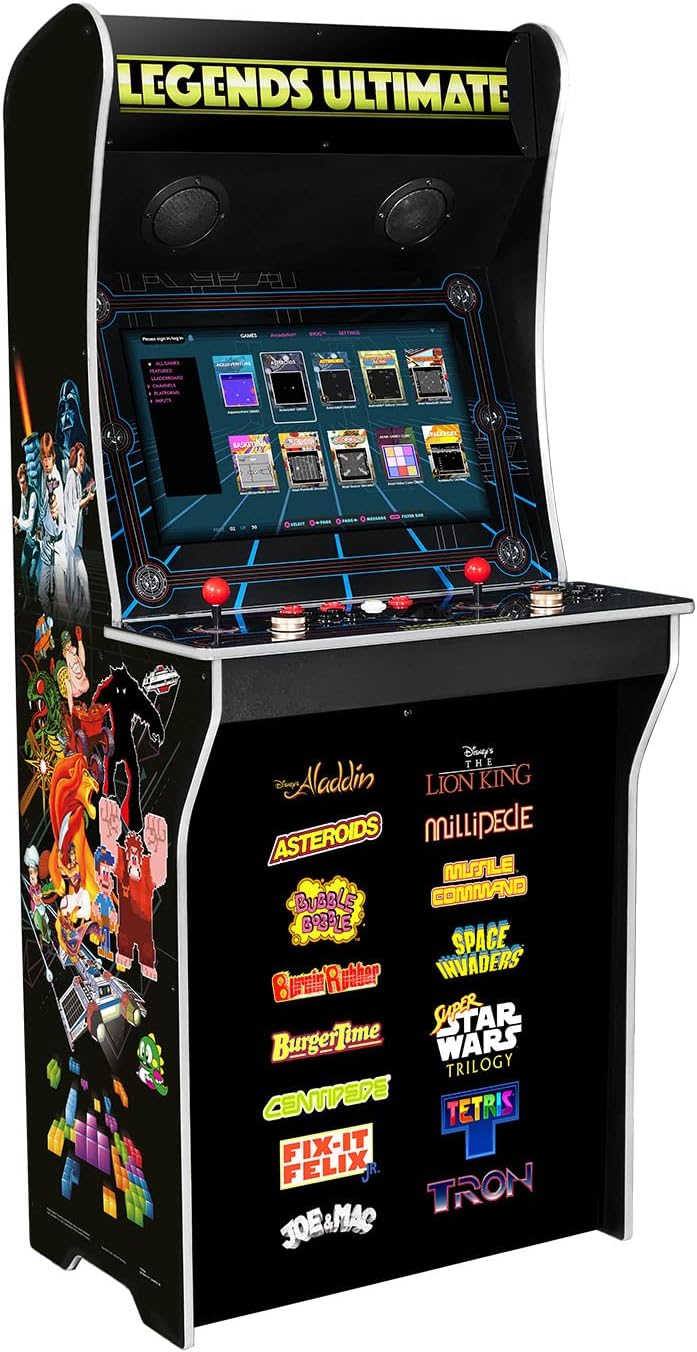
Figure 4.1: The fully assembled Legends Ultimate Arcade Machine.
Key Assembly Steps:
- Unpack all components and lay them out on a clean, flat surface.
- Assemble the main cabinet structure using the provided panels and hardware.
- Install the monitor assembly into the cabinet.
- Attach the control panel assembly, ensuring all internal cables are properly connected to the main board.
- Secure the back panel and any remaining covers.
5. Setup
Once assembled, connect your Legends Ultimate Arcade machine for power and network access.
5.1 Power Connection
Connect the provided power adapter to the DC input port on the back of the machine, then plug the adapter into a standard AC wall outlet.
5.2 Network Connection
The Legends Ultimate Arcade supports both Wi-Fi and Ethernet connectivity for online features, game streaming, and firmware updates.
- Wi-Fi: Navigate to the network settings in the main menu, select your Wi-Fi network, and enter the password.
- Ethernet: Connect an Ethernet cable from your router to the Ethernet port on the back of the machine.
5.3 External Device Connectivity
The machine features HDMI and USB ports for connecting external devices such as game consoles, PCs, or specialized controllers like racing wheels and flight yokes. Ensure the external device is powered on and connected to the appropriate port. Use the input selection button on the control panel to switch to the desired input source.

Figure 5.1: The comprehensive control panel of the Legends Ultimate Arcade.
6. Operating Instructions
Familiarize yourself with the controls and menu navigation to fully enjoy your arcade experience.
6.1 Powering On/Off
Press the power button, usually located on the top right of the control panel, to turn the machine on. To power off, press and hold the power button until the shutdown options appear, then select 'Shutdown'.
6.2 Menu Navigation
Use the joysticks and action buttons on the control panel to navigate through the Legends Arcade Platform interface. The main menu provides access to the game library, settings, and online features like ArcadeNet.
6.3 Playing Games
Select a game from the library using the joystick and 'A' button (or equivalent action button). Follow any on-screen prompts to start the game. The control panel features two sets of joysticks and action buttons for two-player gameplay.

Figure 6.1: Users engaging with the Legends Ultimate Arcade machine.
6.4 Online Features (ArcadeNet, BYOG)
Connect to the internet to access ArcadeNet, which offers a growing library of games, online multiplayer, leaderboards, and downloadable content. BYOG (Bring Your Own Game) allows you to stream games from your PC to the arcade machine, utilizing the arcade controls.
7. Maintenance
Regular maintenance ensures the longevity and optimal performance of your Legends Ultimate Arcade machine.
- Cleaning: Use a soft, dry cloth to wipe down the cabinet and control panel. For the screen, use a microfiber cloth and a screen-safe cleaning solution. Avoid abrasive cleaners or excessive moisture.
- Storage: If storing the machine for an extended period, disconnect it from power and cover it to protect from dust and debris. Store in a dry, temperature-controlled environment.
8. Troubleshooting
Refer to the following common issues and their potential solutions:
| Problem | Possible Cause | Solution |
|---|---|---|
| Machine does not power on. | Power cable disconnected, faulty outlet. | Check power connections, try a different outlet. |
| No display on screen. | Loose internal monitor cable, incorrect input source. | Ensure internal cables are secure. Press the input selection button to cycle through sources. |
| Controls are unresponsive. | Loose control panel connection, software glitch. | Check control panel cable connections. Restart the machine. |
| Cannot connect to Wi-Fi. | Incorrect password, weak signal, router issue. | Verify password, move closer to router, restart router. |
9. Specifications
- Product Dimensions: 29.53 x 21.65 x 66.44 inches
- Item Weight: 10 pounds
- Platform: Electronic Game, Not Machine Specific
- Input Device: Gamepad (integrated joysticks, buttons, trackball, spinner)
- Connectivity Technology: HDMI, Wi-Fi, Bluetooth, Ethernet
- Manufacturer: AtGames
- Model Name: HA8801
10. Warranty and Support
The AtGames Legends Ultimate Arcade machine comes with a manufacturer's warranty. For detailed warranty information, including terms and conditions, please refer to the warranty card included in your product packaging or visit the official AtGames support website. For technical assistance, troubleshooting beyond this manual, or replacement parts, please contact AtGames customer support directly.
AtGames Support: www.atgames.net/arcades/support/


