
1. Introduction
Thank you for choosing LaView 1080P Indoor Wi-Fi Security Cameras. This manual provides detailed instructions to help you set up, operate, and maintain your new security system. These cameras are designed to provide reliable indoor surveillance with features such as 1080P HD video, night vision, two-way audio, and smart motion detection.
For optimal performance and safety, please read this manual thoroughly before use and retain it for future reference.
2. What's in the Box
- LaView 1080P Indoor Wi-Fi Camera Body (4 units)
- Power Adapters (4 units)
- Quick Start Guide
3. Product Overview
The LaView 1080P Indoor Wi-Fi Security Camera offers comprehensive home monitoring. Below is an image illustrating the cameras included in your package.

These cameras are designed for indoor use and provide clear 1080P resolution for monitoring your home, pets, or loved ones.
4. Specifications
| Feature | Specification |
|---|---|
| Model Name | LV-PWF1-4PKG |
| Indoor/Outdoor Usage | Indoor |
| Connectivity Technology | Wired (for power), Wi-Fi (for data) |
| Effective Video Resolution | 1080 Pixels (2.1 MP) |
| Night Vision Range | Up to 33 Feet |
| Viewing Angle | 84 Degrees |
| Two-Way Audio | Yes |
| Motion Detection | Yes (Motion Only Alert Type) |
| Storage Options | MicroSD (up to 128GB), Cloud Storage (30-day free trial) |
| Compatible Devices | Alexa, iOS & Android (LaView App), Web Access |
| Power Source | Corded Electric (5 Volts, 2.5 Watts) |
| Item Weight | 1.37 pounds |
5. Setup Guide
5.1. Initial Setup
- Unpack the Cameras: Carefully remove all cameras and accessories from the packaging.
- Power On: Plug each camera into a power outlet using the provided power adapter. The camera's indicator light will turn on.
- Reset Camera: If necessary, use a pin to press and hold the reset button on the camera until the indicator light blinks, indicating it's ready for pairing.
5.2. App Setup Guide
The LaView App is essential for controlling and monitoring your cameras. Follow these steps to set up your cameras using the app:

- Download and Register: Download the "LaView" App from your mobile app store (iOS or Android) and register for a new account.
- Add Device: Tap the 'Add device' icon within the app.
- Select Device Type: Choose 'Smart camera' under 'video surveillance'.
- Confirm Power and Reset: Hold down the reset hole until the indicator blinks red, then confirm in the app.

- Enter Wi-Fi Details: Enter your 2.4GHz Wi-Fi network name and password. Note: 5GHz Wi-Fi networks are not supported.
- Scan QR Code: Use the camera to scan the QR code displayed on your phone screen until you hear a prompt.
- Add Device Successfully: The device will be added to your account.
- Start Monitoring: You can now see the live-view of your camera by clicking on it in the app.
5.3. Web Access Guide
You can also access your camera feeds via a web browser for convenient monitoring on a larger screen.

- Login to Website: Open your web browser and navigate to the LaView web access portal.
- Scan QR Code: On the web page, a QR code will be displayed. Open your LaView mobile app, tap the scanner icon in the top right corner, and scan the QR code on your computer screen.
- Login Complete: Once scanned, your web access will be complete, and you can view your camera feeds.
6. Operating Instructions
6.1. Live Streaming and Multi-User Sharing
Access 24/7 live streams of your cameras via the LaView app or web browser. The system supports up to 9 simultaneous live feeds, allowing you to monitor multiple areas at once.

You can share access to your cameras with up to 20 people, enabling family and friends to monitor the property as well.

6.2. Motion Detection and Alerts
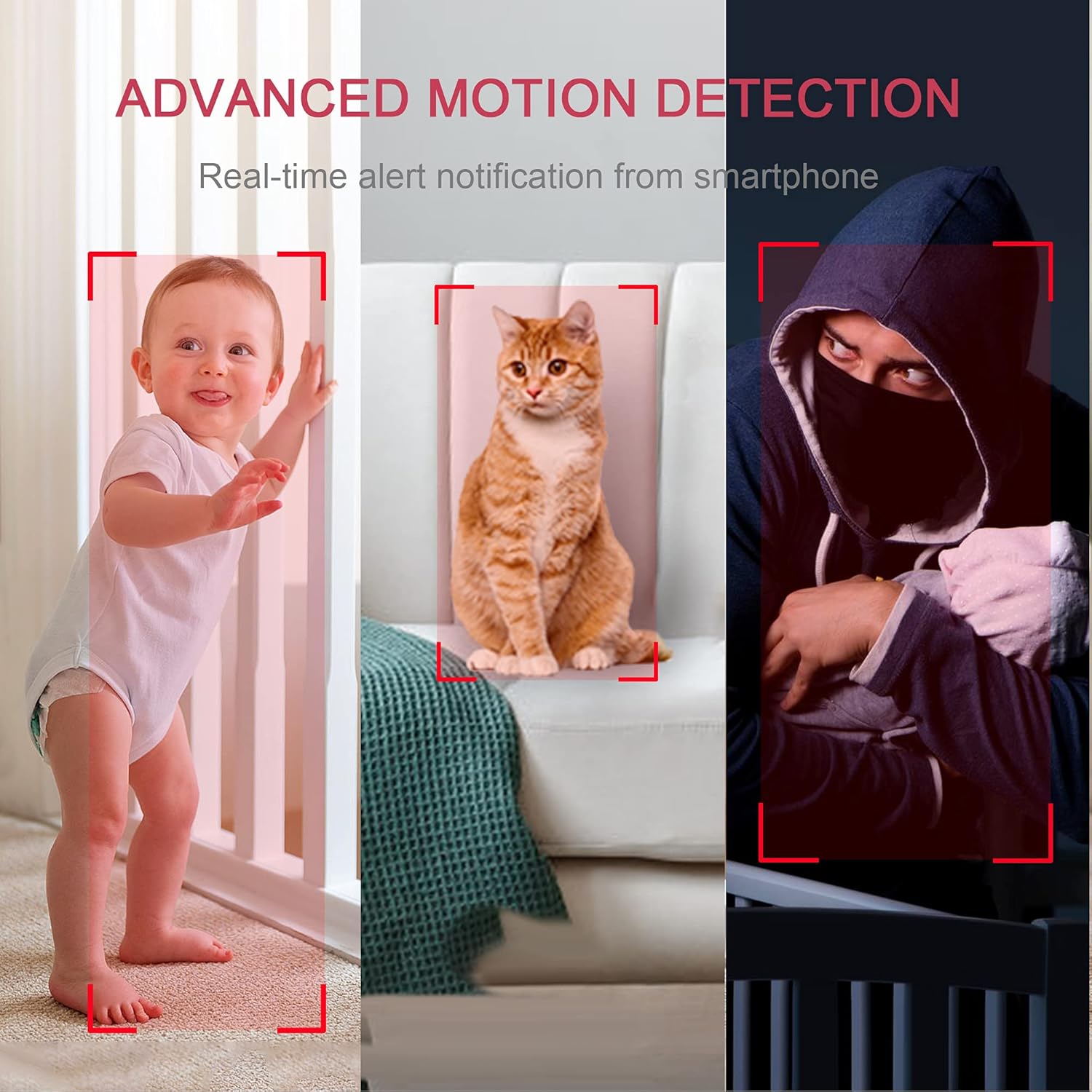
The cameras feature instant motion detection with smart alerts. When motion is detected, you will receive real-time notifications on your smartphone, keeping you informed of any activity.

6.3. Two-Way Audio
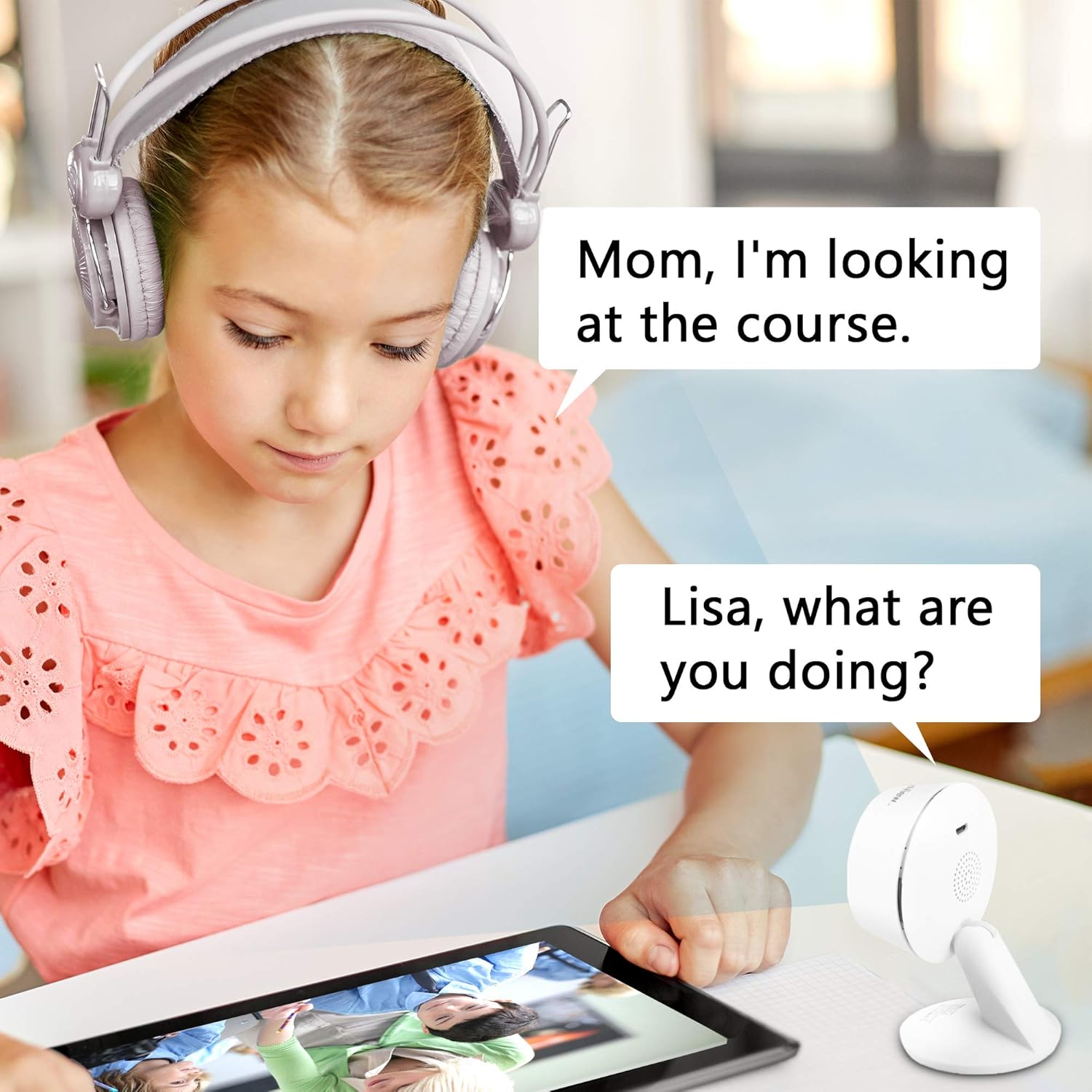
Communicate with family members or pets through the camera using the clear two-way audio feature with noise cancellation. This allows for real-time interaction from anywhere.

6.4. Night Vision
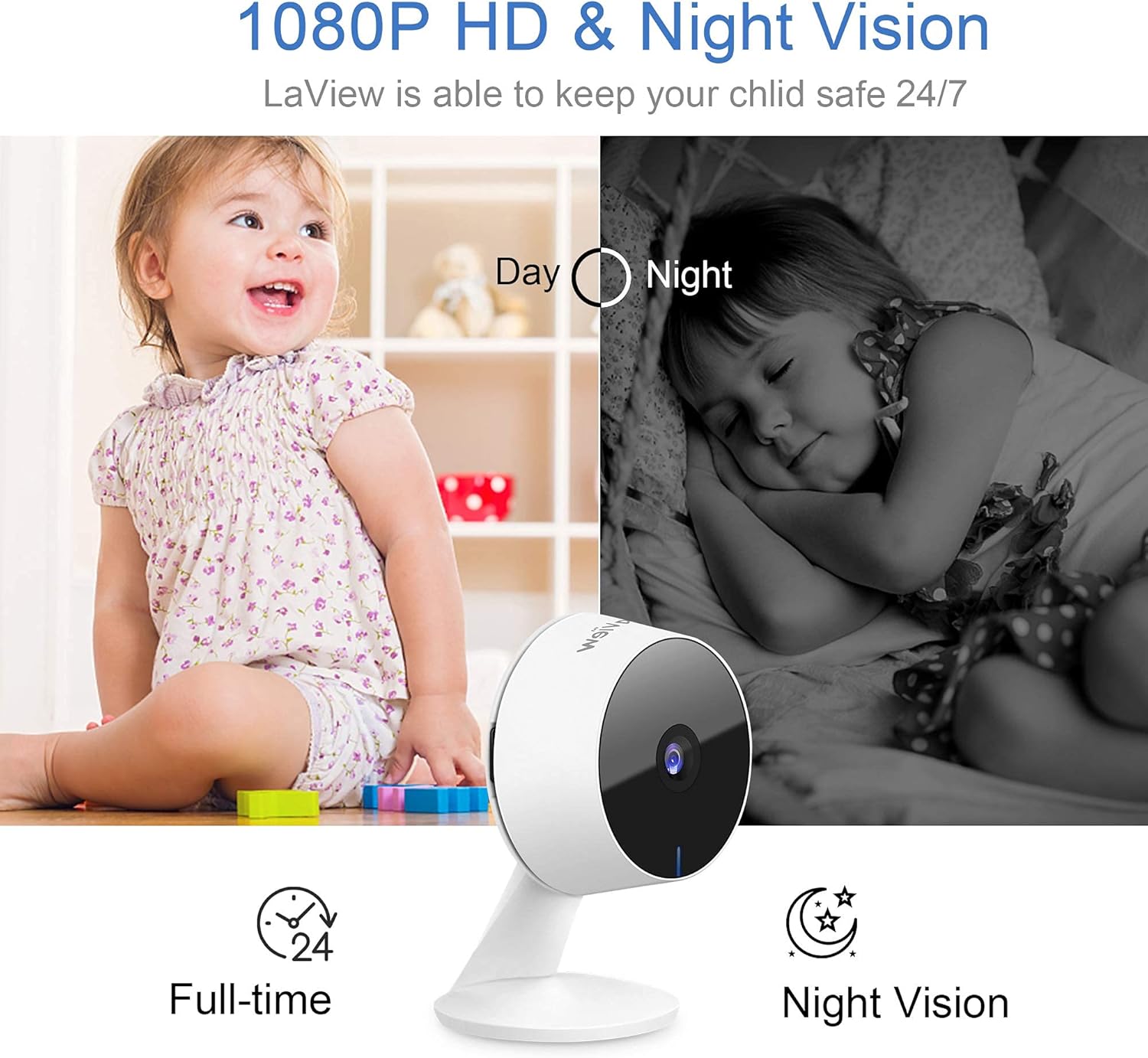
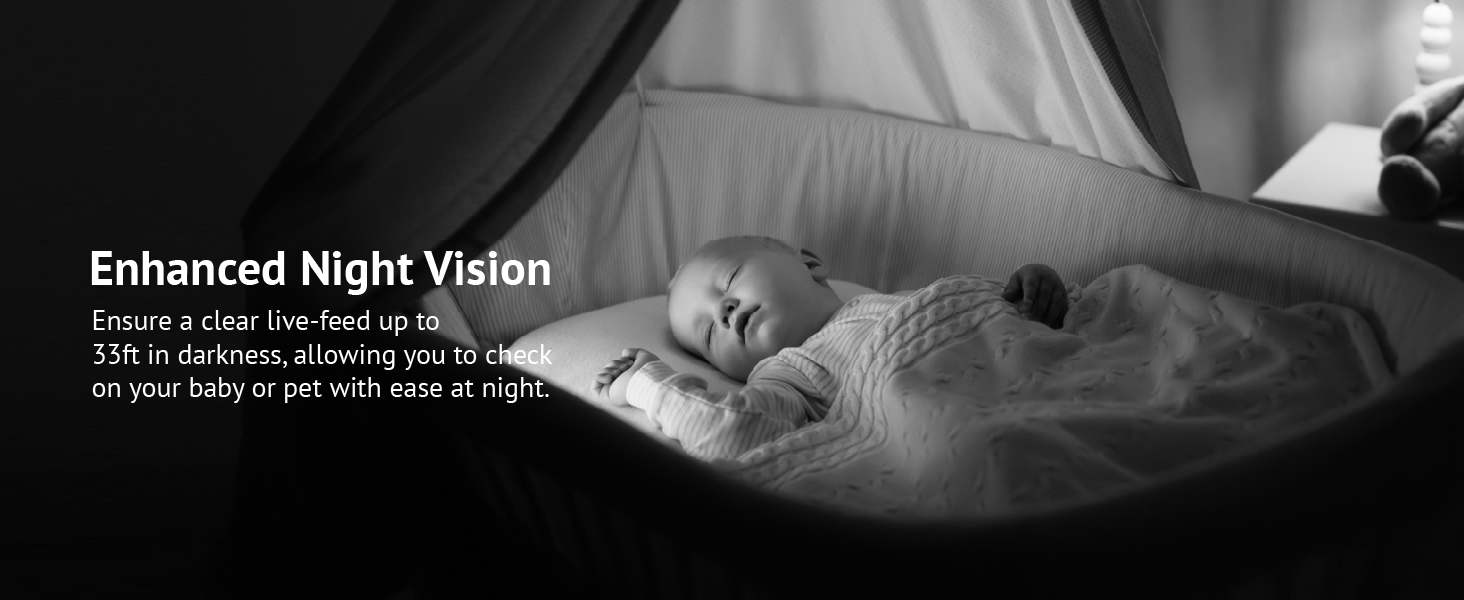
Equipped with advanced IR night vision, the cameras provide clear monitoring up to 33 feet in darkness, ensuring quality surveillance even in low-light conditions.
6.5. Storage Options
The cameras offer flexible storage solutions. You can utilize the 30-day free trial of US cloud storage, which encrypts your data on AWS servers for security. Alternatively, you can use a microSD card (up to 128GB, not included) for local storage, avoiding monthly fees.

6.6. Smart Home Integration
The LaView cameras are compatible with Alexa and Google Assistant, allowing for convenient voice control. Simply use voice commands to pull up live feeds on compatible smart displays.


7. Maintenance
To ensure the longevity and optimal performance of your LaView security cameras, follow these maintenance guidelines:
- Cleaning: Gently wipe the camera lens and body with a soft, dry cloth. Avoid using harsh chemicals or abrasive cleaners, as they can damage the camera's surface or lens coating.
- Firmware Updates: Regularly check the LaView app for available firmware updates. Keeping your camera's firmware up-to-date ensures you have the latest features, security patches, and performance improvements.
- Network Stability: Ensure your Wi-Fi network is stable and strong in the areas where cameras are installed. A weak signal can lead to dropped connections or poor video quality.
- Power Supply: Use only the original power adapters provided with your cameras. Using incompatible power sources can damage the device.
- Environmental Conditions: These cameras are designed for indoor use. Avoid exposing them to extreme temperatures, high humidity, or direct water contact.
8. Troubleshooting
If you encounter issues with your LaView security cameras, refer to the following common problems and solutions:
| Problem | Possible Solution |
|---|---|
| Camera offline/cannot connect |
|
| Poor video quality/pixelation |
|
| Motion detection alerts are too frequent/infrequent |
|
| Two-way audio not working |
|
| Night vision is unclear |
|
| App glitches or freezes |
|
9. Warranty and Support
9.1. Warranty Information
LaView products typically come with a limited warranty covering defects in materials and workmanship. Please refer to the warranty card included in your product packaging or visit the official LaView website for specific warranty terms and conditions applicable to your region and product model.
9.2. Customer Support
For technical assistance, troubleshooting, or any inquiries regarding your LaView security cameras, please contact LaView Customer Support. Our professional service team is available to assist you.
You can reach us via:
- Live Chat: Available on the official LaView website.
- Hotline: Refer to the Quick Start Guide or LaView website for the support phone number.
- Email: Send your queries to the support email address listed on the official website.
Please have your product model number (LV-PWF1-4PKG) and purchase information ready when contacting support to expedite the process.


