Introduction
This manual provides comprehensive instructions for the setup, operation, and maintenance of your HUION ST300 Adjustable Drawing Tablet Stand. Please read this manual thoroughly before using the product to ensure proper functionality and longevity.
The HUION ST300 stand is designed to enhance your drawing and typing experience by providing adjustable viewing angles and stable support for your tablet.
Setup Instructions
1. Unfolding the Stand
Gently unfold the ST300 stand from its compact, flat position. The support arms will extend outwards.

Image: The HUION ST300 stand unfolded, supporting a drawing tablet at an ergonomic angle.
2. Placing Your Tablet
Place your drawing tablet onto the stand. Ensure the tablet rests securely against the anti-slip mats and the hidden stopper at the bottom edge of the stand. This prevents accidental skidding and keeps your device stable during use.
Video: Demonstrates the unfolding of the HUION ST300 stand and how to securely place a tablet onto it. It also shows the initial angle adjustment.
Operating Instructions
Adjusting the Viewing Angle
The HUION ST300 stand offers multiple adjustable angles, ranging from 14.5 to 45 degrees. To adjust the angle:
- Carefully lift your tablet from the stand.
- Adjust the support arms to the desired notch on the stand's base.
- Place your tablet back onto the stand, ensuring it is stable.
These ergonomic angles are designed to reduce strain on your neck, shoulders, and back, providing a comfortable working posture for drawing or typing.

Image: Illustrates the range of adjustable angles available with the ST300 stand, from a low incline to a steeper upright position.
Portability
The ST300 stand is designed for easy transport. When not in use, simply fold it flat to an 11mm thickness. This compact design allows it to be easily stored in a bag or backpack, making it convenient for travel or moving between workspaces.
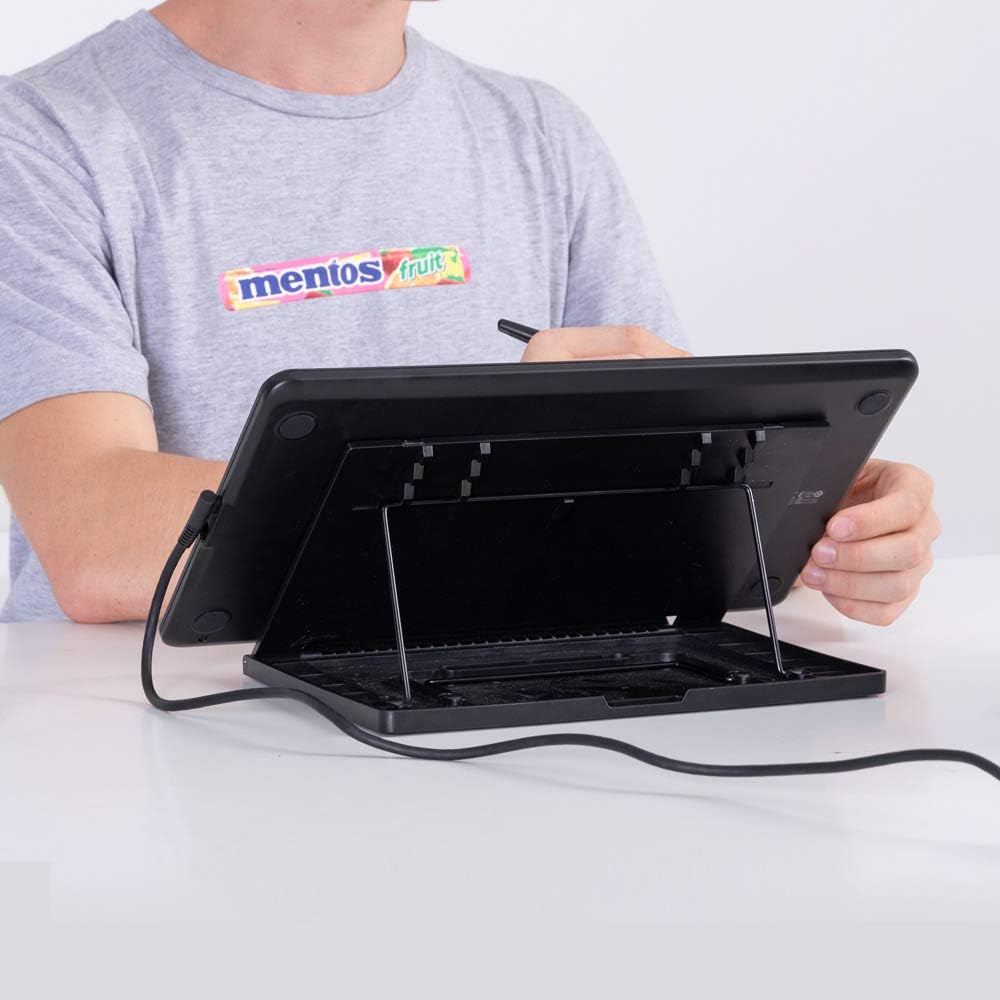
Image: A user drawing on a tablet supported by the ST300 stand, highlighting its stable and compact design during use.
Maintenance
To maintain your HUION ST300 stand, wipe it regularly with a soft, dry cloth. Avoid using abrasive cleaners or solvents, as these may damage the surface. Ensure the anti-slip mats are free from dust and debris to maintain optimal grip.
Troubleshooting
- Tablet Slipping: Ensure the anti-slip mats on the stand and the hidden stopper are clean and free from obstructions. Reposition the tablet to ensure it is seated correctly.
- Difficulty Adjusting Angle: Check that the support arms are properly aligned with the adjustment notches. Do not force the arms; gently guide them into place.
- For further assistance, please refer to the official HUION support channels.
Specifications
| Feature | Detail |
|---|---|
| Brand | HUION |
| Series | ST300 |
| Model Number | ST300 |
| Item Weight | 1.22 pounds |
| Package Dimensions | 12.4 x 8.78 x 1.26 inches |
| Color | silver |
| Special Feature | Adjustable, Ergonomic |
| Manufacturer | Shenzhen Huion Animation Technology Co. Ltd. |
Compatible Products
The HUION ST300 stand is compatible with a wide range of drawing tablets and laptops, particularly those up to 15.6 inches. It is the original stand for:
- Kamvas 12/13/16 (2021)
- Kamvas Pro 12/13/16
It also fits other models such as Wacom Cintiq 16 and XP-PEN Artist 16 Pro, and various HUION models including H640P, H641P/H951P/H1061P, H1060P, HS610, HS611, H430P, H950P, Kamvas Pro 13 2.5k/Pro 16 2.5k, and Kamvas Pro 16 (4K)/Pro 16 Plus (4K).
Warranty and Support
For information regarding product warranty, returns, or technical support, please visit the official HUION website or contact their customer service directly. Keep your purchase receipt for warranty claims.


