
1. Introduction
The DJI Mavic Air 2 is a portable and powerful drone designed for aerial photography and videography. It features a 48MP camera capable of 4K video recording, a 3-axis gimbal for stable footage, and intelligent flight modes. This manual provides essential information for setting up, operating, and maintaining your Mavic Air 2 Fly More Combo with DJI Smart Controller.
1.1 Package Contents
Verify that all items listed below are included in your package:
- Mavic Air 2 Aircraft
- DJI Smart Controller
- Intelligent Flight Battery (x3)
- Low-Noise Propellers (x6 pairs)
- Spare Control Sticks (x1 pair)
- Gimbal Protector
- Battery Charger
- Battery Charging Hub
- Battery to Power Bank Adapter
- Shoulder Bag
- ND Filters Set (ND16/64/256)
- AC Power Cable
- Type-C Cable
- RC Cables (USB Type-C, Lightning, Standard Micro-USB)
- 24W USB Charger
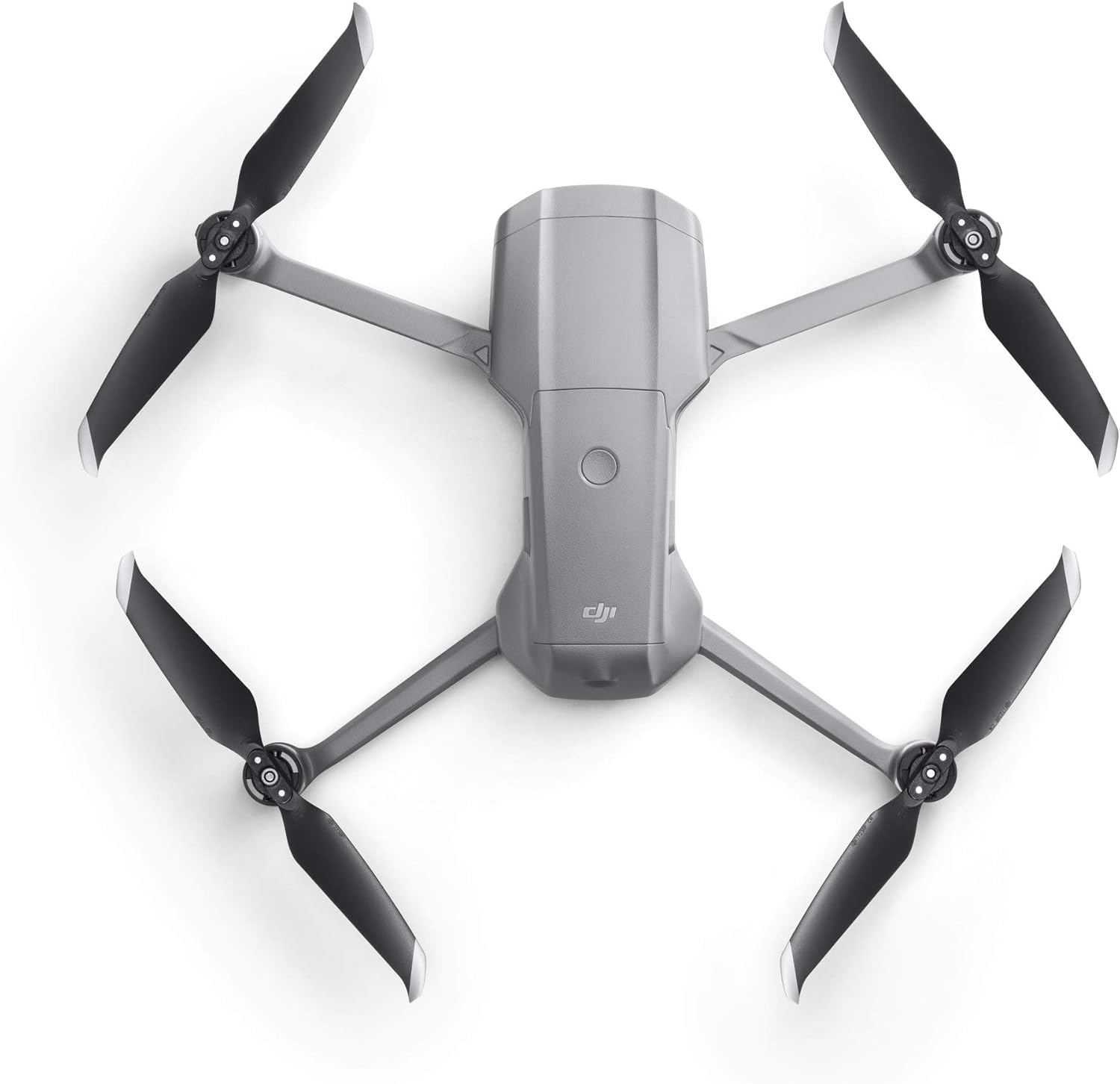
Image: All components included in the DJI Mavic Air 2 Fly More Combo with Smart Controller package.
2. Aircraft Overview
The Mavic Air 2 aircraft integrates advanced flight technology with a high-performance camera system. Understanding its components is crucial for safe and effective operation.
2.1 Aircraft Components
- Front Vision System: Detects obstacles in front of the aircraft.
- Gimbal and Camera: Stabilizes the camera and captures images/video.
- Propellers: Provide lift and propulsion.
- Intelligent Flight Battery: Powers the aircraft.
- Rear Vision System: Detects obstacles behind the aircraft.
- Bottom Vision System & Auxiliary Light: Assists with precise hovering and landing.
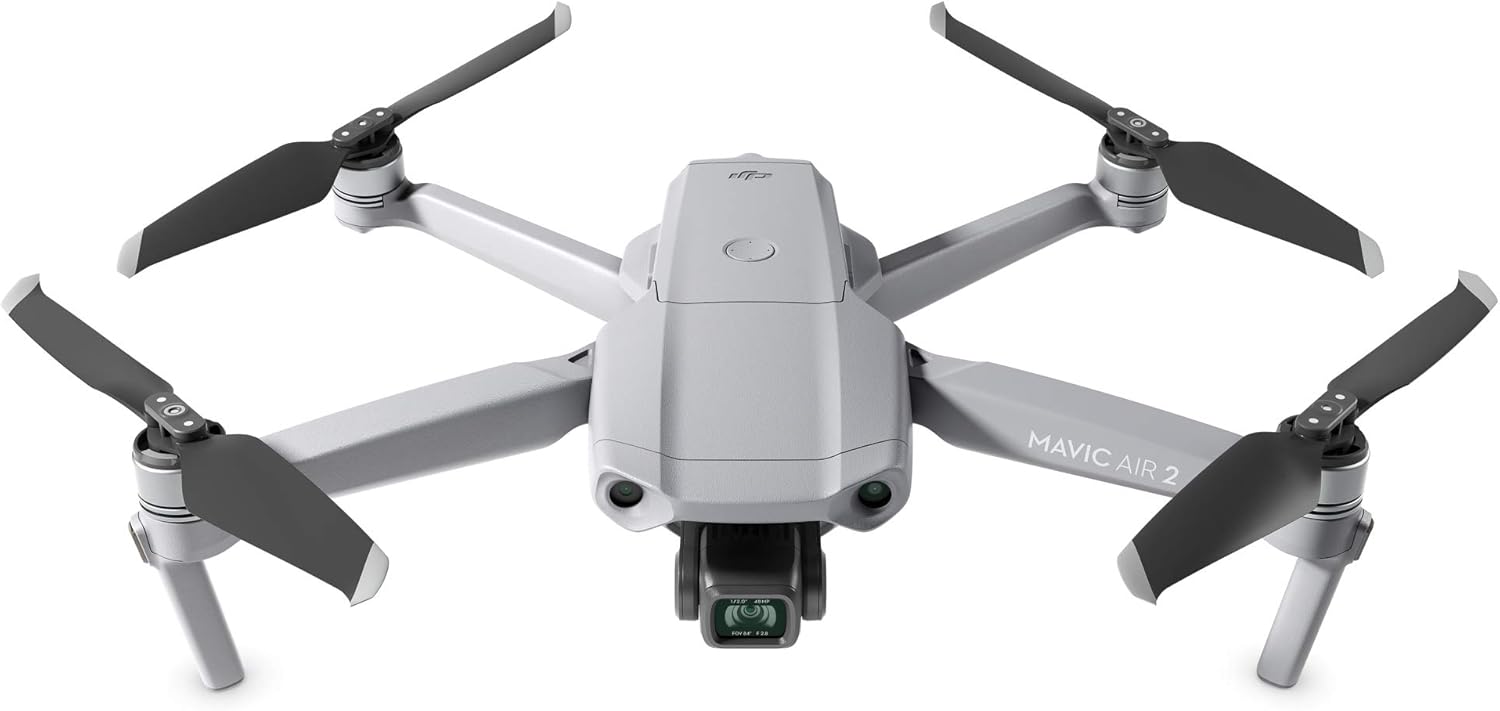
Image: Front view of the DJI Mavic Air 2 aircraft, showing the camera and front sensors.

Image: Side view of the DJI Mavic Air 2 aircraft, highlighting its folded design.

Image: Bottom view of the DJI Mavic Air 2 aircraft, showing the gimbal, camera, and downward vision sensors.
2.2 DJI Smart Controller Overview
The DJI Smart Controller features a built-in 5.5-inch 1080p display, eliminating the need for a mobile device. It provides a clear view even in direct sunlight and offers enhanced control over the aircraft.

Image: The DJI Mavic Air 2 drone alongside the DJI Smart Controller.
3. Getting Started
Follow these steps to prepare your DJI Mavic Air 2 for its first flight.
3.1 Charging Batteries
Fully charge the Intelligent Flight Batteries and the DJI Smart Controller before use. Use the provided battery charger and charging hub for the flight batteries, and the Type-C cable with the 24W USB charger for the Smart Controller.
- Connect the battery charger to a power outlet.
- Insert Intelligent Flight Batteries into the charging hub.
- Connect the charging hub to the battery charger.
- Connect the Smart Controller to the 24W USB charger using the Type-C cable.
3.2 Propeller Installation
Attach the propellers to the motor shafts. Match the propellers with marks to the motors with marks, and unmarked propellers to unmarked motors. Press down and twist to secure.
- Identify marked and unmarked propellers.
- Align the propeller base with the motor shaft.
- Press down firmly and rotate the propeller in the direction indicated on the motor until it locks into place.
3.3 DJI Fly App Installation
The DJI Fly app is pre-installed on the DJI Smart Controller. Ensure the app is updated to the latest version for optimal performance and access to all features.
3.4 Aircraft and Controller Pairing
The aircraft and Smart Controller are typically pre-linked. If re-pairing is necessary:
- Power on the aircraft and the Smart Controller.
- On the Smart Controller, open the DJI Fly app and navigate to the connection guide.
- Press and hold the power button on the aircraft for four seconds until it beeps once, indicating it is ready for pairing.
- Follow the on-screen instructions in the DJI Fly app to complete the pairing process.
4. Flight Operation
This section covers essential procedures for safe and controlled flight.
4.1 Pre-Flight Checklist
Before each flight, perform the following checks:
- Ensure Intelligent Flight Batteries and Smart Controller are fully charged.
- Check propellers for damage and ensure they are securely attached.
- Remove the gimbal protector.
- Ensure the flight environment is safe and clear of obstacles.
- Verify GPS signal strength and Home Point recording in the DJI Fly app.
4.2 Basic Flight Controls
The Smart Controller uses standard mode 2 controls:
- Left Stick: Controls altitude (up/down) and yaw (rotate left/right).
- Right Stick: Controls forward/backward movement (pitch) and left/right movement (roll).
- Takeoff/Landing: Use the auto takeoff/landing button in the DJI Fly app or perform manual stick commands.
4.3 Intelligent Flight Modes
The Mavic Air 2 offers several intelligent flight modes to assist with capturing dynamic footage:
- ActiveTrack 3.0: Follows a selected subject automatically.
- Spotlight 2.0: Locks the camera onto a subject while you fly freely.
- Point of Interest (POI) 3.0: Circles a subject at a set radius and speed.
- QuickShots: Automated flight paths for cinematic video clips (e.g., Dronie, Circle, Helix, Rocket, Boomerang, Asteroid).
4.4 Return to Home (RTH)
The RTH function allows the aircraft to return to its recorded Home Point automatically. This can be initiated manually or triggered automatically by low battery or signal loss.
- Ensure the Home Point is updated before flight.
- Clear the RTH path of obstacles.
- Monitor the aircraft during RTH.
5. Camera System
The Mavic Air 2 features a powerful camera for high-quality imaging.
5.1 Photo and Video Modes
The camera supports various photo and video settings, including 48MP photos, 4K/60fps video, HDR video, and SmartPhoto mode.
- Access camera settings via the DJI Fly app.
- Adjust resolution, frame rate, ISO, and other parameters as needed.
- Supported image formats: DNG, JPEG.
- Supported video format: MP4.
5.2 Gimbal Operation
The 3-axis mechanical gimbal provides superior stabilization for smooth footage. The gimbal pitch can be controlled via the Smart Controller.
- Ensure the gimbal protector is removed before powering on the aircraft.
- Avoid obstructing the gimbal's movement.
5.3 ND Filters
The included ND filter set (ND16/64/256) helps control exposure in bright lighting conditions, allowing for more cinematic motion blur.
- Carefully attach and detach ND filters to the camera lens.
- Select the appropriate filter based on ambient light conditions.
6. Maintenance and Care
Proper maintenance ensures the longevity and performance of your Mavic Air 2.
6.1 Battery Maintenance
- Store batteries at approximately 50-60% charge if not used for extended periods.
- Avoid overcharging or completely discharging batteries.
- Do not use damaged or swollen batteries.
6.2 Propeller Inspection and Replacement
- Inspect propellers for cracks, bends, or nicks before each flight.
- Replace damaged propellers immediately using the provided spare propellers.
- Ensure correct propeller types are installed on corresponding motors.
6.3 Cleaning the Aircraft and Gimbal
- Use a soft, dry cloth to clean the aircraft body.
- For the camera lens and gimbal, use a lens cleaning cloth and solution specifically designed for optical surfaces.
- Avoid using harsh chemicals or abrasive materials.
7. Troubleshooting
This section addresses common issues you might encounter.
7.1 Common Issues
- No GPS Signal: Fly in an open area away from tall buildings or strong interference.
- Gimbal Error: Ensure the gimbal protector is removed and the gimbal is unobstructed. Restart the aircraft.
- Aircraft Not Responding: Check battery levels for both aircraft and controller. Re-pair the aircraft and controller if necessary.
- Image Transmission Lag: Fly within the recommended transmission range and avoid areas with strong Wi-Fi interference.
For more detailed troubleshooting, refer to the DJI official support resources or the DJI Fly app's help section.
8. Specifications
| Category | Specification |
|---|---|
| Brand | DJI |
| Model Name | DJI Mavic Air 2 |
| Item Model Number | CP.MA.00000291.01 |
| Item Weight | 1.26 pounds (20.11 Ounces) |
| Product Dimensions | 9.37"L x 5.35"W x 10.43"H |
| Video Capture Resolution | 4K |
| Video Output Resolution | 4K HD |
| Optical Sensor Technology | CMOS (1/2" sensor) |
| Supported Image Format | DNG, JPEG |
| Remote Control Technology | OcuSync 2.0 |
| Control Type | App Control |
| Battery Type | Lithium Polymer (3 included) |
| Wireless Communication | Wi-Fi |
| Material | Lightweight and Durable Composite Material |
| Skill Level | Beginner |
9. Safety Guidelines
Adhere to local regulations and guidelines for drone operation. Always fly responsibly and prioritize safety.
- Fly in open areas, away from people, animals, and obstacles.
- Maintain visual line of sight with the aircraft at all times.
- Do not fly near airports or restricted airspace.
- Avoid flying in adverse weather conditions (strong winds, rain, snow).
- Ensure the aircraft is properly calibrated before each flight.
10. Warranty and Support
For warranty information, product support, or service requests, please visit the official DJI website or contact DJI customer service. Keep your proof of purchase for warranty claims.
Online resources and FAQs are available on the DJI support page: www.dji.com/support


