
Rii RK908
Contents
Rii RK908 Mechanical Gaming Keyboard User Manual
Brand: Rii | Model: RK908
1. Introduction
Welcome to the Rii RK908 Mechanical Gaming Keyboard user manual. This compact 87-key keyboard is designed for an immersive gaming experience with its responsive blue switches, vibrant RGB backlighting, and ergonomic design. This manual provides detailed instructions on setup, operation, maintenance, and troubleshooting to ensure you get the most out of your new keyboard.

Figure 1: Rii RK908 Mechanical Gaming Keyboard, showcasing its compact design and vibrant RGB lighting.
2. Key Features
87-Key Anti-Ghosting Design
The Rii RK908 features a compact 87-key layout, eliminating conflicts and ensuring smooth, precise input during intense gaming sessions. Every key press is registered accurately.
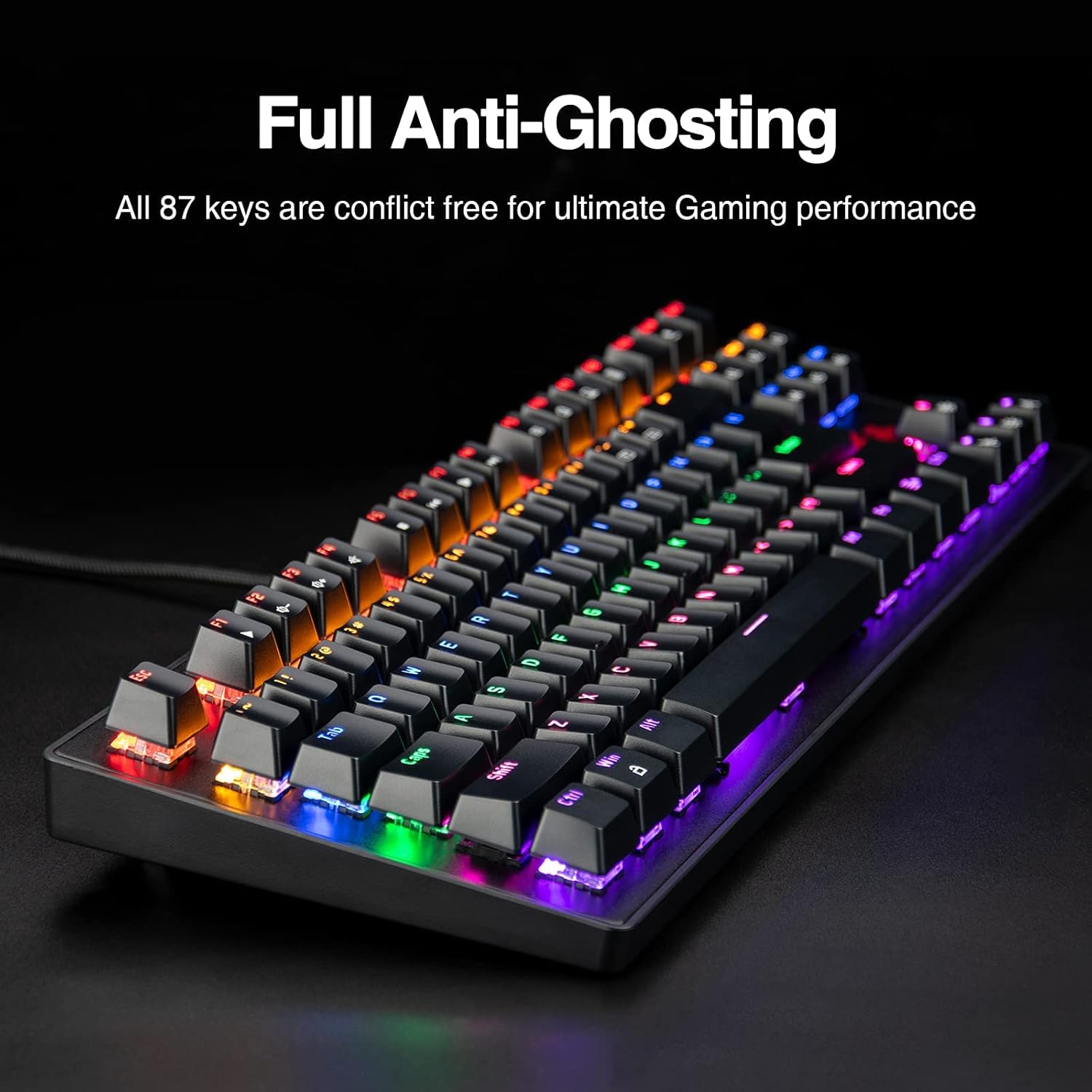
Figure 2: Illustration of the keyboard's full anti-ghosting capability, ensuring all 87 keys are conflict-free for optimal gaming performance.
Blue Mechanical Switches
Equipped with special mechanical blue switches, the keyboard provides a satisfying tactile feel with an audible click, offering flexible and durable performance for extended use.
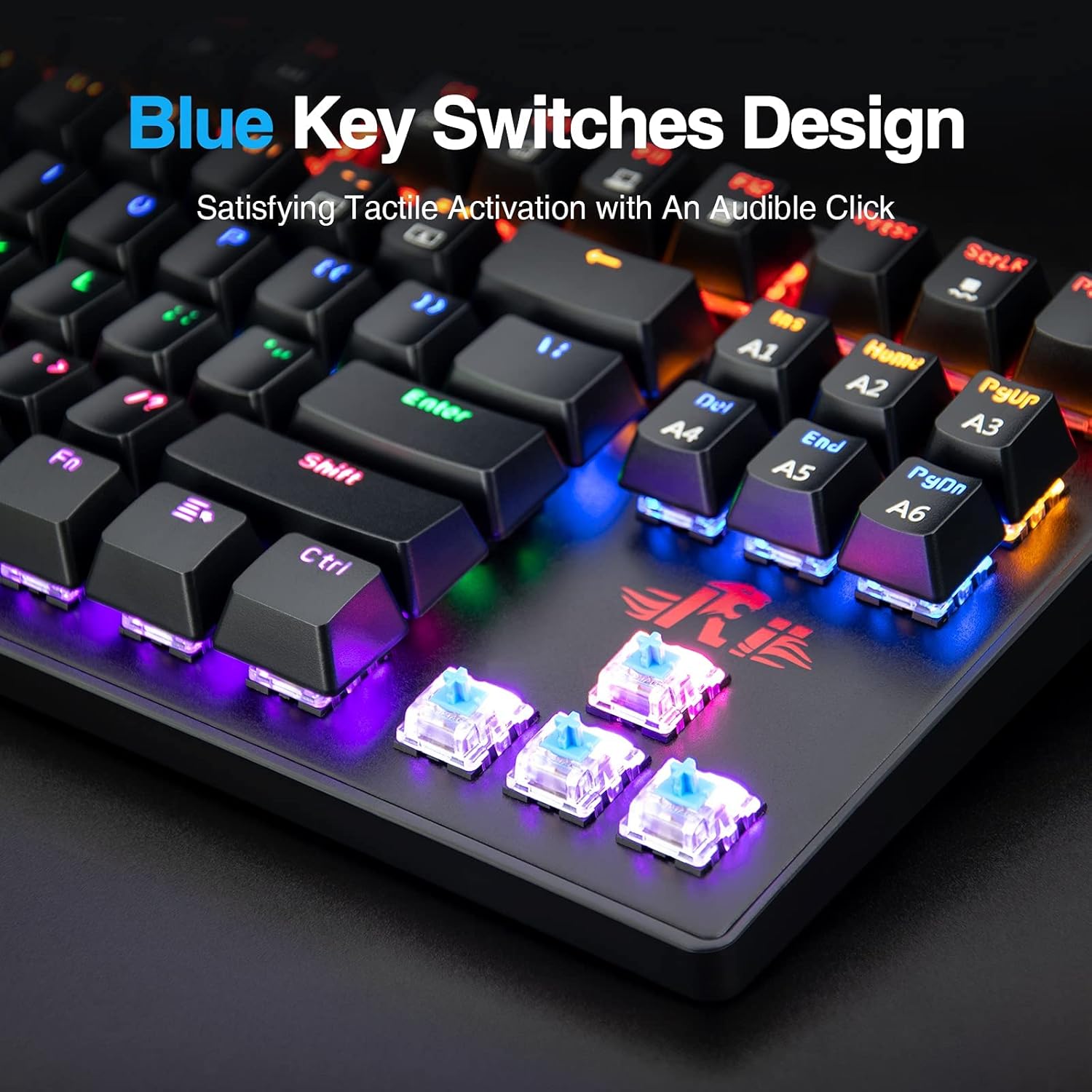
Figure 3: Detailed view of the blue key switches, highlighting their design for tactile activation and an audible click.
Rainbow LED RGB Backlighting
Experience glorious gaming with 22 different backlit modes and 5 customizable LED statuses. Adjust lighting to match your preferences or game environment.
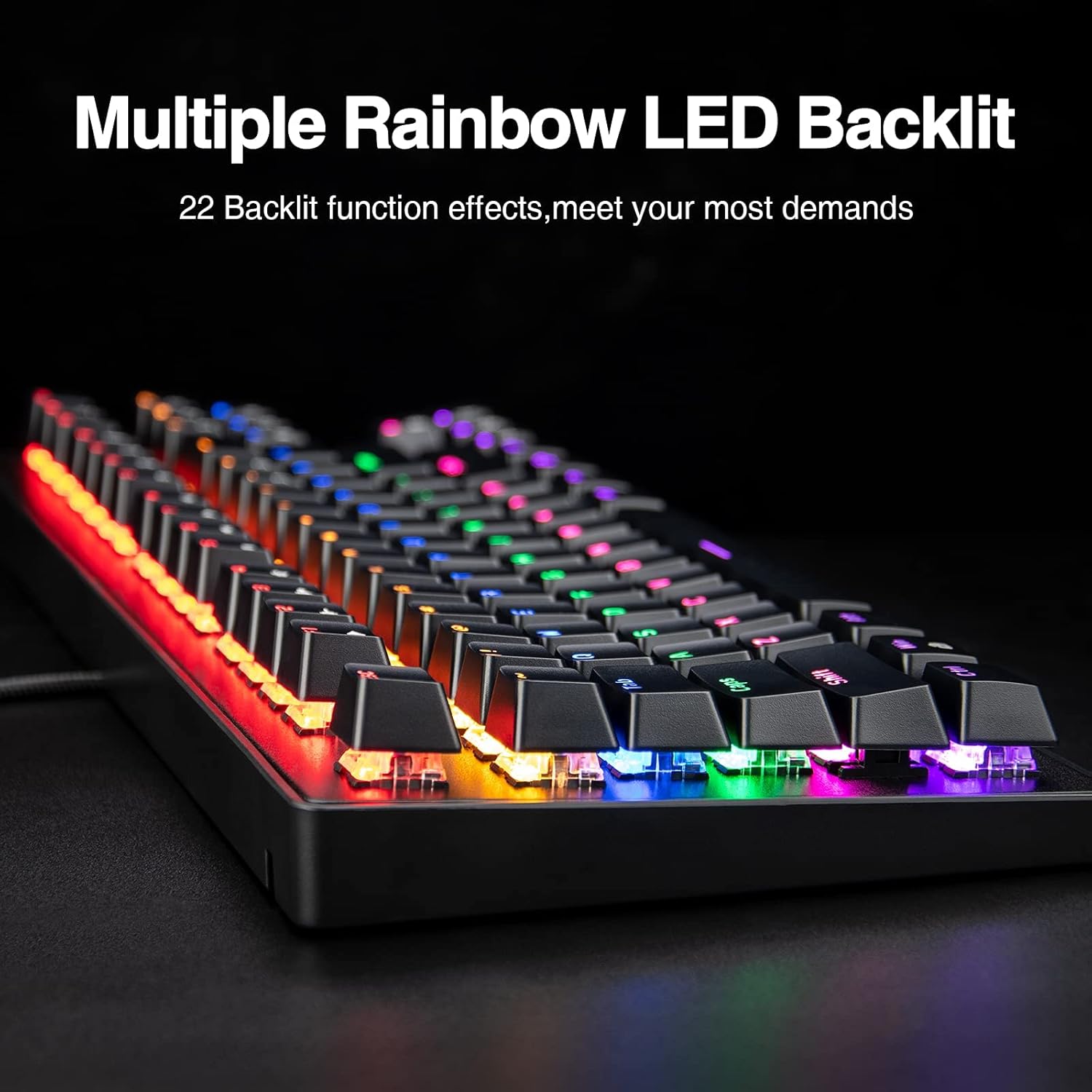
Figure 4: The keyboard displaying its multiple rainbow LED backlit effects, offering 22 different function effects to meet various demands.
Macro Recording Function
Customize up to 5 shortcuts with the macro recording function, saving time and enhancing efficiency for frequently used commands or long words.

Figure 5: The keyboard illustrating its macro recording function, allowing users to customize 5 shortcuts for efficient typing and gaming.
Ergonomic Design
The keyboard features an ergonomic design to protect your wrist and provide comfort during prolonged gaming sessions, standing up to tough gaming conditions.

Figure 6: Side view of the keyboard demonstrating its ergonomic design, intended to protect the wrist and provide comfort.
Spill-Resistant Performance
Designed to be fearless of accidental spills, the keyboard includes drain holes to manage liquid, protecting internal components from damage.
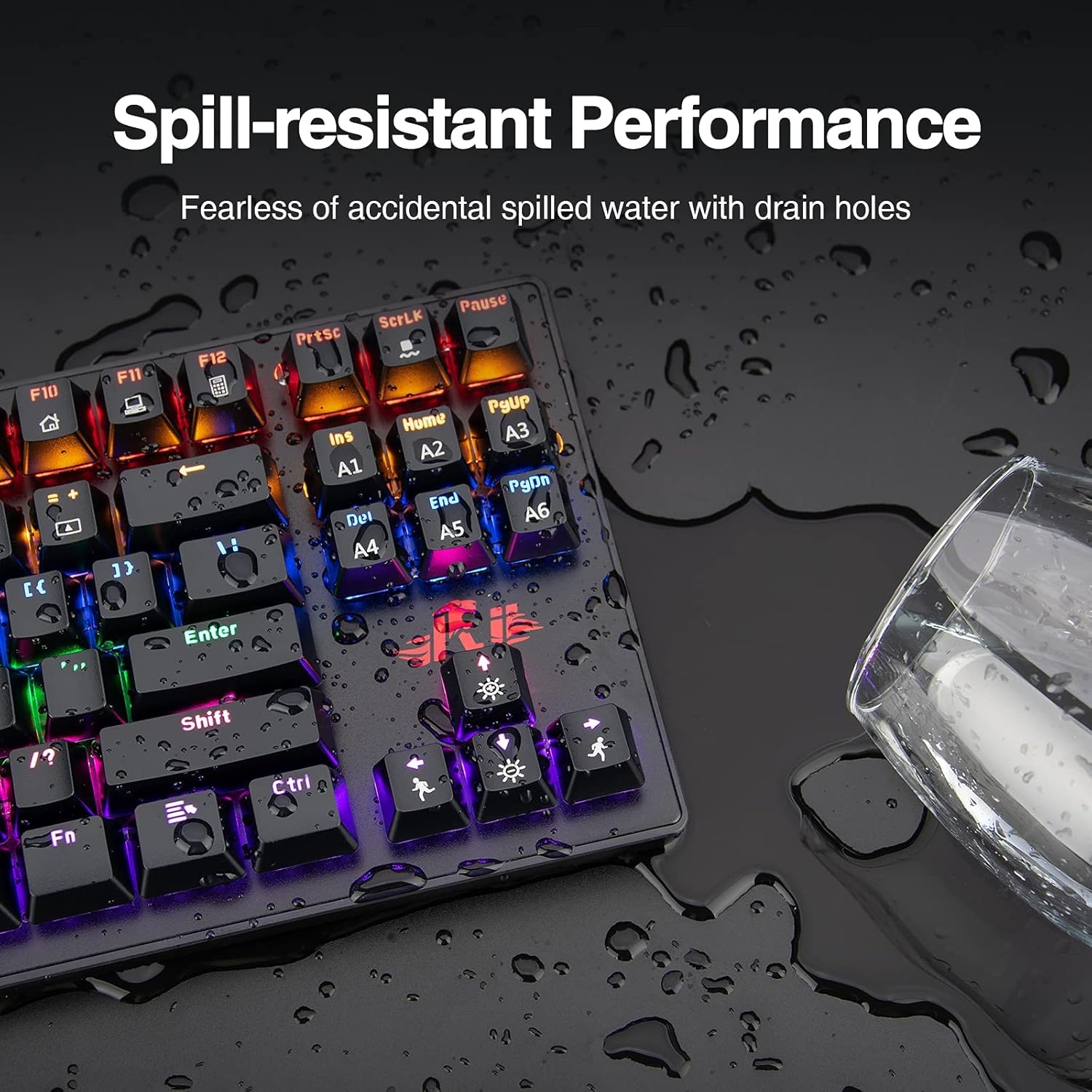
Figure 7: The keyboard with water droplets, illustrating its spill-resistant performance with drain holes.
3. Setup Guide
3.1 Package Contents
- Rii RK908 Mechanical Gaming Keyboard
- Keycap Puller
- User Manual (this document)
3.2 Connecting Your Keyboard
- Unpack the keyboard and all accessories from the box.
- Locate an available USB-A port on your computer (Windows PC, Gaming Console, etc.).
- Plug the USB-A connector of the keyboard into the USB-A port on your device.
- The keyboard is plug-and-play and should be automatically recognized by your operating system. No additional drivers are typically required.
Video 1: An overview of the Rii RK908 Mechanical Gaming Keyboard, including unboxing, physical features, and demonstration of its lighting modes. This video is provided by the seller.
4. Operating Instructions
4.1 Backlight Control
The Rii RK908 keyboard offers 22 different backlight modes and adjustable brightness. Use the following key combinations to control the lighting:
- Fn + Ins: Cycle through different backlight modes.
- Fn + Home: Activate custom LED status mode (A1-A6).
- Fn + PgUp: Adjust backlight brightness (increase).
- Fn + PgDn: Adjust backlight brightness (decrease).
- Fn + Del: Change backlight color (if applicable to mode).
- Fn + End: Adjust breathing/effect speed (increase).
- Fn + Scroll Lock: Turn backlight on/off.

Figure 8: The keyboard showcasing its ability to create various lighting effects, with 22 light modes and custom options.
4.2 Macro Recording Function
The keyboard allows you to customize 5 shortcuts (A1-A5) for macro recording. This feature is useful for frequently used commands or long text strings.
- Enter Macro Recording Mode: Press Fn + \. The Num keys "1-5" will flash with yellow light, indicating no recordings.
- Start Recording: Press one of the Num keys "1-5" to start recording. The key will light up when recording is successful.
- Save Recording: Press Fn + \ again to save. The key will light up and other keys will go out.
- Recording Clearance: Press Fn + Esc, then Fn + F1, F3, F5 in order to reset the function.
Note: The macro recording function is designed to save time typing long words or executing specific command sequences.
5. Maintenance
5.1 Cleaning the Keyboard
- Disconnect the keyboard from your computer before cleaning.
- Use a soft, lint-free cloth slightly dampened with water or a mild cleaning solution to wipe the surface.
- For deeper cleaning, use the included keycap puller to carefully remove keycaps. Clean underneath with compressed air or a small brush.
- Ensure the keyboard is completely dry before reconnecting it.
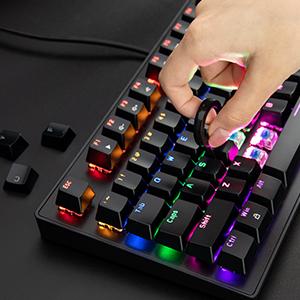
Figure 9: Demonstration of using the keycap puller to remove a keycap for cleaning or replacement.
5.2 Spill Management
While the keyboard is designed to be spill-resistant, it is not waterproof. In case of a liquid spill:
- Immediately disconnect the keyboard from your computer.
- Wipe off any excess liquid from the surface.
- Turn the keyboard upside down to allow liquid to drain through the built-in drain holes.
- Allow the keyboard to air dry completely for at least 24 hours before reconnecting.
6. Troubleshooting
- Keyboard not responding:
- Ensure the USB-A cable is securely plugged into both the keyboard and the computer.
- Try plugging the keyboard into a different USB-A port on your computer.
- Restart your computer.
- Backlight not working or stuck:
- Press Fn + Scroll Lock to ensure the backlight is not turned off.
- Cycle through different backlight modes using Fn + Ins.
- Adjust brightness using Fn + PgUp/PgDn.
- Keys not registering or ghosting:
- Ensure the keyboard is clean and free of debris under the keycaps.
- The keyboard features anti-ghosting, but ensure your operating system and game settings are not interfering.
- Macro function not working:
- Ensure you have followed the macro recording steps correctly (Section 4.2).
- Try clearing existing macros and re-recording.
7. Specifications
| Feature | Detail |
|---|---|
| Model Number | BM RK908 |
| Number of Keys | 87 |
| Switch Type | Blue Mechanical Switches |
| Backlighting | RGB (22 modes, 5 customizable) |
| Connectivity | Wired USB-A |
| Material | Acrylonitrile Butadiene Styrene |
| Product Dimensions | 3.94 x 3.94 x 2.36 inches |
| Item Weight | 2.44 pounds |
| Compatibility | Win98/XP/2000/ME/Vistar/Win7/Win8/Win10, Gaming Consoles |
8. Warranty and Support
Rii products are manufactured to the highest quality standards. This product comes with a standard manufacturer's warranty against defects in materials and workmanship. For detailed warranty information, technical support, or customer service inquiries, please refer to the contact information provided with your purchase or visit the official Rii website.
Please retain your proof of purchase for warranty claims.
Ask a question about this manual
Ask about setup, troubleshooting, compatibility, parts, safety, or missing instructions. Manuals+ will review the question and use this page’s manual context to help answer it.