
1. Product Overview
The V BESTLIFE Universal Wireless Keyboard with PU Leather Case is designed for mobile phones with screen sizes ranging from 4.5 to 6.8 inches. It features Bluetooth 3.0 connectivity, offering a stable wireless connection up to 10 meters (32.8 feet). The integrated PU leather case provides protection and includes a stand function for convenient viewing and typing. This product is compatible with Android, Windows, and iOS mobile phones.

Image 1.1: The V BESTLIFE 7 Inch Universal Wireless Keyboard and its accompanying purple PU leather case.

Image 1.2: The keyboard case in stand mode, holding a mobile phone for comfortable viewing and typing.
2. Package Contents
Please verify that all items are present in the package before proceeding with setup.
- 1 x PU Leather Case (Purple)
- 1 x Wireless Keyboard
- 1 x USB Charging Cable

Image 2.1: Contents of the package, including the keyboard, case, and USB charging cable.
3. Setup and Pairing
Follow these steps to connect your V BESTLIFE Wireless Keyboard to your mobile phone.
- Charge the Keyboard: Before initial use, ensure the keyboard is fully charged using the provided USB cable. Connect the small end of the USB cable to the keyboard's charging port and the other end to a USB power source (e.g., computer, wall adapter). The charging indicator light will typically turn off or change color when fully charged.
- Power On the Keyboard: Locate the ON/OFF switch on the keyboard and slide it to the "ON" position.
- Activate Pairing Mode: Press the CONNECT button on the keyboard. The Bluetooth indicator light will begin to flash, indicating that the keyboard is in pairing mode and discoverable by other devices.
- Enable Bluetooth on Your Mobile Phone: On your mobile phone, navigate to the settings menu and enable Bluetooth.
- Search for Devices: Your phone will automatically search for available Bluetooth devices. Look for a device named "Bluetooth 3.0 Keyboard" in the list of found devices.
- Connect to the Keyboard: Tap on "Bluetooth 3.0 Keyboard" on your phone's screen. Your phone may display a four-digit numeric password.
- Enter Pairing Code: Type the displayed four-digit password using the V BESTLIFE keyboard, then press the Enter key on the keyboard.
- Confirmation: Once the password is correctly entered, the Bluetooth indicator light on the keyboard will stop flashing and remain solid (or turn off, depending on the model), indicating a successful connection. Your phone will also confirm that the keyboard is connected.
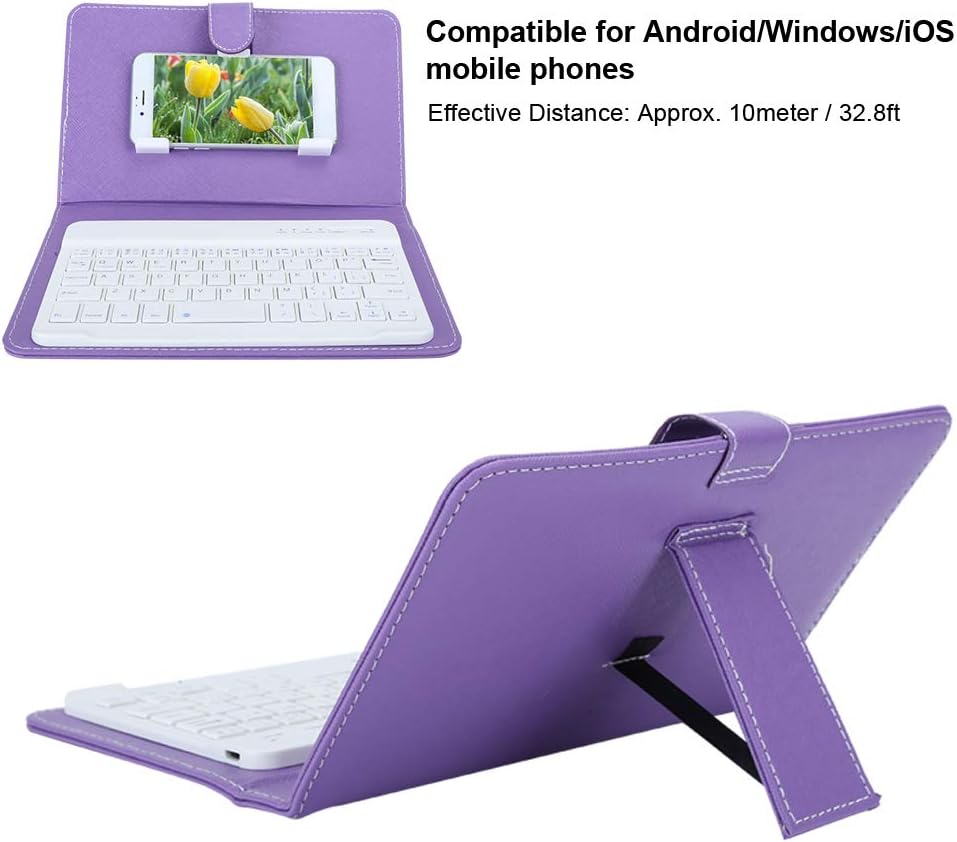
Image 3.1: Illustration of keyboard compatibility with Android, Windows, and iOS mobile phones, and the effective Bluetooth range.
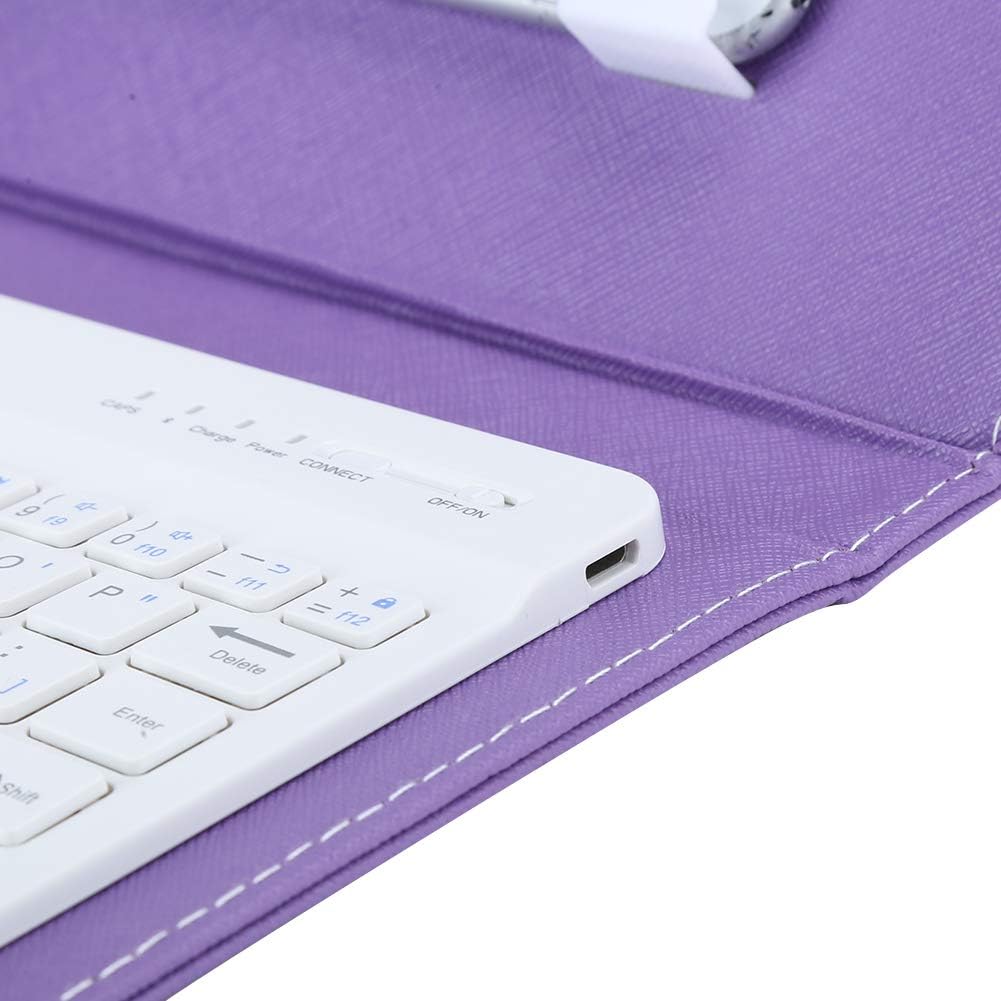
Image 3.2: A close-up view of the keyboard, showing the ON/OFF switch, CONNECT button, and charging port.
4. Operating Instructions
Once paired, the keyboard functions like a standard physical keyboard for your mobile device.
- Typing: Open any text input application (e.g., messaging app, word processor, browser) on your phone and begin typing. The input will appear on your phone's screen.
- Special Keys: The keyboard includes function keys (F1-F12) and other special keys. Their functionality may vary depending on your mobile phone's operating system and specific applications.
- Stand Function: The PU leather case is designed with a built-in stand. Fold the case to prop up your mobile phone at a comfortable viewing angle while using the keyboard.
- Power Saving: To conserve battery life, turn off the keyboard using the ON/OFF switch when not in use. The keyboard may also enter a sleep mode after a period of inactivity; press any key to wake it up.
5. Maintenance
Proper care will extend the life of your V BESTLIFE Wireless Keyboard.
- Cleaning: Use a soft, dry cloth to clean the keyboard and case. For stubborn dirt, a slightly damp cloth can be used, but ensure no moisture enters the keyboard's electronic components.
- Storage: When not in use, store the keyboard and case in a cool, dry place, away from direct sunlight and extreme temperatures.
- Battery Care: Avoid fully discharging the battery frequently. Charge the keyboard regularly, even if not used for extended periods, to maintain battery health.
- Avoid Liquids: Keep the keyboard away from water and other liquids to prevent damage to internal circuitry.
6. Troubleshooting
If you encounter issues with your keyboard, refer to the following common solutions.
| Problem | Solution |
|---|---|
| Keyboard does not turn on. |
|
| Cannot pair the keyboard with my phone. |
|
| Keyboard types incorrect characters or does not respond. |
|
| Connection is unstable or frequently disconnects. |
|
7. Specifications
| Brand | V BESTLIFE |
| Model Number | VBESTLIFEqznia37or0-11 |
| Connectivity Technology | Bluetooth 3.0 |
| Effective Distance | Up to 10 meters (32.8 feet) |
| Compatible Devices | Mobile phones with 4.5 - 6.8 inch screens (Android, Windows, iOS) |
| Battery Type | 210 mA Lithium Battery |
| Material | PU Leather, ABS |
| Case Dimensions (Folded) | Approx. 23cm (9.1in) Length x 13.5cm (5.3in) Width x 2.5cm (1in) Thickness (estimated) |
| Keyboard Dimensions | Approx. 20cm (7.9in) Length x 12.5cm (4.9in) Width |
| Item Weight | 10.7 ounces (approx. 303 grams) |
| Color | Purple |

Image 7.1: Detailed dimensions of the keyboard and case.
8. Warranty and Support
For warranty information or technical support, please refer to the documentation provided with your purchase or contact the manufacturer directly.
Manufacturer: V BESTLIFE
For further assistance, please visit the official V BESTLIFE website or contact their customer service department.