
Introduction
The CyberpowerPC Spectre 01 is a wired adjustable stereo gaming headset designed for comfort and high-quality audio. This manual provides essential information for setting up, operating, maintaining, and troubleshooting your headset to ensure an optimal gaming and audio experience across various platforms.
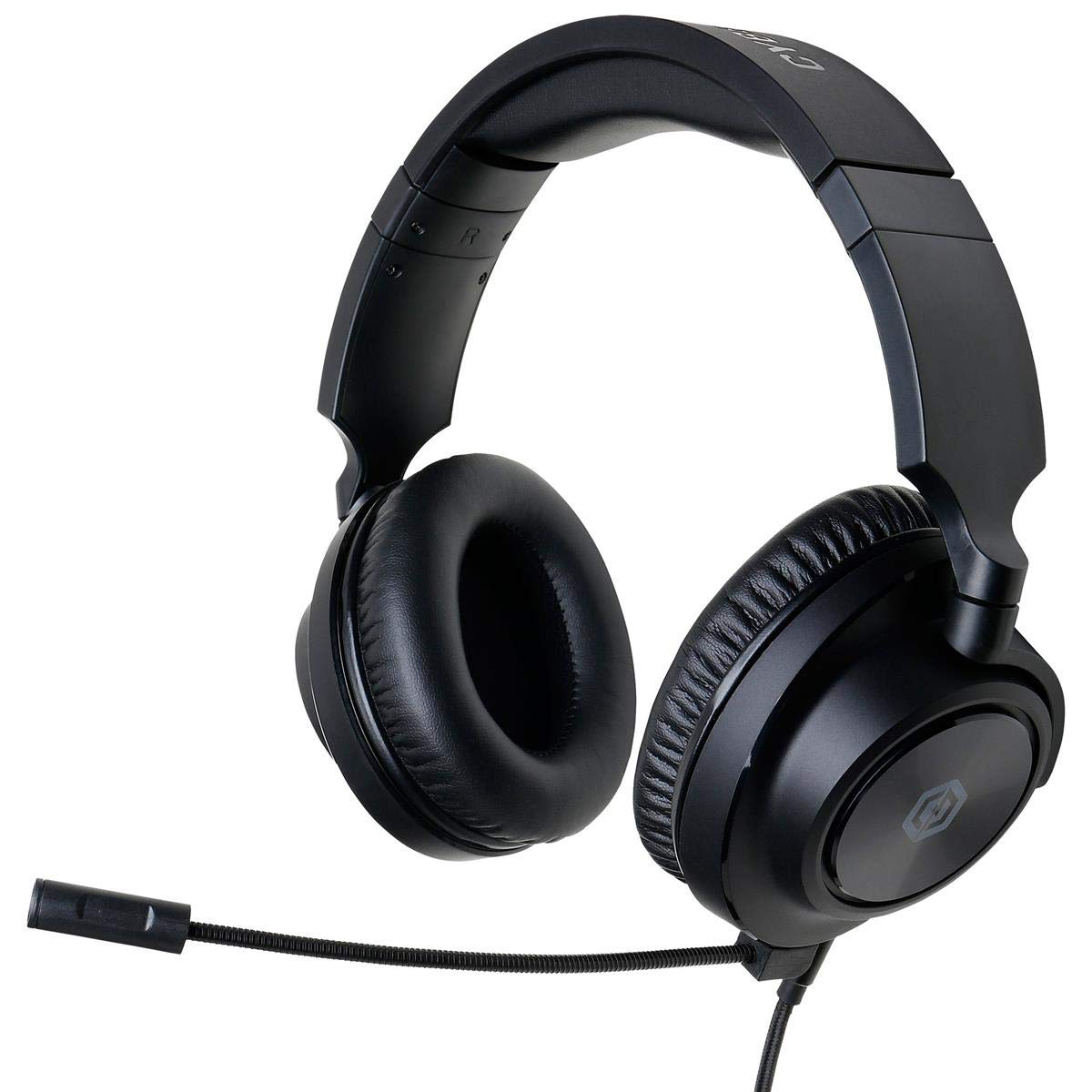
Figure 1: CyberpowerPC Spectre 01 Gaming Headset
Package Contents
Verify that all items are present in your package:
- Spectre Gaming Headset
- Audio Cable
- Detachable Microphone
- PC Splitter (Y-cable)
- Quick Start Guide
Setup
1. Attaching the Microphone
Locate the microphone input port on the left earcup. Align the microphone's connector with the port and gently push until it clicks into place. Ensure it is securely attached for proper function.
2. Connecting the Headset
The Spectre 01 headset uses a standard 3.5mm jack for audio and microphone connectivity.
- For devices with a single 3.5mm combo jack (e.g., most laptops, PS4, Xbox One, Switch, mobile phones): Plug the headset's 3.5mm audio cable directly into the device's audio port.
- For devices with separate audio and microphone jacks (e.g., most desktop PCs): Use the included PC splitter. Connect the headset's 3.5mm cable to the female end of the splitter. Then, plug the green-tipped male connector of the splitter into your computer's audio output jack (usually green), and the pink-tipped male connector into your computer's microphone input jack (usually pink).
3. Adjusting for Comfort
The headset features an adjustable headband and flexible earcups. Extend or retract the headband to fit your head size. The earcups can pivot and tilt to conform to your ear shape, reducing pressure during extended use.

Figure 2: Headset Adjustments for Optimal Fit
Operating Instructions
1. Audio Controls
The headset features inline audio controls on the cable. Use the volume wheel to adjust the listening volume. A microphone mute switch is also present, allowing you to quickly toggle your microphone on or off.
2. Microphone Usage
Position the flexible boom microphone close to your mouth for clear voice capture. Ensure the microphone is not muted via the inline control or your device's settings.
3. Platform Compatibility
The Spectre 01 headset is compatible with a wide range of devices:
- PC/Mac: Connect using the 3.5mm jack, utilizing the PC splitter for separate audio/mic ports if necessary.
- PlayStation 4 (PS4): Plug directly into the controller's 3.5mm port. Adjust audio settings in the PS4 system menu.
- Xbox One: Plug directly into the controller's 3.5mm port. An Xbox One Stereo Headset Adapter (sold separately) may be required for older controllers without a 3.5mm jack.
- Nintendo Switch: Plug directly into the console's 3.5mm port.
- Mobile Devices: Plug directly into the 3.5mm audio jack of your smartphone or tablet.

Figure 3: Earcup Flexibility for Enhanced Comfort
Maintenance
To ensure the longevity and performance of your CyberpowerPC Spectre 01 headset, follow these maintenance guidelines:
- Cleaning: Use a soft, dry cloth to wipe down the earcups and headband. For stubborn dirt, a slightly damp cloth can be used, but avoid excessive moisture. Do not use harsh chemicals or abrasive cleaners.
- Storage: Store the headset in a clean, dry place away from extreme temperatures and direct sunlight. Avoid coiling the cable tightly to prevent damage.
- Handling: Always grasp the plug when disconnecting the cable, rather than pulling on the cable itself. Avoid dropping the headset or subjecting it to strong impacts.
Troubleshooting
If you encounter issues with your Spectre 01 headset, refer to the following common solutions:
- No Sound or Low Volume:
- Ensure the 3.5mm jack is fully inserted into the device.
- Check the inline volume control on the headset cable and increase the volume.
- Verify your device's audio output settings and volume levels.
- If using the PC splitter, ensure both green and pink connectors are correctly plugged into the corresponding ports on your PC.
- Test the headset with another device to rule out a device-specific issue.
- Microphone Not Working:
- Ensure the microphone is securely attached to the headset.
- Check the inline microphone mute switch on the cable and ensure it is in the 'unmuted' position.
- Verify your device's microphone input settings and ensure the Spectre 01 is selected as the default input device.
- If using the PC splitter, ensure the pink connector is correctly plugged into your PC's microphone input.
- Test the microphone with another device or application.
- Sound Distortion or Static:
- Ensure all connections are secure and free from debris.
- Try connecting the headset to a different audio port or device to check if the issue persists.
- Reduce the volume on both the headset and the device to see if distortion lessens.
Specifications
| Brand | CyberpowerPC |
| Model Number | CPS01H200 |
| Model Name | Spectre |
| Color | Black |
| Ear Placement | Over Ear |
| Form Factor | Over Ear |
| Impedance | 32 Ohms |
| Frequency Range | 20Hz to 20KHz |
| Driver Size | 50mm Neodymium |
| Connectivity Technology | Wired |
| Headphone Jack | 3.5 mm Jack |
| Cable Features | Detachable |
| Material | Faux Leather, Plastic |
| Additional Features | Lightweight, Microphone Included, Inline Audio Controls |
Warranty Information
The CyberpowerPC Spectre 01 Gaming Headset is covered by a 1-Year Limited Warranty from the date of purchase. This warranty covers defects in materials and workmanship under normal use. It does not cover damage caused by accident, misuse, abuse, neglect, unauthorized modification, or improper installation. Please retain your proof of purchase for warranty claims.
Support
For further assistance, technical support, or warranty inquiries, please visit the official CyberpowerPC website or contact their customer service department. Refer to the contact information provided in your Quick Start Guide or on the CyberpowerPC website.