
EVGA 141-U1-CB10-LR
EVGA XR1 Capture Card User Manual
Model: 141-U1-CB10-LR
1. Product Overview
The EVGA XR1 Capture Card is a high-performance USB 3.0 capture device designed for streaming and recording gameplay from PCs and consoles, including PS5, PS4, Xbox Series X|S, Xbox One, and Nintendo Switch. It features 4K pass-through capabilities, ARGB lighting, and an integrated audio mixer, making it a versatile tool for content creators. It is also certified for OBS (Open Broadcaster Software).
Key Features:
- Record at 1080P/60FPS while gaming at 4K/60FPS.
- Advanced Pass Through Mode supporting up to 1440p at 144Hz refresh rate with HDR (no capture).
- Built-in Audio Mixer via Control Dial for adjusting microphone input and game volume.
- USB 3.0 connectivity for low-latency capturing/streaming.
- Can be connected to a DSLR camera for a high-quality webcam option.
- First device certified for OBS.

Image: The EVGA XR1 Capture Card shown alongside its retail packaging, highlighting its design and key features like 4K 60fps pass-through and 1080p 60fps capture.
2. Package Contents
Verify that all items listed below are included in your EVGA XR1 Capture Card package:
- EVGA XR1 Capture Card
- USB 3.0 Type-C to Type-A Cable
- HDMI Cable
- 3.5mm Audio Cable
- Quick Guide

Image: The EVGA XR1 Quick Guide and the three included cables: an HDMI cable, a USB 3.0 Type-C to Type-A cable, and a 3.5mm audio cable.
3. Setup Guide
Follow these steps to set up your EVGA XR1 Capture Card:
- Connect to PC: Connect the EVGA XR1 Capture Card to your computer using the supplied USB 3.0 Type-C to Type-A cable. Ensure you use a USB 3.0 port on your PC for optimal performance and low latency.
- HDMI Input: Connect your gaming console (e.g., PS5, Xbox, Nintendo Switch) or PC's HDMI output to the HDMI IN port on the EVGA XR1 Capture Card using an HDMI cable.
- HDMI Output: Connect the HDMI OUT port of the EVGA XR1 Capture Card to your display (TV or monitor) using another HDMI cable. This allows for pass-through video to your screen.
- Audio Connection (Optional): If you wish to use the 3.5mm audio input for a microphone or other audio source, connect it to the appropriate audio input port on the XR1.
- Software Installation: Download and install the necessary drivers and software (e.g., OBS Studio) from the official EVGA website or OBS website. The XR1 is certified for OBS, ensuring seamless integration.

Image: A side view of the EVGA XR1 Capture Card, clearly showing the HDMI IN port and the USB Type-C port for connecting to your computer.
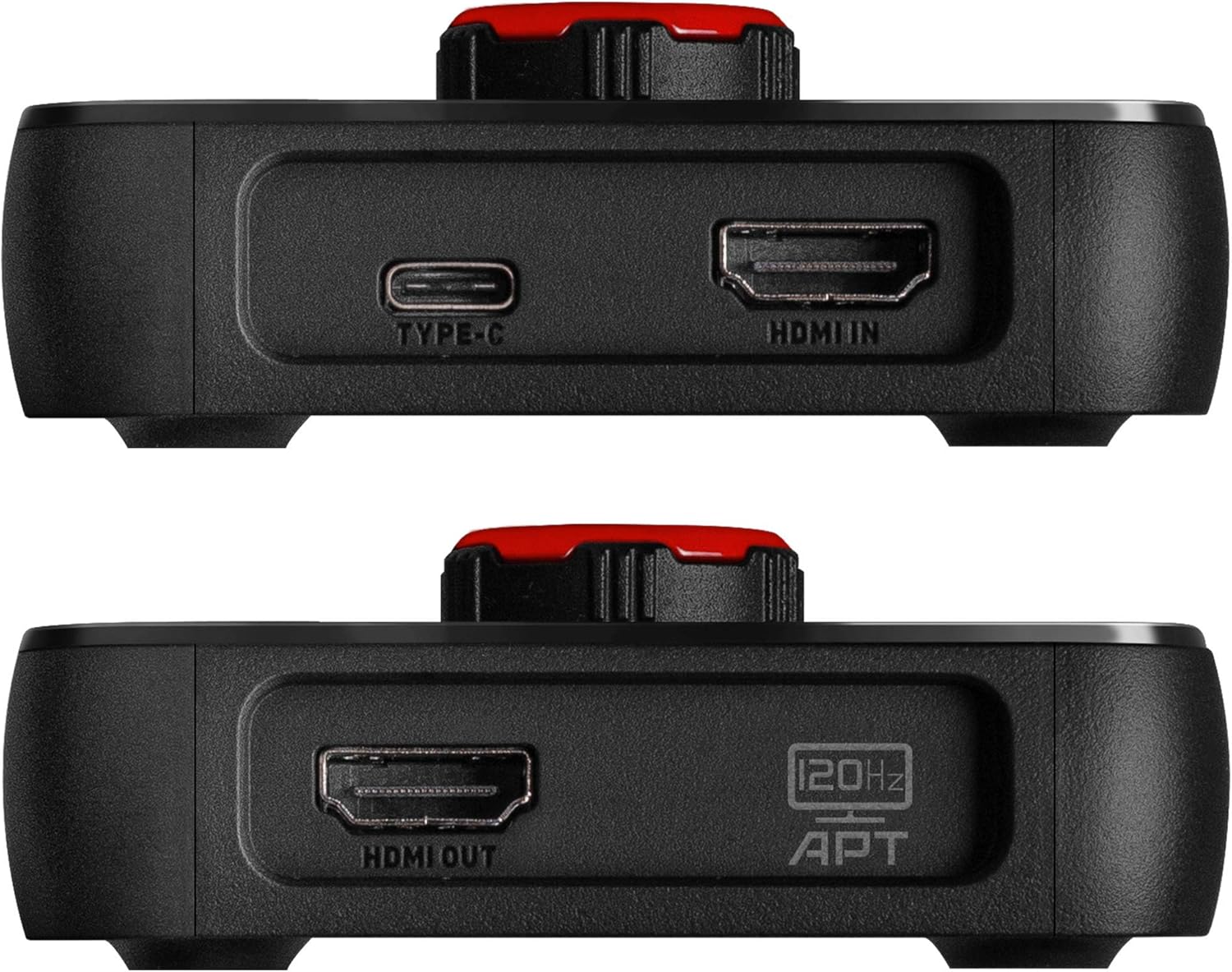
Image: Another side view of the EVGA XR1 Capture Card, highlighting the HDMI OUT port, which connects to your display for video pass-through.
4. Operating Instructions
The EVGA XR1 Capture Card is designed for intuitive operation, especially with OBS Studio.
Control Dial:
The prominent control dial on the top of the XR1 allows for quick adjustments. This dial functions as an audio mixer, enabling you to adjust microphone input levels and game volume directly on the device. Pressing the knob can also switch between capture and pass-through modes, or adjust settings depending on the software configuration.

Image: A top-down view of the EVGA XR1 Capture Card, showcasing its vibrant ARGB lighting and the central control dial used for audio mixing and mode switching.
ARGB Lighting:
The integrated ARGB lighting provides visual feedback and can be customized through compatible software, enhancing your setup's aesthetics.
OBS Certification:
As the first device certified for OBS, the XR1 offers optimized performance and compatibility with OBS Studio. Ensure you select the EVGA XR1 as your video and audio input device within OBS for recording or streaming.

Image: An angled view of the EVGA XR1 Capture Card, highlighting its dynamic ARGB lighting and the "Certified for OBS" logo, indicating its optimized compatibility.
5. Maintenance
To ensure the longevity and optimal performance of your EVGA XR1 Capture Card, follow these simple maintenance guidelines:
- Cleaning: Use a soft, dry cloth to gently wipe the exterior of the device. Avoid using liquid cleaners or abrasive materials, as they may damage the surface or internal components.
- Storage: When not in use, store the capture card in a cool, dry place away from direct sunlight and extreme temperatures.
- Cable Management: Ensure cables are not excessively bent or strained, which can lead to damage over time.
6. Troubleshooting
If you encounter issues with your EVGA XR1 Capture Card, refer to the following common troubleshooting steps:
- No Signal/Black Screen:
- Ensure all HDMI cables are securely connected to the correct IN and OUT ports.
- Verify that your source device (console/PC) is powered on and outputting video.
- Check your display's input source.
- Try a different HDMI cable.
- Ensure your PC's USB 3.0 port is providing sufficient power; some front panel USB ports may not provide full power. Try connecting to a rear motherboard USB 3.0 port.
- No Audio:
- Check audio settings in your streaming/recording software (e.g., OBS). Ensure the XR1's audio input is selected and not muted.
- Adjust the audio mixer dial on the XR1.
- Verify audio output settings on your source device.
- Lag/Stuttering:
- Ensure the XR1 is connected to a USB 3.0 (or higher) port. USB 2.0 ports are not sufficient for optimal performance.
- Close unnecessary applications on your PC to free up system resources.
- Update your graphics drivers and capture card drivers.
- Device Not Recognized:
- Try connecting the XR1 to a different USB 3.0 port.
- Restart your computer.
- Reinstall the device drivers.
7. Technical Specifications
| Specification | Detail |
|---|---|
| Model Number | 141-U1-CB10-LR |
| Hardware Platform | PC, Gaming Consoles (PS5, PS4, Xbox Series X|S, Xbox One, Nintendo Switch) |
| Operating System Compatibility | PC |
| Interface | USB 3.0 |
| Max Capture Resolution | 1080p @ 60FPS |
| Max Pass-Through Resolution | 4K @ 60FPS (with HDR), 1440p @ 144Hz (with HDR) |
| Audio Output Mode | Surround |
| Item Weight | 5.6 ounces |
| Product Dimensions (LxWxH) | 7 x 5.3 x 3.6 inches |
| Manufacturer | EVGA |
| Date First Available | September 15, 2020 |

Image: The underside of the EVGA XR1 Capture Card, displaying the model number (P/N: 141-U1-CB10-LR), power input specifications, and various certifications.
8. Warranty and Support
EVGA products are backed by a manufacturer's warranty. For detailed warranty information, product registration, technical support, and driver downloads, please visit the official EVGA website:
You can also find support resources and frequently asked questions on the EVGA support page. When contacting support, please have your product model number (141-U1-CB10-LR) and serial number ready.
Related documents141-U1-CB10-LR


Ask a question about this manual
Ask about setup, troubleshooting, compatibility, parts, safety, or missing instructions. Manuals+ will review the question and use this page’s manual context to help answer it.