
1. Introduction
Thank you for choosing the Yottamaster 4-Bay USB-C 3.1 Gen2 HDD Enclosure. This product is designed to provide a high-capacity, high-speed, and reliable storage solution for individuals and small to medium-sized businesses. This manual will guide you through the setup, operation, and maintenance of your new device, ensuring optimal performance and data security.
2. Product Overview
The Yottamaster 4-Bay USB-C 3.1 Gen2 HDD Enclosure is an external storage solution capable of housing up to four 3.5-inch or 2.5-inch SATA hard drives or SSDs. It features a robust aluminum alloy construction for enhanced durability and heat dissipation. With USB 3.1 Gen2 connectivity, it offers data transfer speeds of up to 10Gbps. A key feature is its daisy-chain capability, allowing multiple units to be connected for massive storage expansion.

Figure 2.1: Front view of the Yottamaster 4-Bay USB-C 3.1 Gen2 HDD Enclosure.
3. Features
Large Capacity Storage for Small and Medium Businesses: This 4-bay external 3.5-inch HDD enclosure features daisy chain functionality. It can accommodate up to four 18TB hard disks, allowing for a maximum super capacity of 72TB. By utilizing the daisy chain function, two [FS4C3] devices can be added, bringing the maximum total capacity to an astonishing 216TB, enabling stress-free storage and management of vast company data. It supports all 3.5-inch/2.5-inch SATA hard disks and is compatible with multiple operating systems including Windows, macOS, and Linux.

Figure 3.1: Daisy chain function for expanded storage capacity.
Efficient Data Transfer: Equipped with the latest SATA3.0-USB3.1 control chip, this HDD enclosure achieves high-speed transmission of USB3.1 GEN2 10Gbps. It features an energy-saving design that automatically enters sleep mode after 10 minutes of inactivity, and the sleep mode duration can be changed. If the device cannot wake from sleep mode, please contact technical support for the latest firmware.

Figure 3.2: High-speed data transfer via USB 3.1 Gen2.
Powerful Heat Dissipation: Constructed from high-quality aluminum alloy, this hard disk enclosure achieves excellent heat dissipation with large-area meteor-shaped cooling vents on the front and rear, and a silent 80mm cooling fan. Powerful heat dissipation measures ensure data safety.

Figure 3.3: Rear view highlighting the 80mm silent cooling fan and vents.
Abundant Power Supply: Equipped with a 150W high-power built-in power adapter, it provides sufficient power for the operation of multiple hard disks. No drivers are required; simply connect the power cord and USB cable to use, allowing for a neat desk setup.
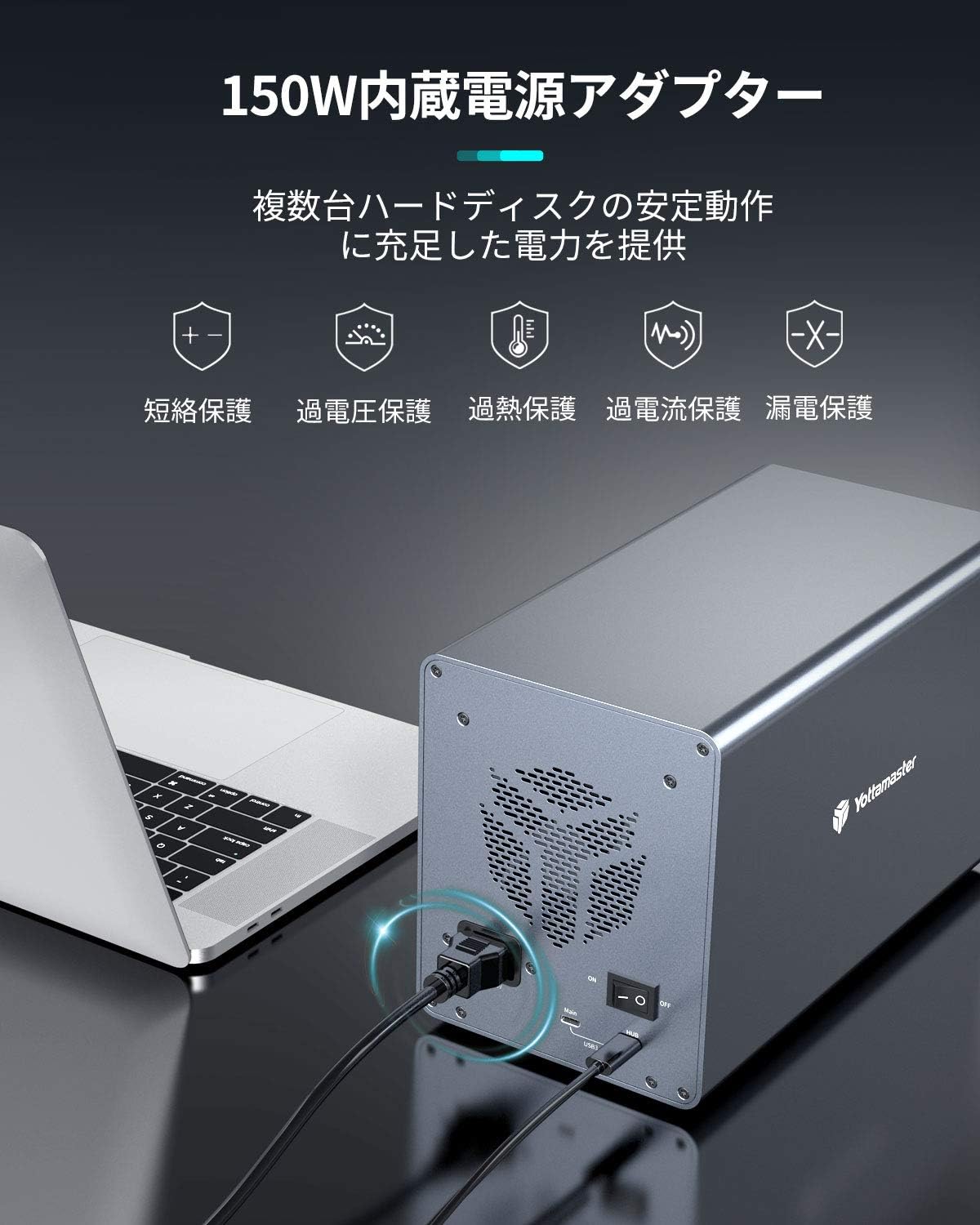
Figure 3.4: Power adapter connection for stable operation.
4. Package Contents
Please check the package contents upon unboxing to ensure all items are present:
- 1 × Yottamaster 4-Bay HDD Enclosure (Aluminum Alloy)
- 1 × USB Cable [Type-A To Type-C] (100cm)
- 1 × USB Cable [Type-C To Type-C] (100cm)
- 1 × Power Cable
- 1 × Screwdriver & Screw Set (for 2.5" and 3.5" hard disks)
- 1 × User Manual
5. Setup Instructions
Follow these steps to set up your Yottamaster HDD Enclosure:
- Install Hard Drives:
- Gently pull the drive trays out from the front of the enclosure.
- For 3.5-inch HDDs, align the screw holes on the drive with the holes on the tray and secure with the provided screws.
- For 2.5-inch HDDs/SSDs, use the appropriate screw holes on the tray and secure with the provided screws.
- Slide the populated trays back into the enclosure until they click into place.

Figure 5.1: Installing 2.5-inch and 3.5-inch drives into the enclosure.
- Connect Power: Connect the power cable to the enclosure's AC port and then plug it into a power outlet.
- Connect to Computer: Use one of the provided USB cables (Type-A to Type-C or Type-C to Type-C) to connect the enclosure to your computer's USB port. It is recommended to connect to a host-side USB interface for more stable voltage.
- Power On: Flip the power switch on the back of the enclosure to the 'ON' position. The access lamps on the front will illuminate, indicating power and drive activity.

Figure 5.2: Front panel with access lamps and push design for drive bays.

Figure 5.3: Rear panel with AC power input, USB 3.1 Type-C port, and power switch.
6. Operating Instructions
Once connected and powered on, your computer should detect the new storage device. You may need to initialize and format new hard drives through your operating system's Disk Management (Windows) or Disk Utility (macOS) before use.
- Data Transfer: Drag and drop files to and from the recognized drives as you would with any other external storage.
- Daisy Chain Function: To expand storage, connect another compatible Yottamaster enclosure to the 'Hub' USB-C port on the back of the first enclosure using a USB-C to USB-C cable. Ensure both enclosures are powered on.
- Sleep Mode: The enclosure automatically enters sleep mode after 10 minutes of inactivity to save energy. Accessing the drives will wake the device.
Important Note on Removal: Before physically disconnecting the enclosure or removing any hard disk, always click 'Safely Remove Hardware' (Windows) or 'Eject' (macOS) on your computer. Directly unplugging the device while it is operating can lead to data corruption or damage to the hard disks.
7. Maintenance
To ensure the longevity and optimal performance of your Yottamaster HDD Enclosure, consider the following maintenance tips:
- Keep the enclosure in a well-ventilated area to maximize heat dissipation.
- Regularly clean the exterior with a soft, dry cloth. Avoid using liquid cleaners.
- Ensure the cooling vents are not obstructed by dust or other debris.
- Avoid exposing the device to extreme temperatures, humidity, or direct sunlight.
- Always use the original power adapter and USB cables provided to ensure stable power and data transfer.
8. Troubleshooting
If you encounter issues with your Yottamaster HDD Enclosure, please refer to the following common problems and solutions:
| Problem | Possible Cause | Solution |
|---|---|---|
| Device not recognized by computer | Loose cable connection, power off, unformatted drives, driver issue. | Check all cable connections. Ensure the power switch is ON. Initialize and format new drives. Try a different USB port or cable. Restart your computer. |
| Cannot wake from sleep mode | Firmware issue, system conflict. | Try unplugging and replugging the USB cable. If the issue persists, contact Yottamaster technical support for the latest firmware update. |
| Slow data transfer speeds | Incorrect USB port (e.g., USB 2.0 instead of USB 3.1), faulty cable, drive performance. | Ensure you are connected to a USB 3.1 Gen2 port on your computer. Use the provided original USB cables. Check the health and speed of your hard drives. |
| Fan noise is noticeable | Normal operation, dust accumulation, fan malfunction. | A certain level of fan noise is normal for cooling. Ensure vents are clear of dust. If noise is excessive or unusual, contact support. |
| Screws for 2.5-inch drives are too long | Incorrect screw type used. | Ensure you are using the correct screws from the provided set for 2.5-inch drives. If issues persist, contact support. |
| Sudden disconnection or data loss | Improper removal, unstable power, faulty cable. | Always use 'Safely Remove Hardware' before disconnecting. Ensure stable power supply. Use original data cables. Connect to a host-side USB interface for more stable voltage. |
For further assistance, please contact Yottamaster technical support.
9. Specifications
| Feature | Description |
|---|---|
| Model Number | FS4C3 (4bay USB-C3.1 Gen2) |
| Compatible Devices | Personal computers, Laptops |
| Hard Disk Form Factor | 3.5 inch (also supports 2.5 inch) |
| Maximum Number of Supported Devices | 4 |
| Maximum Capacity | 72TB (18TB x 4 drives), up to 216TB with daisy chain |
| Data Transfer Rate | 10 Gigabits per second (USB 3.1 Gen2) |
| Manufacturer | Yottamaster |
| Item Weight | 3 Kilograms |
| Product Dimensions | 26.5 x 13.5 x 16.6 cm |
| Material | Aluminum Alloy |
| Color | Gray |
| Power Adapter | 150W Built-in |
| Country of Origin | China |
10. Warranty and Support
Yottamaster products come with a standard manufacturer's warranty. For specific warranty terms and conditions, please refer to the warranty card included in your package or visit the official Yottamaster website. If you require technical assistance, have questions about your product, or need to report an issue, please contact Yottamaster customer support. Contact information can typically be found on the official website or in the product packaging.


