Introduction
The SANWA Multi Device Bluetooth Keyboard with Touchpad (Model GSKBBT066) is designed for versatile use across various operating systems and devices. This compact, rechargeable keyboard features a built-in touchpad, multi-device switching capabilities, and convenient shortcut keys, enhancing productivity and entertainment experiences.
Setup
1. Charging the Keyboard
Before initial use, fully charge the keyboard. Connect the provided USB charging cable to the keyboard's charging port and a USB power source. A full charge typically takes approximately 2 hours and provides up to 30 hours of constant use.

Image: The SANWA Bluetooth keyboard connected via USB cable to a wall adapter for charging.
2. Pairing with Devices
The keyboard supports connection to up to three Bluetooth devices simultaneously. Use the dedicated pairing buttons to switch between connected devices.
- Ensure the keyboard is charged and powered on.
- Press the Fn key and one of the device selection keys (1, 2, or 3) simultaneously to select a channel. The corresponding LED will blink.
- Press the Tab key labeled 'Pairing' to enter pairing mode. The selected channel's LED will blink rapidly.
- On your device (laptop, tablet, smartphone), enable Bluetooth and search for available devices.
- Select 'SANWA GSKBBT066' from the list of found devices.
- Follow any on-screen prompts to complete the pairing process.
- To switch between paired devices, simply press Fn + 1, Fn + 2, or Fn + 3.

Image: A close-up of the keyboard showing the 'Fn' key, 'Tab' (Pairing) key, and the device selection LEDs (1, 2, 3).
Video: An instructional video demonstrating the features and usage of the SANWA Bluetooth Rechargeable Keyboard with Touchpad.
Operating Instructions
Keyboard Layout and Typing
The keyboard features a standard QWERTY layout with comfortable pantograph scissor-structure keys, designed for sensitive response and reduced typing noise. The layout is optimized for efficient typing.

Image: Top-down view of the SANWA Bluetooth keyboard, showcasing its full layout.

Image: Close-up of the keyboard keys, illustrating the pantograph scissor-structure for comfortable typing.
Shortcut Keys
The keyboard includes 20 practical shortcut keys for quick access to various functions and media controls. These keys are typically activated by pressing the Fn key in combination with the corresponding function key (F1-F12) or dedicated media keys.
- F1: Brightness Down
- F2: Brightness Up
- F3: Search Function
- F4: Task View
- F5: Switch to Desktop
- F6: Switch Applications
- F7: Mute
- F8: Volume -
- F9: Volume +
- F10: Previous Song
- F11: Play/Pause
- F12: Next Song
- Dedicated keys for Virtual Keyboard, Input Language Switch, and Open Browser.
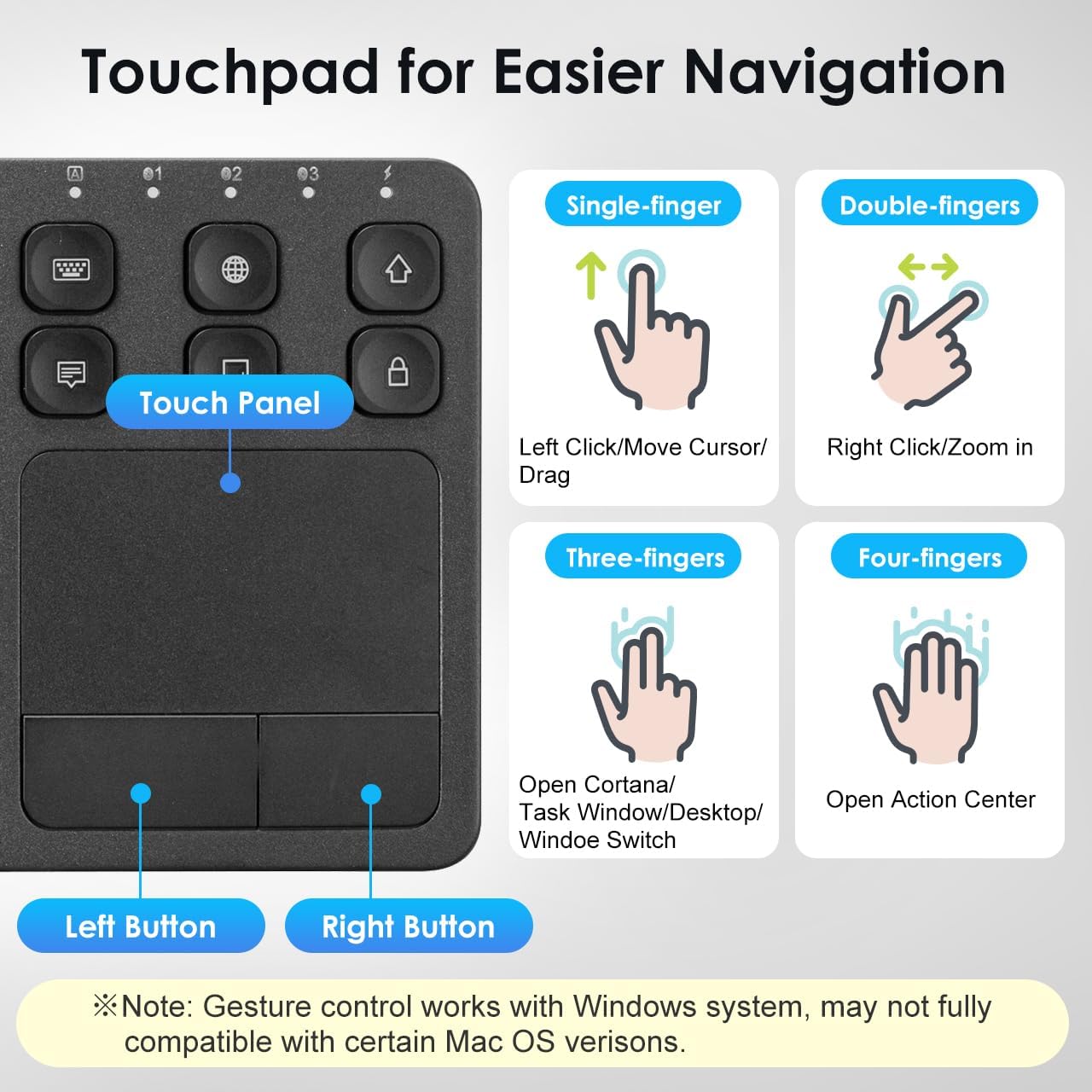
Image: The keyboard layout with icons indicating the functions of the shortcut keys.
Touchpad Functionality and Gestures (Windows System)
The integrated multi-touch touchpad provides effortless navigation. It supports various finger gestures, primarily optimized for Windows systems. Note that gesture compatibility may vary with certain macOS versions.

Image: A detailed view of the touchpad and its gesture guide.
| Gesture | Function |
|---|---|
| Single-finger tap/drag | Left Click / Move Cursor / Drag |
| Two-finger tap | Right Click |
| Two-finger pinch | Zoom In / Zoom Out |
| Two-finger scroll | Page Up / Page Down |
| Three-finger tap | Open Cortana / Task Window / Desktop / Window Switch |
| Four-finger tap | Open Action Center |
Compatibility
The SANWA Bluetooth Keyboard with Touchpad is broadly compatible with a range of operating systems and devices, making it a versatile tool for various computing needs.
- Operating Systems: Windows 13/11/10/8.1/8/7/XP/Vista/98/2000/Me, macOS 10.12-10.15, Android 7.0-10, iPad OS13, iOS13 and later versions.
- Compatible Devices: Desktop computers, laptops, cell phones, tablets, Mac, iPad, iPhone, Android TV BOX, Smart TVs, HTPC.
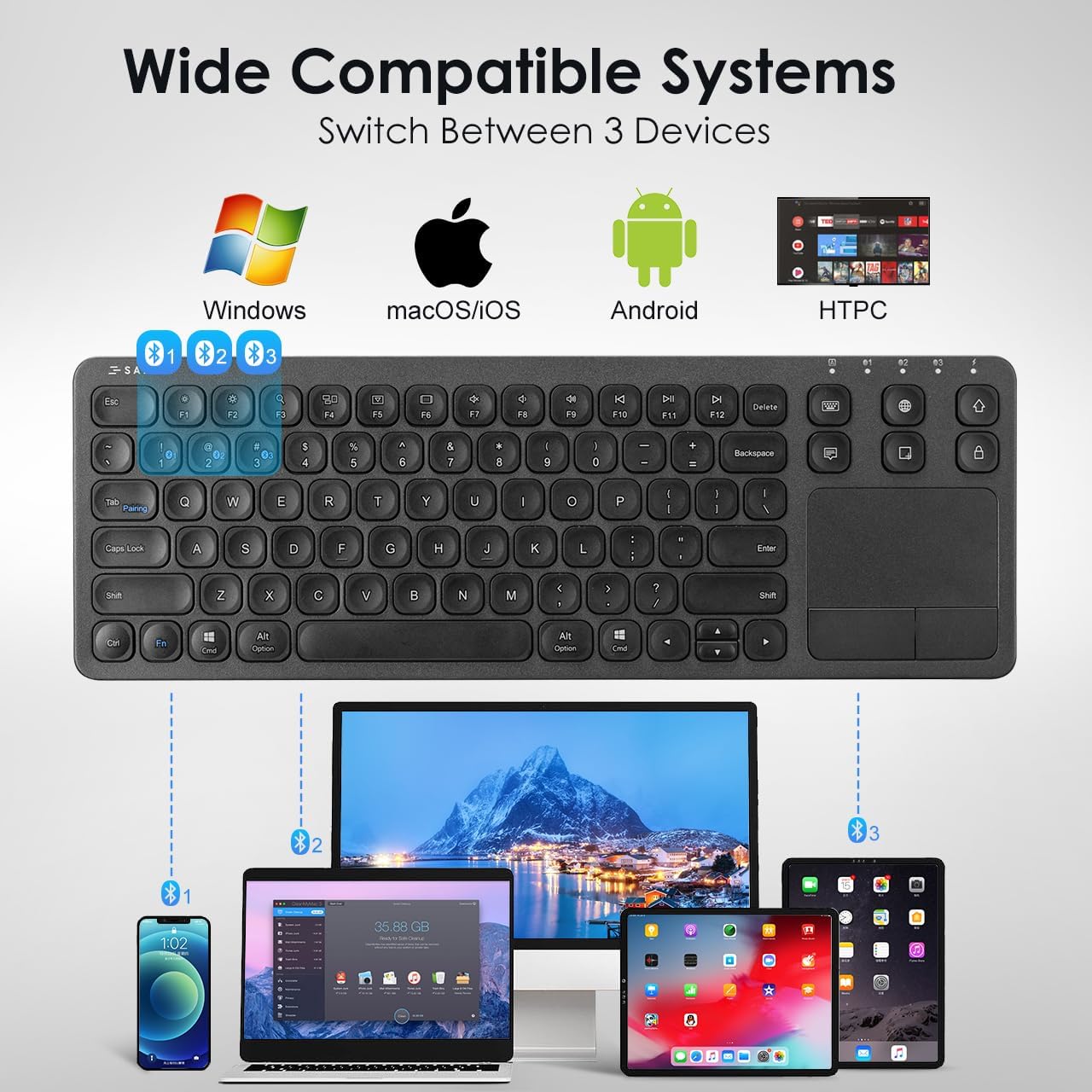
Image: The keyboard shown connected to a smartphone, laptop, and tablet, demonstrating multi-device compatibility.
Charging and Battery Information
The keyboard is equipped with a built-in rechargeable Lithium Polymer battery. To ensure optimal performance and longevity, adhere to the following guidelines:
- Charging Time: Approximately 2 hours for a full charge.
- Work Time: Up to 30 constant hours on a full charge.
- Power-Saving: The keyboard features an auto-sleep function after a period of inactivity to conserve battery. Press any key to wake it up.
- Charging Indicator: Refer to the keyboard's LED indicators for charging status.
Image: The SANWA Bluetooth keyboard connected via USB cable to a wall adapter for charging, with text indicating 30 hours work time and 2 hours full charge.
Care and Maintenance
To maintain the performance and appearance of your SANWA keyboard, follow these simple care instructions:
- Cleaning: Use a soft, dry, lint-free cloth to clean the keyboard and touchpad. For stubborn dirt, slightly dampen the cloth with water or a mild cleaning solution. Avoid harsh chemicals or abrasive materials.
- Storage: Store the keyboard in a cool, dry place away from direct sunlight and extreme temperatures.
- Avoid Liquids: Do not expose the keyboard to liquids. In case of accidental spills, power off the keyboard immediately and allow it to dry completely before reuse.
- Handle with Care: Avoid dropping the keyboard or subjecting it to strong impacts.
Troubleshooting
If you encounter issues with your SANWA Bluetooth Keyboard, refer to the following common problems and solutions:
| Problem | Solution |
|---|---|
| Keyboard does not connect or pair. | Ensure the keyboard is charged and powered on. Verify Bluetooth is enabled on your device. Re-enter pairing mode on the keyboard and try pairing again. Ensure no other devices are interfering with the Bluetooth signal. |
| Typing is unresponsive or delayed. | Check battery level and charge if necessary. Ensure the keyboard is within the effective Bluetooth range (up to 32.8ft). Reconnect the Bluetooth connection. |
| Touchpad is not working correctly. | Ensure your device's operating system fully supports touchpad gestures. Some macOS versions may have limited gesture compatibility. Clean the touchpad surface. Restart the keyboard and device. |
| Keyboard frequently disconnects or goes to sleep. | The keyboard has an auto-sleep function to save power. Press any key to wake it up. Ensure the keyboard is not too far from the connected device. Some users report that the sleep function cannot be disabled, which is a design characteristic. |
| Two-finger scrolling is jumpy or unpredictable. | This can be a known characteristic for some users, especially with certain iPadOS versions. Consider using the arrow keys for navigation if scrolling is inconsistent. |
Product Specifications
| Feature | Detail |
|---|---|
| Brand | SANWA |
| Model Number | GSKBBT066 |
| Connectivity Technology | Bluetooth |
| Keyboard Description | Multi Functional |
| Special Feature | Touchpad, shortcuts, ultra-thin |
| Color | Black |
| Product Dimensions | 14.72"L x 5.08"W x 0.69"H (37.39 x 12.90 x 1.75 cm) |
| Item Weight | 15.4 ounces (436.54 grams) |
| Batteries | 1 Lithium Polymer battery (included) |
| Manufacturer | SANWA SUPPLY |

Image: A diagram illustrating the length, width, and thickness of the ultra-slim keyboard.
Warranty and Support
For warranty information, technical support, or customer service inquiries, please refer to the official SANWA website or contact your retailer. Keep your purchase receipt for warranty claims.


