
1. Introduction
Thank you for choosing the GooDee W80 Mini Projector. This manual provides essential information for setting up, operating, and maintaining your projector to ensure optimal performance and longevity. Please read this manual thoroughly before using the product.
2. Product Features
- Native Resolution: 1280 x 720p, supporting 1080p Full HD input.
- Wireless Connectivity: Built-in Wi-Fi for seamless screen mirroring from iOS and Android devices.
- Versatile Inputs: HDMI, USB, VGA for connecting various devices like TV sticks, DVD players, and gaming consoles.
- Portable Design: Compact and lightweight for easy transport and setup in different locations.
- Large Projection Size: Supports projection sizes from 30 to 200 inches.
- Included Accessory: Comes with a 100-inch projector screen for immediate use.

Image: Comparison of GooDee W80 projector's display quality against another projector, highlighting enhanced brightness and clarity.
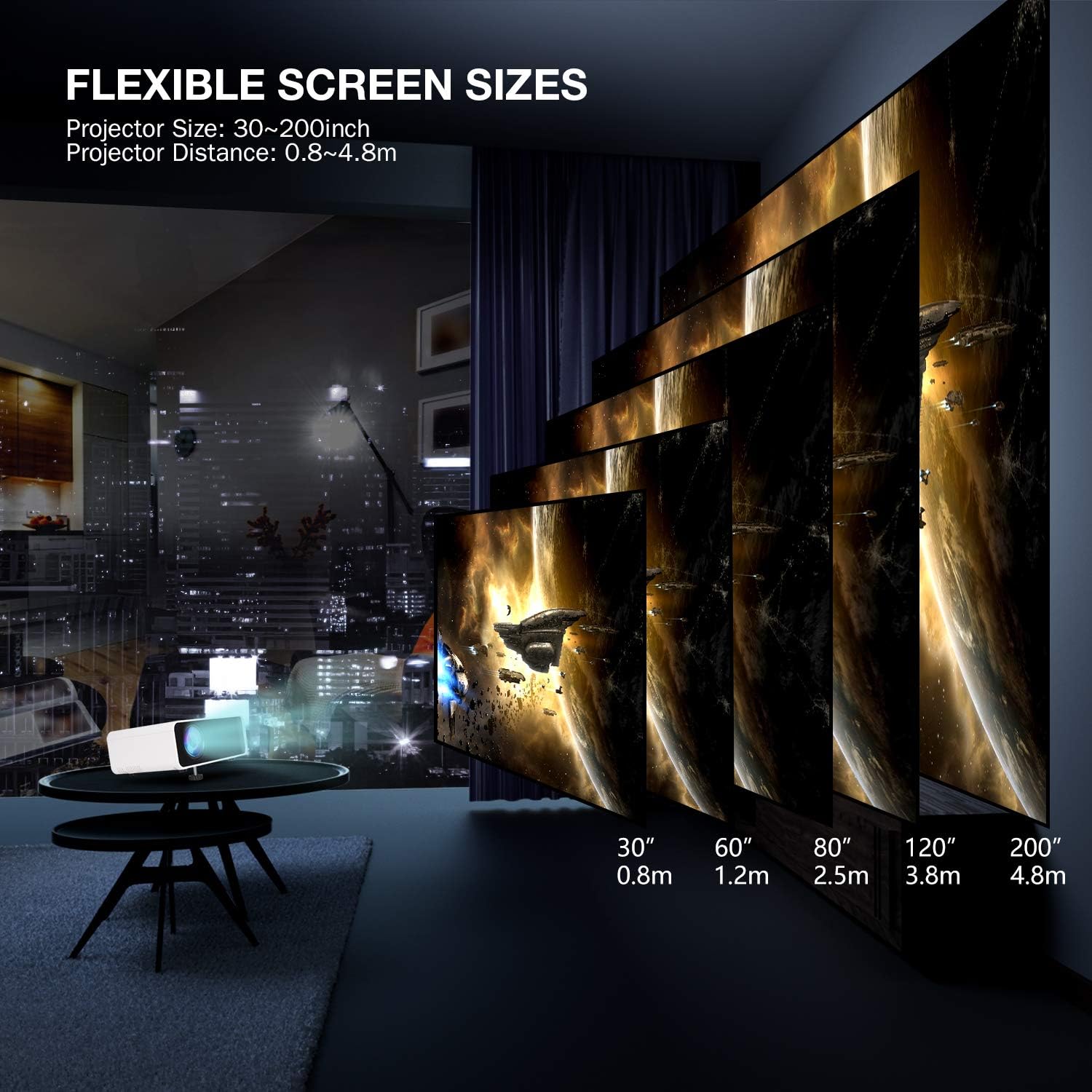
Image: Illustration demonstrating the flexible projection screen sizes (30 to 200 inches) achievable with the projector at varying distances (0.8m to 4.8m).
3. What's in the Box
Upon opening the package, please verify that all items are present and in good condition:
- GooDee W80 Mini Projector
- 100-inch Projector Screen
- Power Cable
- HDMI Cable
- Remote Control (batteries not included)
- User Manual (this document)
4. Setup Guide
Follow these steps to set up your GooDee W80 Mini Projector:
- Placement: Place the projector on a stable, flat surface. Ensure there is adequate ventilation around the unit. For optimal viewing, position the projector directly in front of your projection surface (wall or screen).
- Power Connection: Connect the power cable to the projector's power input and then to a power outlet.
- Screen Setup: If using the included 100-inch screen, set it up according to its separate instructions.
- Power On: Press the power button on the projector or the remote control to turn on the device.

Image: The GooDee W80 Mini Projector positioned in front of a large projection screen, illustrating a typical setup.
5. Operating Instructions
5.1 Basic Operation
- Power On/Off: Press the power button on the projector or remote.
- Input Source: Use the 'Source' button on the remote or projector to select your desired input (HDMI, USB, VGA, Screen Mirroring).
- Navigation: Use the arrow keys and 'OK' button on the remote or projector to navigate menus.
5.2 Focus and Keystone Adjustment
To achieve a clear and rectangular image:
- Focus: Rotate the focus ring on the top of the projector until the image appears sharp and clear.
- Keystone: Adjust the keystone correction dial to correct any trapezoidal distortion, ensuring the image is rectangular.
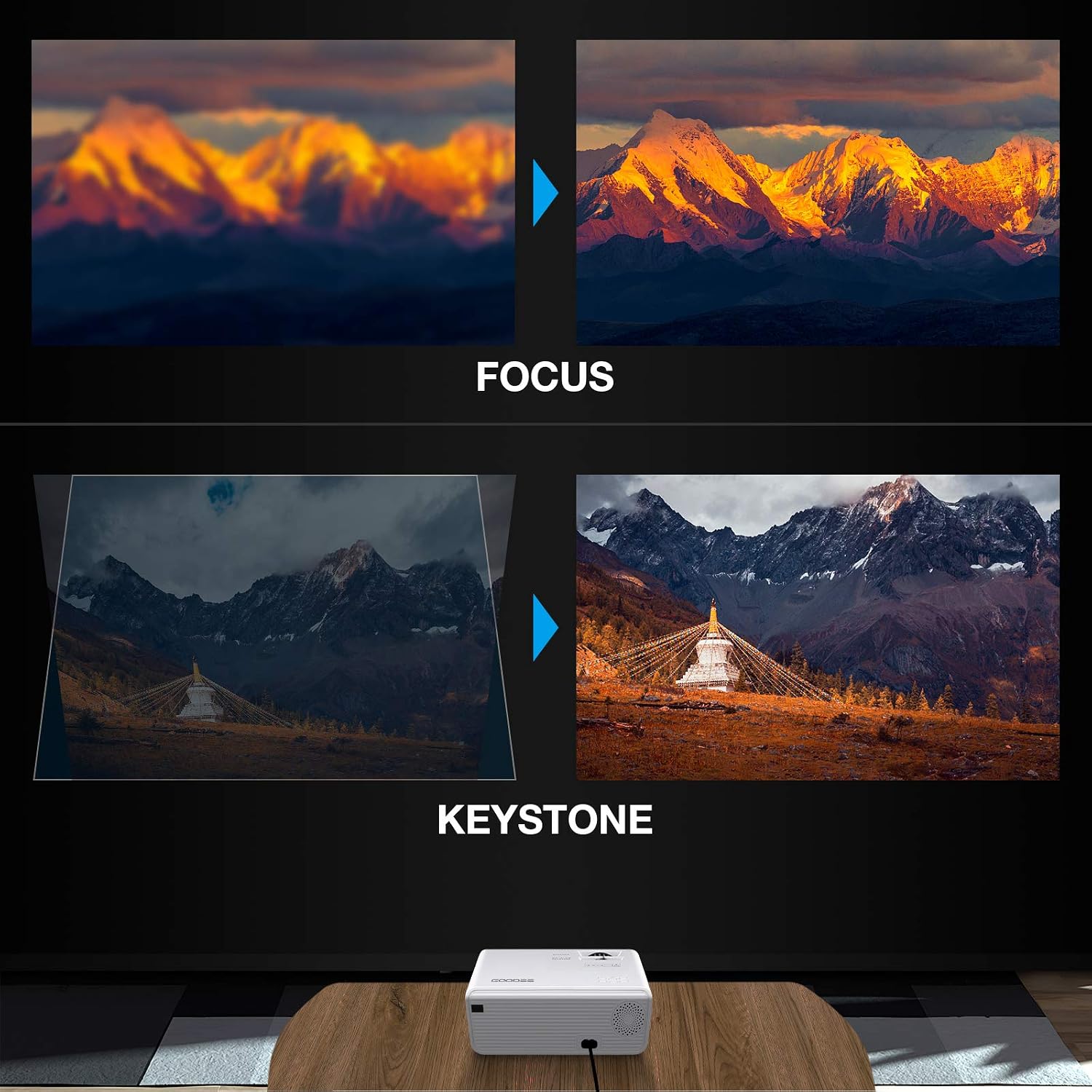
Image: Visual guide demonstrating how to adjust the focus and keystone correction on the projector for a clear and properly shaped image.
5.3 Official Product Video
Video: An official overview of the GooDee W80 WiFi Projector, showcasing its features and various usage scenarios.
6. Connectivity
6.1 Wireless Screen Mirroring (iOS/Android)
The GooDee W80 supports wireless screen mirroring for both iOS and Android devices. Ensure your projector and mobile device are connected to the same Wi-Fi network.
- For iOS Devices: Select 'iOS Cast-To' on the projector's input menu. On your iOS device, enable Screen Mirroring/AirPlay and select the projector from the list of available devices.
- For Android Devices: Select 'Miracast-To' on the projector's input menu. On your Android device, enable Wireless Display/Screen Cast/Smart View (names may vary by device) and select the projector.
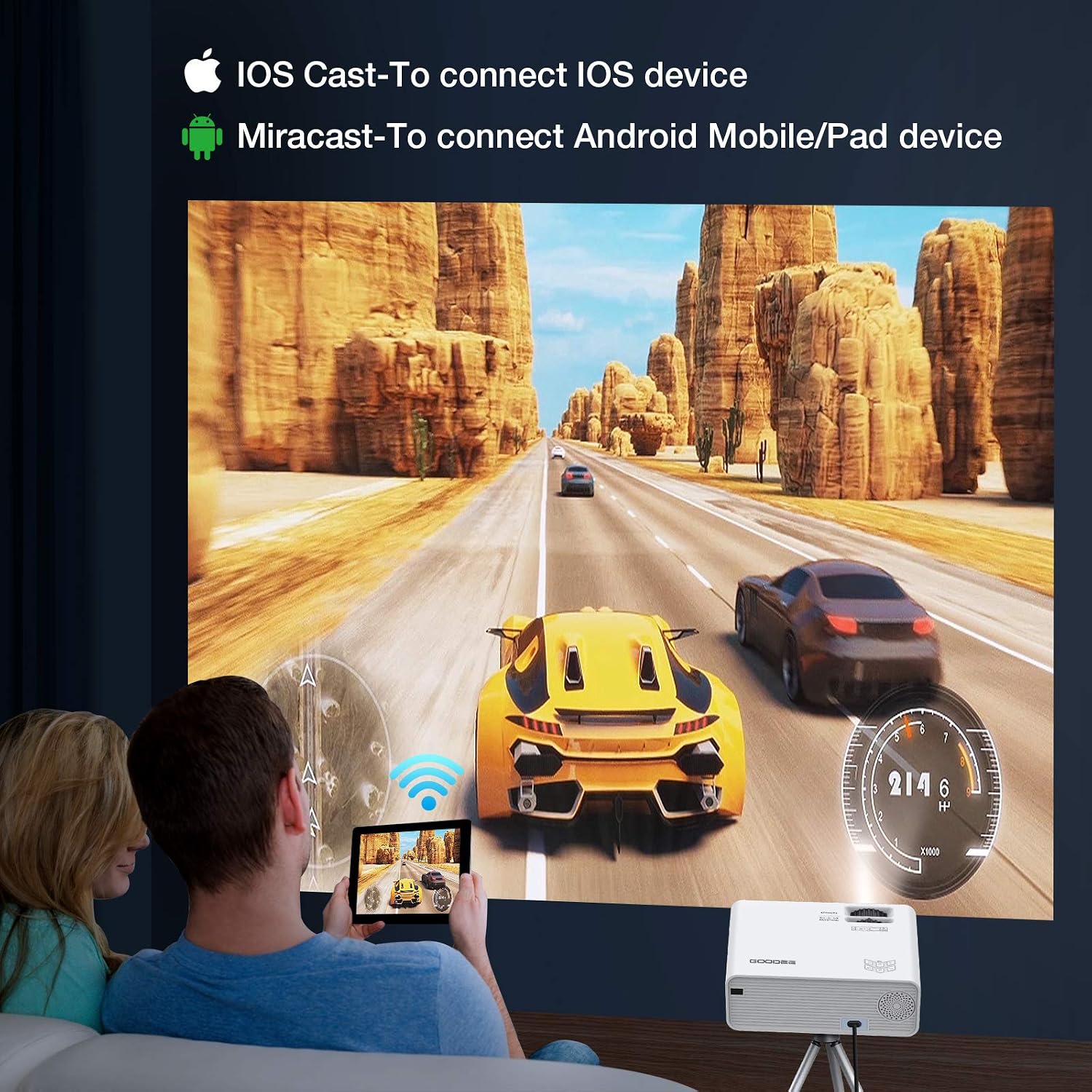
Image: Demonstrates the wireless connection capabilities of the projector, allowing screen mirroring from both iOS and Android mobile devices.
6.2 Wired Connections
The projector features multiple ports for wired connections:
- HDMI: Connect HDMI-enabled devices such as laptops, gaming consoles, or TV boxes.
- USB: Play media files directly from a USB flash drive.
- VGA: Connect older computers or devices with a VGA output.
7. Maintenance
Proper maintenance ensures the longevity and performance of your projector:
- Lens Cleaning: Use a soft, lint-free cloth specifically designed for optical lenses to gently wipe the projector lens. Avoid abrasive materials or harsh chemicals.
- Ventilation: Ensure the projector's ventilation vents are clear and unobstructed. Do not place the projector on soft surfaces that may block airflow.
- Storage: When not in use, store the projector in a cool, dry place, away from direct sunlight and extreme temperatures. Use the original packaging or a protective case to prevent dust accumulation.
8. Troubleshooting
If you encounter issues with your projector, refer to the following common problems and solutions:
| Problem | Possible Solution |
|---|---|
| No picture | Check power connection, ensure input source is correctly selected, verify cable connections. |
| Blurry image | Adjust the focus ring and keystone correction dial. Ensure projection distance is within recommended range. |
| No sound | Check volume settings on both projector and source device. Ensure audio cables are properly connected if using external speakers. |
| Cannot connect wirelessly | Ensure both devices are on the same Wi-Fi network. Restart both the projector and the mobile device. Check for any firewall or network restrictions. |
For more detailed troubleshooting or persistent issues, please refer to the full User Manual (PDF) or User Guide (PDF) available online.
9. Specifications
Key technical specifications for the GooDee W80 Mini Projector:
| Feature | Detail |
|---|---|
| Product Dimensions | 7.9 x 5.5 x 2.7 inches |
| Item Weight | 2.2 pounds |
| Item Model Number | W80 |
| Display Resolution | 1280 x 720 (Native) |
| Connectivity Technology | HDMI, USB, VGA, Wi-Fi |
| Recommended Uses | Home Cinema |
| Special Features | Built-In Wi-Fi, Portable, Wireless |
10. Warranty and Support
For information regarding product warranty, returns, or technical support, please refer to the warranty card included with your product or visit the official GooDee website. You may also find additional resources and FAQs on the product support page.

