
1. Introduction
This manual provides essential information for the proper use and care of your SanDisk 128GB Ultra microSDXC UHS-I Class 10 Memory Card. Please read these instructions carefully to ensure optimal performance and longevity of your product.
2. Product Overview
The SanDisk 128GB Ultra microSDXC card is a high-capacity, high-speed storage solution designed for a wide range of compatible devices. It offers reliable performance for capturing, storing, and transferring digital content.
2.1 Key Features
- Ultra-fast Transfer Rates: Designed for quick data movement.
- Ample Storage Capacity: 128GB provides significant space for photos, videos, and applications.
- Lightweight and Practical Design: Compact form factor for easy integration into devices.
- High-Tech Performance: Engineered for modern digital storage needs.
- Compatible with Latest Speed Class: Meets UHS-I and Class 10 standards for recording Full HD video.
2.2 Package Contents
- SanDisk 128GB Ultra microSDXC Memory Card
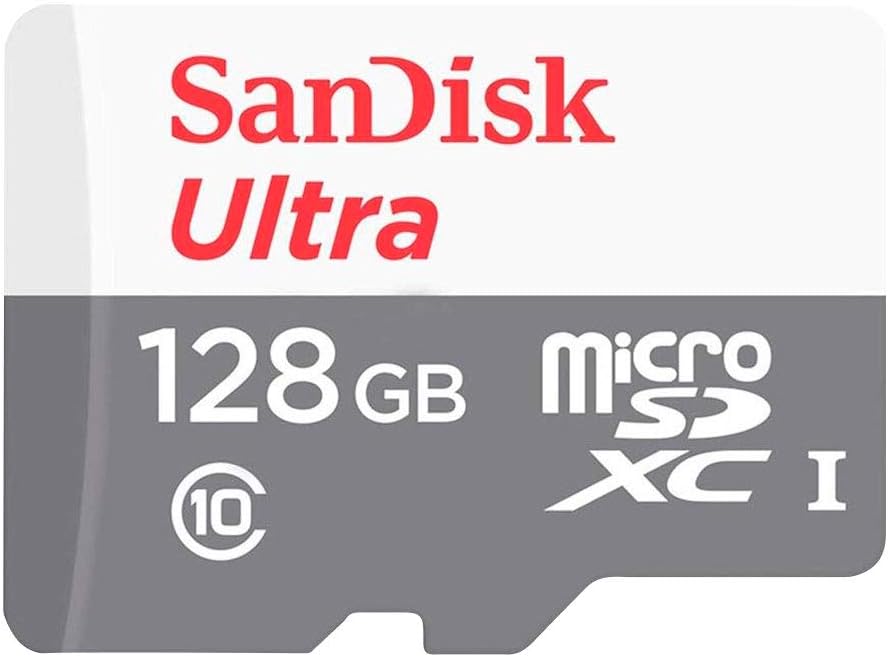
Image 1: Front view of the SanDisk 128GB Ultra microSDXC Memory Card, showing the SanDisk Ultra branding, 128GB capacity, microSDXC logo, and Class 10 speed rating.
3. Setup
3.1 Inserting the Memory Card
- Identify the microSD slot: Locate the microSD card slot on your compatible device (e.g., smartphone, tablet, digital camera, drone, action camera). Refer to your device's manual for exact location and orientation.
- Orient the card: Hold the SanDisk microSDXC card with the gold contacts facing down or as indicated by your device's slot design.
- Insert the card: Gently push the card into the slot until it clicks into place. Do not force the card, as this may cause damage to the card or the device.
3.2 Initializing/Formatting the Memory Card
Upon first use, or if you experience issues, it may be necessary to format the memory card. Formatting erases all data on the card and prepares it for use with your specific device.
- In-device Formatting: It is recommended to format the card using the device it will primarily be used with. Navigate to the storage settings or camera settings menu on your device and select the option to format the microSD card.
- Computer Formatting: You can also format the card using a computer with a card reader. Use the operating system's disk management tools (e.g., Disk Utility on macOS, Disk Management on Windows) to format the card. Ensure you select the correct drive to avoid data loss on other storage devices.
Warning: Formatting will permanently delete all data on the memory card. Back up any important files before proceeding.
4. Operating Instructions
4.1 Saving Data
Once the memory card is inserted and recognized by your device, it will typically be available as an external storage option. You can save photos, videos, documents, and other files directly to the card by selecting it as the storage destination within your device's applications.
4.2 Transferring Data
- Device to Computer: Connect your device (with the card inserted) to a computer using a USB cable. The card should appear as a removable drive, allowing you to drag and drop files.
- Card Reader: For faster transfers, remove the microSD card from your device and insert it into a compatible microSD card reader connected to your computer.
- Read/Write Speeds: The card supports read speeds up to 100 MB/s and write speeds of at least 10 MB/s (Class 10). Actual speeds may vary based on the host device, file attributes, and other factors.
4.3 Removing the Memory Card
Always safely eject the memory card from your device or computer before physically removing it to prevent data corruption. On computers, use the