Introduction
This manual provides comprehensive instructions for the installation, operation, maintenance, and troubleshooting of your GAMDIAS Aeolus M2-1203 LITE 3-in-1 Trio Ring 120mm PC Case & Radiator RGB Fan. Please read this manual thoroughly before use to ensure proper functionality and longevity of the product.
Product Overview
The GAMDIAS Aeolus M2-1203 LITE is a 120mm PC case and radiator fan designed to enhance cooling performance and aesthetics within your computer system. It features addressable RGB lighting with multiple effects and motherboard synchronization capabilities.
Key Features:
- Trio Ring RGB Fans: Equipped with multiple RGB LEDs for vibrant lighting effects.
- 30 Chromatic Lighting Effects: Easily accessible via an included lighting switch cable or case button.
- Motherboard RGB Sync: Compatible with major motherboard RGB software including ASUS Aura Sync, MSI Mystic Light Sync, ASRock Polychrome Sync, Biostar RGB Sync, and GIGABYTE RGB Fusion 2.0 via a 5V 3-pin Addressable RGB Header.
- Hydraulic Bearing: Ensures quiet operation and extended lifespan while maintaining efficient airflow.
- 5V 3-pin Male and Female Connector: Provides flexibility for connecting additional RGB components.

Image: Three GAMDIAS Aeolus M2-1203 LITE RGB fans showcasing their vibrant, customizable lighting.
Setup and Installation
Follow these steps to properly install your GAMDIAS Aeolus M2-1203 LITE fans into your PC case or onto a radiator.
- Prepare Your System: Ensure your computer is powered off and unplugged from the wall outlet. Open your PC case to access the fan mounting locations.
- Mount the Fans: Securely attach the 120mm fans to your desired PC case fan mounts or radiator using appropriate screws. Ensure the airflow direction is correct for your cooling configuration (typically intake or exhaust).
- Connect Power: Connect the 3-pin power connector from each fan to an available 3-pin fan header on your motherboard or fan controller.
- Connect RGB Lighting:
- For Motherboard Sync: Connect the 5V 3-pin Addressable RGB connector to a compatible header on your motherboard (e.g., ASUS Aura Sync, MSI JRAINBOW, ASRock Polychrome Sync, GIGABYTE Digital Pin Header). Use the provided splitter cable if connecting multiple RGB components to a single header.
- For Manual Control: If your motherboard does not support addressable RGB sync, or if you prefer manual control, connect the lighting switch cable to the fan's RGB input. This allows you to cycle through the 30 built-in lighting effects using the switch.
- Cable Management: Route all cables neatly to avoid interference with other components and to improve airflow within the case.
- Close Case and Power On: Once all connections are secure, close your PC case, plug in the power cable, and power on your computer.

Image: The 5V 3-pin Addressable RGB connector, illustrating compatibility with various motherboard synchronization software.

Image: Illustration of the splitter function, allowing multiple RGB components to connect to one 5V 3-pin header.
Operating Instructions
RGB Lighting Control:
- Motherboard Software Control: If connected to a compatible 5V 3-pin Addressable RGB header, use your motherboard's dedicated RGB software (e.g., ASUS Aura Sync, MSI Mystic Light Sync, ASRock Polychrome Sync, GIGABYTE RGB Fusion 2.0) to customize lighting effects, colors, and synchronization with other components.
- Manual Switch Control: If using the included lighting switch cable, press the button to cycle through the 30 built-in chromatic lighting effects. This includes various patterns, colors, and an LED off option.

Image: The lighting switch cable, providing easy access to 30 built-in lighting effects without software.
Fan Operation:
The fans operate automatically based on the settings configured in your motherboard's BIOS or through fan control software, if available. The hydraulic bearing design ensures quiet operation and efficient airflow for optimal system cooling.

Image: A GAMDIAS fan, emphasizing its ultra-silent operation and performance.

Image: An internal view of the fan, showcasing the hydraulic bearing technology for minimal noise and maximum airflow.
Maintenance
Regular maintenance helps ensure optimal performance and extends the lifespan of your fans.
- Dust Removal: Periodically clean dust from the fan blades and housing using compressed air or a soft brush. Ensure the system is powered off before cleaning.
- Inspection: Check for any loose cables or obstructions that might impede fan rotation.
- Avoid Liquids: Do not use liquid cleaners directly on the fans or electrical components.
Troubleshooting
| Problem | Possible Cause | Solution |
|---|---|---|
| Fans not spinning. |
|
|
| RGB lighting not working or incorrect. |
|
|
| Excessive noise from fans. |
|
|
Specifications
| Feature | Detail |
|---|---|
| Model | AEOLUS M2-1203 LITE |
| Fan Dimensions | 120 x 120 x 25 mm |
| Bearing Type | Hydraulic Bearing |
| Maximum Rotational Speed | 1200 RPM |
| Noise Level | 19 dB |
| Power Connector | 3-Pin |
| RGB Connector | 5V 3-Pin Addressable RGB |
| Rated Voltage | 12 Volts |
| Rated Wattage | 3 Watts |
| Material | Polycarbonate |
| Item Weight | 470 g (for the pack) |
| Compatible Devices | Desktop PCs |
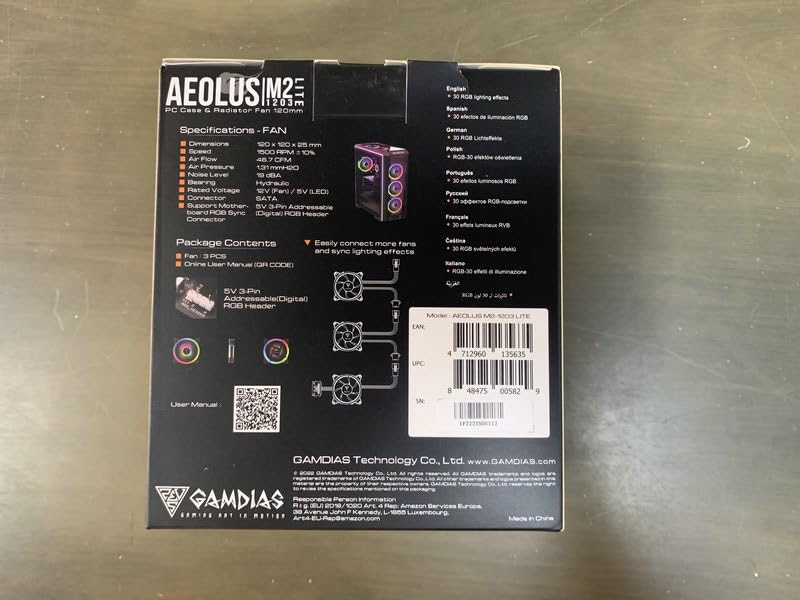
Image: Product packaging displaying detailed specifications and connection diagrams.
Warranty Information
The GAMDIAS Aeolus M2-1203 LITE comes with a 1-year manufacturer warranty from the date of purchase. This warranty covers defects in materials and workmanship under normal use. Please retain your proof of purchase for warranty claims.
For detailed warranty terms and conditions, please refer to the official GAMDIAS website or contact customer support.
Support
For technical assistance, product inquiries, or warranty claims, please contact GAMDIAS customer support through their official website. You may also find additional resources, FAQs, and driver downloads on the GAMDIAS support page.
GAMDIAS Official Website: www.gamdias.com