1. Introduction
This manual provides detailed instructions for the setup, operation, and maintenance of your AUN W18C Mini Projector. Please read this manual thoroughly before using the product to ensure proper functionality and to prevent damage.
2. Package Contents
Verify that all items listed below are included in your package. If any items are missing or damaged, please contact customer support.
- AUN W18C Mini Projector
- Remote Control
- Power Cable
- AV Cable
- User Manual
- Holder (for adjustment)
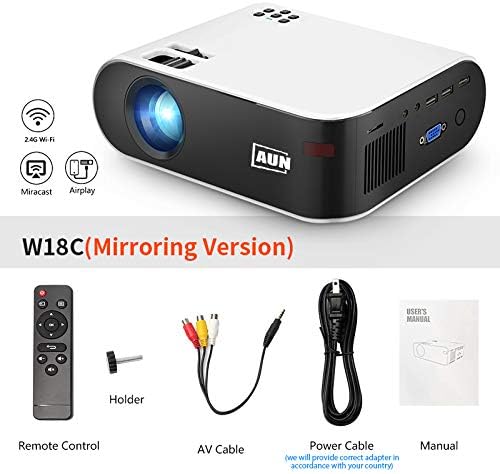
Image: AUN W18C Mini Projector and its included accessories.
3. Product Features
- Screen Mirroring Function: Synchronize your smartphone screen with the projector for a larger display.
- Full HD 1080P Support: Native resolution of 854 x 480p, supporting up to 1920 x 1080p Full HD input. Contrast ratio of 2000:1 for clear images.
- Long-Life LED Lamp: LED lamp designed for over 30,000 hours of operation.
- Integrated Speakers: Equipped with two built-in Hi-Fi speakers. External speakers can also be connected.
- Wide Compatibility: Supports VGA, USB, HDMI, AV, and SD card inputs. Connects to computers, displays, TVs, PS4, and DVD players.
- Portable Design: Compact dimensions (220 x 166 x 80 mm) for easy transport.
- Efficient Cooling System: Features an advanced cooling system to reduce fan noise.
- Keystone Correction: Manual ±15° keystone correction for image adjustment.

Image: High brightness output of the projector, suitable for various environments.

Image: Illustration of the projector's long-lasting LED illumination system.

Image: Detail of the built-in high-fidelity speaker on the projector.

Image: Visual representation of the large projection screen size capability.
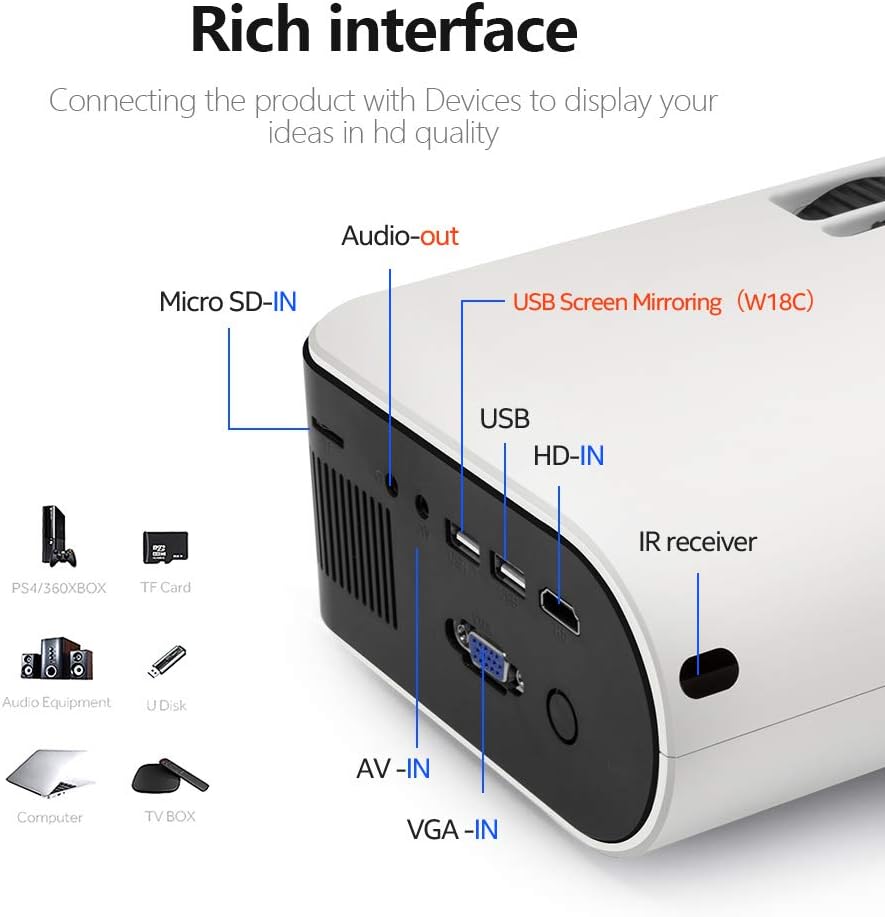
Image: Dimensions of the AUN W18C Mini Projector.
4. Setup
4.1 Power Connection
- Connect the power cable to the projector's power input port.
- Plug the other end of the power cable into a power outlet.
- Press the power button on the projector or remote control to turn it on.
4.2 Connecting Devices
The AUN W18C projector offers multiple connectivity options. Refer to the image below for port locations.

Image: Overview of the projector's input and output ports.
- HDMI (HD-IN): Connect to devices like laptops, gaming consoles (PS4), or Blu-ray players using an HDMI cable.
- USB: Insert a USB drive for media playback or connect for USB screen mirroring.
- VGA (VGA-IN): Connect to older computers or laptops using a VGA cable.
- AV (AV-IN): Use the provided AV cable to connect to devices with composite video and stereo audio outputs.
- Micro SD-IN: Insert a Micro SD card for media playback.
- Audio-out: Connect external speakers or headphones using a 3.5mm audio cable.
4.3 Screen Mirroring (Wired & Wireless)
The projector supports both wired and wireless screen mirroring for smartphones.
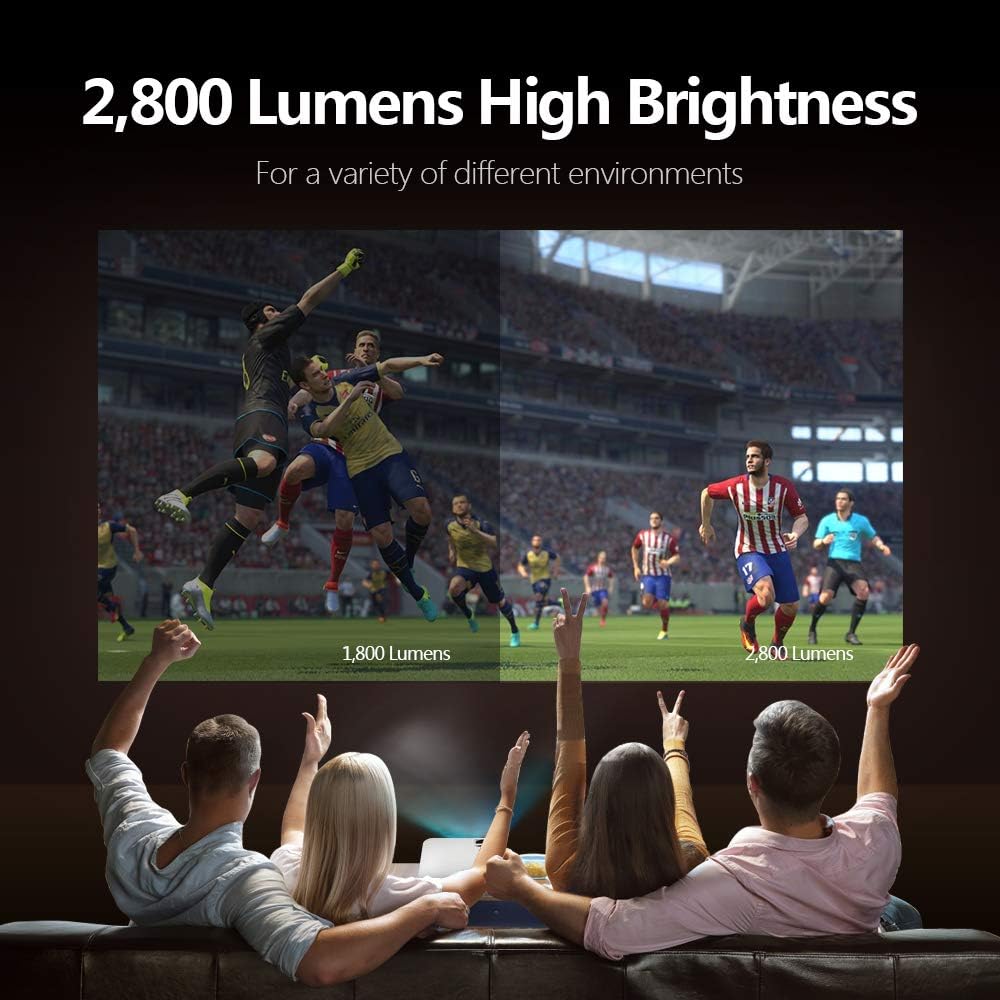
Image: Wireless and wired screen mirroring capabilities.
4.3.1 Wireless Sync Display (for non-Android devices / Airplay)
- Ensure your projector and smartphone are connected to the same Wi-Fi network.
- Select the "Wireless Sync Display" input source on the projector.
- On your iOS device, open Control Center and tap "Screen Mirroring" or "AirPlay Mirroring," then select the projector from the list.
- For Android devices (Miracast compatible), enable "Wireless Display," "Screen Cast," or "Smart View" in your phone's settings and select the projector.
4.3.2 Wired Mirroring (for iPhone)
- Connect your iPhone to the projector's USB port using your original USB charging cable.
- Select the "USB Screen Mirroring" input source on the projector.
- Follow any on-screen prompts on your iPhone to trust the device.
5. Operation
5.1 Power On/Off
Press the power button on the projector or the remote control to turn the unit on or off.
5.2 Focus and Keystone Adjustment
- Focus: Rotate the focus ring on the projector lens until the projected image is clear.
- Keystone: Use the keystone correction dial (usually located near the lens) to adjust the image shape if it appears trapezoidal. The projector supports manual ±15° correction.
5.3 Input Source Selection
Use the "Source" button on the remote control or the projector's control panel to cycle through available input sources (HDMI, USB, VGA, AV, SD, Screen Mirroring).
5.4 Menu Navigation
Use the arrow keys and "OK" button on the remote control to navigate the projector's on-screen menu for settings adjustments (e.g., picture mode, sound settings).
6. Maintenance
- Cleaning the Lens: Use a soft, lint-free cloth specifically designed for optical lenses to gently wipe the projector lens. Avoid abrasive materials or harsh chemicals.
- Cleaning the Projector Body: Wipe the exterior of the projector with a soft, dry cloth. Do not use liquid cleaners directly on the unit.
- Ventilation: Ensure the projector's ventilation openings are clear and unobstructed to prevent overheating.
- Storage: When not in use for extended periods, store the projector in a cool, dry place, away from dust and direct sunlight.
- Lamp Life: The LED lamp is designed for over 30,000 hours of use and typically does not require replacement.
7. Troubleshooting
| Problem | Possible Cause | Solution |
|---|---|---|
| No image displayed |
|
|
| Image is blurry |
|
|
| Image is trapezoidal |
|
|
| No sound |
|
|
| Screen mirroring not working |
|
|
8. Specifications
| Brand | AUN |
| Model Number | W18C |
| Color | White |
| Native Resolution | 854 x 480 pixels |
| Max Supported Resolution | 1920 x 1080 pixels (Full HD) |
| Brightness | 2800 Lumens |
| Contrast Ratio | 2000:1 |
| Display Technology | LCD |
| Lamp Type | LED |
| Lamp Life | > 30,000 hours |
| Projection Distance | 0.8m - 3.8m |
| Projection Size | 32 - 150 inches |
| Aspect Ratio | 4:3 / 16:9 |
| Keystone Correction | Manual ±15° |
| Connectivity | HDMI, USB, VGA, AV, Micro SD, Audio Out |
| Built-in Speaker | Yes (4Ω, 5W x 1) |
| Dimensions (L x W x H) | 220 x 166 x 80 mm |
| Weight | (Information not available in provided data) |
9. Safety Information
Please observe the following safety precautions to ensure safe operation and prolong the life of your projector:
- Do not look directly into the projector lens when the lamp is on.
- Do not block the ventilation openings.
- Keep the projector away from water or any liquids.
- Avoid placing the projector in unstable locations.
- Do not attempt to disassemble or repair the projector yourself. Contact qualified service personnel.
- Use only the power adapter supplied with the projector.
- Unplug the projector during lightning storms or when unused for long periods.
10. Warranty and Support
For warranty information and customer support, please refer to the warranty card included in your package or visit the official AUN website.
If you encounter any issues not covered in the troubleshooting section, please contact AUN customer service for assistance.


