
FxyxGyc T10
FxyxGyc T10 Language Translator Device User Manual
Model: T10
Portable Instant Translator Device Supports WiFi/Bluetooth/Offline Two-Way Real-Time Online 137 Languages
1. Introduction
The FxyxGyc T10 Language Translator Device is a portable, smart translation tool designed to facilitate communication across language barriers. It supports real-time two-way translation for 137 online languages, 12 offline languages, and 45 languages for photo translation. Equipped with Google/Microsoft translation engines, it offers high accuracy and fast response times.
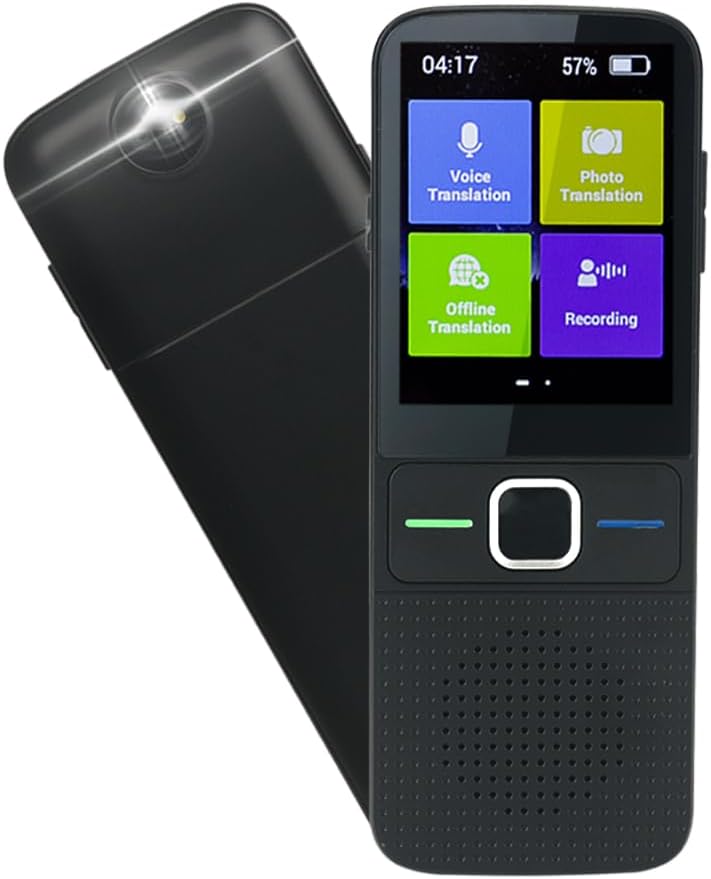
Figure 1.1: Front and back view of the FxyxGyc T10 Language Translator Device, showcasing its compact design and camera lens.

Figure 1.2: The FxyxGyc T10 device, highlighting its role as a global translator with intelligent voice translation capabilities.
2. What's in the Box
Upon unboxing your FxyxGyc T10 Language Translator Device, please ensure all the following items are present:
- FxyxGyc T10 Language Translator Device (main unit)
- USB Charger
- Instruction Manual
3. Setup
3.1 Initial Charging
Before first use, fully charge the device using the provided USB charger. Connect the USB charger to the device's Type-C port and plug it into a standard USB power adapter (not included). A full charge typically takes approximately 250 minutes (4 hours and 10 minutes).
Important: Use a regular charger. The device does not support PD fast charging.
3.2 Powering On/Off
- To Power On: Press and hold the power button (usually located on the side) until the screen illuminates.
- To Power Off: Press and hold the power button until a power-off menu appears on the screen, then select "Power Off".
3.3 Network Connection (Wi-Fi)
For online translation and updates, the device requires a Wi-Fi connection.
- From the main screen, navigate to Settings.
- Select Wi-Fi.
- Toggle Wi-Fi On.
- Select your desired Wi-Fi network from the list.
- Enter the Wi-Fi password if prompted, then tap Connect.

Figure 3.1: The device screen displaying the Wi-Fi connection icon, indicating successful network access.
3.4 Language Selection
To set the device's interface language and default translation languages:
- From the main screen, tap the Settings icon.
- Scroll down and select Language.
- Choose your preferred interface language from the list.
- For translation, select the source and target languages within the translation application.

Figure 3.2: Steps to access and change language settings on the device, showing the settings menu and language list.
4. Operating Instructions
4.1 Voice Translation (Online)
The device supports two-way real-time voice translation for 137 languages when connected to Wi-Fi.
- From the main screen, tap Voice Translation.
- Select the two languages for translation (e.g., Language A to Language B).
- Press and hold the green button to speak in Language A. Release the button to hear the translation in Language B.
- Press and hold the blue button to speak in Language B. Release the button to hear the translation in Language A.

Figure 4.1: Illustration of the one-click operation for voice translation, showing the green and blue buttons for respective language inputs.

Figure 4.2: A visual representation of the 137 languages supported by the device, categorized by region, including dialect support for Cantonese.
4.2 Offline Translation
The device supports offline translation for 12 languages (English, Chinese, Japanese, Russian, Korean, German, Spanish, French, Italian, Dutch, Portuguese). To use this feature, you must pre-download the language packs.
- Ensure the device is connected to Wi-Fi.
- From the main screen, tap Offline Translation.
- Select the language packs you wish to download.
- Once downloaded, you can use voice translation for these languages without an internet connection.
4.3 Photo Translation
The built-in camera allows for translation of text from images in up to 45 languages. This is useful for menus, signs, and labels.
- From the main screen, tap Photo Translation.
- Position the device's camera over the text you wish to translate.
- Tap the screen to capture the image.
- The device will process the image and display the translated text.
4.4 Recording Function
The device can record audio for up to 60 minutes in English, Mandarin, or Cantonese, and then export the translated text to a computer.
- From the main screen, tap Recording.
- Select the recording language.
- Tap the record button to start/stop recording.
- To export, connect the device to your PC via USB and access the recorded files.
5. Maintenance
5.1 Cleaning
- Use a soft, dry, lint-free cloth to clean the device's screen and body.
- Do not use abrasive cleaners, solvents, or aerosol sprays.
- Avoid getting moisture into openings.
5.2 Software Updates
The device supports online automatic upgrades. When a new system update is available, the device will automatically update in the background when connected to Wi-Fi.

Figure 5.1: The device illustrating the automatic online upgrade feature, ensuring the system is always up-to-date.
5.3 Battery Care
The device is equipped with a 1500mAh Lithium Polymer battery. To maximize battery life:
- Avoid extreme temperatures.
- Do not fully discharge the battery frequently.
- Store the device with a partial charge if not used for extended periods.

Figure 5.2: Details on the 1500mAh battery, including continuous use time (approx. 1560 minutes) and standby duration (approx. 125 hours).
6. Troubleshooting
| Problem | Possible Cause | Solution |
|---|---|---|
| Device does not power on. | Low battery; device frozen. | Charge the device for at least 30 minutes. If still unresponsive, perform a hard reset (refer to device manual for specific button combination, usually holding power button for 10-15 seconds). |
| Translation is inaccurate or slow. | Poor Wi-Fi connection; unclear speech; language mismatch. | Ensure a stable Wi-Fi connection. Speak clearly and directly into the microphone. Verify that the correct source and target languages are selected. |
| Offline translation not working. | Language packs not downloaded or corrupted. | Connect to Wi-Fi and re-download the necessary offline language packs. |
| Photo translation fails. | Poor lighting; blurry image; text not clear. | Ensure adequate lighting. Hold the device steady to avoid blur. Make sure the text is clearly visible and within the camera's focus. |
| Battery drains quickly. | High screen brightness; continuous use; background apps. | Reduce screen brightness. Close unused applications. Limit continuous online translation sessions. |
7. Specifications
| Feature | Detail |
|---|---|
| Product Name | Translator |
| Product Model | T10 |
| Operating System | Android |
| Networking Mode | Wi-Fi |
| Screen Size | 2.4 Inch IPS Touch Screen |
| Battery Capacity | 1500mAh Lithium Polymer (included) |
| Continuous Use Time | 8-12 hours (approx. 1560 minutes) |
| Standby Time | 7 days (approx. 125 hours) |
| Charging Time | Approx. 250 minutes |
| Data Interface | Type-C USB |
| Translation Engine | Google / Microsoft |
| Speech Output | Microsoft SR |
| Supported Online Languages | 137 languages |
| Supported Offline Languages | 12 languages (English, Chinese, Japanese, Russian, Korean, German, Spanish, French, Italian, Dutch, Portuguese) |
| Supported Photo Translation Languages | 45 languages |
| Product Dimensions | 5.12 x 1.97 x 0.59 inches (130mm x 50mm x 15mm approx.) |
| Item Weight | 6.7 ounces (190g) |
| Manufacturer | Shenzhen Intelligent Voice Technology Co.,Ltd |
| Date First Available | January 1, 2021 |

Figure 7.1: Detailed product parameters including dimensions, screen size, battery capacity, and operating system.
8. Warranty and Support
For warranty information and technical support, please refer to the contact details provided in the physical instruction manual included with your device or visit the official FxyxGyc website. Keep your purchase receipt as proof of purchase for warranty claims.
Typical warranty periods for electronic devices range from 12 to 24 months from the date of purchase, covering manufacturing defects. Damage caused by misuse, accidents, or unauthorized modifications is generally not covered.
Ask a question about this manual
Ask about setup, troubleshooting, compatibility, parts, safety, or missing instructions. Manuals+ will review the question and use this page’s manual context to help answer it.