
1. Introduction and Overview
The Saramonic SmartMic Di Mini is an ultra-compact omnidirectional condenser microphone that plugs directly into the Lightning port of your iPhone or iPad. Weighing less than an ounce, the SmartMic Di Mini delivers dynamic broadcast-quality sound, significantly improving the audio quality of your videos and recordings.

Image: The Saramonic SmartMic Di Mini microphone connected to the Lightning port of an iPhone.
2. What's in the Box
- SmartMic Di Mini Microphone
- Foam Windscreen
- Carrying Pouch
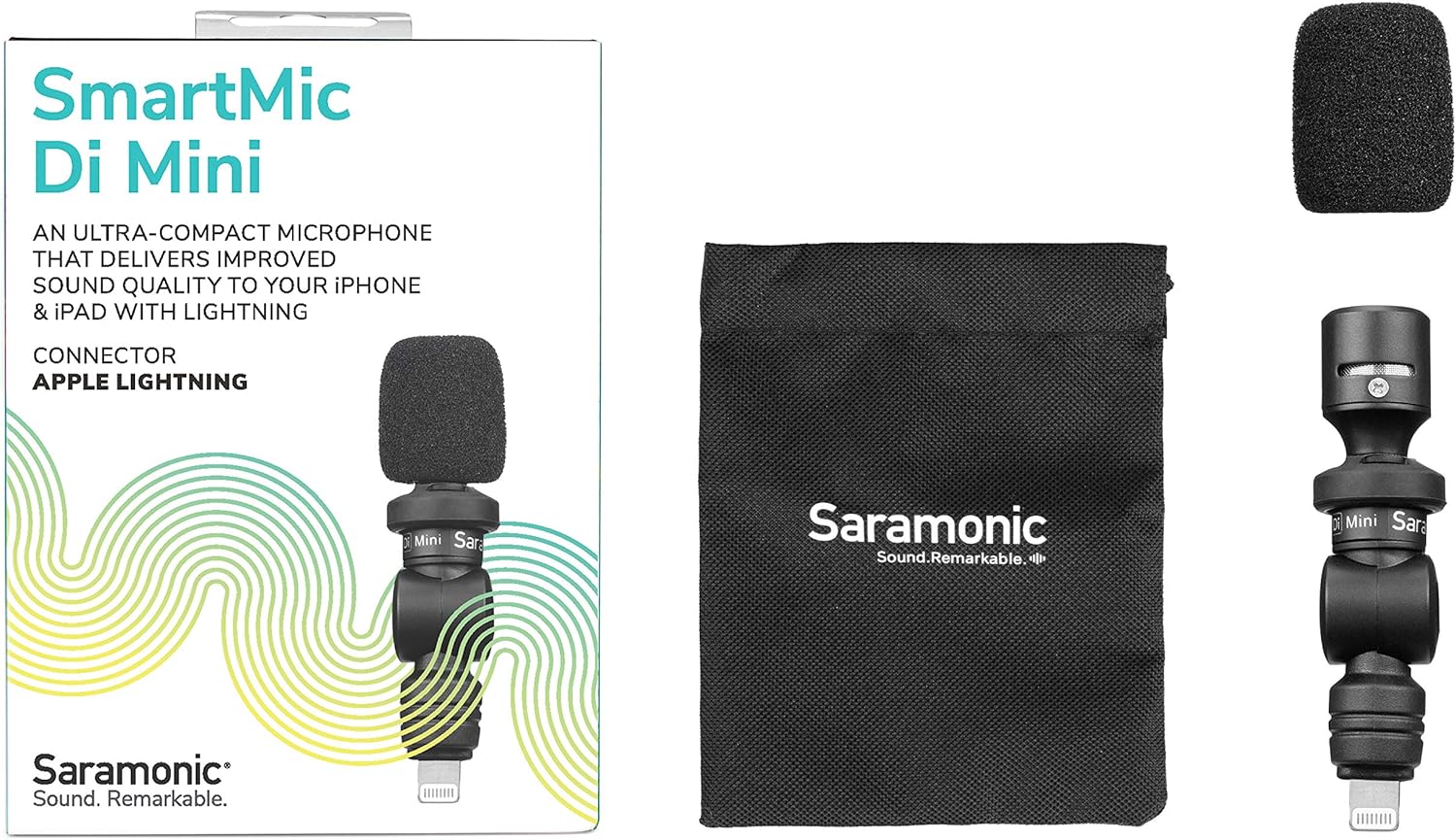
Image: The retail box displaying the SmartMic Di Mini, a foam windscreen, and a carrying pouch.
3. Product Features
- Delivers high-quality, dynamic sound to iPhones & iPads with Lightning.
- Ideal microphone for Vlogging, Video Apps, Audio Recording Apps, Livestreaming, YouTube, and Social Media Videos.
- Compact capsule, built-in shock mount, and flexible angle-free design allow precise sound focus.
- Simple plug-and-play usage that never requires batteries or charging.
- Ultra-lightweight and compact form-factor for effortless portability.
4. Setup
- Attach the Foam Windscreen: Gently slide the included foam windscreen over the microphone capsule until it is fully seated. This helps reduce plosives and light wind noise.
- Connect to Device: Plug the SmartMic Di Mini directly into the Lightning port of your iPhone or iPad. Ensure it is firmly connected.
- Remove Phone Case (if necessary): For optimal connection and to ensure the microphone sits flush, it may be necessary to remove your phone's protective case before plugging in the microphone.
- Adjust Angle: The microphone features a flexible design, allowing you to adjust its angle to point towards the sound source.

Image: The SmartMic Di Mini with its foam windscreen attached, ready for use.

Image: The microphone connected to the bottom Lightning port of an iPhone.
5. Operating Instructions
- Start Recording: Open your preferred audio or video recording application on your iPhone or iPad. The device should automatically recognize the external microphone.
- Position the Microphone: Utilize the flexible design to point the microphone directly at your subject for optimal sound capture. For selfie-style recording, point it towards yourself. For recording others, point it away from you.
- Monitor Audio: If your recording app allows, monitor the audio levels to ensure clear sound without clipping or distortion.
- Save Recording: After recording, save your audio or video file within your application.

Image: A close-up of the SmartMic Di Mini demonstrating its flexible, adjustable head for directional audio capture.
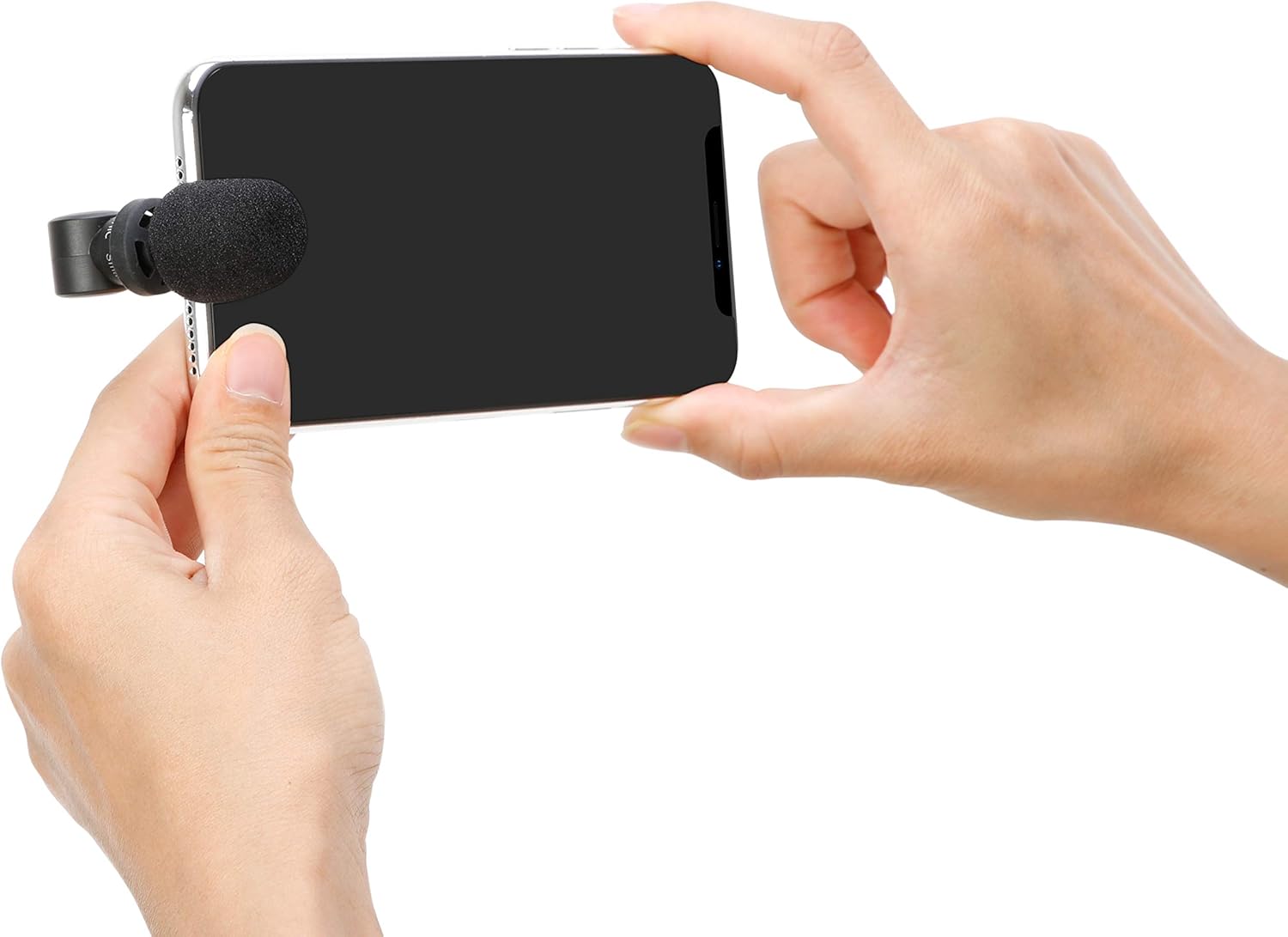
Image: A user holding an iPhone horizontally with the SmartMic Di Mini attached, indicating readiness for video recording.
6. Maintenance
- Cleaning: Use a soft, dry cloth to clean the microphone body. Do not use liquid cleaners or solvents.
- Windscreen Care: The foam windscreen can be gently removed and cleaned with mild soap and water if necessary. Allow it to air dry completely before reattaching.
- Storage: When not in use, store the microphone in its provided carrying pouch to protect it from dust and damage.
- Optional Furry Windscreen: For outdoor recording or in windy conditions, consider purchasing and attaching a furry windscreen (e.g., Saramonic XM1-WS, sold separately) for superior wind noise reduction.

Image: A furry windscreen, an optional accessory for enhanced wind noise reduction, shown separately.

Image: The black carrying pouch with the Saramonic logo, designed to protect the microphone.
7. Troubleshooting
- No Audio Input: Ensure the microphone is fully inserted into the Lightning port. If using a phone case, remove it to ensure a complete connection.
- Poor Audio Quality (Wind Noise): If recording outdoors or in windy environments, attach a furry windscreen (sold separately) to significantly reduce wind interference.
- Audio Too Low/High: Check your recording application's settings for microphone input levels. The SmartMic Di Mini is plug-and-play and does not have physical gain controls.
- Device Not Recognizing Microphone: Restart your iPhone or iPad and re-insert the microphone. Ensure your device's operating system is up to date.
8. Specifications
| Feature | Specification |
|---|---|
| Brand | Saramonic |
| Model Name | SmartMicDiMini |
| Connectivity Technology | Lightning |
| Connector Type | Lightning |
| Polar Pattern | Omnidirectional |
| Microphone Form Factor | Mini |
| Power Source | Battery Powered (from device) |
| Signal-to-Noise Ratio | 60 dB |
| Compatible Devices | Tablet, Smartphone (iPhone, iPad with Lightning) |
| Item Weight | 0.02 Pounds |
| Item Dimensions | 2.74 x 0.75 x 0.75 inches |
9. Warranty and Support
The Saramonic SmartMic Di Mini comes with a 2-Year Limited Warranty. For warranty claims, technical support, or further assistance, please contact Saramonic customer service through their official website or the retailer where the product was purchased.
For additional resources and product information, visit the Saramonic Store on Amazon.