1. Introduction
This manual provides instructions for the proper use and care of your Produplicator LG BP60NB10 Portable 6X Ultra HD 4K Blu-ray Burner External Drive. This device is designed for reading and writing various optical disc formats, including CD, DVD, and Blu-ray discs, with support for BDXL and M-Disc technologies. Please read this manual thoroughly before using the product to ensure optimal performance and longevity.

Image 1.1: The Produplicator LG BP60NB10 Portable Blu-ray Burner External Drive.
2. Safety Information
- Do not expose the drive to moisture, rain, or extreme temperatures.
- Avoid placing the drive on unstable surfaces.
- Do not attempt to open or repair the drive yourself. Refer all servicing to qualified personnel.
- Use only the provided USB cable for connection.
- Keep the drive away from strong magnetic fields.
- Ensure proper ventilation around the drive during operation.
3. Package Contents
Verify that all items are present in the package:
- LG BP60NB10 Portable Blu-ray Burner External Drive
- USB Cable
- CyberLink Media Suite Software Disc
- 100GB M-Disc BDXL (may vary by bundle)
4. Setup
4.1 System Requirements
Before connecting the drive, ensure your computer meets the following minimum system requirements:
- Operating System: Windows 10, Windows 8.1, Windows 8, Windows 7, Windows Vista, Windows XP, macOS X
- Hardware Platform: Laptop, PC
- Interface: USB 2.0 port (or higher)
- For UHD Blu-ray Playback: Specific CPU, GPU, RAM, and display requirements apply. Refer to CyberLink PowerDVD documentation for detailed specifications.

Image 4.1: The drive's slim profile and dimensions (6.1 x 5.7 x 0.6 inches).
4.2 Connecting the Drive
- Connect the smaller end of the provided USB cable to the Micro USB port on the back of the LG BP60NB10 drive.
- Connect the larger end of the USB cable to an available USB port on your computer. For optimal performance and power, it is recommended to use a USB 2.0 or higher port directly on your computer, not through an unpowered USB hub.
- The drive is plug-and-play compatible with most operating systems and should be automatically recognized.

Image 4.2: Illustration of the Micro USB connection for the drive.
4.3 Software Installation
The included CyberLink Media Suite provides software for Blu-ray playback, burning, and other multimedia functions. Follow these steps to install:
- Insert the CyberLink Media Suite software disc into the drive.
- If the installer does not launch automatically, navigate to "My Computer" or "This PC," locate the drive, and double-click the setup file.
- Follow the on-screen instructions to complete the installation. You may need to enter a product key provided with the software.
- After installation, it is recommended to check for software updates to ensure compatibility and access to the latest features.
5. Operating Instructions
5.1 Inserting and Ejecting Discs
- To Insert: Press the eject button on the front of the drive to open the disc tray. Place the disc gently onto the tray with the label side facing up. Push the tray back into the drive until it clicks shut.
- To Eject: Press the eject button on the drive. Alternatively, right-click the drive icon in your computer's file explorer and select "Eject."
5.2 Reading Discs
The drive supports reading various disc formats:
- Blu-ray Discs (BD): Including UHD Blu-ray, BD-ROM, BD-R, BD-RE, M-Disc (BD).
- DVD Discs: Including DVD-ROM, DVD-R, DVD-RW, DVD+R, DVD+RW, DVD-RAM, M-Disc (DVD).
- CD Discs: Including CD-ROM, CD-R, CD-RW.
Once a disc is inserted, your operating system or installed media software (e.g., CyberLink PowerDVD) should automatically detect and prompt you to play or open the disc content.

Image 5.1: BDXL discs offer significantly higher storage capacity compared to standard CDs and DVDs.
5.3 Burning Discs
The drive supports burning data to various recordable disc formats, including BDXL, M-Disc, BD-R, BD-RE, DVD-R, DVD+R, DVD-RW, DVD+RW, and CD-R/RW. Use the included CyberLink Power2Go or similar burning software for this function.
- BDXL Support: This drive can write up to 100GB on triple-layer BDXL discs and 128GB on quad-layer BDXL-R discs.
- M-Disc Support: M-Discs provide enhanced data longevity due to their durable, rock-like data layer. This drive is compatible with M-Disc (BD) and M-Disc (DVD) formats for archival purposes.
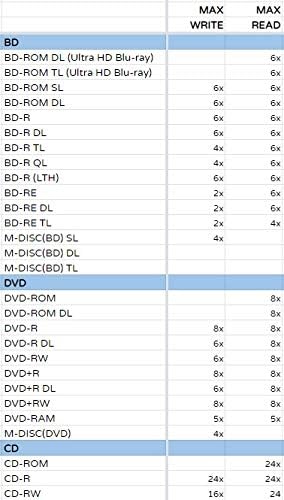
Image 5.2: M-Disc technology uses a physical etching process for permanent data storage, unlike standard discs that use a dye layer vulnerable to degradation.
5.4 Special Features
- Silent Play: This technology automatically adjusts the disc playback speed to reduce noise during movie playback, optimizing for quiet operation.
- Jamless Play: Designed to prevent interruptions during movie playback from damaged discs. This feature attempts to skip over damaged sections to maintain smooth playback.

Image 5.3: Silent Play feature reduces operational noise during disc playback.
6. Maintenance
6.1 Cleaning the Drive
- Wipe the exterior of the drive with a soft, dry cloth. Do not use liquid cleaners or abrasive materials.
- Avoid introducing dust or foreign objects into the disc tray opening.
6.2 Disc Handling
- Always handle discs by their edges to avoid fingerprints and scratches.
- Store discs in their cases when not in use to protect them from dust and damage.
- Clean dirty discs with a soft, lint-free cloth, wiping from the center outwards.
7. Troubleshooting
If you encounter issues with your drive, refer to the following common problems and solutions:
| Problem | Possible Cause / Solution |
|---|---|
| Drive not recognized by computer |
|
| Disc does not play or burn |
|
| Slow read/write speeds |
|
| Drive makes unusual noises |
|
8. Specifications
- Brand: Produplicator
- Model Number: BP60NB10
- Interface: USB 2.0
- Dimensions (LxWxH): 6.1 x 5.7 x 0.6 inches
- Item Weight: 1.26 pounds
- Optical Storage Write Speed: 6X (BD), 8X (DVD), 24X (CD)
- Optical Storage Read Speed: 6X (BD), 8X (DVD), 24X (CD)
- Supported Disc Formats: BD-R/RE, DVD-R/-RW/+R/+RW, DVD-RAM, CD-R/RW, BDXL (100GB Triple Layer), M-Disc (BD/DVD)
- Special Features: Blu-Ray Disc Playback, Portable, Silent Play, Jamless Play
- Operating System Compatibility: Windows 10, 8.1, 8, 7, Vista, XP, macOS X

Image 8.1: Detailed table of maximum write and read speeds for supported disc types.
9. Warranty and Support
9.1 Warranty Information
This product comes with a limited manufacturer's warranty. Please refer to the warranty card included in your package or visit the Produplicator official website for detailed terms and conditions regarding warranty coverage, duration, and claims process.
9.2 Customer Support
For technical assistance, troubleshooting not covered in this manual, or warranty inquiries, please contact Produplicator customer support. Contact details can typically be found on the product packaging, the official Produplicator website, or within the documentation included with your purchase.