
ROCCAT ROC-11-750
ROCCAT Burst Core Gaming Mouse User Manual
Model: ROC-11-750
Introduction
This manual provides comprehensive instructions for the setup, operation, and maintenance of your ROCCAT Burst Core Gaming Mouse. Designed for performance and precision, the Burst Core features an extreme lightweight design, an 8,500 DPI optical sensor, and durable construction. Please read this manual thoroughly to ensure optimal use and longevity of your device.
Product Overview
The ROCCAT Burst Core is an extreme lightweight optical gaming mouse engineered for core performance. It features a symmetrical ergonomic shape, a solid honeycomb shell, and ROCCAT's Titan Switch Optical technology.
- Symmetrical Ergonomic Shape: Crafted for comfort and performance.
- Lightweight Design: Weighs only 68g due to its solid honeycomb shell.
- Titan Switch Optical: Provides a mechanical feel with optical speed for rapid, precise clicks.
- PTFE Mouse Feet: Ensures exceptional glide across various surfaces.
- 8,500 DPI Optical Sensor: Based on the PixArt PMW3330 sensor for high precision tracking.

Image 1: Front-right view of the ROCCAT Burst Core Gaming Mouse, showcasing its ergonomic design and scroll wheel.
Setup
1. Connecting the Mouse
- Locate an available USB port on your computer.
- Plug the USB connector of the ROCCAT Burst Core mouse into the USB port.
- Your operating system (Windows 7, Windows XP, Linux, or newer versions) should automatically detect and install the necessary drivers.
2. Software Installation (ROCCAT Swarm)
For advanced customization options, including DPI control, button assignments, scroll speed, click speed, and RGB lighting effects, it is recommended to install the ROCCAT Swarm software.
- Visit the official ROCCAT website (www.roccat.com/pages/swarm) to download the latest version of ROCCAT Swarm.
- Follow the on-screen instructions to complete the installation.
- Once installed, launch ROCCAT Swarm to configure your mouse settings.

Image 2: Top view of the ROCCAT Burst Core, highlighting the main buttons, scroll wheel, and DPI button.
Operating Instructions
Basic Functions
- Left Click: Primary action, selection.
- Right Click: Secondary action, context menu.
- Scroll Wheel: Scroll up/down, middle click for universal scrolling or assigned function.
- DPI Button: Cycles through preset DPI (Dots Per Inch) sensitivity levels. Default settings can be customized via ROCCAT Swarm.
- Side Buttons: Typically assigned as 'Forward' and 'Back' in web browsers and file explorers. Customizable via ROCCAT Swarm.
Advanced Customization with ROCCAT Swarm
The ROCCAT Swarm software allows you to personalize your mouse experience.
- DPI Settings: Adjust DPI steps and values to match your preference.
- Button Assignment: Reassign functions to any of the mouse buttons, including macros.
- Polling Rate: Configure the mouse's reporting rate to the computer.
- RGB Lighting: Customize the illumination effects and colors of the scroll wheel.
- Profiles: Create and save multiple profiles for different games or applications.
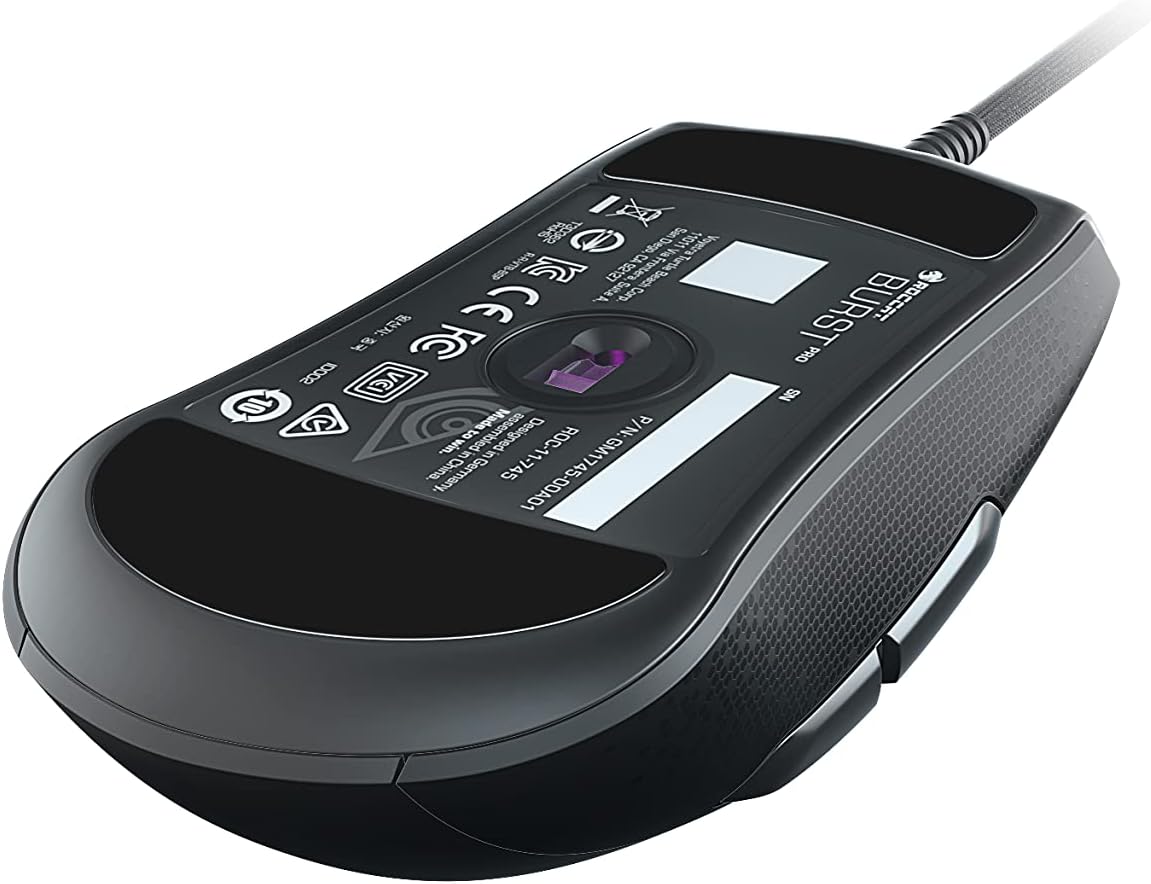
Image 3: Side view of the ROCCAT Burst Core, illustrating the textured hexagonal pattern for enhanced grip.
Maintenance
Cleaning Your Mouse
- Disconnect the mouse from your computer before cleaning.
- Use a soft, lint-free cloth slightly dampened with water or a mild cleaning solution.
- Avoid using harsh chemicals, abrasive cleaners, or solvents.
- Gently wipe the surface of the mouse. For the optical sensor, use a cotton swab to carefully remove any dust or debris.
- Ensure the mouse is completely dry before reconnecting it to your computer.
Storage
Store the mouse in a cool, dry place away from direct sunlight and extreme temperatures. Avoid placing heavy objects on the mouse or its cable.
Troubleshooting
| Problem | Possible Cause | Solution |
|---|---|---|
| Mouse not responding |
|
|
| Inaccurate tracking or cursor lag |
|
|
| Buttons not functioning |
|
|

Image 4: Detailed view of the ROCCAT Titan Switch Optical mechanism, illustrating its internal components.
Specifications
| Brand | ROCCAT |
| Model Number | ROC-11-750 |
| Connectivity Technology | USB |
| Movement Detection Technology | Optical (PixArt PMW3330 based) |
| Max DPI | 8,500 DPI |
| Item Weight | 68g (2.4 ounces) |
| Product Dimensions (LxWxH) | 0.63 x 6.69 x 5.28 inches |
| Color | Black |
| Hardware Platform | PC |
| Operating System Compatibility | Windows 7, Windows XP, Linux (and newer versions) |
| Special Features | Ergonomic Design, Lightweight, Titan Switch Optical, PTFE Mouse Feet |
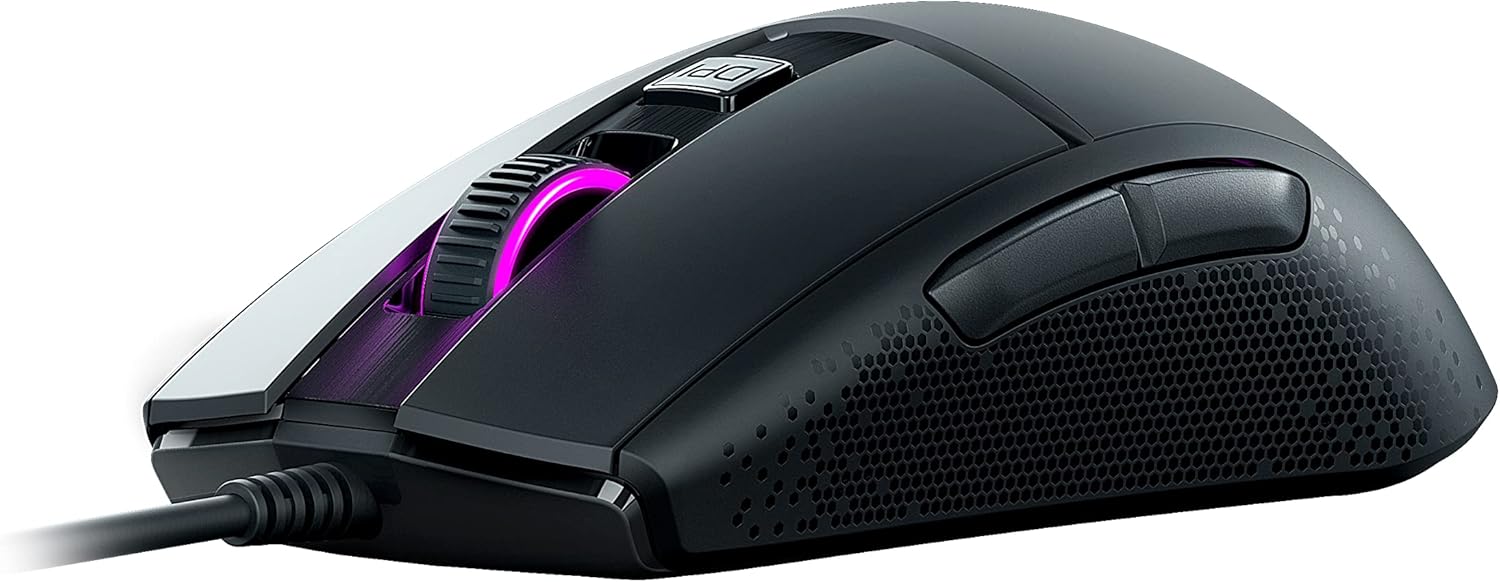
Image 5: Bottom view of the ROCCAT Burst Core Gaming Mouse, displaying the model number and regulatory certifications.
Warranty and Support
Warranty Information
ROCCAT products typically come with a manufacturer's warranty. Please refer to the warranty card included with your product or visit the official ROCCAT website for detailed warranty terms and conditions specific to your region. Keep your proof of purchase for warranty claims.
Customer Support
For technical assistance, troubleshooting, or product inquiries, please contact ROCCAT customer support.
- Website: Visit the official ROCCAT support page at support.roccat.com for FAQs, drivers, and contact options.
- Online Resources: Check for updated drivers and firmware on the ROCCAT website to ensure optimal performance.
Safety Information
- Do not expose the device to extreme temperatures, humidity, or liquids.
- Do not attempt to disassemble or modify the device. This will void the warranty.
- Keep the device away from children and pets.
- Dispose of the device according to local environmental regulations.
Related documentsROC-11-750


Ask a question about this manual
Ask about setup, troubleshooting, compatibility, parts, safety, or missing instructions. Manuals+ will review the question and use this page’s manual context to help answer it.