
ROCCAT ROC-11-751
ROCCAT Burst Core Gaming Mouse User Manual
Model: ROC-11-751
Introduction
This manual provides essential information for setting up, operating, maintaining, and troubleshooting your ROCCAT Burst Core Extreme Lightweight Optical Gaming Mouse. Designed for performance, this mouse features an 8,500 DPI optical sensor and a lightweight 68g design for optimal gaming experience.
Package Contents
- ROCCAT Burst Core Gaming Mouse
- Quick Start Guide (if applicable)
Setup
1. Connecting the Mouse
The ROCCAT Burst Core mouse connects via a standard USB cable. Follow these steps:
- Locate an available USB port on your computer.
- Plug the USB connector of the ROCCAT Burst Core mouse into the USB port.
- Your operating system will automatically detect and install the necessary drivers. This process may take a few moments.
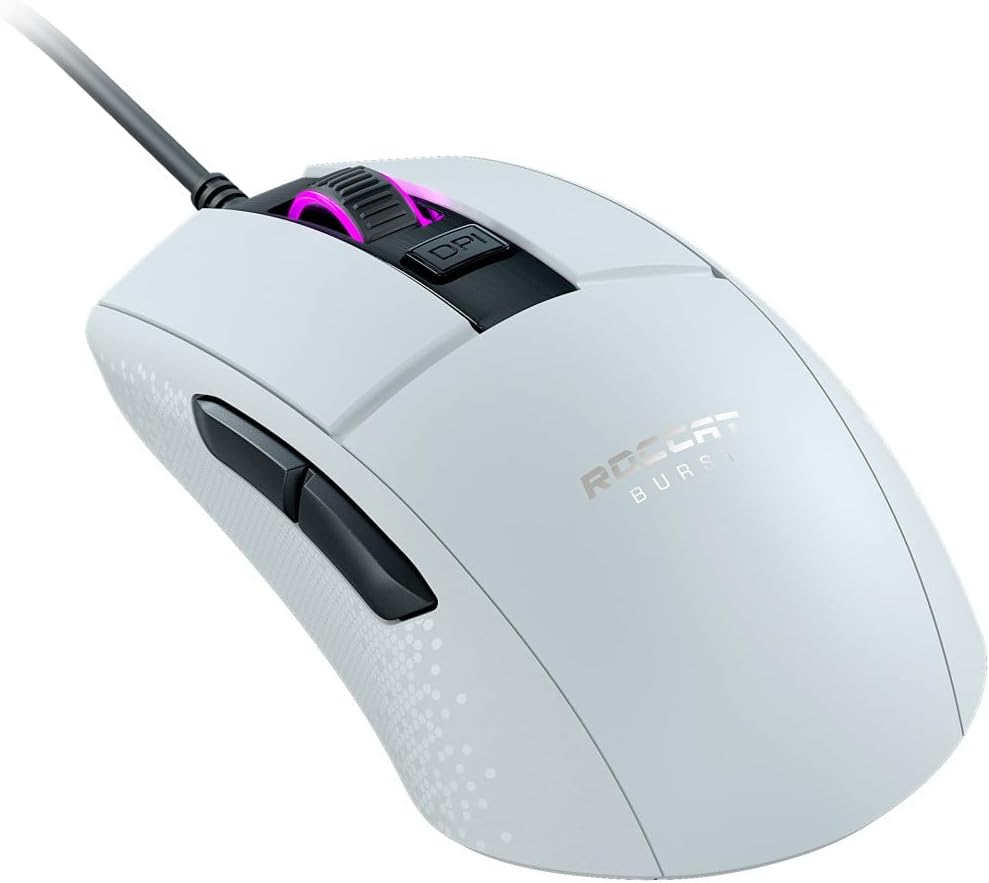
Image: The ROCCAT Burst Core Gaming Mouse, a white wired mouse with a black cable, shown from a three-quarter angle, highlighting its ergonomic shape and the illuminated scroll wheel. This image illustrates the mouse ready for connection.
2. Software Installation (ROCCAT Swarm)
For advanced customization and optimal performance, it is recommended to install the ROCCAT Swarm software. This software allows you to configure DPI settings, button assignments, and RGB lighting effects.
- Visit the official ROCCAT website (www.roccat.com) to download the latest version of the ROCCAT Swarm software.
- Follow the on-screen instructions to install the software.
- Once installed, launch ROCCAT Swarm to customize your mouse settings.
Operating Instructions
Basic Functions
- Left Click: Primary action button.
- Right Click: Secondary action button, typically for context menus.
- Scroll Wheel: Used for scrolling through documents and web pages. Can also be pressed for a middle-click function.
- DPI Button: Located behind the scroll wheel, this button cycles through pre-set DPI (Dots Per Inch) sensitivity levels.
- Side Buttons: Two programmable buttons located on the left side of the mouse, typically used for forward and backward navigation in web browsers or custom in-game actions.

Image: A side view of the white ROCCAT Burst Core Gaming Mouse, clearly showing the two black side buttons positioned for thumb access. This highlights the additional programmable controls.
Customization with ROCCAT Swarm
The ROCCAT Swarm software provides extensive options to personalize your mouse:
- DPI Settings: Adjust the mouse sensitivity to your preference, with up to 8,500 DPI. You can set multiple DPI stages and switch between them using the dedicated DPI button.
- Button Assignment: Reassign functions to any of the mouse buttons, including macros and multimedia controls.
- RGB Lighting: Customize the illumination of the scroll wheel with various colors and effects.
- Polling Rate: Adjust the polling rate for faster response times.
- Profile Management: Create and save different profiles for various applications or games.
Maintenance
Cleaning Instructions
To ensure the longevity and optimal performance of your mouse, regular cleaning is recommended:
- Disconnect the mouse from your computer before cleaning.
- Use a soft, lint-free cloth lightly dampened with water or a mild cleaning solution to wipe the surface of the mouse.
- For crevices and around buttons, use a cotton swab or compressed air to remove dust and debris.
- Avoid using harsh chemicals, abrasive cleaners, or excessive moisture, as these can damage the mouse.
Cable Management
Proper cable management can prevent wear and tear on the mouse cable. Avoid sharp bends or kinks in the cable, and ensure it is not under tension during use.
Troubleshooting
If you encounter issues with your ROCCAT Burst Core mouse, refer to the following common solutions:
- Mouse Not Responding:
- Ensure the USB cable is securely plugged into a working USB port. Try a different USB port.
- Restart your computer.
- Check if the mouse works on another computer to rule out a system-specific issue.
- Tracking Issues / Erratic Cursor Movement:
- Clean the optical sensor on the underside of the mouse with a cotton swab.
- Ensure you are using the mouse on a clean, uniform surface or a high-quality mouse pad. Avoid reflective or transparent surfaces.
- Adjust DPI settings in ROCCAT Swarm or using the DPI button.
- Buttons Not Functioning Correctly:
- Check button assignments in the ROCCAT Swarm software.
- Ensure no debris is lodged under the buttons.
- ROCCAT Swarm Software Issues:
- Ensure you have the latest version of ROCCAT Swarm installed.
- Try reinstalling the software.
- Check for any conflicting software or drivers on your system.
Specifications
| Feature | Detail |
|---|---|
| Model Name | ROCCAT Burst Core Gaming Mouse |
| Model Number | ROC-11-751 |
| Sensor | Optical, up to 8,500 DPI |
| Switches | TITAN Switch Optical |
| Weight | 68g (excluding cable) |
| Connectivity | Wired USB |
| Cable Length | Not specified, standard length |
| Dimensions (L x W x H) | Approximately 1.6 x 17 x 13.4 cm |
| Hand Orientation | Right-handed |
| Material | Plastic |
| Operating System Compatibility | PC, Windows |
| Special Features | Extreme Lightweight, Solid Honeycomb Shell, Optical Switches |
Warranty and Support
ROCCAT products are manufactured to high quality standards. For information regarding warranty coverage, terms, and conditions, please refer to the warranty card included with your product or visit the official ROCCAT support website.
For technical assistance, driver downloads, or frequently asked questions, please visit the ROCCAT support page:
Related documentsROC-11-751


Ask a question about this manual
Ask about setup, troubleshooting, compatibility, parts, safety, or missing instructions. Manuals+ will review the question and use this page’s manual context to help answer it.