
Introduction
This manual provides detailed instructions for the setup, operation, and maintenance of your WisFox 2.4GHz Wireless Keyboard. Please read this manual thoroughly before using the product to ensure optimal performance and longevity.

Image: The WisFox Wireless Keyboard, showcasing its full-size layout and slim design.
Package Contents
- WisFox 2.4GHz Wireless Keyboard
- USB Receiver (located in the white sponge packaging)
- User Manual
Setup Instructions
1. Battery Installation
The keyboard requires two (2) AAA batteries (not included). Locate the battery compartment on the underside of the keyboard. Open the cover, insert the batteries according to the polarity indicators (+/-), and close the cover securely.

Image: A close-up view of the battery compartment on the underside of the keyboard, showing the insertion of AAA batteries.
2. Connect USB Receiver
The small USB receiver is securely placed within the white sponge inside the product packaging. Carefully remove it. Plug the USB receiver into an available USB port on your computer (laptop, desktop, PC, or Mac).

Image: The wireless keyboard connected to a laptop via its USB receiver, illustrating the plug-and-play functionality.
3. Power On
Locate the On/Off switch on the keyboard, typically on the top edge or underside. Slide the switch to the 'On' position. The keyboard should connect automatically to your computer within seconds.
Operating Instructions
Basic Typing
The keyboard features a standard US layout with a numeric pad. Keys are appropriately spaced for comfortable and accurate typing. The scissor-switch keys provide a quiet typing experience.
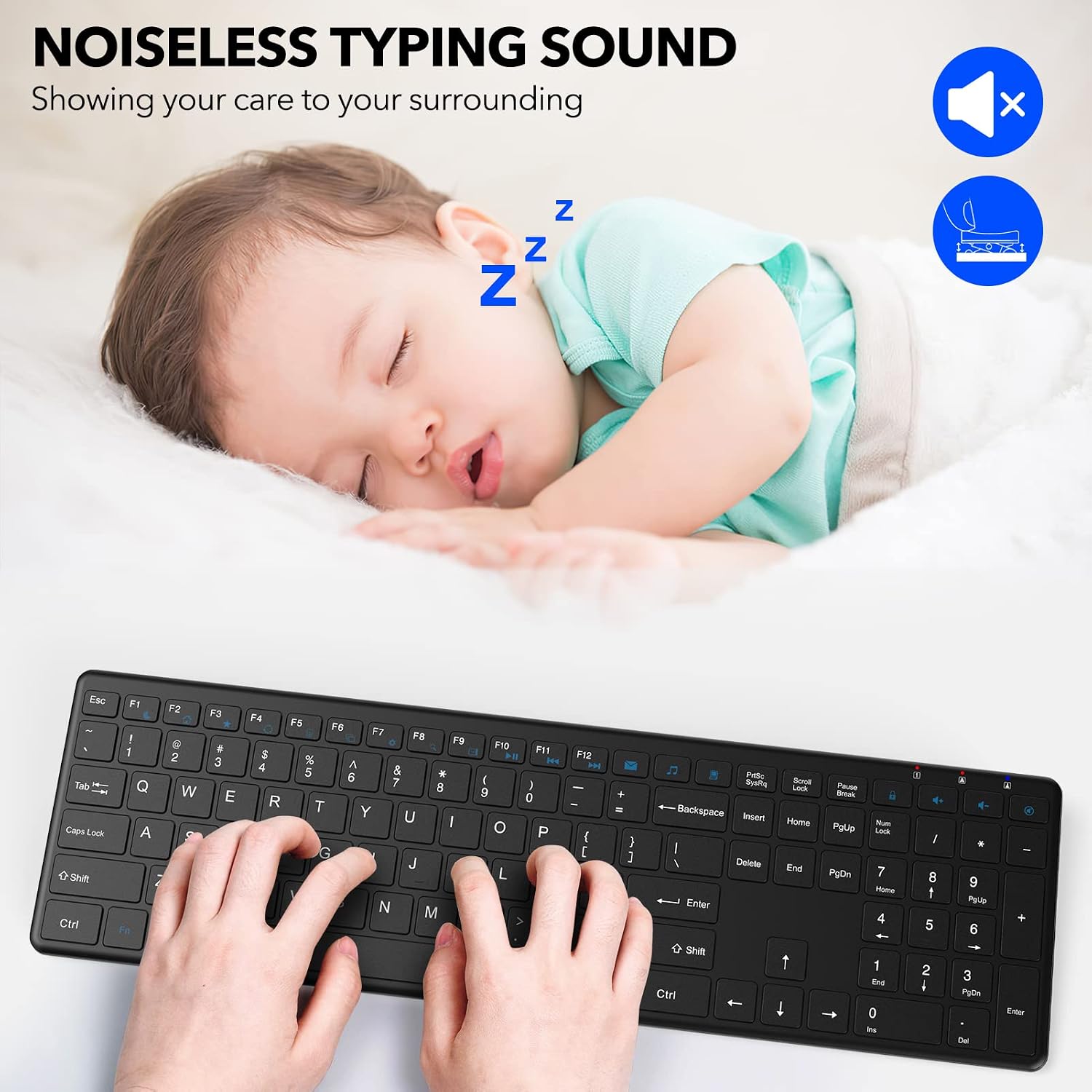
Image: Hands typing on the WisFox Wireless Keyboard, highlighting its quiet operation, with a sleeping baby in the background.
Multimedia and Shortcut Keys
The keyboard includes 12 multimedia hotkeys combined with the 'Fn' key, and 7 additional shortcut keys for quick access to various functions. These allow you to open settings, browse the web, control media playback, and adjust volume efficiently.
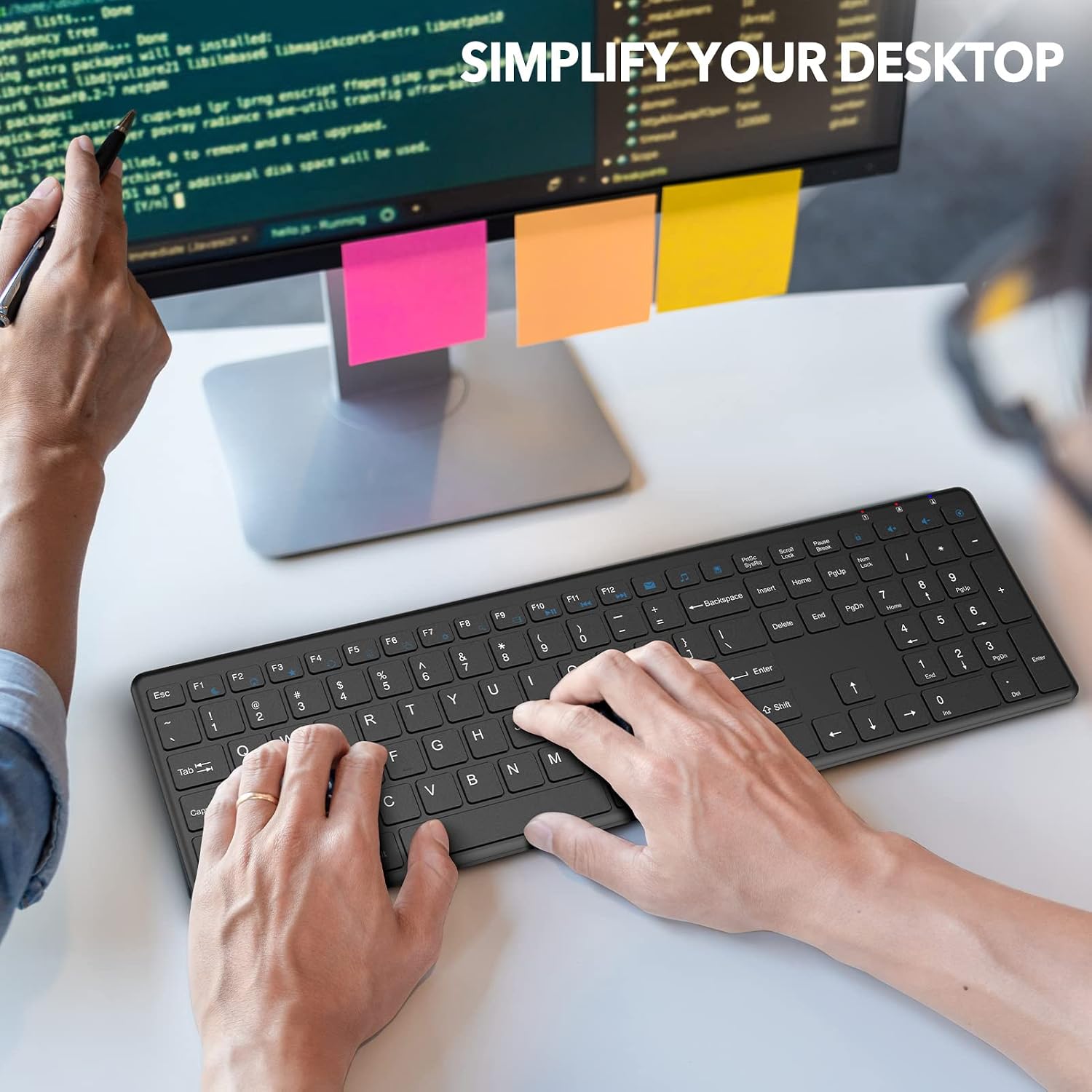
Image: An illustration detailing the 12 multimedia hotkeys (F1-F12) used with the Fn key and 7 additional shortcut keys on the WisFox Wireless Keyboard.
Automatic Sleep Mode
To conserve battery life, the keyboard will enter an automatic sleep mode after 6 minutes of inactivity. To wake the keyboard, simply press any key.

Image: Visual representation of the keyboard's smart power-saving features, including the On/Off switch, 6-minute auto-sleep, and indicator lights.
Features
- Stable 2.4GHz Wireless Connection: Provides a reliable connection up to 30 feet without delays or interference.
- Quiet and Ergonomic Design: Scissor switch keys for comfortable and silent typing. Designed with a tilt angle to reduce wrist strain.
- Ultra-Thin Full-Size Layout: Compact yet full-featured with a numeric pad.
- Wide Compatibility: Compatible with Windows OS (2000, XP, Vista, 7, 8, 10), Mac, desktops, Chromebooks, and laptops. Note: Some multimedia keys may not function on systems other than Windows 8/10.

Image: A diagram illustrating the compact, full-size, and ultra-thin design of the WisFox Wireless Keyboard with its dimensions.
Specifications
| Feature | Detail |
|---|---|
| Product Dimensions | 16.13 x 4.7 x 0.8 inches |
| Item Weight | 1.3 pounds |
| Batteries Required | 2 AAA batteries (not included) |
| Connectivity Technology | 2.4GHz Wireless (USB Receiver) |
| Special Feature | Ergonomic, Quiet Typing, Multimedia Hotkeys |
| Compatible Devices | Personal Computer (Laptop, Desktop, PC, Mac) |
| Operating System Compatibility | Windows 2000/XP/Vista/7/8/10, Mac |
Troubleshooting
Keyboard Not Responding
- Ensure the keyboard's On/Off switch is in the 'On' position.
- Check if the USB receiver is securely plugged into a working USB port on your computer. Try a different USB port if necessary.
- Replace the AAA batteries with fresh ones.
- Move the keyboard closer to the USB receiver to ensure it is within the 30-foot operating range and free from interference.
Lag or Disconnections
- Ensure there are no large metal objects or other wireless devices (e.g., Wi-Fi routers, cordless phones) between the keyboard and the USB receiver that could cause interference.
- Try plugging the USB receiver into a different USB port, preferably one that is not next to other USB devices.
Multimedia Keys Not Working on Mac/Linux
Some multimedia keys may have limited or no functionality on operating systems other than Windows 8/10. This is due to system-specific driver requirements. Basic typing functionality should remain unaffected.
Maintenance
Cleaning
To clean the keyboard, gently wipe the surface with a soft, damp cloth. Avoid using harsh chemicals or abrasive cleaners. For dust and debris between keys, use compressed air.
Storage
When not in use for extended periods, turn off the keyboard using the On/Off switch to conserve battery life. Store the keyboard in a dry, cool place away from direct sunlight and extreme temperatures.
Warranty and Support
WisFox products are designed for quality and reliability. For any questions, technical support, or warranty claims, please refer to the contact information provided with your purchase or visit the official WisFox website. Please retain your proof of purchase for warranty purposes.


