Introduction
Thank you for choosing the HUO JI Wireless Multi-Device Keyboard. This keyboard offers versatile connectivity with both 2.4G wireless and Bluetooth 3.0 modes, allowing seamless switching between up to three devices. Its ergonomic design and scissor-switch keys provide a comfortable and efficient typing experience across various operating systems and devices.
Please read this manual thoroughly to ensure proper setup, operation, and maintenance of your new keyboard.
Setup
1. Battery Installation
- Locate the battery compartment on the underside of the keyboard.
- Open the battery compartment cover.
- Insert two AAA batteries, ensuring correct polarity (+/-).
- Close the battery compartment cover securely.
- Turn on the keyboard using the ON/OFF switch, usually located on the side or back.
2. Connecting via 2.4G Wireless (for devices without Bluetooth)
- Ensure the keyboard is powered on.
- Press the F1 key. The red indicator light will flash, indicating 2.4G pairing mode.
- Insert the 2.4G USB receiver (dongle) into an available USB port on your computer or device.
- The keyboard should automatically connect. The red indicator light will flash once and then turn off, confirming a successful connection.

Image: Top-down view of the HUO JI Wireless Multi-Device Keyboard, highlighting the key layout and the integrated stand slot.
3. Connecting via Bluetooth (for up to two devices)
- Ensure the keyboard is powered on.
- For Bluetooth 1: Press the F2 key. The blue indicator light will flash, indicating Bluetooth pairing mode for the first channel.
- For Bluetooth 2: Press the F3 key. The green indicator light will flash, indicating Bluetooth pairing mode for the second channel.
- On your device (smartphone, tablet, PC), enable Bluetooth and search for available devices.
- Select "HUO JI Keyboard" or a similar name from the list of found devices.
- If prompted, enter the pairing code displayed on your device using the keyboard and press Enter.
- The respective indicator light (blue for F2, green for F3) will flash once and then turn off, confirming a successful connection.
4. Switching Between Connected Devices
The keyboard supports quick switching between up to three connected devices (one 2.4G and two Bluetooth devices).
- To switch to the 2.4G connected device, press F1.
- To switch to the first Bluetooth connected device, press F2.
- To switch to the second Bluetooth connected device, press F3.
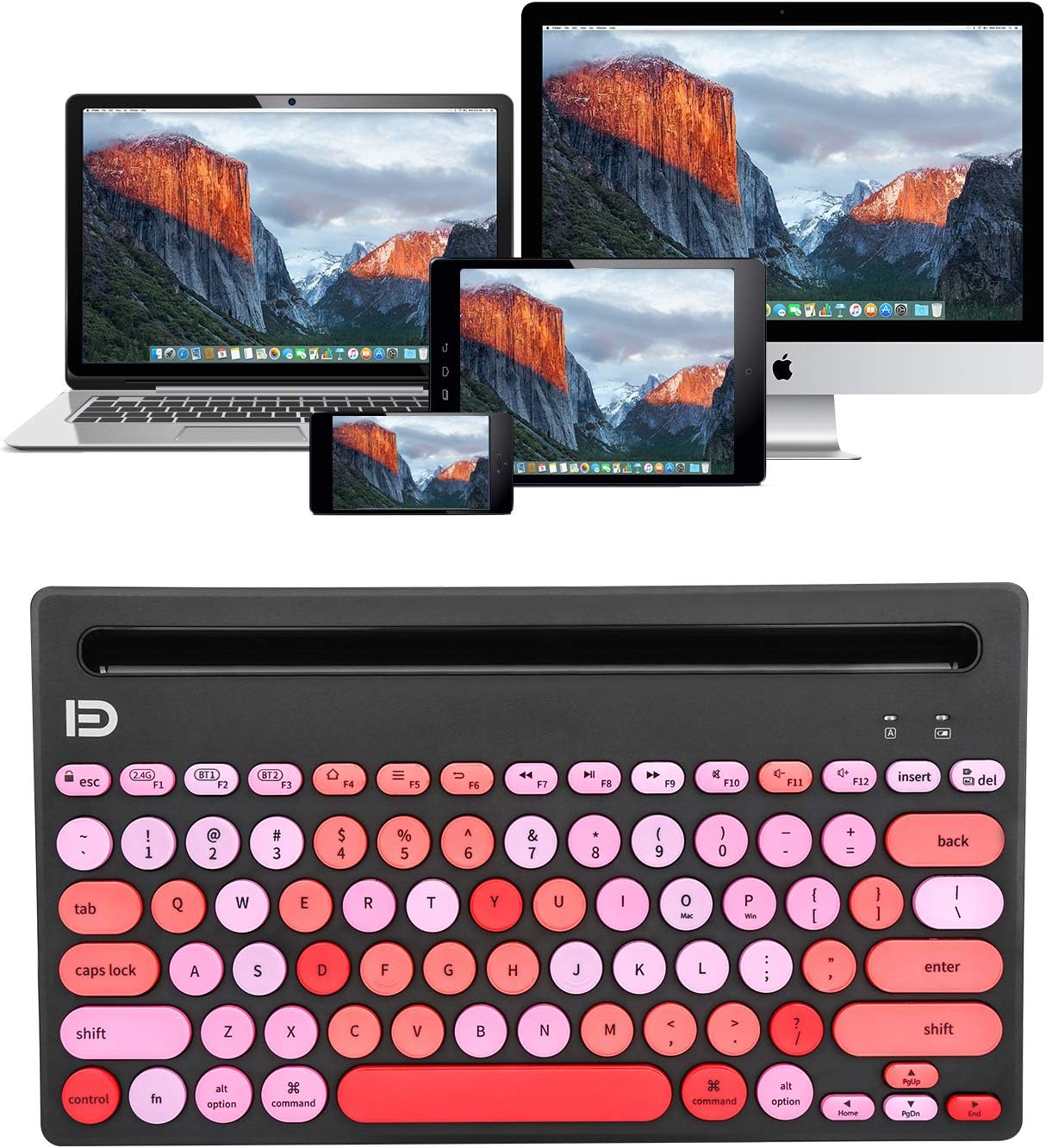
Image: The keyboard demonstrating its multi-device capability, connected to a laptop, tablet, and smartphone.
Operating Instructions
1. Key Functions
The keyboard features a standard QWERTY layout with scissor-switch keys for a comfortable typing experience. It includes dedicated function keys (F1-F12) and media control keys.
- F1, F2, F3: Device switching keys (2.4G, Bluetooth 1, Bluetooth 2).
- F4-F12: Media and shortcut keys (e.g., volume control, play/pause, search). Specific functions may vary slightly depending on the operating system.
- Integrated Stand: The keyboard features an integrated slot at the top, designed to hold smartphones and tablets up to 10.5 inches securely, providing an optimal viewing and typing angle. The slot dimension is approximately 10.31 x 0.47 inches.
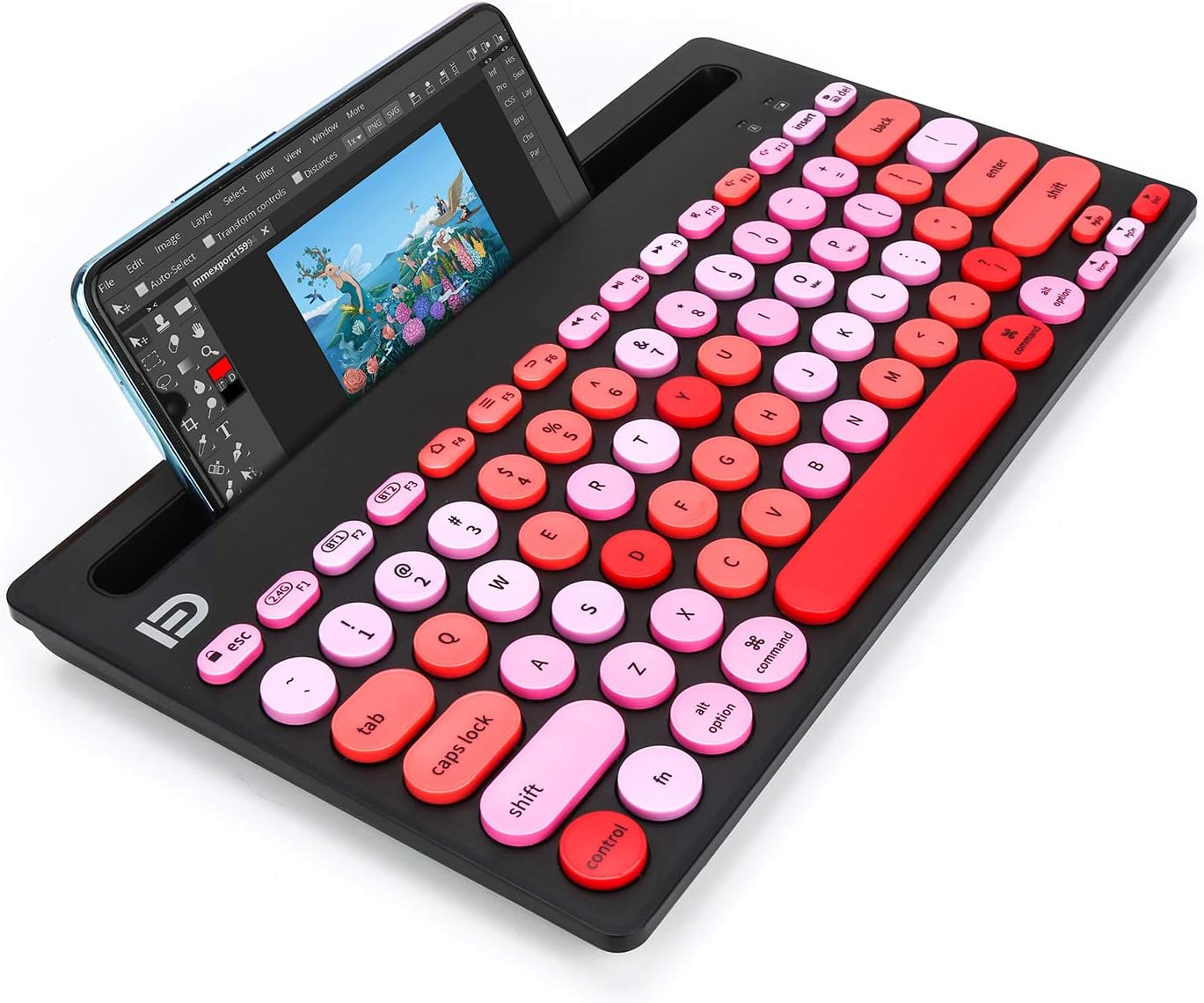
Image: A tablet positioned in the integrated stand of the HUO JI Wireless Multi-Device Keyboard, showcasing the ergonomic design.
2. Power Saving Features
To conserve battery life, the keyboard is equipped with an ON/OFF switch and a smart auto-sleep feature. If the keyboard is inactive for a period, it will automatically enter sleep mode. Press any key to wake it up.
Maintenance
1. Cleaning the Keyboard
- Turn off the keyboard before cleaning.
- Use a soft, lint-free cloth slightly dampened with water or a mild cleaning solution.
- Avoid excessive moisture and do not spray cleaners directly onto the keyboard.
- For debris between keys, use compressed air.
2. Battery Replacement
When the battery indicator light (often the red F1 light) flashes rapidly or the keyboard becomes unresponsive, it's time to replace the batteries. Follow the battery installation steps in the Setup section.
Troubleshooting
| Problem | Possible Cause | Solution |
|---|---|---|
| Keyboard not connecting via 2.4G (F1 light flashing red continuously) | 2.4G receiver not properly inserted or not recognized. |
|
| Keyboard not connecting via Bluetooth (F2/F3 light flashing blue/green continuously) | Bluetooth not enabled on device, keyboard not in pairing mode, or device out of range. |
|
| Keys are unresponsive or typing incorrectly | Low battery, connectivity issue, or keyboard in sleep mode. |
|
| Keyboard frequently disconnects | Interference, low battery, or device too far. |
|
Specifications
- Model: B08HMZLMWV
- Connectivity Technology: 2.4Ghz Wireless, Bluetooth 3.0
- Compatible Devices: Laptop, Smartphone, Tablet, iPad, iPhone (Android, Windows, iOS, Mac OS systems)
- Keyboard Description: Membrane, QWERTY Layout
- Key Type: Scissor-Switch, Ergonomic Concave Round Keys
- Special Features: Hotkeys and Media Keys, Integrated Stand, Lightweight, Multi-Device Switching (up to 3 devices)
- Product Dimensions: 11.24" L x 5.86" W x 0.7" H (28.55 x 14.88 x 1.78 cm)
- Item Weight: 1.17 pounds (0.53 kg)
- Integrated Stand Slot Dimension: 10.31" x 0.47" (26.19 x 1.19 cm)
- Batteries: 2 AAA batteries (included)
- Operating Distance: Up to 10 meters (33 feet)
- Color: Black Pink (as per current variant)
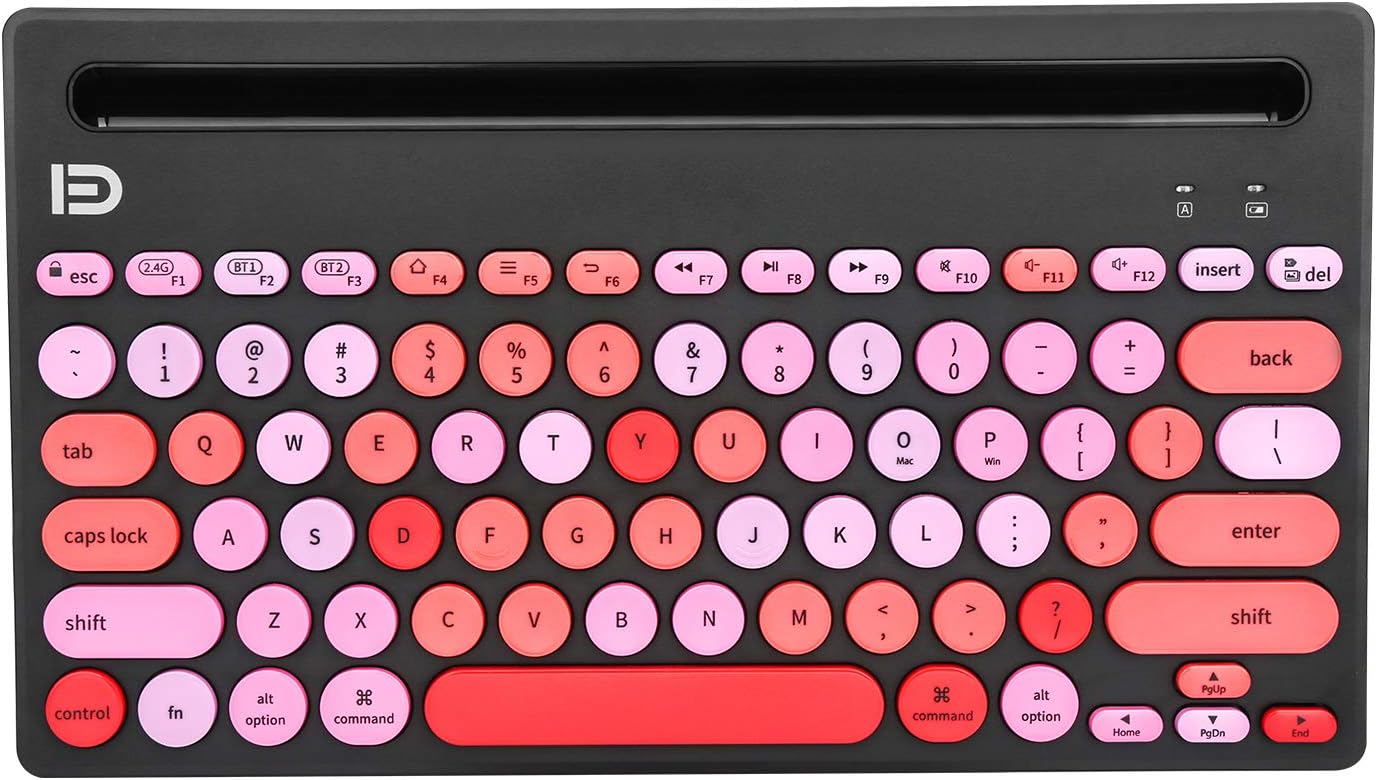
Image: Detailed dimensions of the HUO JI Wireless Multi-Device Keyboard.
Warranty Information
This product is covered by a manufacturer's warranty. For specific warranty terms, duration, and claim procedures, please refer to the documentation included with your purchase or contact HUO JI customer support directly. Keep your proof of purchase for warranty claims.
Customer Support
If you encounter any issues or have questions not covered in this manual, please contact HUO JI customer support. You can typically find contact information on the product packaging, the manufacturer's official website, or through your retailer.
For online resources, visit the HUO JI Store on Amazon.