
1. Introduction
This manual provides comprehensive instructions for the installation, operation, and maintenance of your XTRONS CM118HD 11.6-inch Car Overhead Monitor. Please read this manual thoroughly before using the product to ensure proper function and to prevent damage.
The XTRONS CM118HD is an ultra-thin, roof-mounted monitor designed to provide in-car entertainment with a high-definition display. It supports various media inputs including HDMI, USB, and AV, and offers flexible audio output options.
2. Safety Information
- Ensure all wiring is correctly connected to prevent short circuits or electrical hazards.
- Do not attempt to disassemble or modify the unit. Refer all servicing to qualified personnel.
- Keep the unit away from water, moisture, and extreme temperatures.
- Securely mount the monitor to prevent it from falling during vehicle movement.
- Operating the monitor while driving can be a distraction. Ensure the driver's attention remains on the road.
3. Package Contents
Verify that all items are present in the package:
- XTRONS CM118HD 11.6-inch Car Overhead Monitor
- Remote Control
- Mounting Nuts (4x)
- User Manual (this document)
- IR Headphones (Black DWH005 and White DWH006)

Image: Included accessories, featuring the remote control, mounting nuts, and the user manual.
4. Product Overview
The XTRONS CM118HD features an 11.6-inch TFT digital widescreen display with a resolution of 1366x768, capable of playing 1080P video content. Its ultra-thin design (29mm when folded) integrates seamlessly into your vehicle's interior. The screen offers a 170° rotatable angle for optimal viewing from various seating positions.

Image: Key features of the XTRONS CM118HD monitor.
4.1 Display Quality
The monitor provides a clear and vibrant display, supporting 1080P video playback for enhanced picture details.

Image: Comparison of display resolutions.
4.2 Adjustable Viewing Angle
The screen can be rotated up to 170 degrees, allowing passengers to adjust it for their preferred viewing angle.

Image: Monitor adjusted to 170° rotatable angle.
4.3 Connectivity
The monitor includes HDMI, USB, and AV input ports for connecting various external devices.

Image: HDMI connectivity options for mobile devices.

Image: USB and AV input ports.
4.4 Audio Output
Audio can be played through the built-in speaker, FM transmission to your car's radio, or via IR headphones (models DWH005 and DWH006 are compatible).
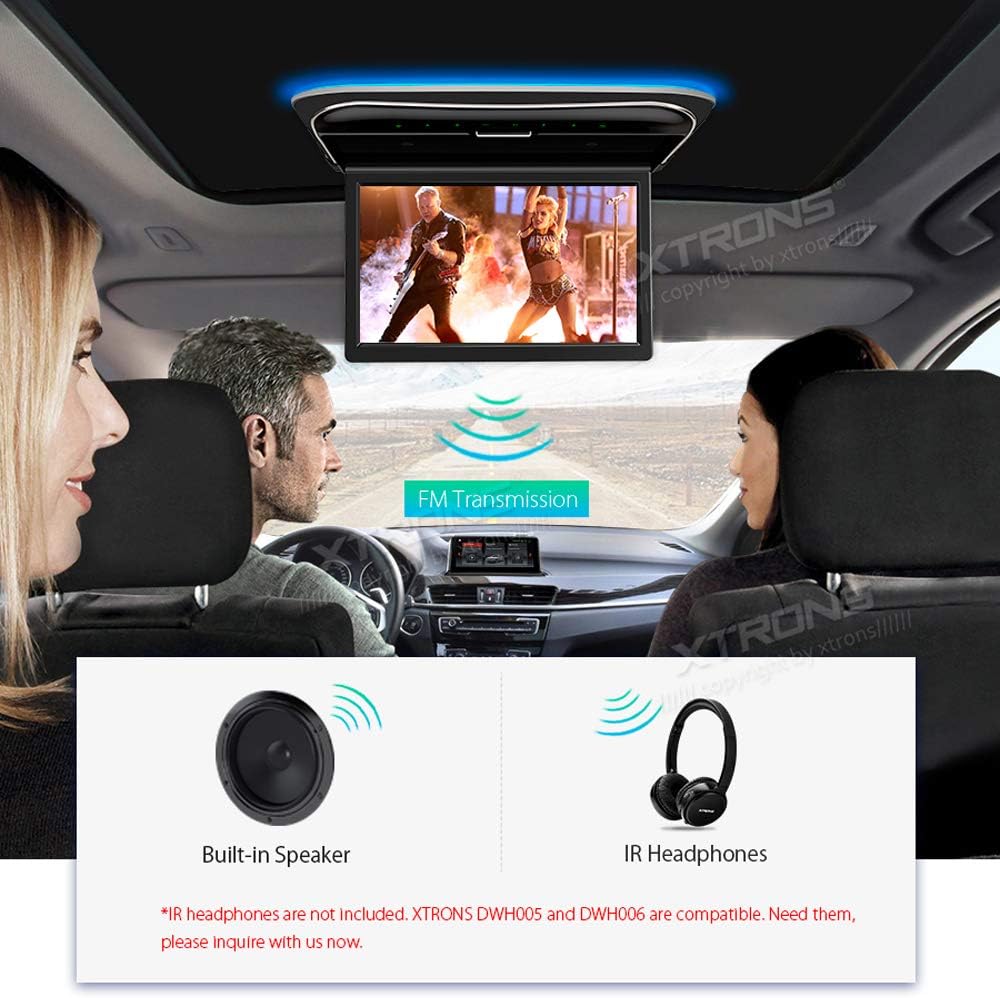
Image: Audio output options including FM transmission and IR headphones.
4.5 Door Control Feature
The monitor includes a positive and negative door control feature, allowing the ambient lighting to activate when the car door is opened.

Image: Door control feature illustrating ambient light activation.
5. Setup
5.1 Mounting the Monitor
- Identify a suitable location on the vehicle's roof for installation, ensuring it does not obstruct the driver's view or interfere with airbags.
- Carefully cut an opening in the headliner according to the provided template (if included) or the monitor's base dimensions.
- Secure the mounting bracket to the vehicle's roof structure using appropriate fasteners.
- Attach the monitor to the mounting bracket using the supplied nuts, ensuring it is firmly secured.
5.2 Wiring Connections
- Power Connection: Connect the red wire to the vehicle's accessory power (ACC) and the yellow wire to constant 12V power. Connect the black wire to ground.
- AV Input: Connect external video sources (e.g., car head unit) to the AV input ports.
- HDMI Input: Connect HDMI-compatible devices (e.g., smartphones, gaming consoles) to the HDMI port.
- USB Input: Insert USB flash drives or hard drives into the USB port for media playback.
- Door Control: Connect the door control wire to the vehicle's door trigger wire to enable the ambient light feature.
Note: Professional installation is recommended for optimal safety and performance.
6. Operating Instructions
6.1 Power On/Off
- Press the power button on the unit or the remote control to turn the monitor on or off.
6.2 Input Selection
- Use the 'Source' button on the unit or remote control to cycle through available inputs: HDMI, USB, AV.
6.3 Media Playback (USB/SD)
- Insert a USB drive or SD card (if applicable) containing media files.
- Select the USB or SD source. The monitor will display a file browser.
- Navigate through folders and select the desired media file (video, audio, image) using the remote control or virtual touch buttons.
6.4 Audio Output Modes
- Built-in Speaker: Audio will play directly from the monitor's integrated speaker.
- FM Transmitter: Activate the FM transmitter function and tune your car's radio to the corresponding frequency to hear audio through the car's speakers.
- IR Headphones: If using compatible IR headphones, ensure they are powered on and within range. The monitor will automatically transmit audio to them.
6.5 Screen Adjustment
- Gently push or pull the screen to adjust its angle up to 170 degrees for optimal viewing.
7. Maintenance
- Cleaning the Screen: Use a soft, lint-free cloth to wipe the screen. For stubborn marks, dampen the cloth slightly with water or a screen-safe cleaning solution. Avoid harsh chemicals.
- Cleaning the Unit: Wipe the exterior of the unit with a dry, soft cloth.
- Avoid Liquids: Do not spray liquids directly onto the unit or screen.
8. Troubleshooting
| Problem | Possible Cause | Solution |
|---|---|---|
| No power | Incorrect wiring; Blown fuse | Check power connections (ACC, 12V, Ground). Inspect and replace fuse if necessary. |
| No image on screen | Incorrect input source selected; Loose video cable | Verify the correct input source is selected. Check all video cable connections. |
| No audio | Volume too low; Incorrect audio output mode; IR headphones not connected/powered | Increase volume. Select correct audio output (speaker, FM, IR). Ensure IR headphones are on and charged. |
| Remote control not working | Dead battery; Obstruction; Not pointed correctly | Replace remote control battery. Ensure no obstructions between remote and unit. Point remote directly at the unit's IR receiver. |
9. Specifications
| Feature | Specification |
|---|---|
| Model | CM118HD |
| Screen Size | 11.6 Inches |
| Display Type | TFT Digital Widescreen LCD |
| Display Resolution | 1366x768 |
| Video Playback | Supports up to 1080P |
| Inputs | HDMI, USB, AV |
| Memory Card Slot | SD |
| Audio Output | Built-in Speaker, FM Transmitter, IR Transmitter |
| Adjustable Angle | 170° |
| Unit Thickness (folded) | 29mm |
| Item Weight | 7.52 pounds |
| Manufacturer | XTRONS |
10. Warranty Information
The XTRONS CM118HD monitor comes with a 1-Year Warranty from the date of purchase. This warranty covers manufacturing defects and malfunctions under normal use. It does not cover damage caused by improper installation, misuse, accidents, or unauthorized modifications.
For warranty claims or service, please retain your proof of purchase and contact XTRONS customer support.
11. Support
For further assistance, technical support, or inquiries regarding your XTRONS CM118HD monitor, please visit the official XTRONS website or contact their customer service department. Contact details can typically be found on the XTRONS website or on your product packaging.
Online resources such as FAQs and additional troubleshooting guides may also be available.
