1. Introduction
Thank you for choosing the havit D006 Computer Monitor Light Screenbar. This e-reading LED lamp is designed to provide optimal lighting for your workspace, reducing eye strain and improving focus. It features stepless dimming, three adjustable color temperatures, and a flexible gravity base clip for easy installation on various monitor types.
2. What's in the Box
- havit D006 Computer Monitor Light Screenbar
- USB Type-C Charging Cable
- User Manual
3. Setup
3.1 Unboxing
Carefully remove the monitor light screenbar and its accessories from the packaging. Ensure all components listed in the 'What's in the Box' section are present.
Video: Unboxing and initial setup of the havit Computer Monitor Light Screenbar. This video demonstrates how to unpack the screenbar and connect the USB cable.
3.2 Attaching to Monitor
The screenbar features a flexible gravity base clip designed for stability without damaging your monitor. Simply place the clip over the top edge of your monitor. The weighted base will secure the light in place.

Image: The havit D006 Monitor Light attached to the top of a computer monitor using its flexible gravity base clip. The clip design ensures stability without requiring screws or adhesives.
The clip is suitable for monitors between 15-21 inches long and 5-40mm thick, accommodating various monitor types including ordinary, ultra-thin, and curved/irregular monitors.

Image: Illustration showing the havit D006 Monitor Light's compatibility with different monitor thicknesses and shapes, including standard, thin, and curved displays.
3.3 Connecting Power
Connect the provided USB Type-C cable to the port on the screenbar and plug the other end into a USB power source. This can be a computer USB port, a USB charger, or a power bank.
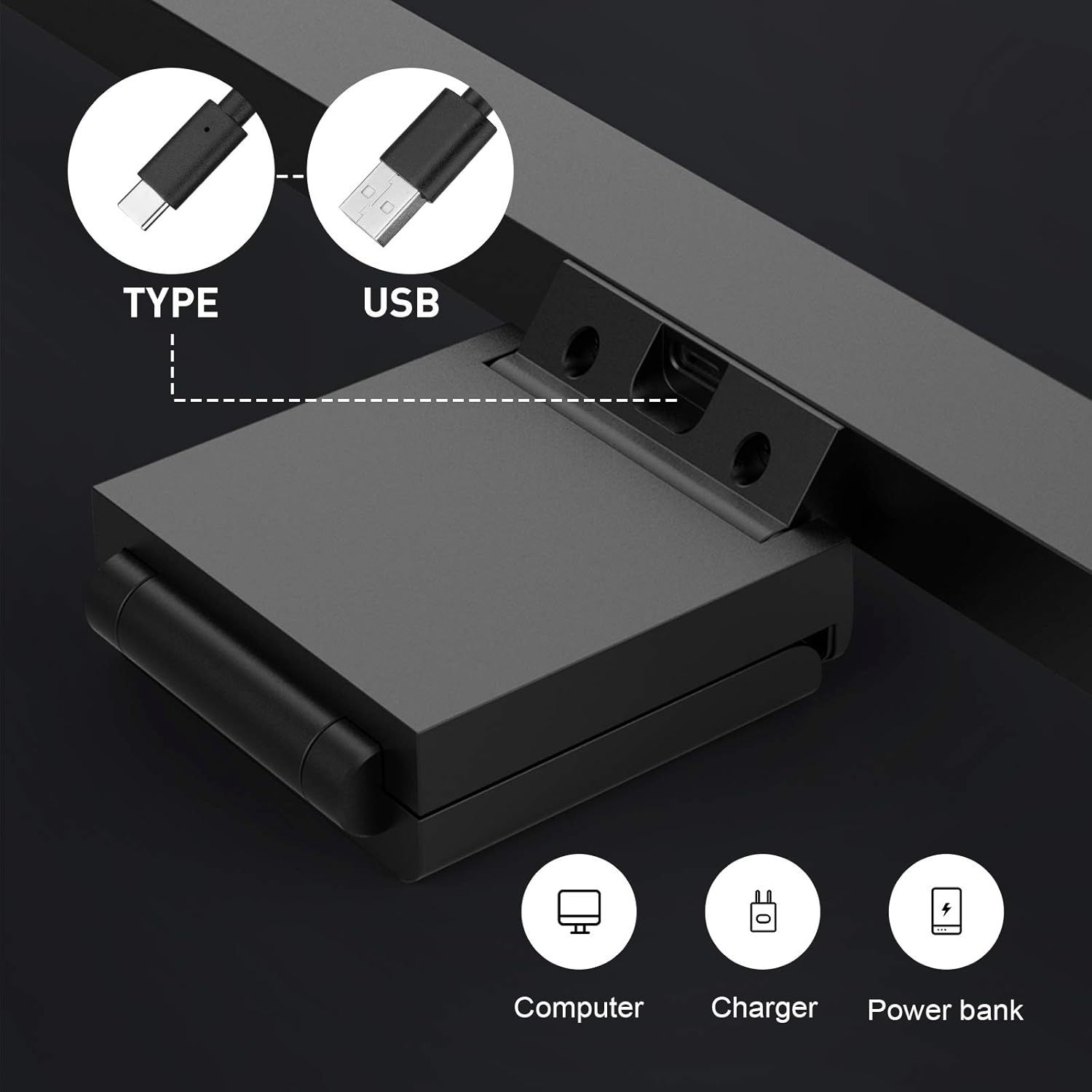
Image: Close-up of the USB Type-C port on the havit D006 Monitor Light, illustrating various power source options such as a computer, charger, or power bank.
4. Operating Instructions
4.1 Power On/Off
Gently touch the power icon on the right side of the screenbar to turn the light on or off.
4.2 Stepless Dimming
To adjust the brightness, touch and hold the brightness icon on the screenbar. The light will gradually dim or brighten. Release your finger when the desired brightness level is reached.
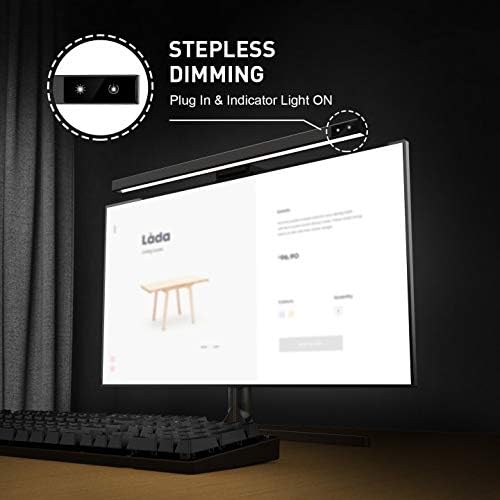
Image: A close-up of the havit D006 Monitor Light showing the touch-sensitive area for stepless dimming, indicated by a light bulb icon.
4.3 Color Temperature Adjustment
Short touch the color temperature icon to cycle through the three available color temperatures: Warm White (2900K), Mixed Light (4500K), and White Light (6500K).

Image: Visual representation of the three color temperature settings: White Light (6500K) for clear lighting, Mixed Light (4500K) for neutral reading, and Warm Light (2900K) for comfortable viewing.
5. Maintenance
To ensure the longevity and optimal performance of your havit D006 Monitor Light Screenbar, follow these maintenance guidelines:
- Cleaning: Use a soft, dry cloth to wipe the surface of the screenbar. Avoid using abrasive cleaners or solvents, as they may damage the finish.
- Storage: When not in use for extended periods, store the screenbar in a cool, dry place away from direct sunlight.
- Handling: Handle the screenbar with care to prevent physical damage to the LED strip or the gravity clip mechanism.
6. Troubleshooting
If you encounter issues with your havit D006 Monitor Light Screenbar, please refer to the following common problems and solutions:
- Light does not turn on:
- Ensure the USB cable is securely connected to both the screenbar and the power source.
- Verify that the USB power source is functional (e.g., try plugging another device into the same port).
- Use a 5V/1A USB charger for optimal performance.
- Light flickers or turns off randomly:
- This could indicate insufficient power. Try connecting the screenbar to a different USB port or a dedicated USB wall adapter (5V/1A recommended).
- Ensure the USB cable is not damaged.
- Touch controls are unresponsive:
- Ensure your fingers are clean and dry when operating the touch controls.
- Disconnect and reconnect the USB power to reset the device.
If the issue persists after trying these steps, please contact customer support for further assistance.
7. Specifications
| Feature | Detail |
|---|---|
| Brand | havit |
| Model Number | D006 |
| Color | Black |
| Material | Polycarbonate |
| Light Source Type | LED |
| Light Color | Warm White (2900K), Cool White (6500K), Natural White (4500K) |
| Special Feature | Dimmable (Stepless Dimming) |
| Control Method | Touch |
| Power Source | Corded Electric (USB Powered) |
| Voltage | 5 Volts |
| Installation Type | Spoke Clip (Flexible Gravity Base Clip) |
| Item Weight | 1.3 pounds |
| Package Dimensions | 18 x 4.75 x 1.5 inches |
8. Warranty and Support
The havit D006 Computer Monitor Light Screenbar comes with a standard manufacturer's warranty. For detailed warranty information, product support, or any inquiries, please refer to the contact information provided on the product packaging or visit the official havit website.
Official Website: www.prohavit.com


