
THE G-LAB KULT-NITRO-NEUTRON
THE G-LAB Kult Nitrogen Neutron Gaming Mouse User Manual
Model: KULT-NITRO-NEUTRON
Introduction
This manual provides comprehensive instructions for the setup, operation, maintenance, and troubleshooting of your THE G-LAB Kult Nitrogen Neutron Gaming Mouse. Please read this manual carefully to ensure optimal performance and longevity of your device.

Image: Front view of the THE G-LAB Kult Nitrogen Neutron Gaming Mouse, showcasing its ergonomic design and RGB lighting elements.
1. Setup
1.1 Package Contents
- THE G-LAB Kult Nitrogen Neutron Gaming Mouse
- User Manual (this document)
- Weight adjustment system (3 x 5g weights pre-installed)
1.2 Connecting the Mouse
- Connect the USB cable of the Kult Nitrogen Neutron mouse to an available USB port on your computer.
- The mouse is plug-and-play and should be recognized automatically by your operating system.

Image: Side view of the Kult Nitrogen Neutron mouse, highlighting its braided cable for durability, silicone side grips for enhanced hold, and the location of its 9 programmable buttons. The image also indicates the adjustable weight feature.
1.3 Software Installation (Windows Only)
To unlock the full customization features of your Kult Nitrogen Neutron mouse, including button programming, macro creation, and RGB lighting effects, install the dedicated software.
- Visit the official THE G-LAB website to download the Kult Nitrogen Neutron software.
- Follow the on-screen instructions to complete the installation.
- The software is compatible with Windows operating systems only.

Image: Screenshot of the Kult Nitrogen Neutron customization software interface, showing options for adjusting DPI levels, creating macros, and customizing RGB lighting. A note indicates the software is for Windows only.
1.4 Weight Adjustment
The mouse features an adjustable weight system, allowing you to customize its feel from 105g to 120g. This is achieved using three removable 5g weights located in a compartment on the underside of the mouse.
- Gently flip the mouse over.
- Locate the weight compartment cover.
- Open the compartment and add or remove the 5g weights as desired.
- Close the compartment securely.
2. Operating Instructions
2.1 DPI Adjustment
The Kult Nitrogen Neutron mouse features a high-precision optical sensor with adjustable DPI settings up to 7200 DPI. You can cycle through 6 predefined DPI levels using the dedicated DPI button located on the top of the mouse.
- Press the DPI button to switch between sensitivity levels.
- The current DPI setting is often indicated by a change in the mouse's LED lighting color (refer to software for specific color assignments).
- Default DPI steps typically range from 200 to 7200 DPI.

Image: Close-up view of the Kult Nitrogen Neutron mouse, highlighting the DPI button located behind the scroll wheel. The image indicates a DPI range of 200-7200 and mentions a premium gaming sensor.
2.2 Programmable Buttons
The mouse is equipped with 9 programmable buttons. These buttons can be customized using the software to perform various functions, including macros, key assignments, and multimedia controls.
- Install the customization software (Windows only) to access button programming.
- Within the software, select each button and assign your desired function or macro.
- Save your profiles for different games or applications.
2.3 RGB Backlighting
The Kult Nitrogen Neutron features full RGB backlighting with 16.8 million colors and 13 customizable lighting effects. Use the software to personalize the lighting to match your setup.
- Open the customization software.
- Navigate to the RGB lighting section.
- Choose from various colors and 13 preset effects.
- Adjust brightness and effect speed as desired.

Image: A hand holding the Kult Nitrogen Neutron mouse, showcasing its vibrant full RGB backlight with multiple colors. The image also indicates the availability of 13 different light effects.
2.4 Polling Rate
The mouse supports a polling rate of up to 1000 Hz, ensuring rapid response times. This setting can typically be adjusted within the customization software.
2.5 Ergonomics and Grip Styles
The ergonomic design of the Kult Nitrogen Neutron provides comfort during extended use. It is designed to accommodate various grip styles, including Palm, Claw, and Fingertip grips.
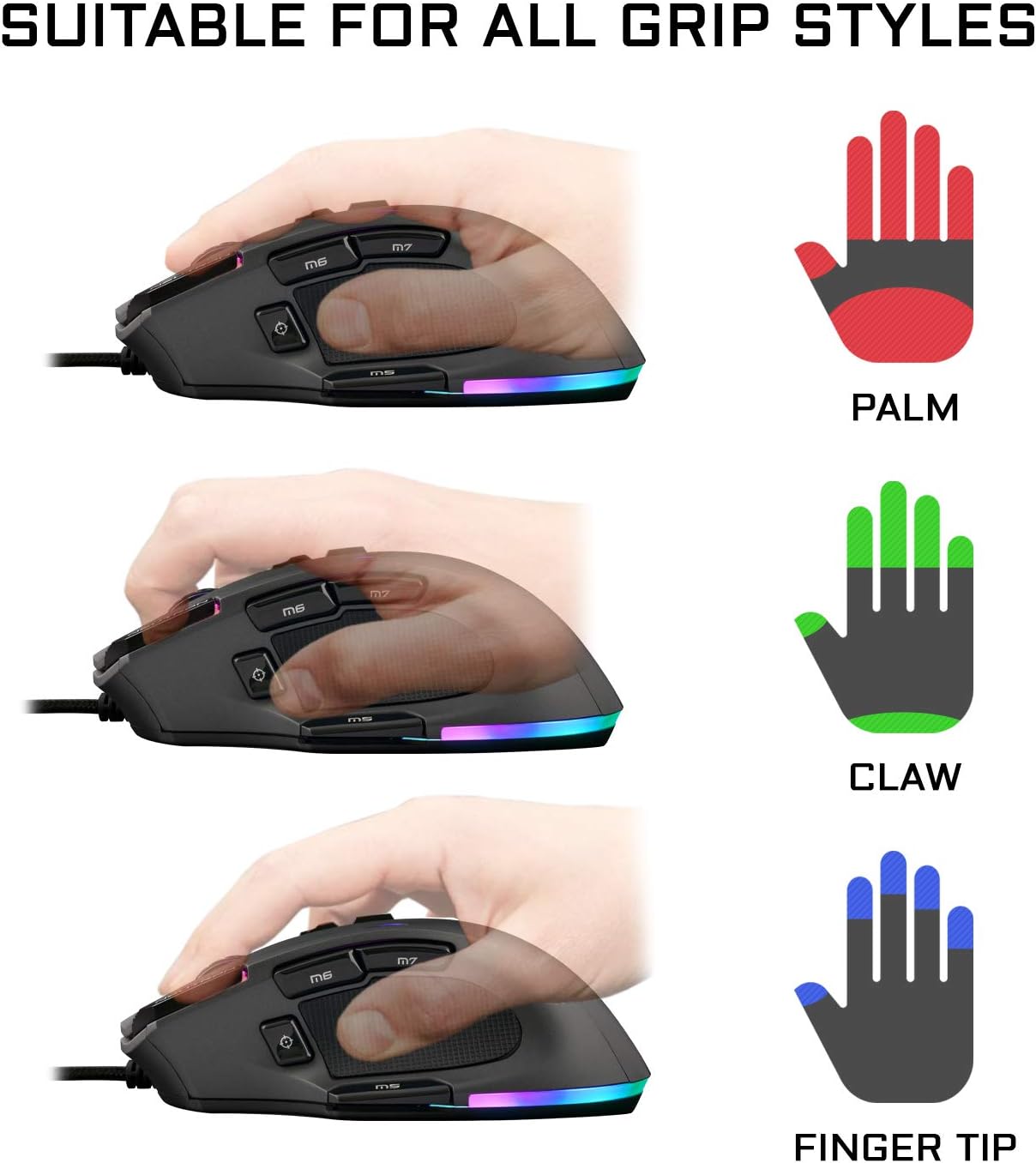
Image: Illustrations demonstrating how the Kult Nitrogen Neutron mouse can be comfortably used with different grip styles: Palm grip, Claw grip, and Fingertip grip, showing its versatility for various users.
3. Maintenance
3.1 Cleaning
- Disconnect the mouse from your computer before cleaning.
- Use a soft, dry cloth to wipe the surface of the mouse.
- For stubborn dirt, slightly dampen the cloth with water or a mild cleaning solution. Avoid harsh chemicals.
- Use a cotton swab or compressed air to clean around buttons and the optical sensor.
3.2 Durability
The Kult Nitrogen Neutron mouse is built for durability, featuring switches rated for over 20 million clicks, ensuring a long operational lifespan.
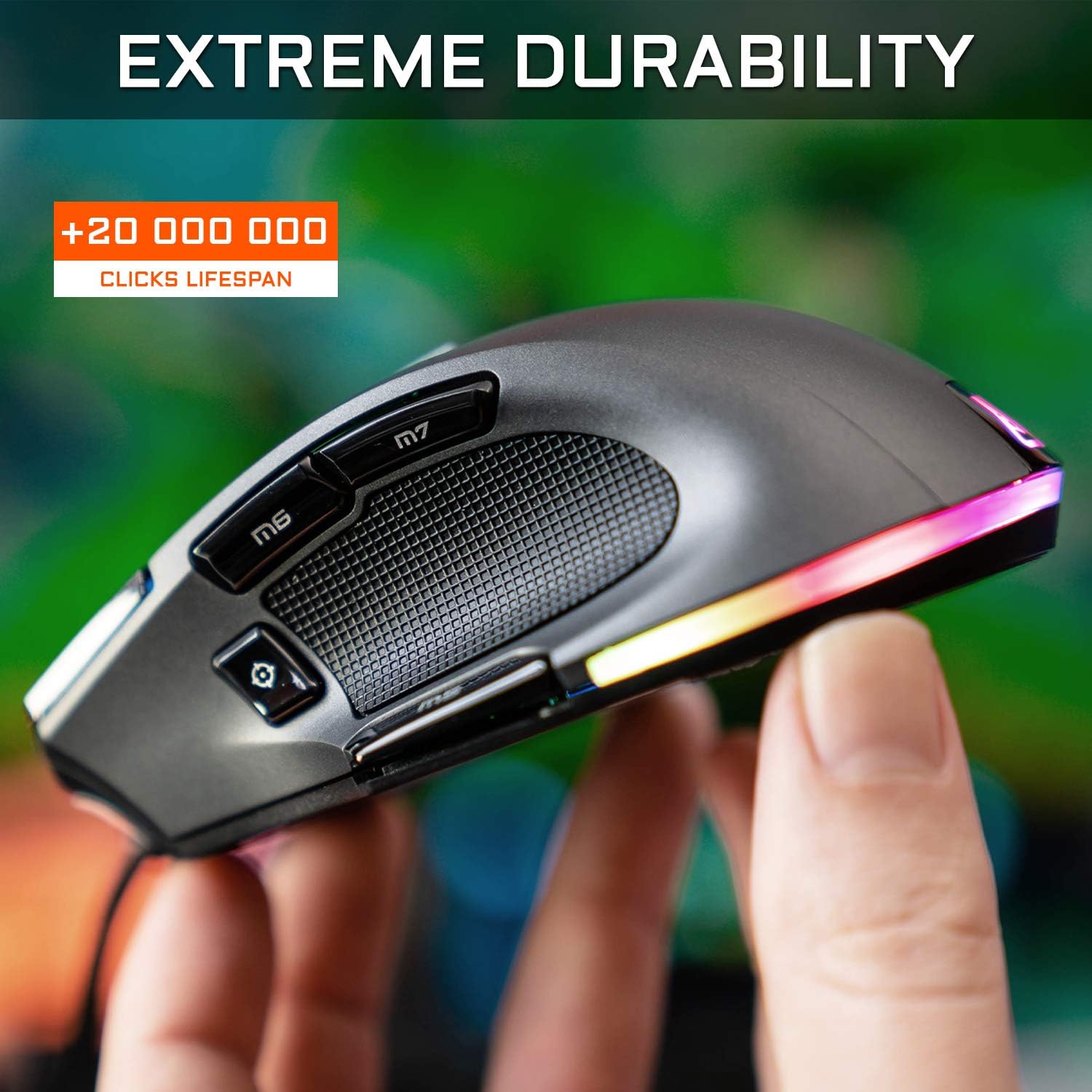
Image: A hand holding the Kult Nitrogen Neutron mouse, emphasizing its robust construction and indicating an extreme durability with a lifespan of over 20,000,000 clicks.
4. Troubleshooting
4.1 Mouse Not Responding
- Ensure the USB cable is securely connected to your computer.
- Try connecting the mouse to a different USB port.
- Test the mouse on another computer to rule out system-specific issues.
- Restart your computer.
4.2 Software Not Detecting Mouse
- Verify that the software is installed correctly and is the latest version from the official THE G-LAB website.
- Ensure your operating system is Windows, as the software is not compatible with other OS.
- Temporarily disable any antivirus or firewall software that might be interfering with the software.
- Reinstall the software.
4.3 DPI or RGB Settings Not Changing
- Ensure the customization software is running and that changes are applied/saved within the software.
- Check if the mouse firmware is up to date (if applicable, check the software for updates).
5. Specifications
| Brand | THE G-LAB |
| Model Name | Kult Nitrogen NEUTRON |
| Model Number | KULT-NITRO-NEUTRON |
| Color | Black |
| Connectivity Technology | Wired |
| Movement Detection Technology | Optical |
| DPI Range | Up to 7200 DPI (6 adjustable steps) |
| Polling Rate | Up to 1000 Hz |
| Number of Buttons | 9 (Programmable) |
| RGB Lighting | 16.8 Million Colors, 13 Effects |
| Special Features | Ergonomic Design, Lightweight, Adjustable Weight (105-120g), Silicone Grips |
| Hand Orientation | Ambidextrous |
| Compatible Devices | Personal Computer (PC), PS4, PS5, Xbox One & X |
| Recommended Use | Office, Gaming |
| Software Compatibility | Windows Only |
| Durability | 20 Million Clicks Lifespan |
6. Warranty and Support
For warranty information and technical support, please refer to the official THE G-LAB website or contact their customer service directly. Information regarding spare parts availability and guaranteed software updates is not explicitly provided in the product details.
Official Website: www.the-g-lab.com (Please check for the correct regional website)