
1. Introduction
This manual provides comprehensive instructions for the setup, operation, and maintenance of your Mistel X-VIII Mechanical Keyboard. Please read this manual thoroughly to ensure proper use and to maximize the lifespan of your device. The Mistel X-VIII is a full-size mechanical keyboard designed for both gaming and productivity, featuring durable PBT double-shot keycaps and Cherry MX Blue switches.
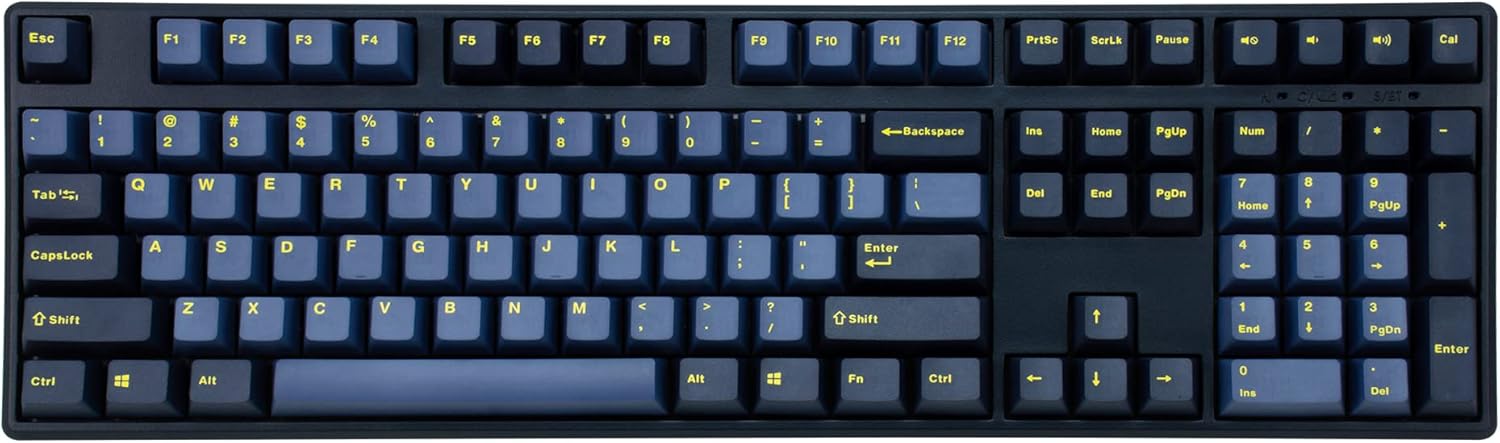
Image 1.1: Top-down view of the Mistel X-VIII Mechanical Keyboard, showcasing its full-size layout with blue PBT keycaps and yellow legends.
2. Package Contents
Verify that all items are present in the package:
- Mistel X-VIII Mechanical Keyboard
- Keycap Puller
- Grenade-Style Switch Keychain
- User Manual (this document)
- Dust Cover
- Spare Keycap Set
- USB Type-C Cable
3. Setup
Follow these steps to set up your Mistel X-VIII Mechanical Keyboard:
- Unpack the Keyboard: Carefully remove the keyboard and all accessories from the packaging.
- Connect the USB Type-C Cable: Insert one end of the provided USB Type-C cable into the Type-C port located on the back of the keyboard.
- Connect to Computer: Plug the other end of the USB cable into an available USB port on your computer (desktop or laptop).
- Driver Installation: The keyboard is plug-and-play. Your operating system (Windows or macOS) should automatically detect and install the necessary drivers. No additional software installation is typically required for basic functionality.
- Positioning: Place the keyboard on a stable, flat surface. Adjust the integrated feet on the underside of the keyboard for your preferred typing angle.

Image 3.1: The Mistel X-VIII keyboard positioned on a desk, ready for use, alongside a monitor and other peripherals.
4. Operating Instructions
4.1. Key Features
- Cherry MX Blue Switches: The Mistel X-VIII features Cherry MX Blue mechanical switches. These switches are characterized by a tactile bump and an audible click, providing distinct feedback for each keystroke. They are often preferred by typists who enjoy a pronounced response.
- PBT Double Shot Keycaps: The keycaps are manufactured using a double-shot molding process with PBT material. This ensures high durability, resistance to shine, and legends that will not fade over time.

Image 4.1: A close-up view of the Mistel X-VIII keyboard with several keycaps removed, revealing the Cherry MX Blue switches underneath.
4.2. Macro Programming and Remapping
The Mistel X-VIII keyboard supports programmable macros and key remapping for both Windows and Mac operating systems. This allows you to customize key bindings and assign complex sequences of commands to individual keys.
- Built-in Memory: All programmed macros and remapped keys are stored directly in the keyboard's MCU (Microcontroller Unit). This means your custom configurations will persist even when the keyboard is connected to a different computer, without needing to reinstall software.
- 3-Layer Custom Configurations: The keyboard can save up to three distinct layers of custom configurations. This feature is useful for switching between different setups for various tasks, such as gaming, programming, or general office work.
- Firmware Updates: The X-VIII supports direct firmware updates under macOS, ensuring compatibility and access to future enhancements.
4.3. DIP Switch Settings
The underside of the keyboard features DIP switches (SW1-SW4) that allow for hardware-level configuration changes. Refer to the label on the keyboard's back for specific functions. Common settings include:
- SW1 (Mac Layout): Toggles between Windows and Mac keyboard layouts.
- SW2 (Caps = LCTRL): Swaps the Caps Lock key function with the Left Control key.
- SW3 (Macro Mode): Activates or deactivates macro programming mode.
- SW4 (Caps = Fn): Swaps the Caps Lock key function with the Function (Fn) key.
Always power off or disconnect the keyboard before changing DIP switch settings to prevent potential issues.

Image 4.2: A close-up of the DIP switches located on the underside of the Mistel X-VIII keyboard, with labels indicating their functions.
5. Maintenance
Proper maintenance ensures the longevity and optimal performance of your keyboard.
- Regular Cleaning: Use a soft brush or compressed air to remove dust and debris from between the keycaps.
- Keycap Cleaning: For deeper cleaning, use the provided keycap puller to carefully remove keycaps. Clean them with a mild soap solution and a soft cloth, then ensure they are completely dry before reattaching.
- Surface Cleaning: Wipe the keyboard's surface with a slightly damp, lint-free cloth. Avoid using harsh chemicals or abrasive materials.
- Dust Cover: Use the included dust cover when the keyboard is not in use to protect it from dust accumulation.
6. Troubleshooting
If you encounter issues with your Mistel X-VIII keyboard, refer to the following common solutions:
- Keyboard Not Responding:
- Ensure the USB Type-C cable is securely connected to both the keyboard and the computer.
- Try connecting the keyboard to a different USB port on your computer.
- Test the keyboard on another computer to determine if the issue is with the keyboard or the computer's port/drivers.
- Keys Not Registering or Double-Typing:
- Clean around and under the affected keycap to remove any obstructions.
- If the issue persists, it may indicate a switch malfunction. Contact customer support for assistance.
- Macro Functions Not Working:
- Ensure you are in the correct macro layer.
- Verify that the macro programming mode (SW3 DIP switch) is correctly set.
- Refer to the detailed macro programming guide (if available separately or on the manufacturer's website) for specific instructions.
- Incorrect Key Layout (e.g., Mac vs. Windows):
- Check the SW1 DIP switch setting on the underside of the keyboard and adjust as needed.
7. Specifications
| Feature | Detail |
|---|---|
| Product Dimensions | 17.99 x 7.99 x 2.01 inches |
| Item Weight | 3.6 pounds |
| Manufacturer | Mistel |
| Item Model Number | X8-YLGB-BK-BL |
| Connectivity Technology | USB, USB-C |
| Keyboard Description | Mechanical |
| Special Feature | Ergonomic |
| Keycap Material | Polybutylene Terephthalate (PBT) |
| Switch Type | Cherry MX Blue |
| Compatible Devices | Laptop, Desktop |
8. Warranty and Support
For warranty information, technical support, or further inquiries, please refer to the official Mistel website or contact their customer service directly. Details are typically provided on the product packaging or the manufacturer's official support channels.