Introduction
This manual provides comprehensive instructions for the GE Big Button Universal Remote Control, Model 33701. Designed for ease of use, this 2-device remote simplifies control of your home entertainment system, making it ideal for all users, including those with impaired vision or who prefer a straightforward experience. It is capable of controlling up to two audio/video components.
Product Overview
The GE Big Button Universal Remote Control features a large, simplified keypad and ergonomically designed buttons for comfortable handling and easy readability. Below is an overview of the remote's layout and its key components.

Image: Front view of the GE Big Button Universal Remote Control, showcasing its silver finish and large, clearly labeled buttons for TV, CBL, power, volume, channel, mute, number pad, setup, sleep, and input.

Image: Angled view of the GE Big Button Universal Remote Control, highlighting the "tv" and "cbl" buttons for device selection, volume up/down, channel up/down, and the large simplified keypad. Text indicates that the remote requires 2 AA batteries (not included).
This remote is designed to control various audio/video components, including TVs, Blu-ray/DVD players, cable/satellite receivers, Roku boxes, other streaming media players, and sound bars.

Image: A diagram illustrating the types of devices the remote can control, including Sound Bar/Audio, Home Theatre, TVs, DVD/Blu-ray Player, and Cable/Satellite. It also mentions a comprehensive code library for major brands.
Setup
1. Battery Installation
The remote requires 2 AA batteries (not included). To install, open the battery compartment cover on the back of the remote. Insert the batteries, ensuring correct polarity (+ and -). Close the cover securely.
2. Device Programming
This remote comes pre-programmed for immediate use with Samsung TVs. For other devices, or if the pre-programming does not work, follow these steps to program your remote:
- Find the remote codes for your device. These can typically be found in the original product manual or on the manufacturer's website (e.g., www.byjasco.com/remotecodes).
- Press the SETUP button on the remote until the red indicator light turns on, then release.
- Press and release the desired device button on the remote (e.g., TV or CBL). The red indicator light will blink once and remain on.
- Starting with the first code from your list, key in the code using the number buttons on the remote. After entering the last digit, the red indicator light will turn off.
- Point your remote at the device and test different buttons (e.g., Power, Volume Up/Down) to see if the device responds.
- If the device does not respond, repeat the process with the next code from your list until you find a working code.
- Repeat this process for each additional device you wish to control (up to 2 devices total).
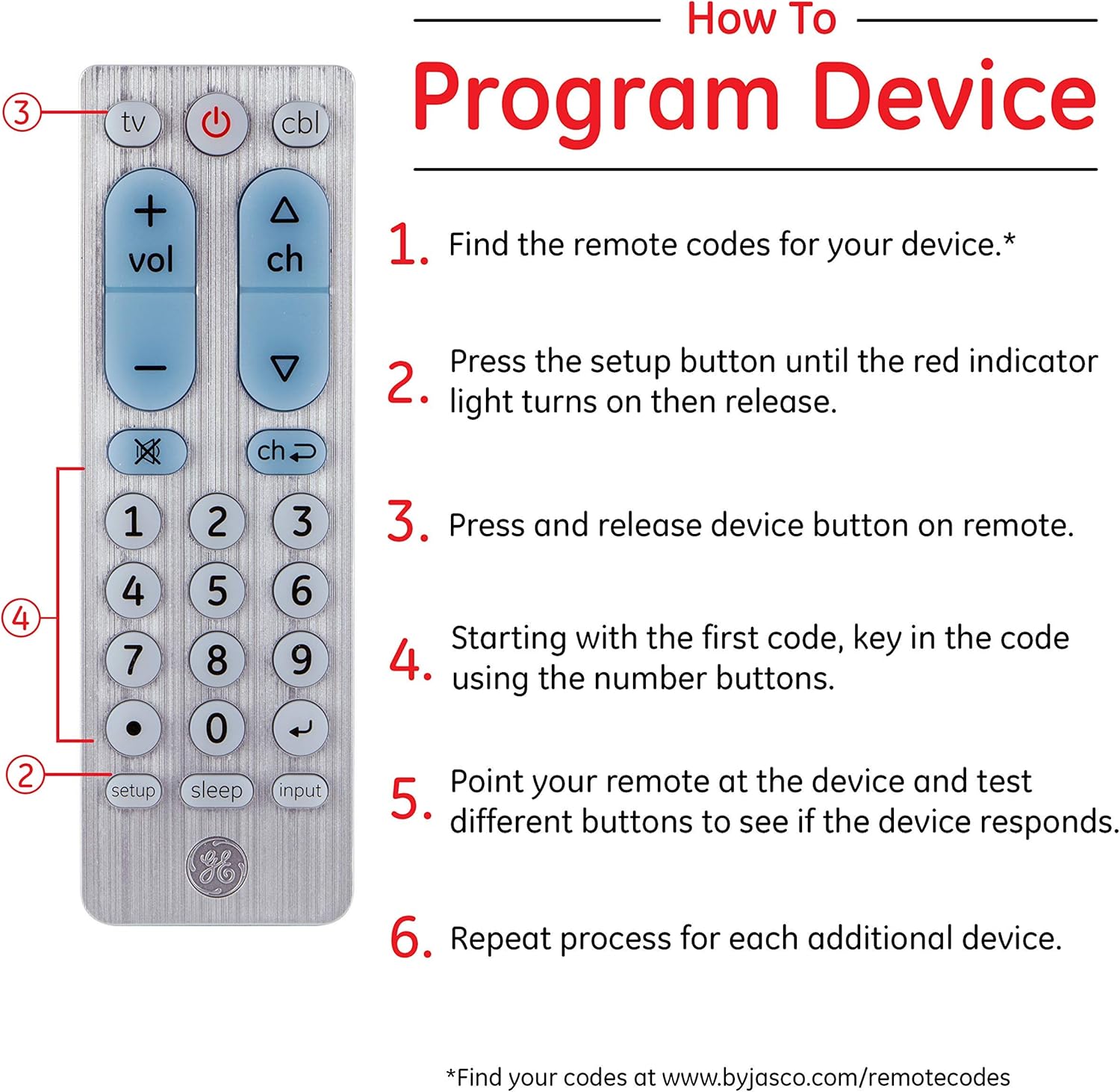
Image: A visual guide detailing the six steps to program the universal remote, including finding codes, pressing setup, selecting device, entering code, testing, and repeating for other devices. It points to the setup button and number pad on the remote.
Operating Instructions
Once programmed, using your GE Big Button Universal Remote Control is straightforward:
- Device Selection: Press the TV or CBL button to select the device you wish to control. The remote will then send commands to that specific device.
- Power: Press the POWER button to turn the selected device on or off.
- Volume Control: Use the VOL + and VOL - buttons to adjust the volume. The master volume control feature allows you to control the volume of your primary audio device regardless of which device is selected.
- Channel Control: Use the CH + and CH - buttons to change channels.
- Mute: Press the MUTE button to silence the audio.
- Number Pad: Use the large number buttons (0-9) to directly enter channel numbers.
- Input: Press the INPUT button to cycle through the input sources on your TV or other display device.
- Sleep: The SLEEP button may activate a sleep timer function on compatible devices.
Troubleshooting
If you encounter issues with your universal remote, consider the following common solutions:
- Remote Not Working:
- Ensure batteries are fresh and inserted with correct polarity.
- Point the remote directly at the device's sensor.
- Check for obstructions between the remote and the device.
- Device Not Responding After Programming:
- Try programming the device again using a different code from the code list.
- Ensure you pressed the correct device button (TV or CBL) before entering the code.
- Only Some Buttons Work:
- This may indicate that the code is partially compatible. Try other codes for your device.
- Volume Control Issues:
- If volume control is not working for the selected device, ensure the master volume feature is correctly set up if applicable, or try re-programming the device.
Specifications
- Model: 33701
- Brand: GE
- Color: Silver
- Compatible Devices: DVD/Blu-ray Player, Television, Cable/Satellite Receivers, Streaming Players, Sound Bars
- Connectivity Technology: Infrared
- Number of Devices Controlled: 2
- Power Source: 2 x AA Batteries (not included)
- Product Dimensions: 1 x 2 x 5.75 inches (approximately)
- Item Weight: 3.2 ounces (approximately)

Image: Side and front views of the GE Big Button Universal Remote Control, indicating its dimensions as approximately 5.46 inches in length, 1.78 inches in width, and 0.94 inches in thickness.
Maintenance
To ensure the longevity and proper functioning of your remote control:
- Clean the remote with a soft, dry cloth. Do not use abrasive cleaners or solvents.
- Avoid exposing the remote to extreme temperatures, humidity, or direct sunlight.
- If the remote will not be used for an extended period, remove the batteries to prevent leakage.
- Do not drop the remote or subject it to strong impacts.
Warranty and Support
This product is manufactured by Jasco. For technical support, troubleshooting assistance, or information regarding warranty coverage, please contact Jasco customer service or visit their official website. Refer to the product packaging or Jasco's website for the most current contact information and warranty details.
You can often find additional support and programming codes at www.byjasco.com/remotecodes.