
1. Introduction
Thank you for choosing the AZDOME PG02 10-inch Mirror Dash Cam. This device is designed to enhance your driving safety and provide reliable recording of your journeys. It features a 10-inch full touchscreen, front and rear cameras, night vision capabilities, G-sensor for collision detection, and parking assistance. Please read this manual carefully before use to ensure proper installation and operation.
2. Product Overview
2.1 Package Contents
- AZDOME PG02 Mirror Dash Cam
- Rear Camera with 19ft Cable
- Dual Ports Car Charger
- Power Cable
- 32GB Memory Card
- Owner's Manual

Image: Contents of the AZDOME PG02 Mirror Dash Cam package, including the main unit, rear camera, cables, car charger, memory card, and manual.
2.2 Key Features
- 10-inch Full Touchscreen: Intuitive interface for easy navigation and settings adjustment.
- Dual Camera Recording: 1080P front camera (up to 1296P@30fps single front) and 720P rear camera for comprehensive coverage.
- Super Night Vision & WDR: Enhanced clarity in low-light conditions.
- 170°+150° Super Wide Angle: Broad field of view for both front and rear cameras.
- G-Sensor: Automatically detects impacts and locks video files to prevent overwriting.
- Parking Monitoring: Records video when impact is detected while parked (requires built-in 700mAh Li-ion Battery).
- Loop Recording: Continuously records, overwriting the oldest unlocked files.
- Reversing Assistance: Displays guidelines on screen when reversing for safe parking.
- GPS Module: Records real-time location, driving track, and speed (module included).
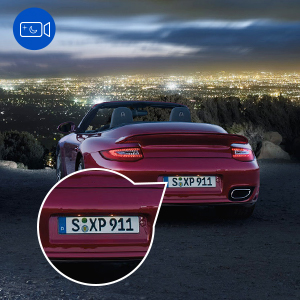
Image: Overview of the AZDOME 10-inch Mirror Dash Cam highlighting key features like parking assistance, wide angle, loop recording, G-sensor, and night vision.
3. Setup
3.1 Installation
- Mount the Mirror Dash Cam: Securely attach the main unit over your existing rearview mirror using the provided straps.
- Install the Rear Camera: Mount the rear camera at the back of your vehicle, typically above the license plate. The rear camera is IP68 waterproof.
- Route the Rear Camera Cable: Connect the rear camera to the main unit using the 19ft cable. Carefully route the cable to avoid interference with vehicle operations.
- Connect Power: Plug the car charger into your vehicle's cigarette lighter socket and connect the power cable to the main unit.
- Insert Memory Card: Insert the included 32GB TF card into the designated slot on the dash cam.

Image: Diagram illustrating the connection points for the AZDOME PG02 Mirror Dash Cam, including Mini USB, AV-IN, car charger, and rear camera wiring.
4. Operating Instructions
4.1 Power On/Off
The dash cam will automatically power on and begin recording when your vehicle starts. It will power off automatically when the vehicle is turned off.
4.2 Touchscreen Operation
The 10-inch full touchscreen allows for easy control. Swipe left or right to switch between front and rear camera views. Tap icons to access settings, playback, or other functions.

Image: A hand interacting with the 10-inch full touch screen of the AZDOME PG02 dash cam, showing adjustable rear view zone functionality.
4.3 Recording Modes
- Normal Recording: The dash cam continuously records video in 1, 3, or 5-minute segments. When the memory card is full, the oldest unlocked files are overwritten.
- G-Sensor Recording: In the event of a sudden impact or collision, the G-sensor automatically detects the event and locks the current video file, preventing it from being overwritten.
- Parking Monitoring: When your car is parked and the dash cam detects an impact, it will automatically turn on and record a 1-minute video, then lock the file before turning off. Note: Turn OFF this function when your car is running to prevent random power cycles.

Image: Illustration of a car crash with a lock icon, representing the G-sensor's function to automatically record and lock collision video as an insurance file.
4.4 Night Vision
The dash cam features Super Night Vision and WDR (Wide Dynamic Range) technology, allowing it to capture clear images and videos even in low-light or starlight environments.

Image: A comparison showing the enhanced clarity of the AZDOME PG02's super night vision in a low-light environment, featuring WDR, F/1.8 Aperture, and a 6-Glass Lens.
4.5 Reversing Assistance
When you shift your vehicle into reverse, the dash cam automatically displays the rear camera view on the screen with parking guidelines, making reversing and parking safer and easier.

Image: The dash cam screen displaying parking assistance guidelines over a rear view of a parking lot, indicating the camera automatically switches to this view when reversing.
4.6 GPS Functionality
The included GPS module allows the dash cam to record real-time location, current driving track, and driving speed, providing additional data for your recordings.
5. Maintenance
- Clean the Lenses: Regularly clean the front and rear camera lenses with a soft, lint-free cloth to ensure clear video quality.
- Memory Card Care: Format the memory card periodically (e.g., once a month) through the dash cam's settings to maintain optimal performance and prevent data corruption.
- Temperature: Avoid exposing the dash cam to extreme temperatures for prolonged periods.
- Firmware Updates: Check the AZDOME official website for any available firmware updates to improve performance and add new features.
6. Troubleshooting
- Dash Cam Turns On/Off Randomly: Ensure the Parking Monitoring function is turned OFF when your car is running. This feature is intended for use when the vehicle is parked.
- Poor Video Quality: Check if the camera lenses are clean. Ensure the protective film has been removed from the lenses. Verify that the video resolution settings are appropriate.
- Memory Card Error: Format the memory card in the dash cam's settings. If the issue persists, try a new high-speed (Class 10 or U3) TF card.
- Rear Camera Image Reversed: Check the settings for rear camera display options. Some dash cams offer a mirror image flip function.
- No Power: Ensure the car charger is properly connected and the vehicle's cigarette lighter socket is functioning. Check the power cable for any damage.
7. Specifications
| Brand | AZDOME |
| Model Name | PG02 |
| Screen Size | 10 Inches |
| Display Type | Touch Screen |
| Video Capture Resolution | Front: 1080p (up to 1296P@30fps single front), Rear: 720p |
| Real Angle of View | 170 Degrees (Front), 150 Degrees (Rear) |
| Special Features | G-Sensor, Loop Recording, Night Vision, Parking Monitoring, Reversing Assistance |
| Connectivity Technology | USB |
| Flash Memory Type | SD, TF (32GB TF card included) |
| Optical Sensor Technology | CMOS |
| Built-In Battery | 700mAh Li-ion Battery (for Parking Monitoring) |
8. Warranty and Support
AZDOME products come with a standard manufacturer's warranty. For specific warranty details, technical support, or any questions regarding your AZDOME PG02 Mirror Dash Cam, please refer to the contact information provided in the product packaging or visit the official AZDOME website. Our customer support team is available to assist you.