
1. Product Overview
The GIGABYTE GeForce RTX 3090 GAMING OC 24G is a high-performance graphics card designed for demanding gaming and professional workloads. It features NVIDIA Ampere Streaming Multiprocessors, 2nd Generation RT Cores, and 3rd Generation Tensor Cores, providing exceptional graphics rendering capabilities. Integrated with 24GB GDDR6X 384-bit memory, it ensures smooth performance even with high-resolution textures and complex scenes.
Key Features:
- NVIDIA Ampere Streaming Multiprocessors
- 2nd Generation RT Cores for advanced ray tracing
- 3rd Generation Tensor Cores for AI acceleration
- Powered by GeForce RTX 3090 GPU
- Integrated with 24GB GDDR6X 384-bit memory interface
- WINDFORCE 3X Cooling System with alternate spinning fans for efficient heat dissipation
- RGB Fusion 2.0 for customizable lighting effects
- Protection metal back plate for enhanced durability
- Digital Max Resolution: 7680x4320
- Video output interfaces: DisplayPort, HDMI
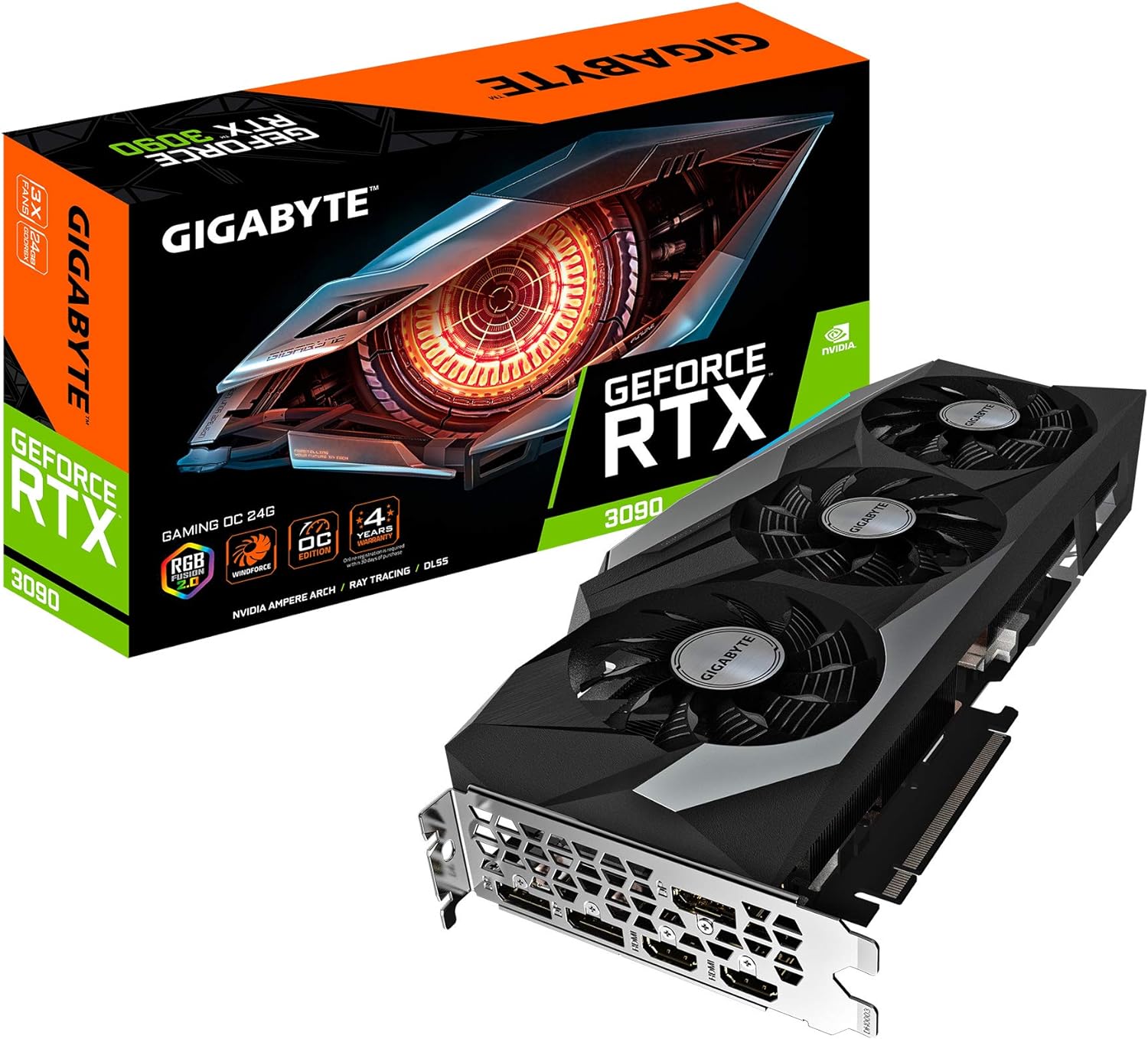
Figure 1.1: Gigabyte GeForce RTX 3090 GAMING OC 24G Graphics Card and Retail Box.
2. Package Contents
Please verify that all items are present in your package:
- GIGABYTE GeForce RTX 3090 GAMING OC 24G Graphics Card
- User Manual (this document)
3. Setup and Installation
3.1 System Requirements
- PCI Express-compliant motherboard with one dual-width x16 graphics slot
- Minimum 750W power supply unit (PSU) with two 8-pin PCIe power connectors
- Minimum 32GB system RAM recommended for optimal performance
- Compatible operating system (Windows 10 64-bit or later, Linux 64-bit)
- Sufficient space within your PC case to accommodate the card's dimensions (12.6 x 5.08 x 2.17 inches)
3.2 Physical Installation
- Prepare Your System: Turn off your computer and disconnect the power cable. Open your PC case.
- Locate PCIe Slot: Identify an available PCI Express x16 slot on your motherboard. This card requires a dual-width slot.
- Remove Slot Covers: Remove the two adjacent slot covers from your PC case corresponding to the chosen PCIe slot.
- Insert Graphics Card: Carefully align the graphics card with the PCIe slot and press down firmly until it is securely seated. Ensure the retention clip on the motherboard clicks into place.
- Secure the Card: Use screws to secure the graphics card to the PC case at the bracket.
- Connect Power Cables: Connect two 8-pin PCIe power cables from your power supply to the corresponding power connectors on the top edge of the graphics card. Ensure a secure connection.
- Close Case and Connect Peripherals: Close your PC case, reconnect the power cable, and connect your display cables (HDMI or DisplayPort) to the graphics card's output ports.

Figure 3.1: Front view of the graphics card, highlighting the WINDFORCE 3X cooling system.

Figure 3.2: Rear view of the graphics card, showing the protective metal back plate.

Figure 3.3: Display output ports, including HDMI and DisplayPort connectors.
4. Operating Instructions
4.1 Driver Installation
After physical installation, you must install the latest graphics drivers for optimal performance and stability.
- Boot System: Turn on your computer. Your operating system may detect new hardware and attempt to install generic drivers.
- Download Drivers: Visit the official GIGABYTE website or NVIDIA's official driver download page. Select your specific graphics card model (GeForce RTX 3090) and operating system.
- Install Drivers: Run the downloaded driver installer. Follow the on-screen prompts to complete the installation. It is recommended to perform a clean installation to avoid conflicts with previous drivers.
- Restart System: Restart your computer after the driver installation is complete.
4.2 Software Configuration
GIGABYTE provides utility software, such as AORUS ENGINE or RGB Fusion 2.0, which allows you to monitor card performance, adjust clock speeds, fan curves, and customize RGB lighting effects. Download these utilities from the GIGABYTE website to unlock the full potential of your graphics card.
5. Maintenance
Proper maintenance ensures the longevity and optimal performance of your graphics card.
- Dust Removal: Regularly clean dust from the fans and heatsink using compressed air. Ensure the system is powered off and unplugged before cleaning.
- Driver Updates: Keep your graphics drivers updated to the latest version to benefit from performance improvements and bug fixes.
- Temperature Monitoring: Use monitoring software to keep an eye on the GPU temperature, especially during heavy loads. Ensure adequate airflow within your PC case.
- Power Supply: Ensure your power supply unit (PSU) is sufficient and stable to meet the power demands of the graphics card.
6. Troubleshooting
This section addresses common issues you might encounter.
| Problem | Possible Cause | Solution |
|---|---|---|
| No display output | Incorrect cable connection, card not seated properly, power cables not connected | Ensure display cables are securely connected to the graphics card. Reseat the graphics card in the PCIe slot. Verify both 8-pin PCIe power connectors are firmly attached. |
| System crashes or freezes | Outdated drivers, overheating, insufficient PSU, unstable overclock | Update to the latest graphics drivers. Check GPU temperatures. Ensure your PSU meets the minimum requirement. Reset any overclock settings to default. |
| Fans are loud or not spinning | Dust accumulation, fan curve settings, normal operation under load | Clean dust from fans and heatsink. Check fan curve settings in GIGABYTE utility software. Fans may not spin at low temperatures (0dB feature) or spin faster under heavy load, which is normal. |
| Low performance in games/applications | Outdated drivers, incorrect game settings, background processes | Ensure latest drivers are installed. Verify game settings are appropriate for your system. Close unnecessary background applications. |
7. Technical Specifications
| Feature | Specification |
|---|---|
| Graphics Coprocessor | NVIDIA GeForce RTX 3090 |
| Video Memory | 24GB GDDR6X |
| Memory Interface | 384-bit |
| Memory Speed | 19500 MHz |
| Digital Max Resolution | 7680x4320 |
| Video Output Interface | DisplayPort, HDMI |
| Form Factor | ATX |
| Recommended PSU | 750W |
| CUDA Cores | 10496 |
| Item Dimensions (LxWxH) | 12.6 x 5.08 x 2.17 inches |
| Item Weight | 2.64 pounds |
8. Warranty and Support
The GIGABYTE GeForce RTX 3090 GAMING OC 24G Graphics Card comes with a 4-year warranty. Online registration is required to activate and validate your warranty. Please visit the official GIGABYTE website for detailed warranty terms and conditions, and for online registration.
For technical support, driver downloads, and further assistance, please visit the official GIGABYTE support website or contact their customer service directly. Keep your product's serial number and proof of purchase ready when seeking support.