
HUAWEI HW-WS7200-20-WHITE
Huawei WiFi AX3 WS7200 Wi-Fi 6 Plus Quad-core Router User Manual
Model: HW-WS7200-20-WHITE
1. Introduction
This manual provides comprehensive instructions for the setup, operation, maintenance, and troubleshooting of your Huawei WiFi AX3 WS7200 Wi-Fi 6 Plus Quad-core Router. Designed for enhanced home network performance, this router leverages Wi-Fi 6 Plus technology to deliver faster speeds and broader coverage. Please read this manual carefully before using the device to ensure optimal performance and safety.
2. Product Overview
The Huawei WiFi AX3 WS7200 is a high-performance Wi-Fi 6 Plus router engineered to provide a robust and efficient wireless network experience. It features a quad-core processor, advanced antenna design, and support for multiple connections, making it ideal for modern smart homes.
2.1 Key Features
- Multi-router mesh networking Wifi 6 Plus: Supports IEEE 802.11 a/b/g/n/ac/ax, allowing networking with old HUAWEI Wi-Fi routers (with H button) to expand network coverage.
- Multiple Connections: Supports OFDMA multi-user technology, capable of sending data to multiple devices simultaneously (max. 4 devices on 2.4 GHz, max. 16 devices on 5 GHz), connecting up to 128 devices overall on dual bands.
- CPU Performance: Powered by a quad-core Gigahome 1.4Ghz CPU with 12880 DMIPS for optimal speed.
- Better Wi-Fi Coverage: Features extra wide quad antennas with anti-interference design for strong signal and improved Wi-Fi coverage.
- 5GHz Preferred for Better Experience: Prioritizes 5 GHz Wi-Fi band over 2.4 GHz band when signal strength is equal to increase connection speeds.
2.2 Product Components and Interfaces

Figure 2.2.1: Front View of the Huawei WiFi AX3 Router. This image displays the sleek white design of the router with its four upright antennas, showcasing the "WiFi 6 Plus" branding on one of the antennas and the HUAWEI logo on the top surface.

Figure 2.2.2: Rear View of the Huawei WiFi AX3 Router. This image highlights the rear panel of the router, showing the power input, WAN port, three LAN ports (LAN1, LAN2, LAN3), and the Reset button. The antennas are folded back in this view.
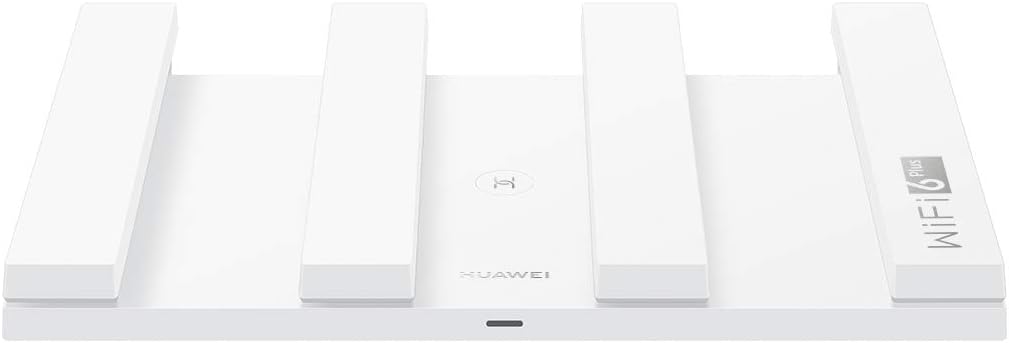
Figure 2.2.3: Top View of the Huawei WiFi AX3 Router. This image provides an overhead perspective of the router, showing the flat top surface with the HUAWEI logo and a central indicator light. The four antennas are visible in their upright position.

Figure 2.2.4: Bottom View of the Huawei WiFi AX3 Router. This image shows the underside of the router, revealing ventilation grilles and rubber feet for stability. There are also mounting holes for wall installation.
3. Setup Guide
Follow these steps to set up your Huawei WiFi AX3 WS7200 router for the first time.
- Unpack the Router: Carefully remove the router and all accessories from the packaging.
- Connect Power: Plug the power adapter into the router's power port (labeled "POWER" on the rear) and then into a power outlet. The indicator light on the router should turn on.
- Connect to Internet (WAN): Connect one end of an Ethernet cable to the WAN port (labeled "WAN" on the rear) of the router and the other end to your modem or optical network terminal (ONT).
- Connect to Devices (LAN - Optional): For wired connections, connect Ethernet cables from your computers or other network devices to the LAN ports (LAN1, LAN2, LAN3) on the router.
- Initial Configuration:
- On a computer or mobile device, connect to the router's default Wi-Fi network (usually printed on a label on the bottom of the router).
- Open a web browser and enter the default IP address (e.g., 192.168.3.1 or hiwifi.com) to access the router's web-based management page.
- Follow the on-screen instructions to set up your internet connection, Wi-Fi name (SSID), and password.
- Placement: Place the router in a central location in your home, away from obstructions and sources of interference (e.g., microwaves, cordless phones) to ensure optimal Wi-Fi coverage.
4. Operating Instructions
4.1 Connecting to Wi-Fi
To connect your devices to the router's Wi-Fi network:
- On your device (smartphone, tablet, laptop), go to Wi-Fi settings.
- Select your Wi-Fi network name (SSID) from the list of available networks.
- Enter your Wi-Fi password when prompted.
- Your device should now be connected to the internet.
4.2 Managing Your Network
You can manage your router settings via the web-based management page or the HUAWEI AI Life app (if available for your region).
- Web Interface: Access by typing the router's IP address (e.g., 192.168.3.1) into a web browser. Here you can configure advanced settings, view connected devices, and update firmware.
- Mesh Networking: To expand your network coverage, press the "H" button on your Huawei WiFi AX3 and on another compatible Huawei router to establish a mesh network. Refer to the specific instructions for mesh setup in the router's digital manual or the HUAWEI AI Life app.
- Guest Wi-Fi: Create a separate Wi-Fi network for guests to provide internet access without sharing your main network password.
- Parental Controls: Manage internet access times and content filtering for specific devices.
5. Maintenance
Regular maintenance helps ensure the longevity and optimal performance of your router.
- Keep it Clean: Gently wipe the router with a soft, dry cloth. Avoid using liquid cleaners or aerosols. Ensure ventilation holes are not blocked.
- Firmware Updates: Periodically check for and install firmware updates through the router's web interface or the HUAWEI AI Life app. Updates often include performance improvements, security patches, and new features.
- Restart Periodically: Restarting your router every few weeks can help clear its memory and resolve minor performance issues. Simply unplug the power adapter for 10 seconds and then plug it back in.
- Secure Your Network: Use a strong, unique password for your Wi-Fi network and router's administration page. Consider enabling WPA3 encryption if supported by your devices.
6. Troubleshooting
If you encounter issues with your router, try the following troubleshooting steps:
- No Internet Connection:
- Check if the WAN indicator light on the router is on.
- Ensure the Ethernet cable from your modem to the router's WAN port is securely connected.
- Restart both your modem and router.
- Contact your Internet Service Provider (ISP) to confirm there are no service outages.
- Slow Wi-Fi Speed:
- Ensure your devices are connected to the 5GHz band if possible.
- Move closer to the router or consider adding a mesh node for better coverage.
- Check for interference from other electronic devices.
- Limit the number of active devices or bandwidth-intensive activities.
- Cannot Access Router Management Page:
- Ensure your device is connected to the router's network (wired or wireless).
- Verify you are entering the correct IP address (e.g., 192.168.3.1) or domain (hiwifi.com) in your browser.
- Try clearing your browser's cache or using a different browser.
- Forgot Wi-Fi Password or Admin Password:
- You can reset the router to factory default settings by pressing and holding the "Reset" button on the back of the router for approximately 10 seconds while the router is powered on. Warning: This will erase all your custom settings.
7. Technical Specifications
| Feature | Detail |
|---|---|
| Brand | HUAWEI |
| Model Name | WS7200 |
| Item Model Number | HW-WS7200-20-WHITE |
| Wireless Type | 802.11ax (Wi-Fi 6 Plus) |
| Frequency Band Class | Dual-Band (2.4 GHz & 5 GHz) |
| Frequency | 160 MHz |
| Connectivity Technology | Wi-Fi, Ethernet |
| Operating System | RouterOS |
| Item Weight | 1.72 pounds (approx. 0.78 kg) |
| Product Dimensions (LxWxH) | 8.86 x 6.27 x 0.16 inches (approx. 22.5 x 15.9 x 0.4 cm) |
| Color | White |
| Voltage | 54 Millivolts |
| Special Feature | WPS |
| Recommended Uses For Product | Home |
8. Warranty and Support
Your Huawei WiFi AX3 WS7200 router comes with a standard manufacturer's warranty. Please refer to the warranty card included in your product packaging for specific terms and conditions, including warranty period and coverage details.
For technical support, troubleshooting assistance, or warranty claims, please visit the official HUAWEI support website or contact their customer service. Keep your purchase receipt and product serial number handy when seeking support.
Online Support: consumer.huawei.com/en/support/
Note: Support contact methods may vary by region. Please check the official website for the most accurate and up-to-date information.
Related documentsHW-WS7200-20-WHITE


Ask a question about this manual
Ask about setup, troubleshooting, compatibility, parts, safety, or missing instructions. Manuals+ will review the question and use this page’s manual context to help answer it.