
enfizi Enf510
Enfizi Enf510 Call Blocker Instruction Manual
Model: Enf510
1. Introduction
The Enfizi Enf510 Call Blocker is designed to help manage and block unwanted calls on analog landline telephones, cordless phones, and answering machines. This device helps reduce interruptions from spam, scam, and robocalls, enhancing your phone experience. It operates by intercepting incoming calls and comparing them against pre-loaded and user-defined block lists.
Important Note: The Enf510 requires Caller ID service from your phone line provider to function correctly.
2. Package Contents
Please ensure all items are present in the package:
- Enfizi Enf510 Call Blocker Unit
- Short black telephone cable (jumper cable)
- Instruction Manual

Image: The Enfizi Enf510 Call Blocker unit and its packaging, showing the compact device and included cables.
3. Setup and Installation
The Enfizi Enf510 Call Blocker is designed for easy installation and does not require external power, drawing power directly from the telephone line.
- Step 1: Disconnect Telephone Line
Unplug the existing telephone line cable from the back of your telephone or answering machine. - Step 2: Connect to Call Blocker's LINE Port
Plug the telephone line cable (the one you just unplugged from your phone) into the port labeled "TEL LINE" on the Enf510 Call Blocker. - Step 3: Connect Call Blocker to Telephone
Using the short black cable provided, plug one end into the port labeled "TEL" on the Enf510 Call Blocker. Plug the other end of this short cable into the telephone line port on your telephone or answering machine.
The Call Blocker is now installed and ready for use. It will automatically power on once connected to the telephone line.

Image: Visual guide for connecting the Enfizi Enf510 Call Blocker. The telephone line plugs into the "TEL LINE" port, and a short cable connects the "TEL" port to the telephone.
Video: This video demonstrates the simple setup process for the Enfizi Enf510 Call Blocker, showing how to connect it to your existing landline phone system.
4. Operating Instructions
4.1. Blocking Unwanted Calls
The Enf510 offers multiple ways to block unwanted calls:
- Manual Blocking (During a Call): If you receive an unwanted call, simply press the large red BLOCK button on the Enf510 unit. The call will be immediately disconnected, and the number will be added to your block list.
- Manual Blocking (Using Phone Keypad): If you are not near the Enf510 unit during an unwanted call, you can press "#" then "6" on your telephone keypad. This will also immediately cut off the call and add the number to the block list.
- Blocking from Call List: After a call, you can browse the "CALL LIST" on the Enf510. If you find an unwanted number, select it and press the BLOCK button to add it to the block list.
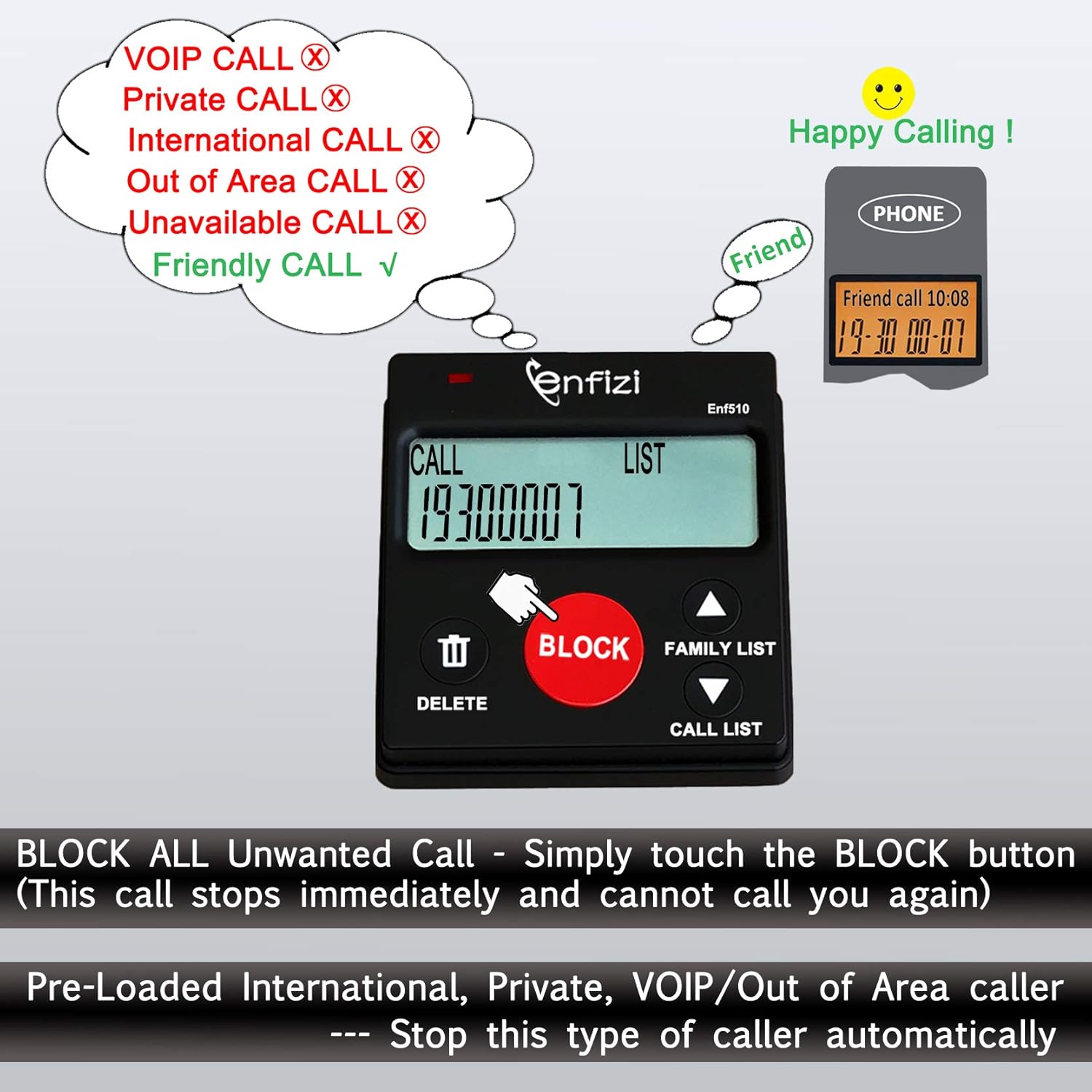
Image: The Enfizi Enf510 Call Blocker screen showing "BLOCK SUCCESSFUL" after a call has been blocked using the device's red button.

Image: A diagram explaining the call blocking logic: calls matching the Family List are allowed, calls matching the Block List are blocked, and unknown calls can be manually blocked.
4.2. Family List
The "FAMILY LIST" feature allows you to whitelist important numbers, ensuring they are never blocked, even if they match a pattern in the block database. This prevents accidental blocking of friends or family.
- To add a number to the Family List, use the FAMILY LIST buttons (up/down arrows) to navigate and select the number, then confirm.
- Numbers in the Family List can call you at any time and cannot be blocked by any method.
- The Enf510 supports a Family List capacity of up to 16 numbers.

Image: The Enfizi Enf510 Call Blocker highlighting the "FAMILY LIST" and "CALL LIST" buttons, with descriptions of their respective functions.
4.3. Call List
The "CALL LIST" records the last 20 incoming calls, including those that were blocked. This allows you to review recent calls and manually add unwanted numbers to the block list if they were not blocked automatically.
- To view the Call List, press the CALL LIST button.
- Use the up/down arrow buttons to scroll through the recorded numbers.
- New calls will overwrite the oldest entries once the list is full.
4.4. Deleting Numbers
To remove a number from the Block List or Family List:
- Navigate to the desired list (Block List or Family List).
- Use the up/down arrow buttons to select the number you wish to delete.
- Press the DELETE button (trash can icon) to remove the number.
5. Advanced Blocking Features
The Enf510 comes with robust features to combat various types of unwanted calls:
- Preloaded Block List: The device is preloaded with over 4000 frequently complained caller numbers, offering immediate protection against known spam and scam calls.
- Manual Block Capacity: You can manually add up to 3000 numbers to your personal block list.
- Blocking by Area Code/Prefix: The Enf510 allows you to block entire area codes or numbers that start with specific fixed digits (e.g., 00, 443, 800, 855, 999).
- Blocking Specific Call Types: You can configure the device to block International, Private/WITHHELD, VOIP/Out of Area, and Unavailable numbers. These settings are typically "On" by default for International, VOIP/Out of Area, and Private numbers, while "Unavailable numbers" is "Off" by default.

Image: The Enfizi Enf510 Call Blocker showing its blocking capacity (3072 numbers) and the functions of the Family List (16 numbers) and Call List (20 numbers).

Image: The Enfizi Enf510 Call Blocker's display indicating various call types that can be blocked, such as VOIP, Private, International, Out of Area, and Unavailable numbers, with their default settings.

Image: A visual representation of the Enfizi Enf510 Call Blocker's feature to block numbers based on their initial digits or area codes, helping to prevent unwanted calls.
6. Specifications
| Feature | Detail |
|---|---|
| Model Number | Enf510 |
| Product Dimensions (L x W x H) | 3.5 x 3.31 x 0.98 inches |
| Item Weight | 5 ounces |
| Power Source | Telephone line (no external power adapter needed) |
| Compatible Devices | All analog phones (landline, cordless, answering machines). Not compatible with digital or internet phones. |
| Preloaded Block Capacity | 4000+ numbers |
| Manual Block Capacity | 3000+ numbers |
| Family List Capacity | 16 numbers |
| Call List Capacity | 20 recent calls |

Image: The physical dimensions of the Enfizi Enf510 Call Blocker, illustrating its compact size.
7. Troubleshooting
If you encounter issues with your Enfizi Enf510 Call Blocker, please refer to the following common solutions:
- Device Not Powering On: Ensure the telephone line cable is securely connected to the "TEL LINE" port on the Enf510 and that your telephone line is active. The device draws power directly from the line.
- Calls Not Being Blocked:
- Verify that Caller ID service is active on your phone line. The Enf510 relies on Caller ID information.
- Check if the number is on your "FAMILY LIST". Numbers on this list will not be blocked.
- Ensure the number is correctly added to your block list.
- Some new variant numbers may bypass the preloaded database. Manually block these numbers using the BLOCK button or by pressing "#6" on your phone.
- Display Not Showing Caller Name: The Enf510 is designed to display only the caller's number, not their name. This is normal operation.
- Intermittent Issues: Ensure all cables are securely connected and free from damage. Try unplugging and re-plugging the device to reset it.
8. Maintenance
To ensure the longevity and optimal performance of your Enfizi Enf510 Call Blocker:
- Keep the device in a dry, dust-free environment.
- Clean the exterior with a soft, dry cloth. Avoid using liquid cleaners or abrasive materials.
- Do not attempt to open or repair the device yourself, as this will void the warranty.
9. Warranty and Support
Enfizi Technology Co., Ltd. is the manufacturer of the Enf510 Call Blocker.
For specific warranty details and technical support, please refer to the documentation included with your product or visit the official Enfizi website. Additional protection plans (e.g., 3-Year or 4-Year Protection Plans) may be available for purchase from your retailer.

Image: Enfizi logo, identifying the manufacturer.
Ask a question about this manual
Ask about setup, troubleshooting, compatibility, parts, safety, or missing instructions. Manuals+ will review the question and use this page’s manual context to help answer it.