
1. Introduction
Thank you for choosing the Hama Wi-Fi GU10 Smart LED Lamp. This smart home lamp allows for intelligent light control in your home, functioning as a light source, effect lighting, or for creating special lighting atmospheres. It is designed for easy use via an application and voice control, requiring no additional hub or gateway as it connects directly to your Wi-Fi router. This manual provides essential information for safe installation, setup, and operation of your smart lamp.
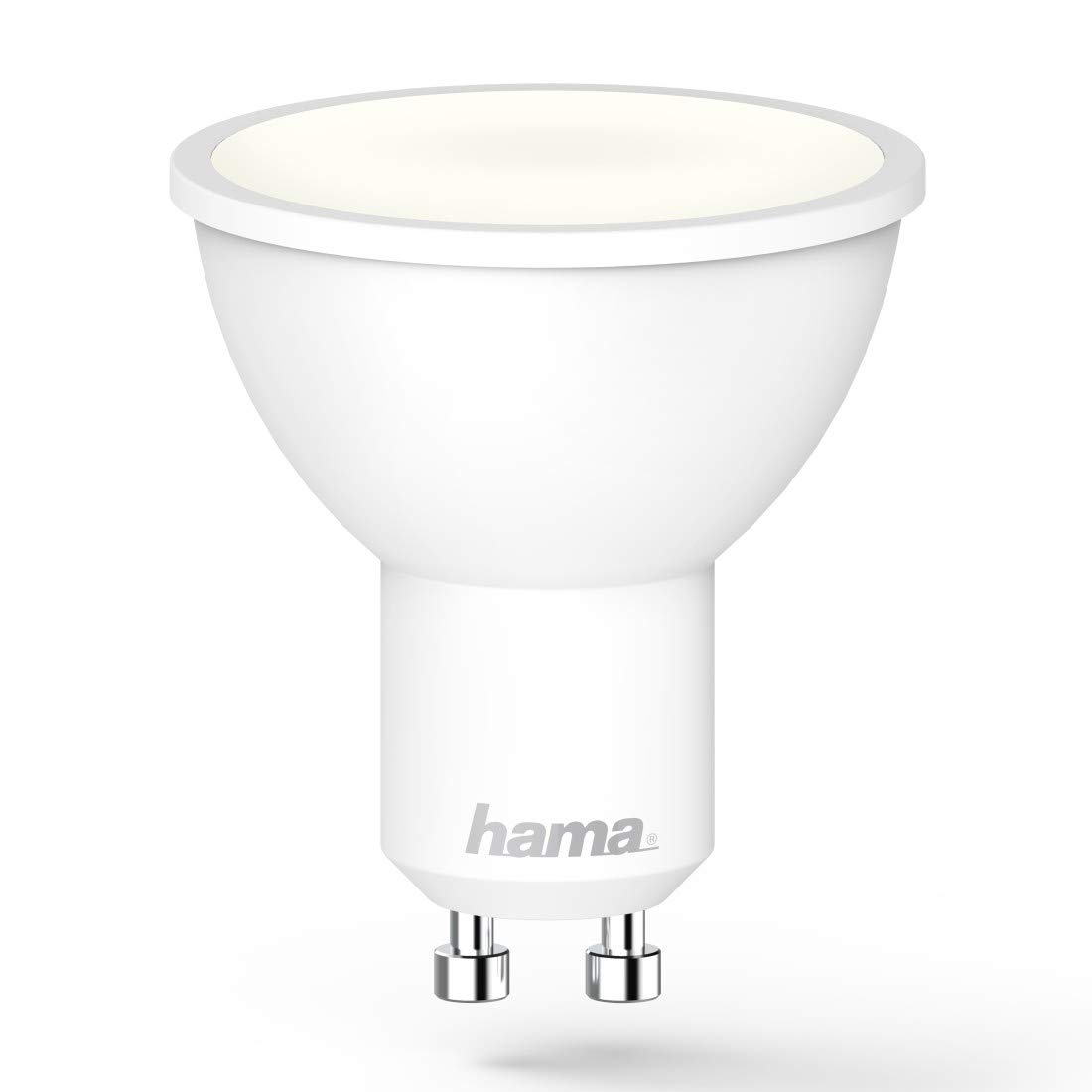
Image 1.1: The Hama GU10 Smart LED Lamp, highlighting its key features including app and voice control, and direct Wi-Fi connectivity.
2. Safety Instructions
Please read these safety instructions carefully before installing or using the product. Keep this manual in a safe place for future reference.
- Electrical Safety: Always disconnect power before installing or replacing the lamp. Installation should only be performed by a qualified electrician if you are unsure.
- Indoor Use Only: This lamp is designed for indoor use in dry environments (IP20). Do not expose it to moisture or extreme temperatures.
- Compatibility: Ensure the lamp holder is compatible with the GU10 base and the electrical supply (230V).
- Heat: The lamp may generate heat during operation. Ensure adequate ventilation and do not cover the lamp.
- Dimming: This lamp is dimmable via the application or voice control. Do not use external dimmers unless specifically designed for smart LED lamps.
- Children: Keep packaging materials away from children due to choking hazards.
3. Package Contents
Please check that all items are present and in good condition:
- 1x Hama Wi-Fi GU10 Smart LED Lamp
- 1x Quick Start Guide
4. Installation
Follow these steps to install your Hama Wi-Fi GU10 Smart LED Lamp:
- Turn off Power: Before installation, ensure the power supply to the lamp holder is switched off at the main circuit breaker.
- Insert Lamp: Carefully insert the Hama Wi-Fi GU10 Smart LED Lamp into the GU10 lamp holder. Twist it gently until it is securely in place.
- Restore Power: Once the lamp is securely installed, restore power at the main circuit breaker. The lamp should briefly flash, indicating it is ready for pairing.
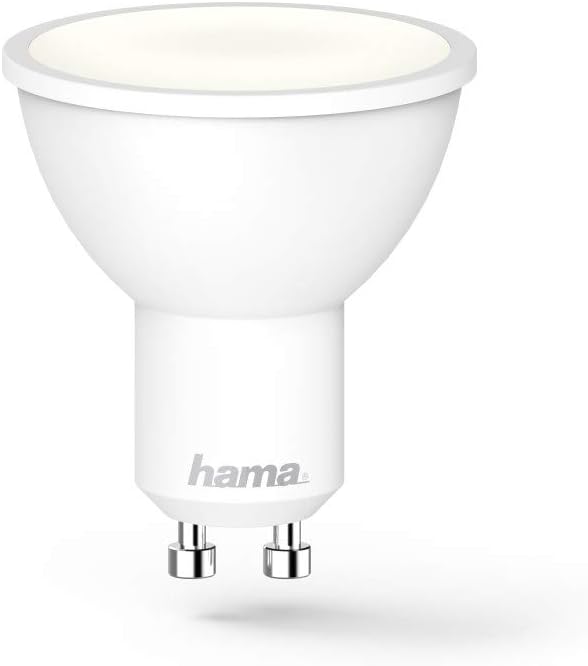
Image 4.1: A detailed view of the Hama GU10 Smart LED Lamp, showing its GU10 base.
5. Connecting to Wi-Fi and App Setup
The Hama Wi-Fi GU10 Smart LED Lamp connects directly to your home Wi-Fi network without the need for a separate hub.
- Download the App: Download the "Hama Smart Home" app from the Apple App Store (for iOS) or Google Play Store (for Android).
- Create Account: Open the app and create a new user account or log in if you already have one.
- Add Device: In the app, select the option to add a new device. Follow the on-screen instructions to put the lamp into pairing mode (usually by turning it on/off a few times until it flashes).
- Connect to Wi-Fi: The app will guide you through connecting the lamp to your 2.4 GHz Wi-Fi network. Ensure your smartphone is connected to the same Wi-Fi network during setup.
- Name Device: Once connected, you can assign a name to your lamp (e.g., "Living Room Lamp") for easier control.

Image 5.1: A smartphone showing the Hama Smart Home application, used for controlling the smart lamp and other devices.
6. Operating the Smart Lamp
6.1. App Control
The Hama Smart Home app provides full control over your lamp:
- On/Off: Toggle the lamp on or off.
- Brightness: Adjust the brightness level (dimmable).
- Color Temperature: Change the color temperature from warm white (2700K) to daylight white (6500K).
- Scenes and Groups: Create custom lighting scenes or group multiple lamps together for synchronized control.
- Time Control: Set schedules for the lamp to turn on or off at specific times.

Image 6.1: A user adjusting the brightness and color temperature of the smart lamp via the Hama Smart Home app.
6.2. Voice Control
The Hama Wi-Fi GU10 Smart LED Lamp is compatible with popular voice assistants:
- Amazon Alexa: Enable the "Hama Smart Home" skill in the Alexa app and link your Hama account.
- Google Assistant: Activate the "Hama Smart Home" service in the Google Home app and link your Hama account.
- Siri Shortcuts: Create custom shortcuts for quick control.
Once linked, you can use voice commands such as:
- "Alexa, turn on Living Room Lamp."
- "Hey Google, dim Kitchen Light to 50%."
- "Alexa, set Bedroom Light to warm white."

Image 6.2: The Hama Smart LED Lamp integrates with various smart home platforms for voice control.
6.3. Color Temperature and Dimming
The lamp offers a wide range of color temperatures and dimming capabilities to suit different moods and activities:
- Warm White (2700K): Ideal for relaxing evenings and cozy atmospheres.
- Daylight White (6500K): Suitable for tasks requiring bright, clear light, such as working or cooking.
- Dimmable: Adjust the light intensity from 1% to 100% via the app or voice commands.
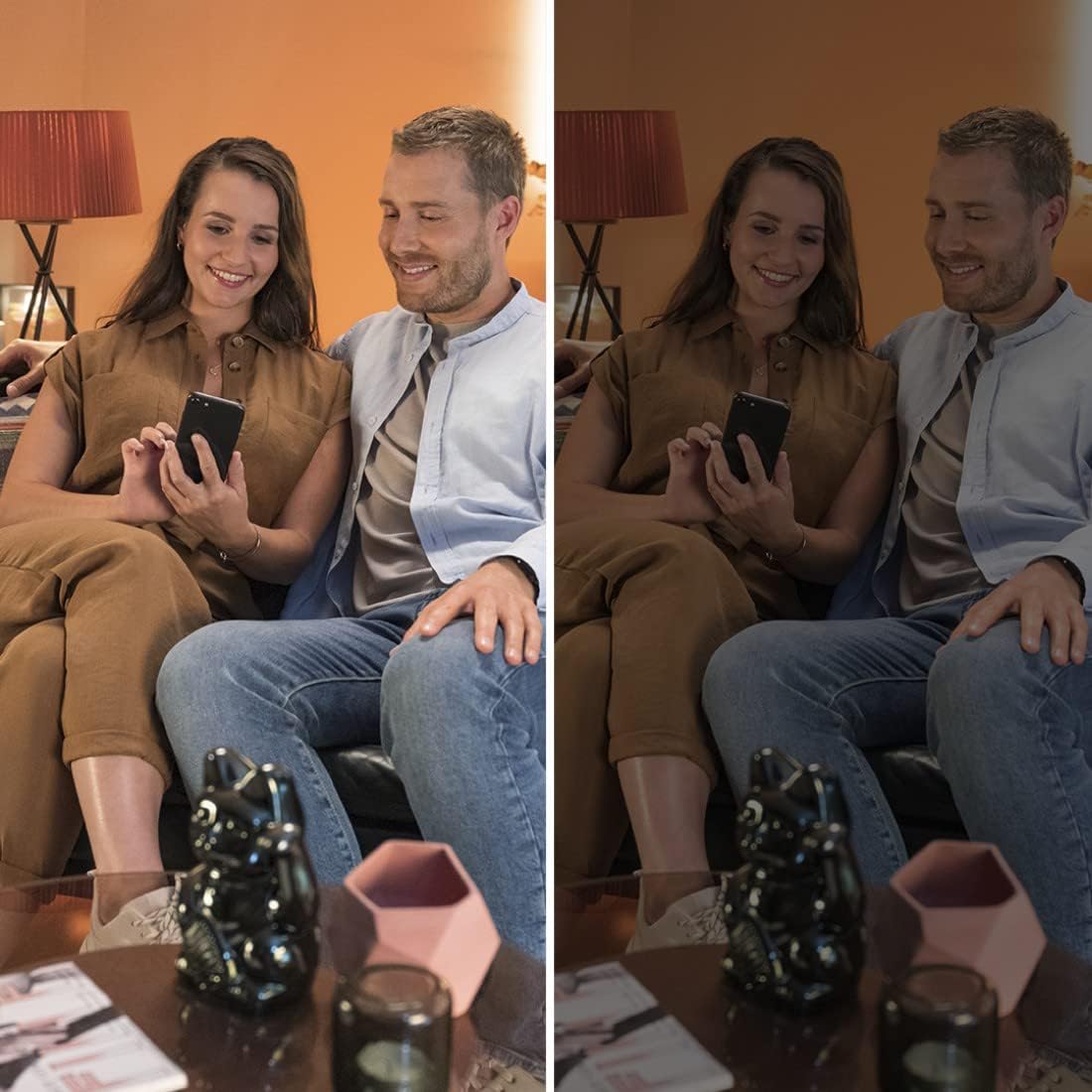
Image 6.3: Demonstrating the dimming capability of the Hama Smart LED Lamp, creating different ambiances.
7. Maintenance and Care
To ensure optimal performance and longevity of your Hama Wi-Fi GU10 Smart LED Lamp, follow these maintenance guidelines:
- Cleaning: Disconnect power before cleaning. Use a dry, soft, lint-free cloth to wipe the lamp. Do not use abrasive cleaners, solvents, or wet cloths, as these can damage the surface or internal components.
- Storage: If storing the lamp for an extended period, keep it in a cool, dry place away from direct sunlight and extreme temperatures.
- No User-Serviceable Parts: The lamp contains no user-serviceable parts. Do not attempt to open or repair the lamp yourself. This will void the warranty and may pose a safety risk.
8. Troubleshooting
If you encounter issues with your Hama Wi-Fi GU10 Smart LED Lamp, refer to the following common problems and solutions:
| Problem | Possible Cause | Solution |
|---|---|---|
| Lamp does not turn on. | No power supply; lamp not properly installed; faulty lamp. | Check power supply; ensure lamp is securely twisted into the holder; test with another lamp if possible. |
| Lamp is not connecting to Wi-Fi / App. | Incorrect Wi-Fi password; 5 GHz Wi-Fi network; lamp not in pairing mode; Wi-Fi signal too weak. | Verify Wi-Fi password; ensure you are using a 2.4 GHz network; follow app instructions to re-enter pairing mode; move router closer or use a Wi-Fi extender. |
| Lamp frequently desynchronizes or flickers. | Unstable Wi-Fi connection; interference; firmware issue. | Ensure strong Wi-Fi signal; restart router; check for app updates and lamp firmware updates; if problem persists, contact Hama support. |
| Voice control not working. | Voice assistant not linked; incorrect device name; internet connection issue. | Ensure Hama Smart Home skill/service is enabled and linked in your voice assistant app; use the exact device name; check internet connection. |
9. Technical Specifications
| Feature | Specification |
|---|---|
| Model Number | 00176585 |
| Lamp Type | LED |
| Base Type | GU10 |
| Power Consumption | 5.5 W |
| Equivalent Incandescent Power | 40 W |
| Luminous Flux | 400 lm |
| Color Temperature | 2700 K (Warm White) - 6500 K (Daylight White) |
| Color Rendering Index (CRI) | RA (min.) 80 |
| Dimmable | Yes (via app/voice) |
| Voltage | 230 V |
| Frequency | 50 Hz / 60 Hz |
| Wi-Fi Frequency Band | 2.4 GHz |
| Beam Angle | 120° |
| Rated Lifetime | 25,000 h |
| Energy Efficiency Class | G |
| Dimensions (L x W x H) | 50 mm x 50 mm x 56.5 mm (Reflector shape) |
| Weight | 90 g |
| Operating System Requirements | Android 4.4 or higher, iOS 8.0 or higher |

Image 9.1: Official Product Information Sheet with detailed technical data. For more details, visit EPREL Database.

Image 9.2: Energy Efficiency Label, indicating a 'G' rating for the Hama GU10 Smart LED Lamp.
10. Disposal Information
According to European Directive 2012/19/EU on Waste Electrical and Electronic Equipment (WEEE), electrical and electronic devices must not be disposed of with household waste. Consumers are obliged by law to return electrical and electronic devices at the end of their service lives to the public collection points set up for this purpose or point of sale.
The symbol on the product, the instruction manual, or the packaging indicates that a product is subject to these regulations. By recycling, reusing the materials, or other forms of utilising old devices, you are making an important contribution to protecting our environment.
For proper disposal, please take this product to a designated recycling center or collection point.
11. Warranty and Support
Hama GmbH & Co KG assumes no liability and provides no warranty for damage resulting from improper installation/mounting, improper use of the product, or failure to observe the operating instructions and/or safety notes.
For technical support or warranty claims, please contact your retailer or the Hama customer service department. Please have your proof of purchase and model number (00176585) ready.
Information regarding spare parts availability and guaranteed software updates is not available at this time.


