1. Introduction
Thank you for choosing the ANKEWAY Android 9.1 Car Radio. This multimedia platform is designed to enhance your driving experience with advanced features such as GPS navigation, FM radio, Bluetooth hands-free calling, WiFi internet access, and mirror link functionality. This manual provides detailed instructions for installation, operation, and troubleshooting to ensure optimal performance and user satisfaction.
For safety and proper functionality, it is highly recommended to have the unit installed by a professional electrician.
2. Key Features
- Operating System: Android 9.1 for smooth performance and access to various applications.
- Display: 7.0-inch 1080P HD Capacitive Touch Screen with 2.5D curved tempered glass, offering high resolution and sensitivity.
- Navigation: Integrated GPS navigation with pre-loaded European map data and support for online mapping applications.
- Connectivity: Built-in Bluetooth for hands-free calls and wireless music streaming, WiFi for internet access via hotspot, and Mirror Link (Easy Connection) for Android and iOS devices.
- Multimedia: Dual USB inputs, built-in microphone, support for driving recorder, and 4x60W subwoofer audio output.
- Radio: FM radio with 18 preset stations.
- Rear View Camera: Includes a reversing camera for enhanced safety during parking.
- Steering Wheel Control (SWC): Supports original steering wheel controls for convenient operation.
- Customization: Adjustable sound effects, music styles, and car boot logos.
- Multi-language Support: English, French, Italian, German, Spanish, Portuguese, Chinese, Japanese, and more.
3. Package Contents
Please verify that all items are present in the package:
- ANKEWAY Android Car Radio Main Unit
- Power Cables
- GPS Antenna
- USB Cables (x2)
- Rear View Camera
- Mounting Brackets and Screws
- RCA Cables
- User Manual (Printed)
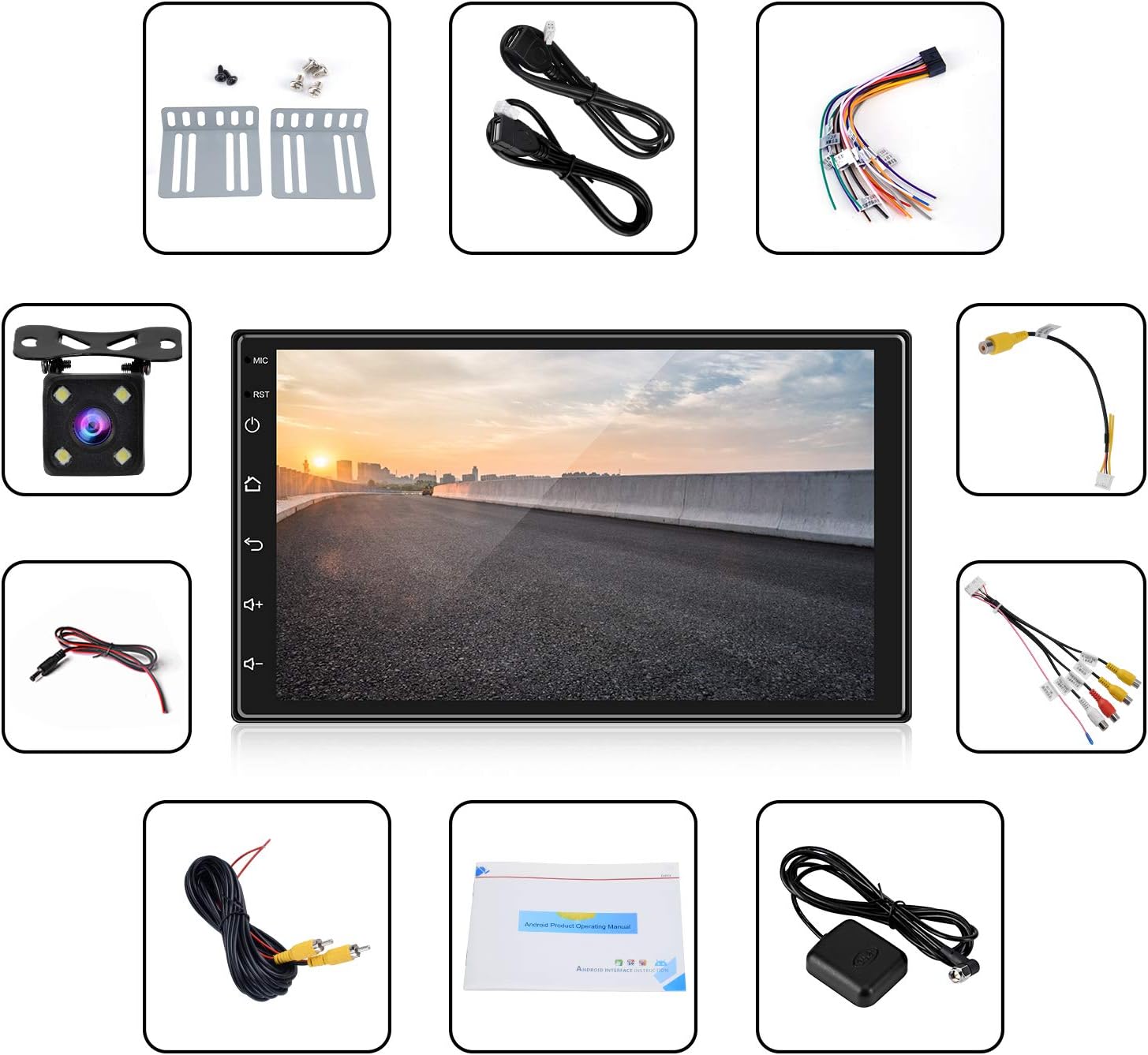
Image: Contents of the ANKEWAY car radio package, showing the main unit, various cables (power, USB, RCA), GPS antenna, rear view camera, mounting brackets, and the printed user manual.
4. Specifications
| Specification | Value |
|---|---|
| Brand | ANKEWAY |
| Connectivity Technology | Auxiliary, Bluetooth, USB, Wi-Fi |
| Compatible Devices | Smartphone |
| Item Weight | 525 Grams |
| Number of Channels | 6 |
| Output Power | 60 Watts |
| Supported Internet Services | Spotify, YouTube |
| Manufacturer | ANKEWAY |

Image: Diagram showing the dimensions of the 7-inch car radio unit: 17.8 cm width, 10.2 cm height, and 4.9 cm depth.
5. Setup and Installation
Due to the complexity of vehicle electrical systems, professional installation is strongly recommended. Incorrect wiring can damage the unit or your vehicle.
5.1 Wiring Diagram
Refer to the following diagram for proper wiring connections. Ensure all connections are secure and insulated.

Image: Detailed wiring diagram for the ANKEWAY car radio, illustrating connections for ACC, B+, GND, KEY1, KEY2, BACK (Reverse Lamp Control), ANT CONT, speaker outputs (FR+, FR-, FL+, FL-, RL+, RL-, RR+, RR-), MIC port, VIDEO IN, VIDEO OUT, AUDIO OUT-R, AUDIO OUT-L, AMP (DC-12V), Bluetooth antenna, WiFi antenna, and Backup Camera.
5.2 Mounting
Use the provided mounting brackets and screws to secure the unit in your vehicle's 2 DIN slot. Ensure the unit is firmly in place to prevent vibration and damage.
6. Operating Instructions
6.1 Power On/Off
Press the power button (usually located on the front panel or a designated icon on the screen) to turn the unit on or off. The unit will typically power on automatically when the vehicle's ignition is turned on.
6.2 Touch Screen Operation
The unit features a highly responsive capacitive touch screen. Navigate through menus, select applications, and control functions by tapping, swiping, and dragging on the screen.
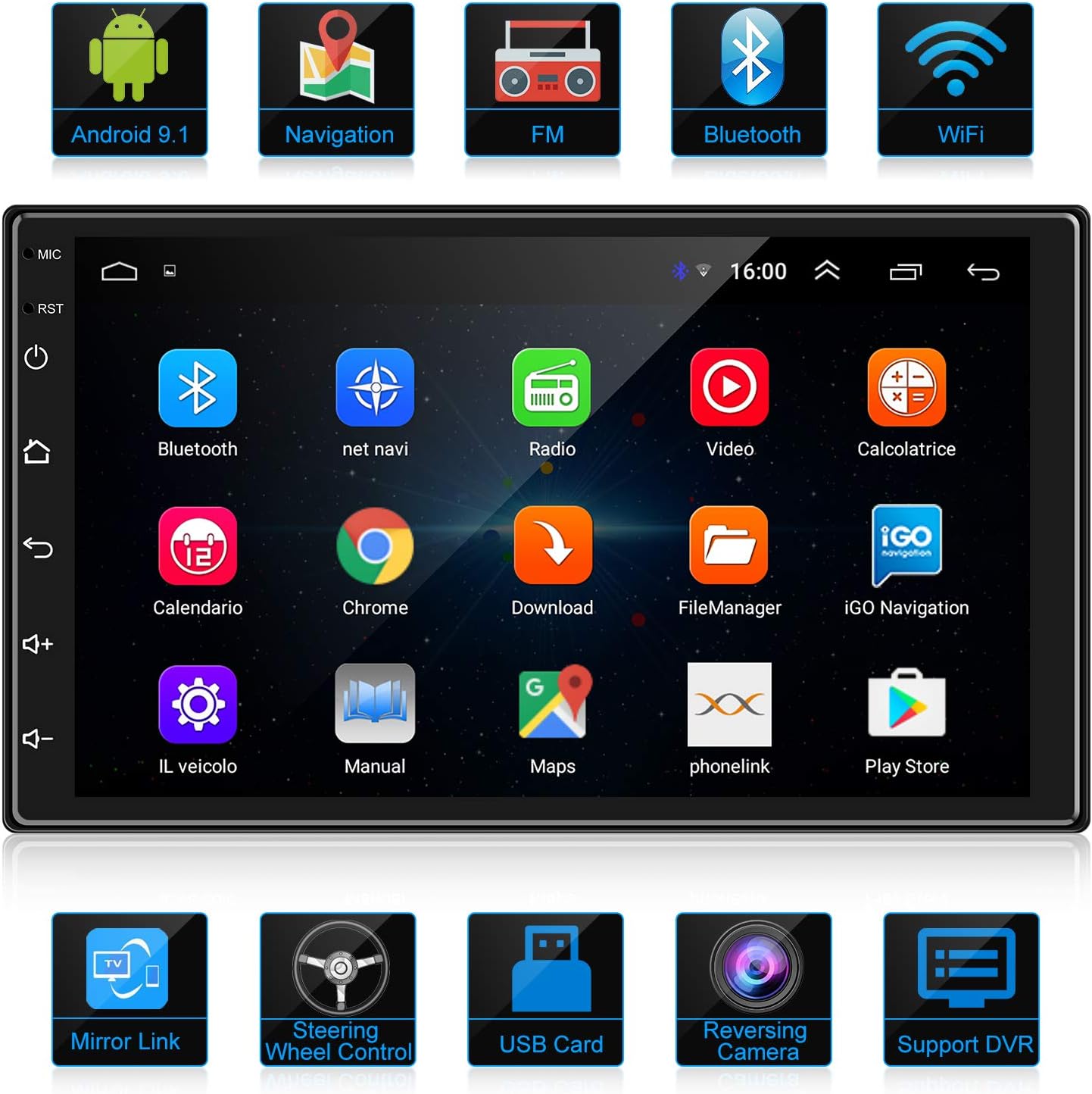
Image: The main user interface of the ANKEWAY car radio, displaying a grid of application icons for various functions such as Bluetooth, Navigation, Radio, Video, and more.
6.3 Steering Wheel Control (SWC)
If your vehicle supports steering wheel controls, you can configure them to operate the car radio. Access the 'Steering Learn' or 'SWC Settings' menu in the system settings to map your vehicle's steering wheel buttons to the radio's functions.
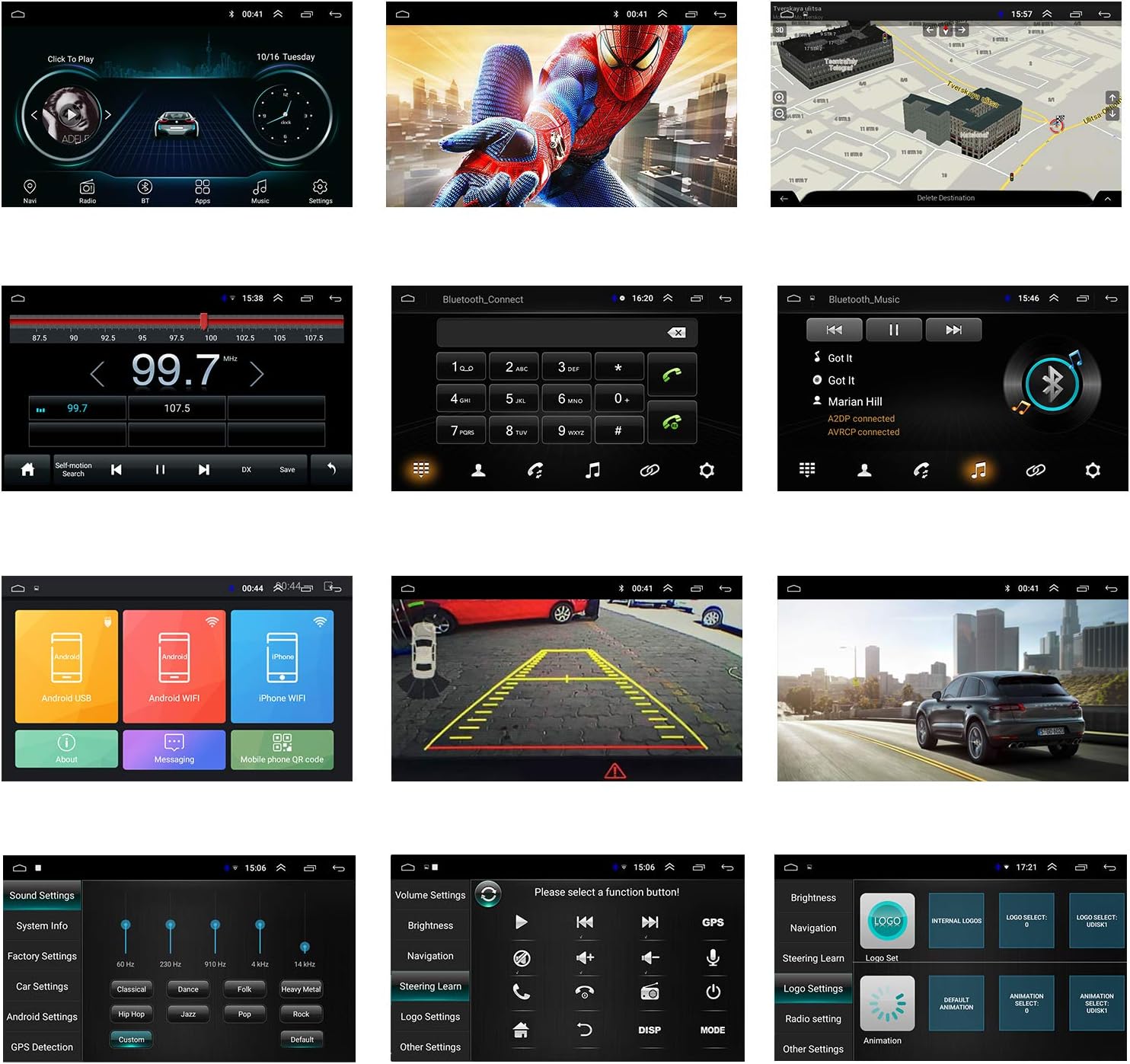
Image: The steering wheel control learning interface, allowing users to assign functions like volume, navigation, and call control to their vehicle's steering wheel buttons.
7. Connectivity
7.1 Bluetooth
Pair your mobile phone via Bluetooth for hands-free calling and wireless audio streaming. Go to the Bluetooth settings on the car radio, enable Bluetooth, and search for available devices on your phone. Select 'ANKEWAY' (or similar name) to pair. Once connected, you can make/receive calls and play music directly from your phone.

Image: The Bluetooth interface showing options for making calls and streaming music, with a visual of a user making a hands-free call.
7.2 WiFi
Connect the car radio to the internet by enabling WiFi and connecting to a mobile hotspot or a local WiFi network. This allows you to use online applications like YouTube, Spotify, and web browsing.

Image: The car radio screen demonstrating WiFi connectivity, showing YouTube content being streamed, with a smartphone on the left indicating a personal hotspot connection.
7.3 Mirror Link (Easy Connection)
The Mirror Link function allows you to project your smartphone's screen onto the car radio display. This supports both Android and iOS devices. Use the 'Easy Connection' application on the unit to establish the link, either via USB or WiFi, for a 1080P HD mirrored experience.

Image: The car radio screen showing a mirrored display from a smartphone, illustrating the 'Easy Connection' or Mirror Link feature for both Android and iOS devices.
8. Navigation
The unit comes with pre-installed European GPS map data. To use navigation, ensure the GPS antenna is properly connected and positioned for optimal signal reception. You can also download and use other navigation applications from the Google Play Store via WiFi.

Image: The car radio screen showing a detailed navigation map, indicating routes and points of interest, with a car driving on a road in the foreground.
9. Radio Function
Access the FM radio function from the main menu. You can manually tune to stations or use the automatic scan feature to find and save available stations. The unit supports 18 FM presets.
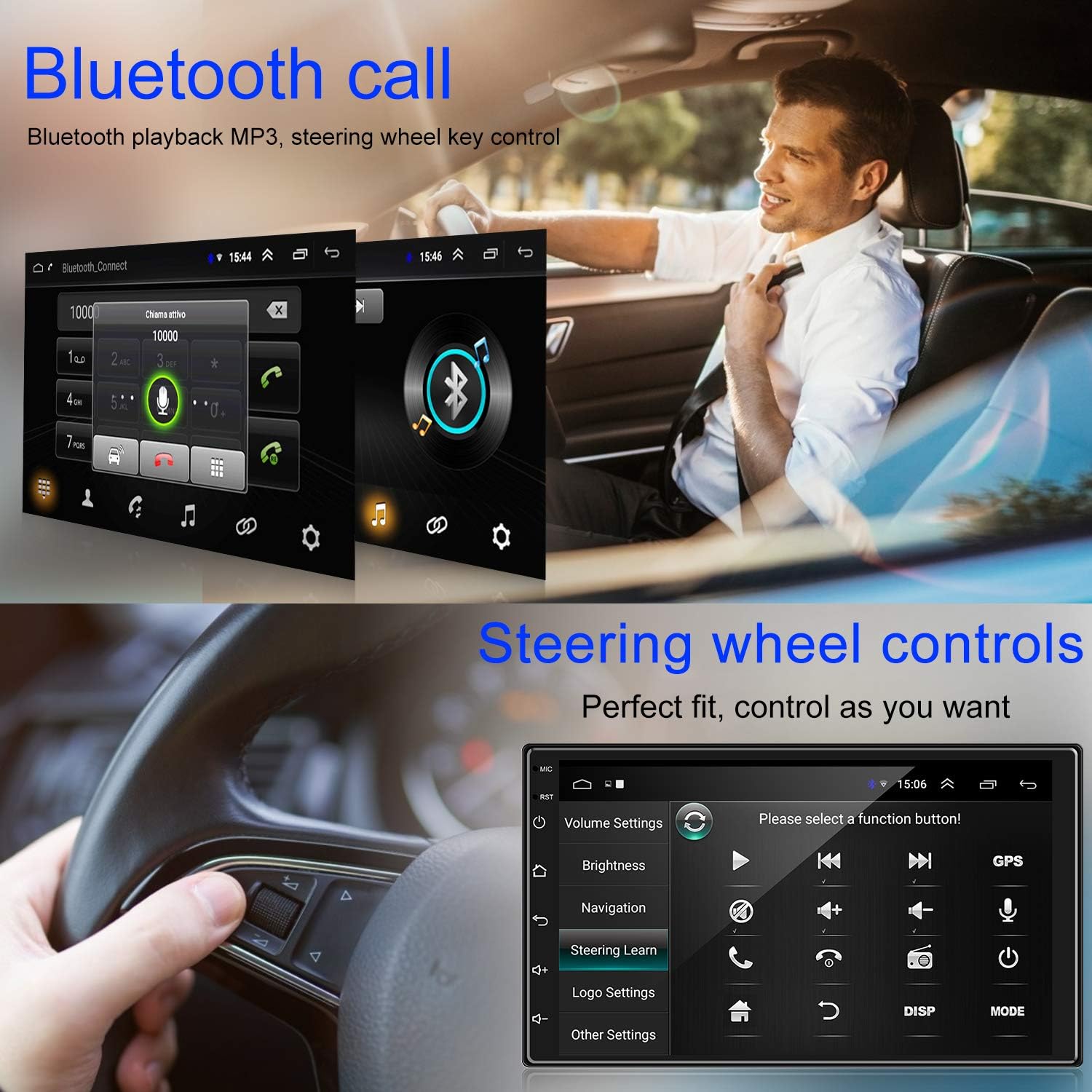
Image: The car radio screen showing the FM radio interface, with a large display of the current frequency (99.7 MHz) and controls for tuning and saving stations.
10. Rear View Camera and Driving Record
10.1 Rear View Camera
The included rear view camera automatically displays the rear view on the car radio screen when the vehicle is put into reverse gear. This assists with safe parking and maneuvering.

Image: A diagram illustrating the rear view camera system, showing the camera's placement on a car and the projected view with parking guidelines on the car radio screen.
10.2 Driving Record
The unit supports connection to a driving recorder (dash cam). Once connected, you can view recorded footage directly on the car radio screen, providing a record of your journeys.
Image: The car radio screen showing both a driving record display (1080P FHD 30FPS) and a rear view camera feed, indicating the unit's capability to handle both functions.
11. Maintenance
To ensure the longevity and optimal performance of your ANKEWAY car radio, follow these maintenance guidelines:
- Screen Cleaning: Use a soft, lint-free cloth to gently wipe the screen. For stubborn smudges, slightly dampen the cloth with water or a screen-safe cleaner. Avoid harsh chemicals or abrasive materials.
- Software Updates: Periodically check the manufacturer's website or the unit's system settings for available software updates. Keeping the software updated can improve performance, add new features, and fix bugs.
- Environmental Conditions: Avoid exposing the unit to extreme temperatures, direct sunlight for prolonged periods, or excessive moisture.
- Ventilation: Ensure the unit's ventilation areas are not blocked to prevent overheating.
12. Troubleshooting
If you encounter issues with your ANKEWAY car radio, refer to the following common problems and solutions:
| Problem | Possible Solution |
|---|---|
| No Power | Check power connections (ACC, B+, GND). Ensure vehicle ignition is on. Verify fuses. |
| No Sound | Check speaker wiring. Verify volume settings. Ensure Mute is not activated. Check audio output settings. |
| GPS Signal Lost/Weak | Ensure GPS antenna is properly connected and has a clear view of the sky. Move the antenna if necessary. |
| Bluetooth Connection Issues | Ensure Bluetooth is enabled on both the radio and your phone. Delete previous pairings and re-pair. Restart both devices. |
| Touch Screen Unresponsive | Restart the unit. If problem persists, a factory reset might be needed (note: this will erase data). |
| Mirror Link Not Working | Ensure the 'Easy Connection' app is running. Check USB cable connection or WiFi network. Verify phone compatibility and permissions. |
If you are unable to resolve an issue, please contact ANKEWAY customer support or consult a professional technician.
13. Warranty and Support
ANKEWAY products are designed for reliability and performance. For any technical assistance or warranty claims, please contact the seller or ANKEWAY customer support directly. It is important to purchase original ANKEWAY products from authorized retailers to ensure genuine quality and support.
Please retain your proof of purchase for warranty purposes.