
1. Introduction
This manual provides detailed instructions for the setup, operation, and maintenance of your Fanvil X7A Android VoIP Phone. The Fanvil X7A is a high-end enterprise IP phone featuring the Android 9.0 operating system, a 7-inch color touch screen, and advanced communication capabilities.
2. Product Overview
The Fanvil X7A is designed for professional communication environments, offering a comprehensive suite of features:
- 7-inch color touch screen with 112 one-touch DSS keys for efficient call management.
- Android 9.0 OS for a smart and intuitive user experience.
- Support for 20 SIP lines and hotspot functionality.
- Integrated 2.4G/5G Wi-Fi and Bluetooth for flexible connectivity.
- Dual-port Gigabit Ethernet for high-speed network access.
- Compatibility with EHS headsets.
- Option to connect an external Fanvil CM60 USB camera for video communication (sold separately).
3. Physical Components
Familiarize yourself with the main components of your Fanvil X7A phone:
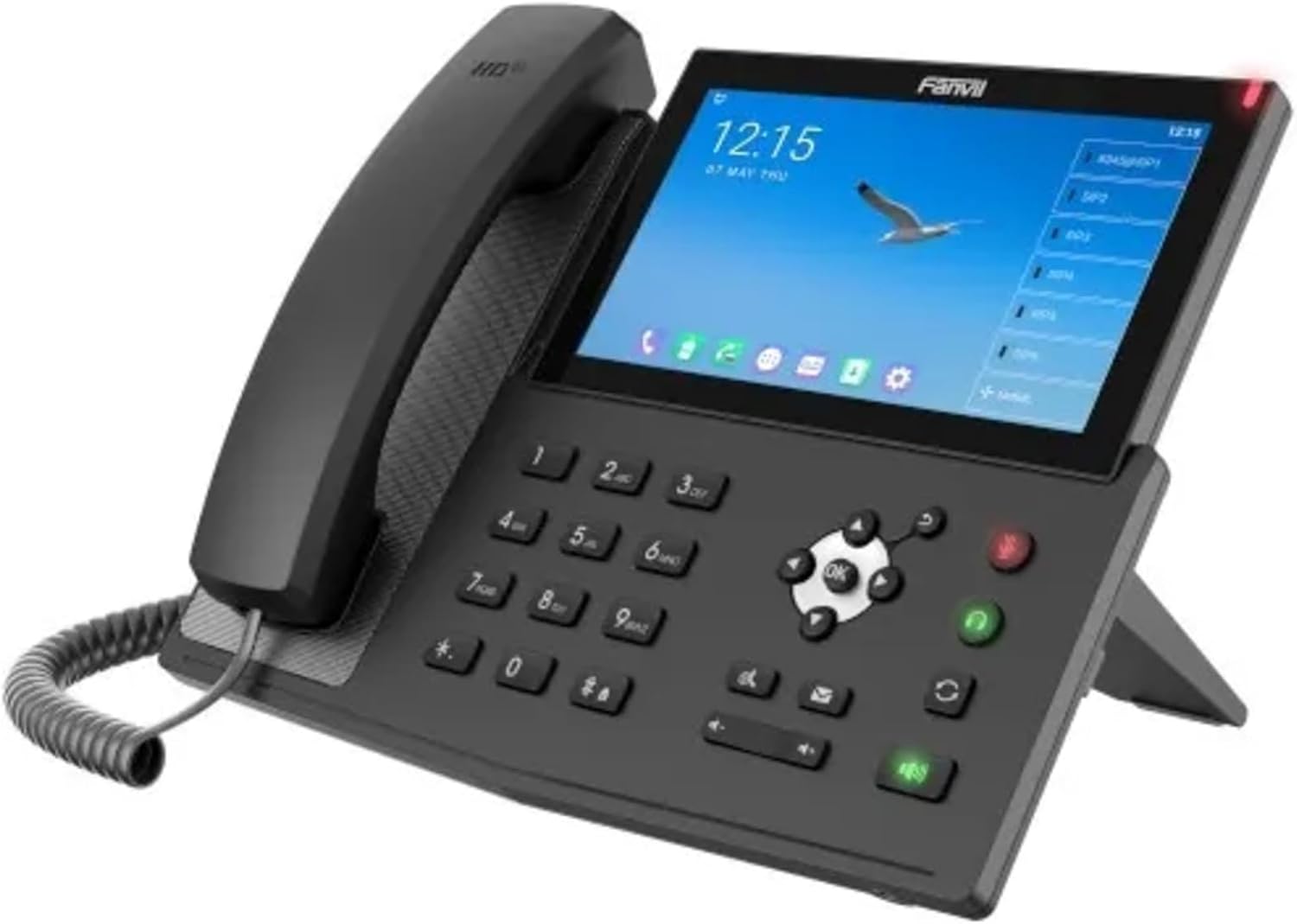
Figure 3.1: Fanvil X7A Android VoIP Phone
This image displays the Fanvil X7A phone from an angled perspective, showing the black handset resting on the cradle, the numeric keypad, navigation buttons, and the large 7-inch color touch screen displaying a clock, date, and a bird image, along with various icons and DSS key indicators.
- Handset: Standard telephone receiver for private conversations.
- 7-inch Color Touch Screen: Primary interface for navigation, call management, and application access.
- Numeric Keypad: For dialing numbers and text input.
- Navigation Keys: Directional pad with an "OK" button for menu navigation.
- Function Keys: Dedicated buttons for speakerphone, headset, mute, volume control, and message waiting indicator.
- DSS Keys: Programmable keys displayed on the touch screen for speed dial, line appearances, and other functions.
- Status Indicator Light: Located at the top right of the screen, indicates call status or new messages.
4. Setup Instructions
4.1 Connecting the Phone
- Connect the Handset: Plug one end of the coiled handset cord into the handset and the other end into the handset port on the phone base.
- Connect the Ethernet Cable: Connect one end of an Ethernet cable to the LAN port on the back of the phone and the other end to your network switch or router. If your network supports Power over Ethernet (PoE), the phone will power on automatically.
- Connect Power Adapter (if no PoE): If PoE is not available, connect a compatible 12V/1A DC power adapter (not included) to the power port on the back of the phone and then to a power outlet.
- Connect Optional Headset: If using a wired headset, plug it into the dedicated headset port.
4.2 Initial Boot-up
Once powered on, the phone will initiate its boot sequence. This may take a few minutes. The 7-inch touch screen will display the Fanvil logo, followed by the Android operating system loading. After booting, the phone will attempt to register with your SIP server. Your network administrator will provide the necessary SIP account details for configuration.
5. Operating Instructions
5.1 Basic Call Functions
- Making a Call:
a. Pick up the handset, press the speakerphone button, or press a line key.
b. Dial the number using the numeric keypad.
c. Press the Dial button on the screen or the Send key. - Answering a Call:
a. Pick up the handset, press the speakerphone button, or press the Answer button on the screen. - Ending a Call:
a. Hang up the handset or press the End Call button on the screen. - Volume Adjustment: Use the volume keys located below the keypad during a call.
- Mute: Press the Mute button to mute your microphone during a call. Press again to unmute.
5.2 Using the Touch Screen
The 7-inch color touch screen provides an intuitive interface for accessing phone features and Android applications. Swipe, tap, and long-press gestures are supported.
- Home Screen: Displays time, date, status icons, and customizable widgets/shortcuts.
- DSS Keys: The right side of the screen typically displays programmable DSS keys for speed dials, line status, and other functions. These can be configured via the phone's web interface or directly on the device.
- Applications: Access various Android applications by tapping the app drawer icon.
5.3 Wi-Fi and Bluetooth Connectivity
- Wi-Fi: Navigate to the phone's settings menu, select "Wi-Fi," and choose your desired network. Enter the password if required. The phone supports 2.4G and 5G networks.
- Bluetooth: Enable Bluetooth in the settings menu to pair with compatible headsets or other devices.
5.4 Optional USB Camera (Fanvil CM60)
The Fanvil X7A supports an external Fanvil CM60 USB camera (sold separately) for video communication. Connect the camera to the USB port on the phone. Once connected, video call options will become available in compatible applications.
6. Maintenance
- Cleaning: Use a soft, dry cloth to clean the phone's surface and screen. Avoid abrasive cleaners or solvents.
- Environment: Keep the phone in a dry environment, away from direct sunlight, excessive heat, or moisture.
- Firmware Updates: Regularly check for and apply firmware updates provided by Fanvil or your service provider to ensure optimal performance and security.
7. Troubleshooting
| Issue | Possible Cause | Solution |
|---|---|---|
| Phone does not power on. | No power from PoE or power adapter. | Ensure Ethernet cable is securely connected to a PoE-enabled port, or connect a functional 12V/1A power adapter. |
| Cannot make/receive calls. | SIP account not registered; network connectivity issue. | Check network cable connection. Verify SIP account settings with your administrator. Restart the phone. |
| No dial tone. | Handset or headset not properly connected; phone not registered. | Ensure handset/headset is fully plugged in. Check SIP registration status on the screen. |
| Poor audio quality. | Network congestion; faulty cable/handset. | Check network connection. Try a different Ethernet cable. Test with a different handset or headset if possible. |
| Wi-Fi not connecting. | Incorrect password; out of range; network issue. | Verify Wi-Fi password. Move closer to the access point. Check Wi-Fi network status. |
If issues persist, contact your IT department or Fanvil technical support for further assistance.
8. Specifications
| Model | X7A |
| Operating System | Android 9.0 |
| SIP Lines | 20 |
| Display | 7-inch Color Touch Screen |
| DSS Keys | 112 (on touch screen) |
| Wi-Fi | Built-in 2.4G/5G (802.11ac) |
| Bluetooth | Built-in |
| Ethernet Ports | Dual-Port Gigabit Ethernet |
| Power Source | PoE (Power over Ethernet) or 12V/1A DC Power Adapter (not included) |
| Compatible Devices | Asterisk, Broadsoft, 3CX, Metaswitch, Elastix, Avaya, PoE, external power supply |
| Conference Call Capability | 3-way, 5-way |
| Item Weight | 1.1 pounds (0.5 Kilograms) |
| Dimensions (Package) | 14.9 x 10.5 x 5.5 inches |
9. Warranty and Support
For warranty information, please refer to the documentation provided with your purchase or visit the official Fanvil website. For technical support, contact your authorized Fanvil reseller or your IT department. Ensure you have your product model (X7A) and serial number available when seeking support.
Online Resources:
- Fanvil Official Website: www.fanvil.com (for product information, downloads, and support)


