
Introduction
Thank you for choosing the BOOMBOOST 12V Bluetooth MP3 Player Car Kit. This device is designed to enhance your in-car audio experience by providing versatile playback options including Bluetooth, USB, TF card, and FM radio. It supports various audio formats such as MP3, WMA, and WAV.
This manual provides detailed instructions on how to set up, operate, and maintain your device, along with troubleshooting tips and product specifications. Please read this manual carefully before use to ensure proper operation and to maximize the lifespan of your product.
Product Overview
The BOOMBOOST MP3 Player features a compact design with essential controls and connectivity options on its front panel. It includes a digital display for status and frequency information.

Figure 1: Front view of the BOOMBOOST MP3 Player module.
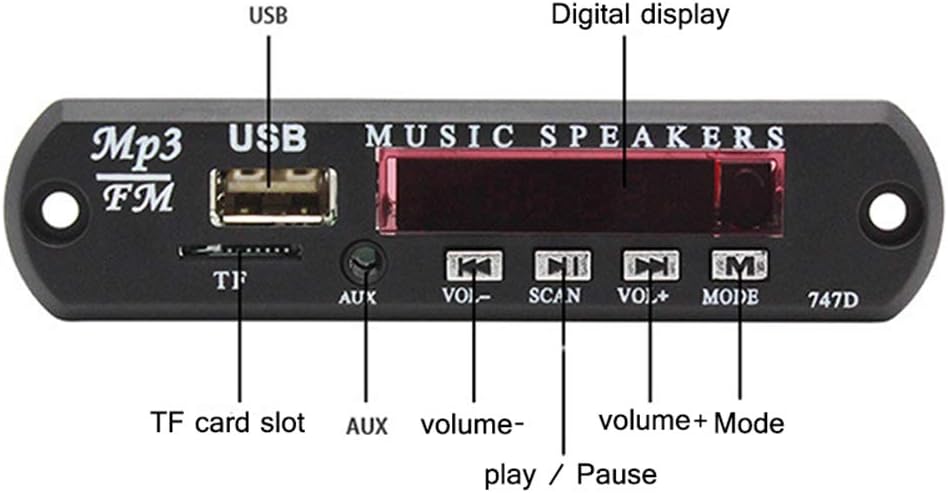
Figure 2: Front panel components labeled, including USB port, TF card slot, AUX input, digital display, and control buttons (VOL-, SCAN/Play/Pause, VOL+, MODE).
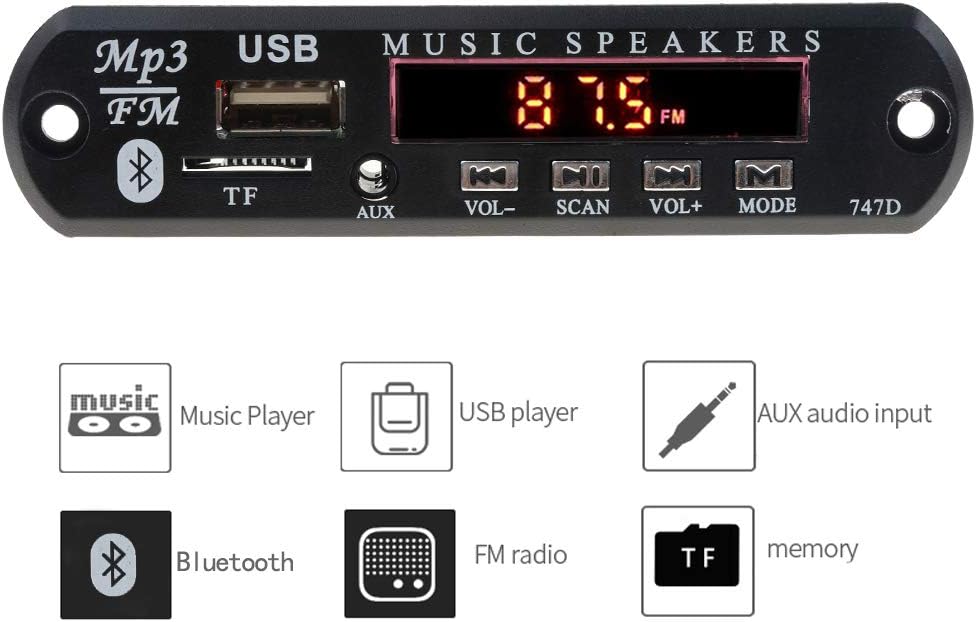
Figure 3: Icons representing key features: Music Player, USB Player, AUX Audio Input, Bluetooth, FM Radio, and TF Card Memory.
Setup Instructions
This module is designed for integration into existing 12V car audio systems or custom projects. Professional installation is recommended if you are unfamiliar with car electronics wiring.
Package Contents:
- 1 x Decoder Board
- 1 x Remote Control (battery not included)
- Wiring Harness (as shown in Figure 4)

Figure 4: The MP3 player module, included wiring harness, and remote control.
Wiring Connections:
- Power Supply: Connect the 12V power input to your vehicle's 12V power source (e.g., ACC or constant 12V, depending on desired operation). Ensure correct polarity.
- Audio Output: Connect the audio output from the module to your car's amplifier or speakers.
- Antenna (for FM): If applicable, connect an FM antenna for optimal radio reception.
Caution: Incorrect wiring can damage the device or your vehicle's electrical system. Consult a professional if unsure.
Operating Instructions
Basic Controls:
- MODE Button: Press to switch between input modes: USB, TF, Bluetooth, FM, and Line In (AUX).
- VOL- / PREV Button: Short press for previous track/station. Long press to decrease volume.
- SCAN / Play/Pause Button: Short press to play or pause playback. In FM mode, long press to auto-scan and save stations.
- VOL+ / NEXT Button: Short press for next track/station. Long press to increase volume.
USB/TF Card Playback:
- Insert a USB drive or TF card into the respective slot.
- The device will automatically switch to USB or TF mode and begin playing supported audio files (MP3/WMA/WAV).
- Use VOL-/PREV and VOL+/NEXT buttons to navigate tracks. Use SCAN to play/pause.
Bluetooth Operation:
- Switch the device to Bluetooth mode using the MODE button. The display will show "bt" (Figure 5).
- On your mobile device, enable Bluetooth and search for available devices.
- Select "BT-MP3" or a similar name from the list to pair. Once paired, you can stream audio wirelessly.
- Use the device's controls or your phone to manage playback (play/pause, next/previous track, volume).
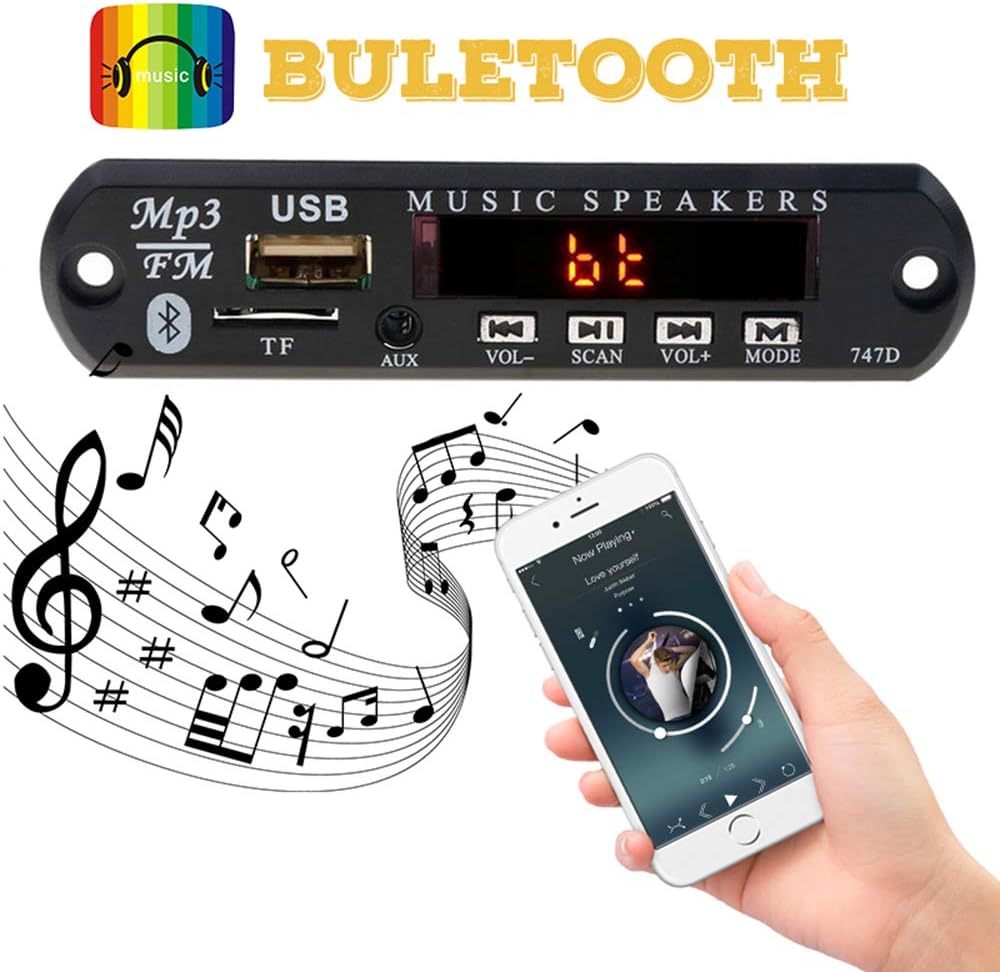
Figure 5: Illustration of Bluetooth pairing with a smartphone. The module's display shows "bt" when in Bluetooth mode.
FM Radio:
- Switch to FM mode using the MODE button. The display will show the current frequency (Figure 6).
- Long press the SCAN button to auto-scan and save available FM stations.
- Short press VOL-/PREV or VOL+/NEXT to switch between saved stations.

Figure 6: Two units demonstrating display modes: one showing FM frequency (87.5 FM) and the other showing Bluetooth mode ("bt").
AUX Input:
Connect an external audio device (e.g., smartphone, portable media player) to the 3.5mm AUX input port using an audio cable. Switch the module to Line In mode via the MODE button.
Remote Control Functions:
The included remote control provides additional functions:
- Power On/Off
- Mode Selection
- Volume Up/Down
- Play/Pause, Stop
- Previous/Next Track
- EQ (Equalizer) settings
- Mute
- Direct track selection (number pad)
Maintenance
- Cleaning: Use a soft, dry cloth to clean the surface of the device. Do not use liquid cleaners or abrasive materials.
- Storage: If not in use for an extended period, store the device in a cool, dry place away from direct sunlight and extreme temperatures.
- Avoid Moisture: Keep the device away from water and high humidity to prevent damage to internal components.
- Power Off: Always power off the device before disconnecting power or making wiring changes.
Troubleshooting
| Problem | Possible Cause | Solution |
|---|---|---|
| No power/display off | Incorrect power connection; Blown fuse; Loose wiring. | Check 12V power supply and ground connections. Verify fuse integrity. Ensure all wires are securely connected. |
| No sound | Volume too low; Mute activated; Incorrect audio output connection; Corrupt audio file. | Increase volume. Deactivate mute. Check audio output wiring to amplifier/speakers. Try a different audio file. |
| USB/TF card not recognized | Unsupported file system (not FAT16/FAT32); Corrupt card/USB; Unsupported audio format. | Ensure card/USB is formatted to FAT16 or FAT32. Try a different card/USB. Verify audio files are MP3/WMA/WAV. |
| Bluetooth pairing issues | Device not in pairing mode; Bluetooth disabled on phone; Interference. | Ensure module is in Bluetooth mode ("bt" displayed). Enable Bluetooth on your phone and rescan. Move closer to the module. |
| Poor FM reception | No antenna connected; Weak signal; Interference. | Connect an external FM antenna. Try auto-scanning again. Move to an area with better signal. |
| Remote control not working | Battery low/dead; Obstruction between remote and module; Remote sensor blocked. | Replace remote battery. Ensure clear line of sight to the module's IR sensor. |
Specifications
- Model Number: ZSTY-BTMP3JMR10
- Power Supply: 12V DC
- Supported Audio Formats: MP3, WMA, WAV (lossless decoding)
- Bluetooth Version: Bluetooth 3.0 EDR
- Supported File Systems: FAT16, FAT32
- MP3 Bit Rate Support: 32-320 KBPS
- Connectivity: USB, TF Card, Bluetooth, FM Radio, 3.5mm AUX Input
- Special Features: Power-off memory (remembers track and volume), Signal switch support.
- Weight: Approximately 40 grams
Warranty and Support
This product comes with a standard manufacturer's warranty. Please refer to your purchase documentation for specific warranty terms and conditions. For technical support, troubleshooting assistance, or warranty claims, please contact the retailer or manufacturer directly through their official support channels.
Keep your purchase receipt as proof of purchase for warranty purposes.