
Introduction
The JVC Gumy Truly Wireless Earbuds Headphones, Model HAA7TB, are designed for comfortable and dependable audio. These earbuds feature Bluetooth 5.0 for stable connectivity and an IPX4 water resistance rating, making them suitable for various activities including outdoor use. The compact charging case extends the total battery life up to 15 hours, ensuring extended listening pleasure.
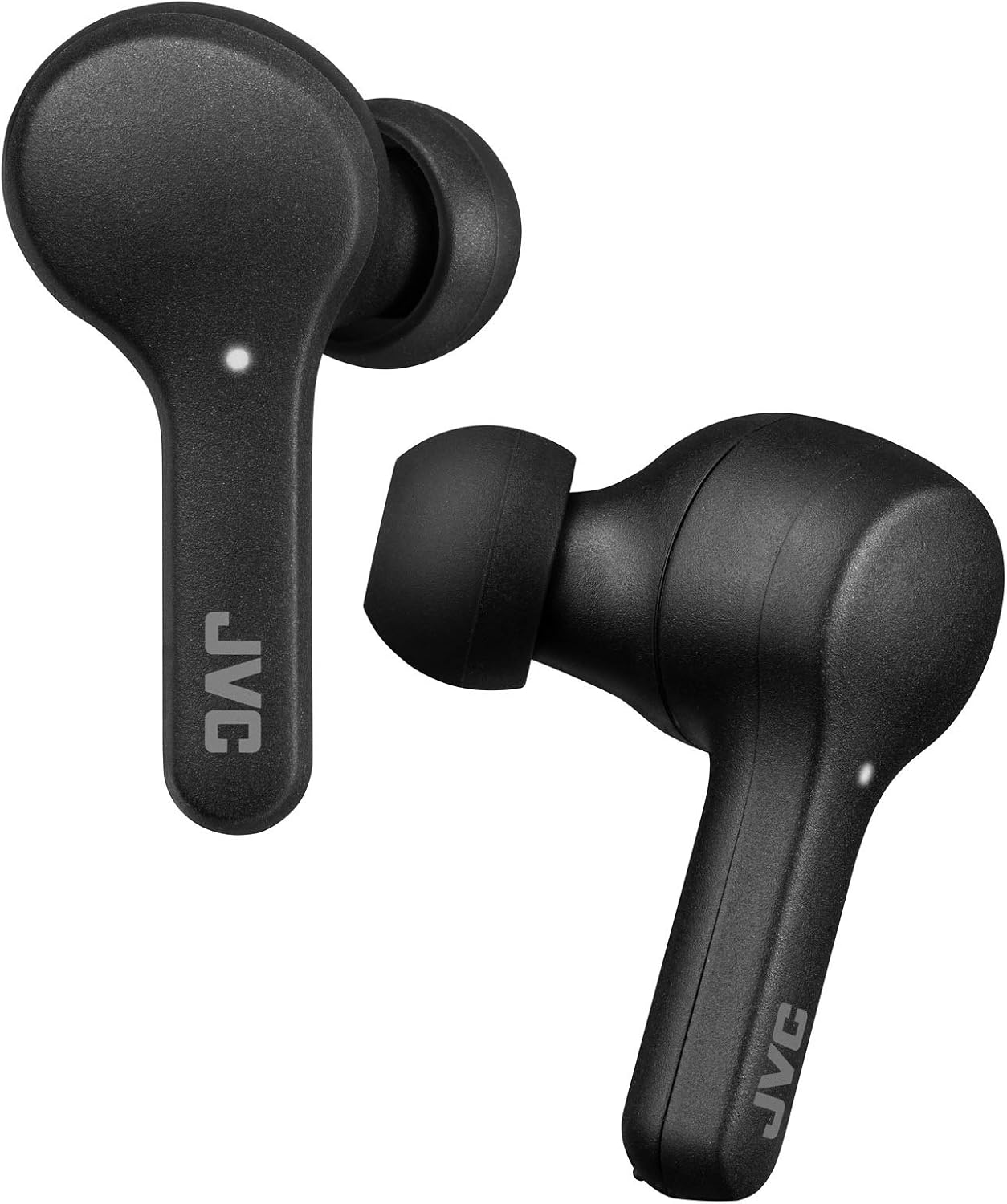
Image: JVC Gumy Truly Wireless Earbuds in black, showcasing their sleek design.
What's in the Box
- JVC Gumy Truly Wireless Earbuds (L/R)
- Wireless Charging Case
- USB Charging Cable
- Earpieces (S/M/L sizes)
Setup
1. Charging the Earbuds and Case
Before first use, fully charge the earbuds and charging case. Insert the earbuds into the charging case. Connect the provided USB charging cable to the charging port on the back of the case and to a USB power source. The indicator lights on the case will illuminate to show charging status. A full charge provides up to 15 hours of total playback time (6 hours from earbuds + 9 hours from charging case).

Image: JVC Gumy Earbuds securely placed in their charging case, illustrating the charging process.
2. Initial Pairing
To pair the earbuds with your device for the first time:
- Remove both earbuds from the charging case. They will automatically power on.
- The R LED indicator will flash once every 5 seconds after the L and R earbuds connect to each other.
- After a few seconds, the L indicator will flash quickly, indicating the earbuds are in pairing mode.
- On your smartphone or audio device, enable Bluetooth and search for available devices.
- Select "JVC HA-A7T" from the list of devices.
- Once connected, both the L and R LED indicators will flash once every 5 seconds. The earbuds are now ready for use.
3. Earpiece Fit
The earbuds come with S, M, and L size earpieces. Select the size that provides the most comfortable and secure fit for optimal sound quality and performance. An improper fit may affect sound quality or call performance.

Image: A person wearing a JVC Gumy earbud, highlighting the ergonomic design for a secure and comfortable fit.
Operating Instructions
1. Automatic Power On/Off and Connection
The earbuds are designed for convenience:
- Power On & Connect: Simply remove the earbuds from the charging case, and they will automatically power on and connect to the last paired device.
- Power Off & Charge: Place the earbuds back into the charging case. They will automatically power off and begin charging.

Image: A person enjoying music with JVC Gumy earbuds while working on a laptop and checking a smartphone, demonstrating seamless auto-connect functionality.
2. Manual Power Off
To manually power off an earbud, press and hold the button on either the L or R earbud continuously for 3 seconds. Release your finger after the indicator lights up and the power turns off.
3. Remote Operation
The earbuds support remote operation with volume control directly from the earbuds. Refer to your device's specific instructions for detailed control functions.
Maintenance
1. Water Resistance (IPX4)
The JVC Gumy earbuds are rated IPX4, offering resistance to water splashing from any direction. This makes them suitable for use during workouts or in light rain. However, they are not designed for submersion in water.

Image: JVC Gumy Earbuds shown with water splashing, emphasizing their IPX4 water-resistant design.
2. Cleaning
Regularly clean the earbuds and charging case with a soft, dry cloth. Remove earpieces and clean them separately with mild soap and water if necessary, ensuring they are completely dry before reattaching.
Troubleshooting
1. Connectivity Issues
- Ensure both earbuds are charged.
- Verify Bluetooth is enabled on your device.
- If previously paired, try "forgetting" the device on your smartphone's Bluetooth settings and re-pairing.
- Ensure earbuds are within the Bluetooth range of your device.
2. Restoring Factory Settings
If you experience persistent issues, you can restore the earbuds to their factory default settings:
- Insert both L and R earbuds into the charging case.
- Press and hold the button on the L earbud. After 10 seconds, the indicator will flash once. Continue to press for another 5 seconds until the indicator flashes again, then release.
- Repeat the same step for the R earbud.
- Remove both earbuds from the charging case and place them back in again.
- Remove both earbuds from the charging case. The L and R indicators will light up for 1 second, and the power turns on. After a few seconds, the L and R earbuds are connected to each other and enter the pairing mode.
- The earbuds are now restored to factory default. You will need to re-pair them with your device.
Video: Official JVC guide on pairing and restoring factory settings for Gumy True Wireless Earbuds.
Specifications
| Model Name | GUMY True Wireless |
| Item Model Number | HAA7TB |
| Brand | JVC |
| Connectivity Technology | Bluetooth 5.0 |
| Wireless Communication Technology | Bluetooth |
| Water Resistance Level | IPX4 (Water Resistant) |
| Battery Life | Up to 15 Hours (with charging case) |
| Noise Control | Sound Isolation |
| Audio Driver Type | Dynamic Driver |
| Earpiece Shape | In-ear |
| Control Method | Remote |
| Item Weight | 3.84 ounces |
| Product Dimensions | 7.28 x 1.69 x 2.87 inches |
Additional Features
Video: Overview of JVC Gumy True Wireless Earbuds features.
The JVC Gumy True Wireless Earbuds are available in multiple colors, allowing for personal style expression.

Image: A display of JVC Gumy Earbuds in different color options, showcasing their vibrant range.
Warranty and Support
For warranty information, technical support, or service inquiries, please refer to the official JVC website or contact JVC customer service directly. Keep your purchase receipt for warranty claims.