
Introduction
This manual provides detailed instructions for the setup, operation, and maintenance of your DELUX M399DB Wireless Rechargeable Optical Mouse. Please read this manual thoroughly before using the product to ensure proper function and longevity.
Package Contents
- DELUX M399DB Wireless Mouse
- USB Receiver
- Type-C Adapter
- Charging Cable
- User Manual
Product Features
- Triple Connectivity Modes: Connects via Bluetooth 4.0, 2.4GHz wireless with a USB receiver, or 2.4GHz wireless with a Type-C adapter.
- Seamless Mode Switching: Easily switch between 2.4GHz wireless and Bluetooth modes using the button on the mouse's underside.
- Ergonomic and Portable Design: Features a comfortable pebble shape, ideal for extended use and easy portability.
- Premium Build Quality: Includes a durable metal scroll wheel and a frosted texture finish to resist fingerprints.
- Silent Click Operation: Designed to reduce click noise by 80%, providing a quiet working environment.
- Adjustable DPI Settings: Offers five DPI levels (800, 1200, 1600, 2400, 4000) for precise and sensitive tracking.
- Rechargeable Battery: Equipped with a built-in 500 mAh rechargeable battery, providing up to one month of use on a single charge, with an automatic sleep mode for power saving.
- Integrated Receiver Storage: A magnetic cover provides convenient storage for both the USB and Type-C receivers.
- Wide Compatibility: Compatible with Windows 7/8/10, Mac OS, and Android devices, suitable for desktops, PCs, MacBooks, laptops, Chromebooks, and smartphones.

This image demonstrates the DELUX M399DB mouse's compatibility with various devices, including tablets, via both 2.4GHz wireless and Bluetooth connections.

This image highlights key design elements of the mouse: its frosted texture for grip and anti-fingerprint properties, the durable metal scroll wheel, and the silent click mechanism for reduced noise.
Setup and Installation
Connecting via 2.4GHz Wireless (USB or Type-C Receiver)
- Locate the USB receiver and Type-C adapter under the magnetic cover of the mouse.
- Choose the appropriate receiver (USB or Type-C) for your device.
- Insert the selected receiver into an available port on your computer or device.
- Turn on the mouse using the power switch located on the bottom.
- The mouse should automatically connect to your device. If not, press the connection mode switch button on the bottom of the mouse to select 2.4G wireless mode.
Connecting via Bluetooth 4.0
- Turn on the mouse using the power switch located on the bottom.
- Press the connection mode switch button on the bottom of the mouse to select Bluetooth mode. The indicator light should start blinking, indicating pairing mode.
- On your device (computer, laptop, tablet, or smartphone), go to Bluetooth settings.
- Search for available Bluetooth devices and select "DELUX M399DB" (or similar name) from the list.
- Confirm the pairing on your device. The indicator light on the mouse will become solid once connected.
Operating Instructions
Basic Mouse Functions
- Left Click: Primary selection and activation.
- Right Click: Accesses contextual menus.
- Scroll Wheel: Scrolls content vertically. The metal scroll wheel provides a tactile feel.
Adjusting DPI (Sensitivity)
The DELUX M399DB mouse offers 5 adjustable DPI levels for precise cursor control:
- 800 DPI
- 1200 DPI (Default)
- 1600 DPI
- 2400 DPI
- 4000 DPI
To change the DPI level, simultaneously press and hold the scroll wheel and the right button for approximately 3 seconds. The DPI setting will cycle through the available levels with each press combination.

This image illustrates the method for adjusting the mouse's DPI settings. To change the sensitivity, press and hold both the scroll wheel and the right mouse button at the same time for three seconds. This action cycles through the five available DPI levels.
Charging the Mouse
The DELUX M399DB mouse features a built-in rechargeable lithium-ion battery. When the battery is low, the mouse's indicator light may flash or its performance may decrease.
- Connect the provided charging cable to the charging port on the front of the mouse.
- Connect the other end of the charging cable to a USB power source (e.g., computer USB port, USB wall adapter).
- The indicator light will show the charging status (e.g., solid light while charging, off when fully charged).
- A full charge can provide up to one month of daily use, depending on usage patterns.
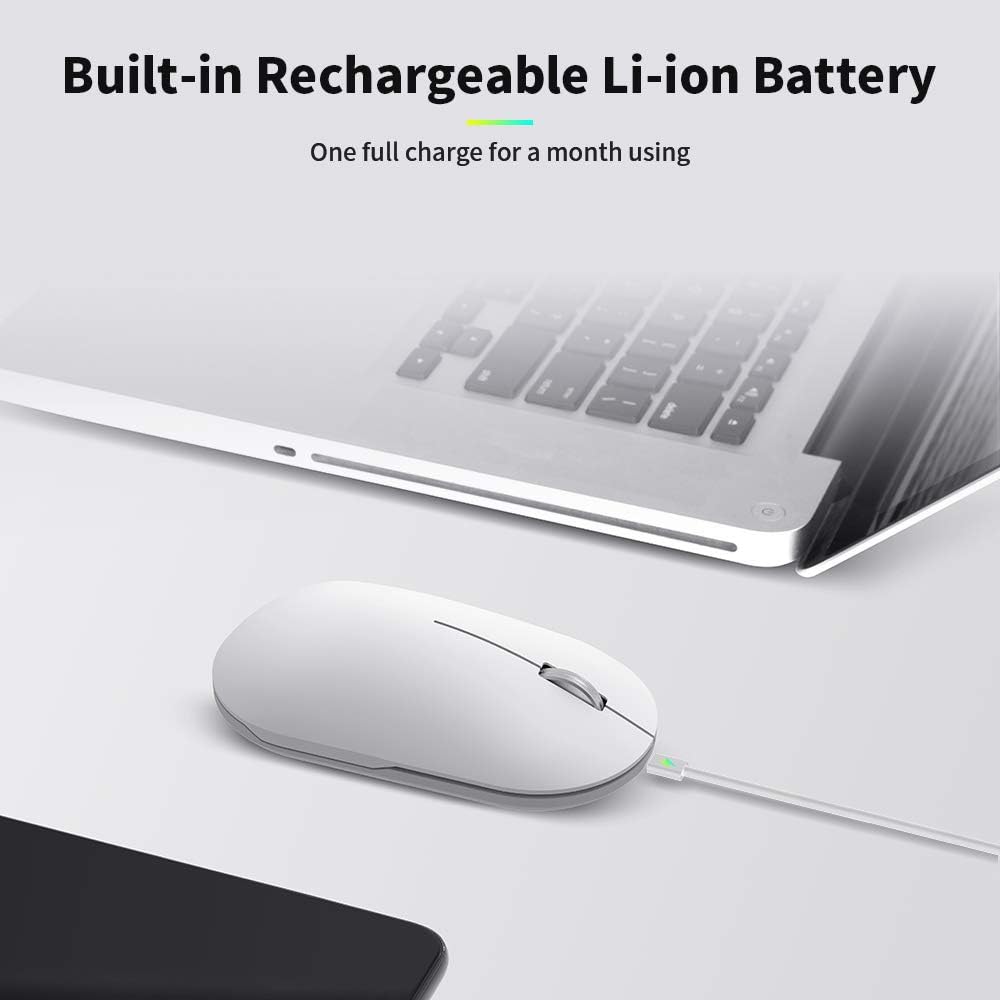
This image displays the DELUX M399DB mouse being charged via a USB cable. The charging port is located at the front of the mouse, and an indicator light confirms the charging status.
Maintenance
- Cleaning: Use a soft, dry cloth to clean the mouse. Avoid using harsh chemicals or abrasive materials.
- Storage: When not in use, store the USB and Type-C receivers in the magnetic compartment under the mouse cover to prevent loss.
- Battery Care: To prolong battery life, avoid fully discharging the mouse frequently. Charge it when the low battery indicator appears.
Troubleshooting
| Problem | Possible Solution |
|---|---|
| Mouse not responding. |
|
| Cursor movement is erratic or slow. |
|
| Cannot connect via Bluetooth. |
|
| 2.4GHz wireless connection issues. |
|
Specifications
| Feature | Detail |
|---|---|
| Brand | DELUX |
| Model | M399DB |
| Connectivity Technology | Bluetooth 4.0, 2.4GHz Wireless (USB & Type-C receivers) |
| DPI Levels | 800 / 1200 / 1600 / 2400 / 4000 |
| Sensor Technology | Optical |
| Battery Type | Rechargeable Lithium Ion (500 mAh) |
| Average Battery Life | Up to 1 Month |
| Special Features | Silent Click, Dual Connection Mode, Magnetic Receiver Storage |
| Compatible Operating Systems | Windows 7/8/10, Mac OS, Android |
| Compatible Devices | Laptop, PC, MacBook, Chromebook, Smart Phone |
| Product Dimensions | 11.2 x 6 x 3.6 cm (4.41 x 2.36 x 1.42 inches) |
| Product Weight | 85 g (3.00 oz) |
| Material | Metal (scroll wheel), Frosted Texture (cover) |
Warranty and Support
All DELUX products include a 12-month warranty and free lifetime technical support.
For technical assistance or warranty claims, please contact DELUX customer support through their official website or the retailer where the product was purchased.


