
NETGEAR CBK752-100NAS
Contents
NETGEAR Orbi CBK752 DOCSIS 3.1 Cable Modem and WiFi 6 Mesh Router User Manual
Model: CBK752-100NAS
Product Overview
The NETGEAR Orbi CBK752 is an advanced whole-home WiFi system that integrates a DOCSIS 3.1 cable modem with a WiFi 6 mesh router. This system is designed to provide extensive WiFi coverage and high-speed internet connectivity throughout your home, supporting up to 40+ devices and covering areas up to 5,000 sq. ft. It is compatible with major US cable service providers such as Xfinity, Spectrum, and Cox, offering speeds up to 4Gbps.

Image: The NETGEAR Orbi CBK752 system, featuring two white units with silver bases, designed for whole-home WiFi coverage.
Key features include:
- Integrated Cable Modem and WiFi 6: Combines a DOCSIS 3.1 cable modem with a high-performance WiFi 6 mesh router for seamless connectivity.
- Extensive Coverage: Provides up to 5,000 sq. ft. of WiFi coverage for 40+ devices. Coverage can be expanded with optional Orbi Mesh WiFi 6 satellites.
- High-Speed Internet: Supports internet plans up to 4Gbps, certified with Xfinity (up to 900Mbps download), Spectrum (up to 1Gbps download), and Cox (up to 1Gbps download).
- Cost Savings: Eliminates monthly cable modem rental fees, potentially saving up to $168 per year.
- NETGEAR Armor Security: Includes a 30-day trial of NETGEAR Armor software for real-time protection against hackers and enhanced privacy.

Image: A graphic highlighting the Orbi CBK752's features: 2-in-1 cable modem + WiFi 6 mesh system, up to 4.2Gbps streaming speed, 5,000 sq. ft. WiFi coverage, up to 1Gbps download speeds, and up to 200Mbps upload speeds.
Setup Guide
Follow these steps to set up your NETGEAR Orbi CBK752 system:
- Unpack the System: Carefully remove the Orbi Cable Modem Router (CBR750) and the Orbi Satellite (RBS750) from the packaging. Ensure all components listed in the 'What's in the Box' section are present.
- Connect the Cable Modem Router: Plug your coax cable from your wall outlet directly into the Cable Coaxial Port on the back of the Orbi Cable Modem Router (CBR750).
- Power On: Connect the provided power adapter to the Orbi Cable Modem Router and plug it into a power outlet. Do the same for the Orbi Satellite. Wait for the units to power on and the indicator lights to stabilize.
- Activate Your Service: Connect an Ethernet cable from the Orbi Cable Modem Router to your computer. Open a web browser and follow the on-screen setup instructions provided by your internet service provider (ISP) for modem activation. Alternatively, you may need to call your ISP to activate the modem.
- Set Up WiFi with Orbi App: Download the NETGEAR Orbi app on your smartphone or tablet. Follow the in-app instructions to complete the WiFi network setup, including setting up your network name (SSID) and password. The app will guide you through pairing the satellite with the router.

Image: A diagram illustrating the simple setup process: 1. Plug coax cable into modem-router. 2. Connect Ethernet to computer for activation or activate by phone. 3. Use the Orbi app to set up your network.
For optimal performance, place the Orbi Satellite within range of the Orbi Cable Modem Router, ideally in a central location to maximize coverage.
Operating Your Orbi System
Once set up, your Orbi system provides a robust and fast WiFi network. The system intelligently manages your devices to ensure optimal performance.
WiFi Coverage and Connectivity
The Orbi CBK752 system is designed to provide consistent and fast WiFi speed across your entire home. The mesh technology ensures that devices seamlessly switch between the router and satellite for the strongest signal.
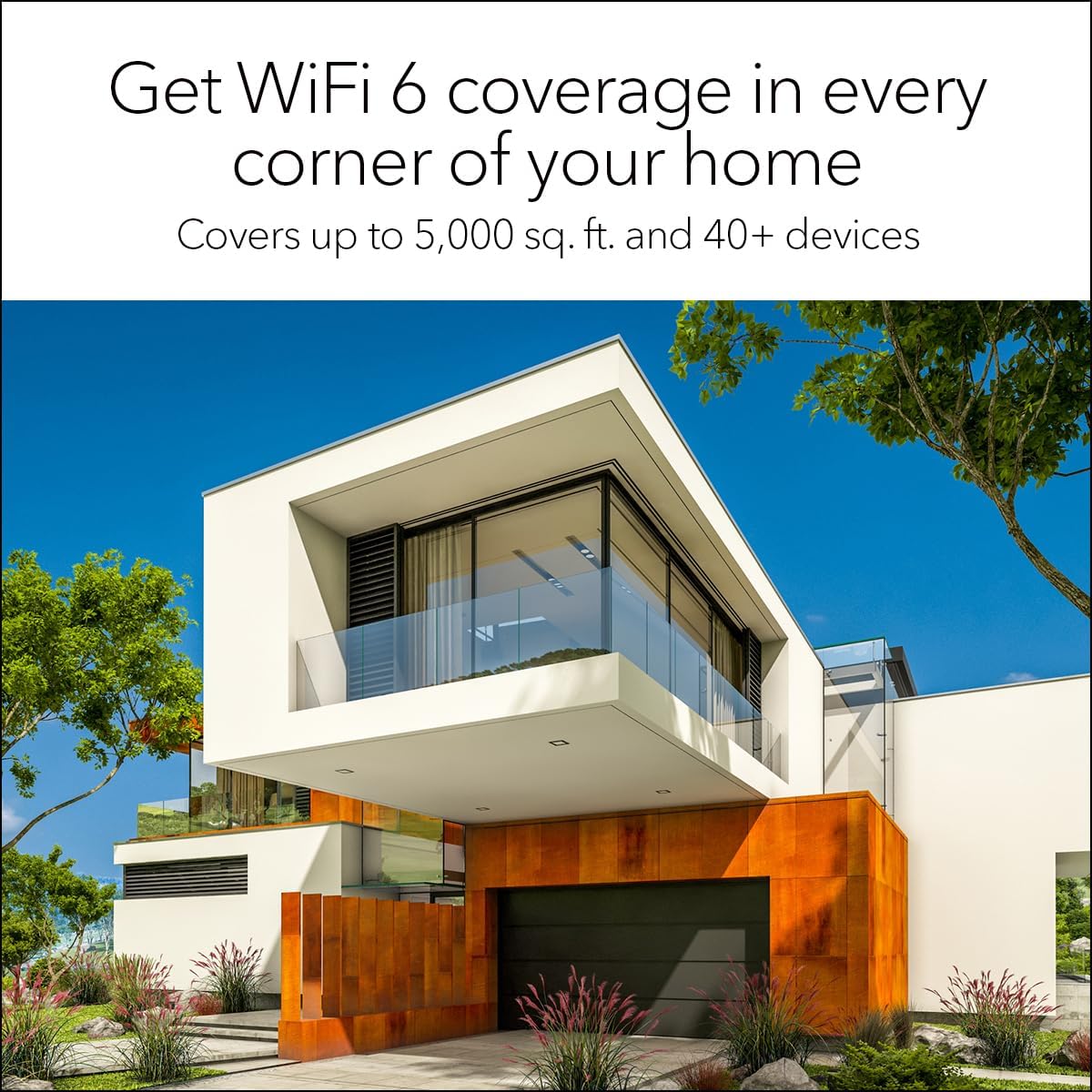
Image: A visual representation of WiFi 6 coverage extending throughout a modern home, indicating coverage up to 5,000 sq. ft. and for 40+ devices.
Wired Connections
Both the Orbi Cable Modem Router and the Satellite offer Gigabit Ethernet LAN ports for wired connections. The router has four LAN ports, and the satellite has two, allowing you to connect devices like gaming consoles, smart TVs, and desktop computers directly for maximum speed and stability.

Image: Rear view of the Orbi Cable Modem Router and Satellite, showing the various ports including the cable coaxial port, Ethernet LAN ports, Sync buttons, and power on/off switch.
NETGEAR Armor Security
Your Orbi system includes NETGEAR Armor, a comprehensive cybersecurity solution that protects all connected devices on your network from online threats. This software provides an automatic shield of security, offering real-time protection against hackers, viruses, and malware, along with added privacy features like VPN.

Image: A house protected by a transparent dome with the NETGEAR Armor logo, symbolizing comprehensive network security for all connected devices.
Maintenance
To ensure optimal performance and security of your NETGEAR Orbi system, regular maintenance is recommended:
- Automatic Firmware Updates: The Orbi system is designed to receive automatic firmware updates. Ensure this feature is enabled in the Orbi app or web interface to keep your system secure and up-to-date with the latest features and performance enhancements.
- Regular Reboots: Periodically rebooting your Orbi Cable Modem Router and Satellite (e.g., once a month) can help clear temporary issues and refresh network connections. Simply unplug the power adapters for 10 seconds and then plug them back in.
- Keep Clean: Ensure the devices are free from dust accumulation, which can affect ventilation and performance. Use a soft, dry cloth to clean the exterior.
- Monitor with Orbi App: Use the Orbi app to monitor your network status, connected devices, and security alerts.
Troubleshooting
If you encounter issues with your Orbi system, consider the following troubleshooting steps:
- No Internet Connection:
- Verify that the coax cable is securely connected to the Orbi router and the wall outlet.
- Check the status lights on the Orbi router. Refer to the user manual for light interpretations.
- Contact your Internet Service Provider (ISP) to confirm your service is active and there are no outages in your area.
- Perform a power cycle on both the Orbi router and satellite, and your ISP's equipment (if separate).
- Slow WiFi Speeds:
- Ensure your devices are connected to the Orbi WiFi network and not an older network.
- Check for interference from other electronic devices.
- Relocate the Orbi satellite to a more central location or closer to areas with weak signals.
- Run a speed test using the Orbi app or a reliable online tool.
- Satellite Not Connecting/Pairing:
- Ensure the satellite is within optimal range of the router.
- Press the Sync button on both the router and the satellite to re-initiate pairing.
- Check the satellite's LED indicator for status.
- Cannot Change WiFi SSID or Password:
- While the Orbi app is the recommended method, if using the web interface, ensure you are saving changes correctly. Some users have reported issues with changing SSID/password via web interface; using the Orbi app is often more reliable for these settings.
- If issues persist, perform a factory reset (refer to the full user manual for instructions) and reconfigure your network.
For more detailed troubleshooting, refer to the comprehensive user manual available on the NETGEAR support website or through the Orbi app.
Specifications
Detailed specifications for the NETGEAR Orbi CBK752 system:

Image: A graphic detailing the technical specifications of the Orbi CBK752 system, including dimensions of the router and satellite, WiFi speed, coverage, internet plan compatibility, WiFi connectivity standards, wired connectivity, and security features.
| Feature | Description |
|---|---|
| Model Name | CBK752-100NAS |
| Product Dimensions | 11.4 x 10.3 x 8.9 inches |
| Item Weight | 8.23 pounds |
| WiFi Speed | AX4200 (4.2Gbps) WiFi 6 |
| WiFi Coverage | Up to 5,000 sq. ft., 40+ devices |
| Internet Plans Supported | DOCSIS 3.1, compatible with Xfinity (up to 900Mbps download), Spectrum (up to 1Gbps download), Cox (up to 1Gbps download) |
| Wireless Communication Standard | 802.11ax (WiFi 6), backwards compatible with 802.11a/b/g/n/ac |
| Wired Connectivity (Router) | 4 Gigabit Ethernet LAN ports |
| Wired Connectivity (Satellite) | 2 Gigabit Ethernet LAN ports |
| Security Features | NETGEAR Armor (30-day trial included), automatic firmware updates |
| Included Components | One (1) Orbi Cable Modem Router (CBR750), One (1) Orbi Satellite (RBS750), Two (2) power adapters, One (1) 2m Ethernet cable, Quick start guide |
Warranty and Support
NETGEAR products typically come with a limited hardware warranty. For specific warranty details, please refer to the warranty card included with your product or visit the official NETGEAR website.
Customer Support
For technical assistance, product registration, or additional support, please visit the NETGEAR support website or use the Orbi app. You can also find the full user manual and FAQs online.
Official User Manual (PDF): Download Here
Ask a question about this manual
Ask about setup, troubleshooting, compatibility, parts, safety, or missing instructions. Manuals+ will review the question and use this page’s manual context to help answer it.